

Introduction
This article describes how to bind an image with a WebGrid in the Web API. Here we add a WebGrid in which images are displayed by giving the path of the images. Add the images in the application in the images folder that you want to bind in the WebGrid.
The following is the procedure for creating the application.
Step 1
First create a Web API application as in the following:
- Start Visual Studio 2013.
- From the Start window select "New Project".
- From the new project window select "Installed" -> "Visual C#" -> "Web" -> "Visual Studio 2012".
- Select "ASP.NET MVC4 Web Application" and click the "OK" button.

- From the "MVC4 project" window select "Web API".

- Click the "Ok" button.
Step 2
Add a Model class in the Model folder as in the following:
- In the "Solution Explorer".
- Right-click on the "Model" folder.
- Select "Add" -> "Class".
- From the add item window select "Installed" -> "Visual C#".
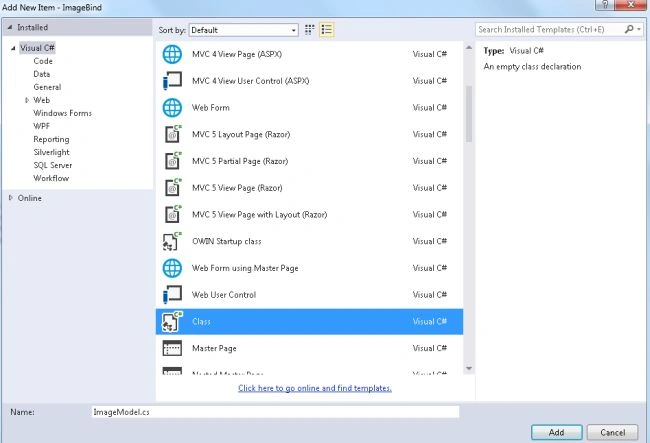
- Select "Class" and click on the "Add" button.
Add the following code:
- using System;
- using System.Collections.Generic;
- using System.Linq;
- using System.Web;
- namespace ImageBind.Models
- {
- public class ImageModel
- {
- public List<Nature> NatureList { get; set; }
- }
- public class Nature
- {
- public int ID { get; set; }
- public string Name { get; set; }
- public string Image { get; set; }
- }
- }
Step 3
Now in the "Controller" we add the code that uses all the variables of the Model class. This file exists:
- In the "Solution Explorer".
- Expand the "Controller" folder.
- Select the "HomeController".

Add the following code:
- using System;
- using System.Collections.Generic;
- using System.Linq;
- using System.Web;
- using System.Web.Mvc;
- using ImageBind.Models;
- namespace ImageBind.Controllers
- {
- public class HomeController : Controller
- {
- public ActionResult Index()
- {
- ImageModel imgobj = new ImageModel();
- imgobj.NatureList = GetAllNature();
- return View(imgobj);
- }
- public List<Nature> GetAllNature()
- {
- List<Nature> objnature = new List<Nature>();
- objnature.Add(new Nature { ID = 1, Name = "Desert", Image = "Images/Desert.jpg.jpg" });
- objnature.Add(new Nature { ID = 2, Name = "Jellyfish", Image = "Images/Jellyfish.jpg" });
- objnature.Add(new Nature { ID = 3, Name = "LightHouse", Image = "Images/Lighthouse.jpg" });
- objnature.Add(new Nature { ID = 4, Name = "Tulips", Image = "Images/Tulips.jpg" });
- return objnature;
- }
- }
- }
Step 4
In the View write some code as in the following:
- In the "Solution Explorer".
- Expand the "Views" folder.
- Select "Home" -> "Index.cshtml".

Add the following code:
- @model ImageBind.Models.ImageModel
- @{
- ViewBag.Title = "Bind the Image webgrid";
- }
- <style type="text/css">
- table.tgrid {
- font-family: Arial;
- font-size: medium;
- color: #000000;
- border-width: medium;
- border-color: ActiveBorder;
- }
- table.tgrid th {
- text-align:center;
- border-width: 2px;
- padding: initial;
- border-style: double;
- border-color: #000000;
- background-color: #b6ff00;
- }
- table.tgrid td {
- text-align:center;
- width:400px;
- font-weight:bold;
- border-width: 2px;
- padding: initial;
- border-style: double;
- border-color: #000000;
- background-color: ActiveBorder;
- }
- </style>
- <table width="Auto" cellpadding="5" cellspacing="5" border="1" style="background-color:white; width:500px;vertical-align:inherit" >
- <tr>
- <td>
- @{
- var grid = new WebGrid(source: Model.NatureList, rowsPerPage:5);
- }
- @grid.GetHtml(
- tableStyle:"tgrid",
- alternatingRowStyle:"even",
- columns: grid.Columns(
- grid.Column("ID", "ID"),
- grid.Column("Name", "Name"),
- grid.Column("Image", header: "Image", format: @<text><img src="@item.Image" alt="@item.Image" width="200px" height="100px"></img></text>)
- )
- )
- </td>
- </tr>
- </table>
Step 5
Now execute the application; press "F5". The output looks like this:

Gobinath RamasamyPosted Apr 19, 2017, 8:35 AM
Where you have used web api? its binding data from controller itself.
Pavan RamamurthyPosted Sep 18, 2013, 1:17 AM
nice info....