

When working with DAX in Power BI, one of the most subtle yet powerful functions you’ll encounter is KEEPFILTERS. At first glance, it may seem unnecessary; after all, you already have a filter context. But when used properly, KEEPFILTERS can give you greater control over filter propagation and help you to avoid overwriting filters in ways you didn’t intend.
What is KEEPFILTERS?
By default, when you apply a filter inside a measure with CALCULATE, it replaces the existing filter on that column.
- Without KEEPFILTERS: your new filter overwrites any filter from visuals or slicers.
- With KEEPFILTERS: your new filter is combined with the existing filter, effectively applying an AND condition.
That’s why KEEPFILTERS is often called a filter preservation function.
Basic Example
Imagine you have a Sales table with columns.
- OrderDate
- Product
- Region
- SalesAmount
Scenario 1. Without KEEPFILTERS
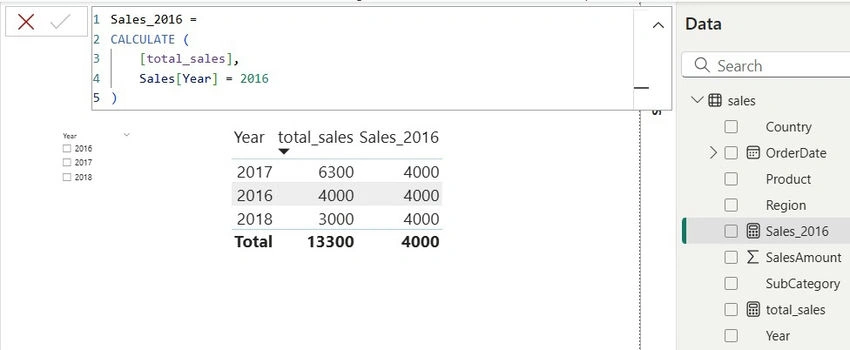
If you place the measure below on a visual, such as a table, and slice by year, the slicer will be ignored because the filter Year = 2016 overrides any other Year filter.
Sales_2016 =
CALCULATE (
    [total_sales],
    Sales[Year] = 2016
)
Scenario 2. With KEEPFILTERS
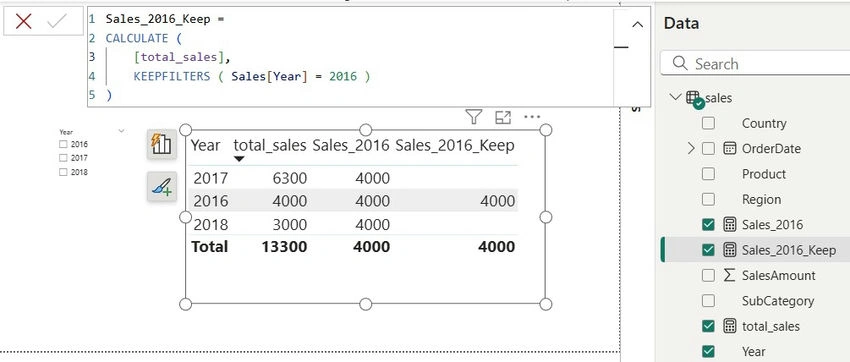
Now, if you slice by Year, only the intersection is considered, as seen in the screenshot below.w
- If slicer = 2016: works fine (returns 2016 sales).
- If slicer = 2017: returns blank, because no rows satisfy both conditions (Year = 2016 AND Year = 2017).
This preserves slicer interactivity and avoids unintended overwriting.
Sales_2016_Keep =
CALCULATE (
    [total_sales],
    KEEPFILTERS (
        Sales[Year] = 2016
    )
)
Practical Use Cases for KEEPFILTERS
1. When You Want Narrowed Filters
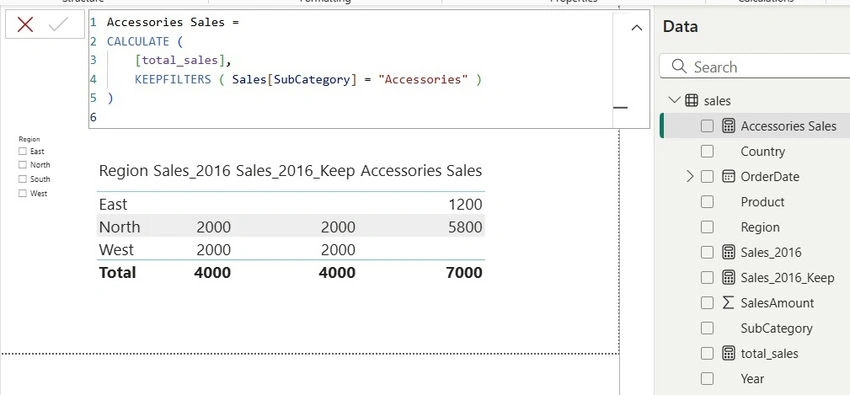
Suppose you want to calculate Sales in the Accessories subcategory, but only for whatever Region the user selects.
Accessories Sales =
CALCULATE (
    [total_sales],
    KEEPFILTERS (
        Sales[SubCategory] = "Accessories"
    )
)
2. When Working with IN or Multiple Conditions
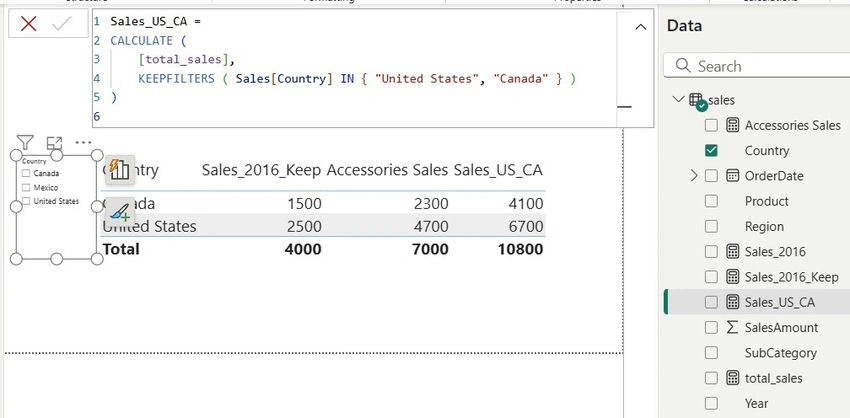
If a report user selects only "Canada", the result is just Canada. If they select "Mexico" from the slicer, the measure returns blank because the two conditions don’t overlap.
Sales_US_CA =
CALCULATE (
    [total_sales],
    KEEPFILTERS (
        Sales[Country] IN { "United States", "Canada" }
    )
)
Best Practices for Using KEEPFILTERS
- Use it when you need AND, not overwrite: If your intent is to layer an extra condition without breaking slicer interactivity, always use KEEPFILTERS.
- Be mindful of Blank results: If slicers and KEEPFILTERS conditions don’t overlap, your measure may return blank. This is expected but can confuse users—consider handling it with IF or COALESCE.
- Avoid unnecessary use: Not every filter requires KEEPFILTERS. If you want a filter to overwrite, leave it out. Overusing KEEPFILTERS can lead to measures that are harder to debug.
- Document special logic: If you’re using KEEPFILTERS for business rules (like always forcing Accessories), add comments in your measure so future developers understand why.
- Test with slicers: The easiest way to validate your KEEPFILTERS measure is to drop it in a matrix or chart with slicers. Watch how it interacts with other filters.
Join the conversation! Your thoughts help the community grow.