


Introduction
In today’s digital workplace, managing user accounts in cloud-based services like Office 365 (O365) is a critical task for IT administrators. Ensuring that users are properly offboarded when they leave an organization is not just about security. It's also about maintaining compliance, preserving important data, and ensuring that business operations continue smoothly.
Removing a user from O365 involves more than just deleting their account; it requires a structured approach to safeguarding data, managing licenses, and ensuring that all access is thoroughly revoked. This article will guide you through the best practices for efficiently and securely removing a user from O365, helping you avoid common pitfalls and ensuring a seamless transition.
If Litigation hold/retention policies are not enabled,
Cloud-Only User
- Prevent a former employee from logging in and block access to Microsoft 365 services (sign-in block from Admin Center)
- Convert to a Shared mailbox
- Add delegations (if required)
- Remove the license from the account
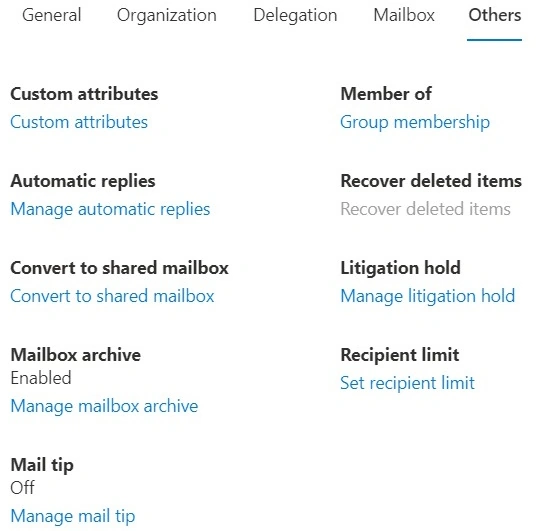
Note. If the user mailbox is not converted to a shared mailbox, and if you remove the user's license, the user's mailbox data is retained for only 30 days. After 30 days, the data is permanently removed.
Hybrid User
- When you disable a user in On-premises AD, the cloud user will become a sign-in blocked user.
- When moving to Unsync OU, the User will be deleted from the O365 portal and moved to deleted users. Meanwhile, the license is removed. If this user is restored, it will be created as a Cloud-Only user without a license. To recover the items in the mailbox, you need to assign a license within 30 days of deletion. Then, you can convert the user mailbox to a shared mailbox and remove the license.
If Litigation hold/retention policies are enabled,
Cloud Only User
- Prevent a former employee from logging in and block access to Microsoft 365 services (sign-in block from Admin Center)
- Remove the License (After 30 days, the account will move to deleted)
- Or Delete the account
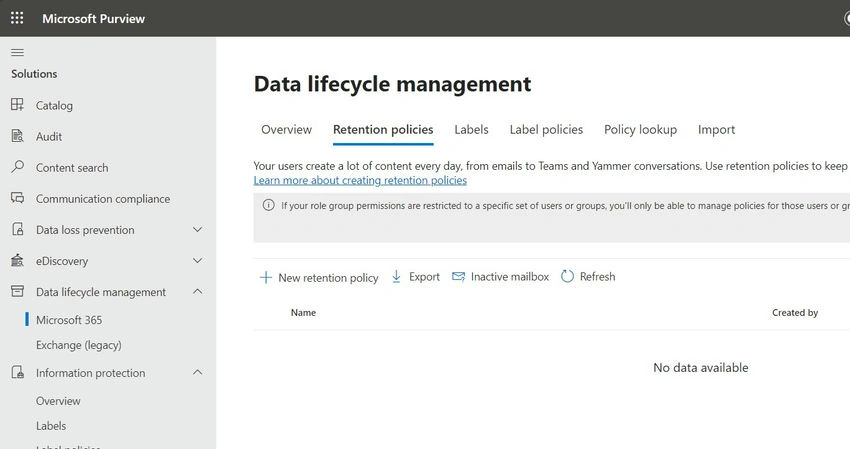
- This mailbox automatically converted to an inactive mailbox
Note. Before deleting the account, confirm that the hold is successfully applied to the mailbox.
It can be a Microsoft 365 retention policy, retention labels, eDiscovery hold, Litigation hold, or an existing In-Place Hold.
Litigation hold remains supported as an alternative method to retain content in a mailbox and make it inactive after a user account is deleted. However, Microsoft recommends using Microsoft 365 retention instead.
Hybrid Users
If litigation/Retention policies are enabled when the user account moves to an Unsync OU, the User mailbox will be converted to an Inactive mailbox automatically.
Litigation Hold PS Commands
- Check Whether a User Mailbox Has Litigation Hold: Get-Mailbox [email protected] | FL LitigationHold*
- Extracting List of Users with Litigation Hold Enabled and Without: Get-Mailbox -ResultSize Unlimited | FL LitigationHold*
- Enable Litigation Hold for a Specific User: Set-Mailbox -Identity [email protected] -LitigationHoldEnabled $True.
- Enable Litigation Hold for All Users: Get-Mailbox -ResultSize Unlimited -Filter "RecipientTypeDetails -eq 'UserMailbox'" | Set-Mailbox -LitigationHoldEnabled $true -LitigationHoldDuration 3650
- Assign Litigation Hold to Users Who Have Not Enabled Before: Get-Mailbox | Where {$_.LitigationHoldEnabled -match "False"} | ForEach-Object { $Identity = $_.alias; Set-Mailbox -Identity $Identity -LitigationHoldEnabled $True}
Note. You can't recover or restore an inactive mailbox that's configured with an auto-expanding archive. If, for compliance reasons, you need to recover data from an inactive mailbox with an auto-expanding archive, use content search to export the data from the mailbox. This action is supported for eDiscovery purposes only and can't be used as a backup solution.
Join the conversation! Your thoughts help the community grow.