

Introduction
Just like TFVC (Team Foundation Version Control), Git is another Source Version Control and it’s becoming very popular. VSTS (Visual Studio Team Services) supports both TFVC and Git. Let’s assume that you have no project or Repository and want to begin with Git on VSTS.
Create a New Project
Login to your VSTS account and click on "New Project".
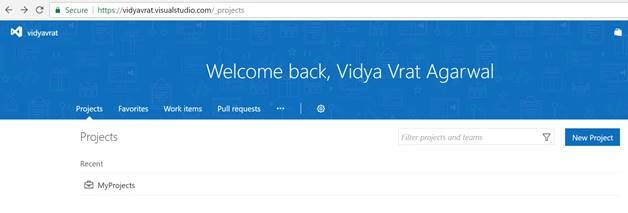
Fill in the information.

Click “Create” and you will notice that the Project has been created, as shown below.
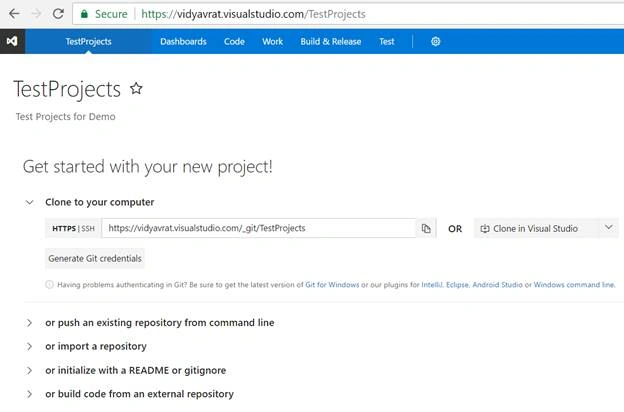
Clone it in IDE
Click “Clone in Visual Studio”. New Visual Studio IDE will start a dialog as shown below.
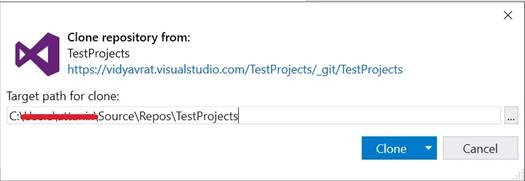
Provide the Repository path and click on “Clone”.
Switch to "Team Explorer" and click on “Create a new project or solution”.
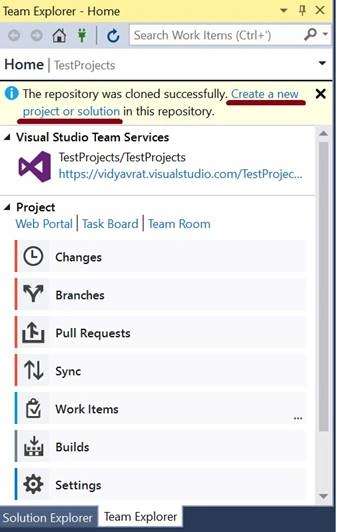
When prompted, choose the project type. After Project is added successfully, you will notice that the project is added in Solution Explorer and shows (+) in front of various items and also Team Explorer’s "Changes" tab shows all the items listed as newly being added.
Commit Changes and Publish
After project is added into Solution Explorer, it’s considered as a change to the blank repository/project you created. Hence, this change needs to be added to remote Master branch.
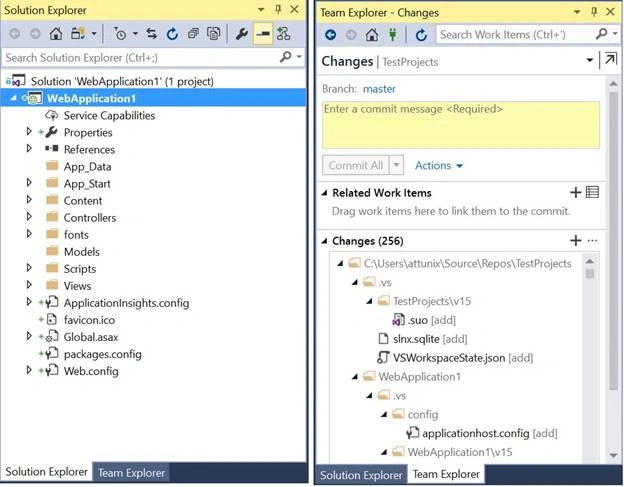
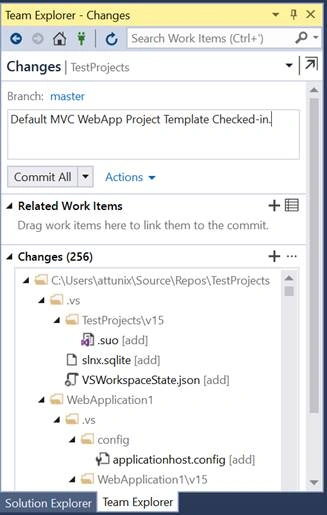
In Team Explorer >> Changes, add a comment for check-in and click on “Commit All”.
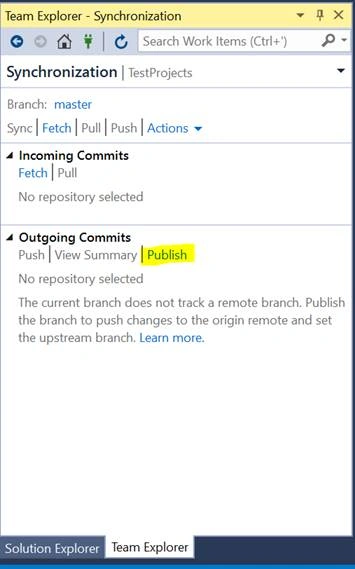
Click “Commit All” and from the next "Synchronization" tab, click “Publish”.
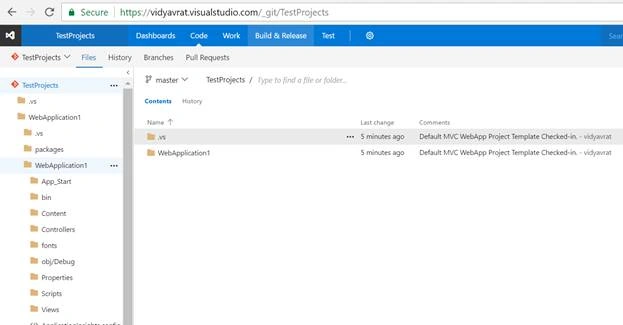
Now, your Git Repository in VSTS should be updated with the code you have pushed into it. Refresh your VSTS page and you should be able to see your project code added.
Thiruppathi RPosted Feb 15, 2017, 6:33 AM
Thanks for article... Currently i am using bitbucket and which one is best VSTS or bitbucket ?
Humayun Kabir MamunPosted Feb 13, 2017, 2:16 AM
Thanks for this nice article...
Former memberPosted Feb 10, 2017, 4:18 AM
Nice one but you missed one major thing and that is what is difference between TFVC and Git ? when one should go for TFVC and when one should go for Git. if you know the answer then please come with a another details article where you show each difference in great details. thanks a lot :)