

What is Git?
Git is a distributed version control system used to track changes in source code history during software development. It allows multiple developers to work on a project simultaneously. It tracks changes, supports collaboration, and ensures code integrity.
📌 Notes
- Created by: Linus Torvalds in 2005
- Type: Distributed version control system
- Purpose: Track code changes, coordinate work among developers
- Storage: Stores history in snapshots, not differences
- Speed: Fast performance for commits, branches, and merges
- Security: Cryptographic integrity (SHA-1 for commits)
- Flexibility: Supports branching, merging, and workflows
- Local-first: Most operations are done locally
🛠️ Common Use Cases
| Use Case | Description |
|---|---|
| Code Collaboration | Multiple developers working on the same codebase |
| Version History | Tracking and reverting code changes |
| Feature Branching | Developing features in isolated branches |
| Release Management | Managing releases using tags and branches |
| Open Source Contribution | Forking, cloning, and submitting pull requests |
| Continuous Integration (CI/CD) | Works with tools like Jenkins, GitHub Actions |
🧭 Workflow
- Clone the remote repository → git clone <url>
- Make changes in the Working Directory
- Stage changes → git add .
- Commit changes → git commit -m "commit message"
- Push to remote → git push origin branch_name
What is the difference between Git and GitHub?
Git and GitHub are closely related but serve different purposes in the software development process.
- Git is a version control system.
- GitHub is a cloud-based hosting platform for Git repositories.
Git vs GitHub
| Feature | Git | GitHub |
|---|---|---|
| Type | Distributed Version Control System | Cloud-based Repository Hosting Service |
| Developed By | Linus Torvalds | GitHub, Inc. (now owned by Microsoft) |
| Purpose | Track and manage source code history | Host, share, review, and collaborate on code |
| Operation | Local (runs on your system) | Online (runs in the cloud) |
| Installation | Yes (needs to be installed locally) | No (web-based; optional GitHub CLI) |
| Authentication | Not required for local use | Requires GitHub account for full features |
| Main Benefit | Offline version tracking | Online collaboration and sharing |
🛠️ Use Cases
✅ Git
- Tracking local code changes
- Creating branches and merging code
- Working offline
- Reverting or reviewing commit history
✅ GitHub
- Hosting repositories publicly or privately
- Managing pull requests and code reviews
- Collaborating with teams and open-source communities
🔄 Comparison Diagram
Git (Local) GitHub (Remote)
------------------ -------------------------
| Working Directory | | Hosted Repository |
| + Staging Area | | (UI, Issues, PRs, etc.)|
| + Local Repo | | |
------------------ -------------------------
| ^
git push git pull/clone
| |
v |
+------------------+ +--------------------+
| Tracks changes | <-- Git | Share & Collaborate| <-- GitHub
+------------------+ +--------------------+
- Use Git to track and manage your code locally.
- Use GitHub to:
- Push your local code online.
- Collaborate with others via pull requests.
- Review and merge code changes.
- Use GitHub’s CI/CD tools for deployment/testing.
What is a repository in Git?
A repository (or repo) in Git is a storage space where your project's files, folders, and the entire version history are saved and tracked. It can be local (on your machine) or remote (like on GitHub).
📌 Notes
- Definition: A Git repository stores your project code and its revision history.
- Types
-
Local Repository: Resides on your local machine.
-
Remote Repository: Hosted on platforms like GitHub, GitLab, or Bitbucket.
-
- Contents: Code, configuration files, branches, tags, commits, etc.
- Hidden Folder: Contains a .git directory, which holds all the metadata and history.
- Initialization: Created using git init (new repo) or git clone (existing repo).
| Use Case | Description |
|---|---|
| Project Backup | Keeps full history of your project versions |
| Collaboration | Allows multiple developers to work together |
| Change Tracking | Helps in identifying when and who made code changes |
| Branching & Merging | Enables parallel feature development |
| Rollback & Recovery | Easily revert back to previous states or commits |
WorkFlow Diagram
+------------------------+
| Working Directory |
| (Your Project Files) |
+------------------------+
|
git add
|
+------------------------+
| Staging Area (Index) |
+------------------------+
|
git commit
|
+------------------------+
| Local Repository |
| (.git folder) |
+------------------------+
|
git push/pull
|
+------------------------+
| Remote Repository |
| (GitHub, GitLab) |
+------------------------+
How to Create a Repository?
- Initialize a new repository: git init
- Clone an existing remote repository: git clone <repo_url>
- Check the repo status: git status
What is the difference between a local and remote repository?
In Git, repositories can be either local (on your computer) or remote (hosted on a server or platform like GitHub). Both work together to enable version control and collaboration. A local repository exists on your computer, while a remote repository is hosted on platforms like GitHub or GitLab.
📌 Notes
| Aspect | Local Repository | Remote Repository |
|---|---|---|
| Location | Stored on your local machine | Stored on remote servers (e.g., GitHub) |
| Purpose | Local development and version tracking | Collaboration and backup |
| Internet Required | Not needed for local operations | Needed for pushing/pulling changes |
| Visibility | Private by default | Can be public or private |
| Creation | git init or git clone | Created on platforms like GitHub, GitLab |
| Sync Command | git commit, git log | git push, git pull, git fetch |
🛠️ Use Cases
Local Repository
- Track and manage code versions offline
- Make changes and test features locally
- Perform commits and rollbacks
- Ideal for quick, isolated development
Remote Repository
- Share code with your team or open-source community
- Review and merge code via pull requests
- Maintain centralized backup and integration with CI/CD
- Enable issue tracking, wiki, and project management
# Initialize a local repository
git init

# Clone a remote repository to create a local one
git clone https://github.com/user/repo.git

# Make and commit changes locally
git add .
git commit -m "My update"

# Push local changes to the remote
git push origin main

# Pull remote changes to local
git pull origin main
How do you initialize a Git repository?
To start tracking a project with Git, you must initialize a repository using the git init command. This sets up the required structure for version control in your project directory.
- git init (Initializes a new local Git repository in your current directory)
- Creates a hidden folder named .git that stores all version history, configuration, and metadata.
Use Cases
| Scenario | Description |
|---|---|
| New Project | Start version control for a new codebase |
| Existing Project | Add Git tracking to existing files |
| Local Development | Work locally before pushing to a remote repo |
| Offline Version History | Use Git without internet access |
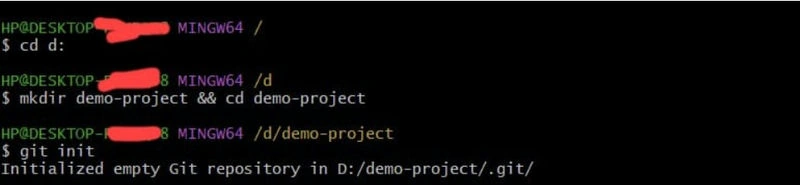
Step 1. Create or enter your project directory
$ mkdir my-project && cd my-project
Step 2. Initialize the repository
$ git init
Step 3. Git creates a hidden .git directory
(.git contains config, refs, objects, etc.)
Step 4. Start adding and committing files
$ git add.
$ git commit -m "Initial commit"
How Do You Clone a Repository?
Cloning a repository means creating a copy of an existing remote Git repository (e.g., from GitHub, GitLab) to your local machine, including its full history and branches.
git clone <repository_url> To download a remote repository (with its code, commits, and branches) into a local working directory
- Creates a folder with the repository’s contents.
- Initializes it as a Git repo with a .git directory.
- Automatically sets up a remote origin pointing to the source URL.
🔄 Repository Cloning Flow
Step 1. Find the remote repository URL
e.g., https://github.com/user/project.git
Step 2. Clone it to your local system
$ git clone https://github.com/user/project.git
Step 3. Git creates a new folder named 'project'
and copies all code and commit history
Step 4. Enter the new project folder
$ cd project
How Do You Check the Status of Your Working Directory and Staging Area?
The command git status provides detailed information about the current state of your working directory and staging area. It shows which files are staged, modified, or untracked.
git status
- To check which changes are staged for commit
- To check which changes are not staged
- To check which files are untracked (not added to Git)
| Scenario | Description |
|---|---|
| Before a commit | Review which changes will be saved in the next commit |
| After modifying files | See which files were changed or added |
| After git add | Confirm what’s in the staging area |
| During troubleshooting | Identify untracked or missing files |
Status Flow Explanation
Your Project Directory
├── file1.cs ← modified but not staged
├── file2.cs ← added to staging (git add)
├── file3.cs ← untracked (new file)
└── .git/ ← Git metadata
Command
$ git status
Output
- file2.cs: changes staged for commit
- file1.cs: changes not staged
- file3.cs: untracked file
# See what's going on before committing
$ git status

# Output:
On branch main
Changes to be committed:
  (use "git restore --staged <file>..." to unstage)
    modified:   file2.cs

Changes not staged for commit:
  (use "git add <file>..." to update what will be committed)
    modified:   file1.cs

Untracked files:
  (use "git add <file>..." to include in what will be committed)
    file3.cs
How Do You Add Files to the Staging Area?
Before committing changes to a Git repository, you need to stage the files. Staging tells Git exactly which changes you want to include in the next commit.
git add <filename> # Add a specific file
git add . # Add all changes in the current directory
git add -A # Add all changes (tracked & untracked)
- Purpose: To move changes from the working directory into the staging area.
- Effect: Marks specific changes to be included in the next commit.
| Scenario | Description |
|---|---|
| Adding new files | To start tracking untracked files |
| Updating modified files | Prepare changed files for committing |
| Staging all changes at once | Use git add . for convenience |
| Selective staging | Stage only a few changes instead of all |
Staging Flow
[Working Directory] ──► [Staging Area] ──► [Repository (Commit)]
Example
- You modify file1.cs
- Run: git add file1.cs
- Now file1.cs is in the staging area
- Next: git commit -m "Updated file1.cs"
# Add one specific file
git add index.html
# Add multiple files
git add app.js styles.css
# Add all modified and untracked files
git add.
How Do You Commit Changes in Git?
Committing in Git is the process of saving staged changes to your local repository history with a descriptive message.
git commit -m "Your commit message"
- To create a new snapshot of the staged changes in your Git history.
- The staged files are saved as a new commit, including a unique commit ID, timestamp, and author info.
| Scenario | Description |
|---|---|
| After staging files | Save changes with a clear message |
| Documenting work | Explain what the changes do |
| Breaking down tasks | Make small, meaningful commits for easier tracking |
| Collaborative development | Allow others to understand your contributions |
Git Commit Flow
[Working Directory] ──► [Staging Area] ──► [Local Repository (Commit)]
Step 1. Modify file → index.html
Step 2. Stage it → git add index.html
Step 3. Commit it → git commit -m "Added homepage"
# Commit all staged changes with a message
git commit -m "Initial project setup"

# Commit with multi-line message
git commit -m "Add login feature" -m "Includes form validation and UI tweaks"

# View commit history
git log
Best Practices for Commit Messages
- Use imperative mood: “Add” instead of “Added”
- Keep the summary under 50 characters
- Add detailed body (if needed) after a blank line
What Does git log Do?
The git log command shows the commit history of the current branch, displaying a list of all previous commits in reverse chronological order.
git log
- To view the history of commits, including author, date, commit message, and commit hash.
- Helps you trace changes, understand project history, and identify specific commits.
| Scenario | Description |
|---|---|
| Reviewing change history | See what changes were made and when |
| Finding specific commits | Look up commits by message, author, or date |
| Troubleshooting | Identify commits that may have introduced bugs |
| Collaboration | Understand who made what changes |
HP@DESKTOP- MINGW64 /d/demo-project (master)
$ git log
commit 9439085ea36fd3ab585556d5c6d7d3c8e3968695 (HEAD -> master)
Author: Raj Bhatt <rajbhatt******2***@gmail.com>
Date:   Sat May 31 19:48:03 2025 +0530

    added css and text file

commit 576648fe36ab8e2255d5c8d6dc94c89e11dbf854
Author: Raj Bhatt <rajbhatt******2***@gmail.com>
Date:   Sat May 31 19:45:16 2025 +0530

    added index.html
[HEAD] ──► Commit C ──► Commit B ──► Commit A
↑ ↑ ↑
git log shows each of these commits in reverse order
Conclusion
Understanding Git is essential for efficient and collaborative software development. From initializing a repository to committing and reviewing changes, these foundational commands provide the building blocks for effective version control.
By mastering the basics like git init, git add, git commit, and git log, you’ll be well-equipped to track your work, collaborate with others, and manage code confidently. Whether you're working solo or in a team, Git ensures your progress is always backed up, traceable, and easy to manage.
Thank you for taking the time to read this post. I hope it has provided you with a clearer understanding of Git and supports you in effectively preparing for Git-related interview questions.
Keep learning, keep practicing, and keep preparing to showcase your best in interviews.
Wishing you success in your coding journey and upcoming interviews!
Happy Coding.
Join the conversation! Your thoughts help the community grow.