

When the term backup and restore of a database comes into the picture, we think of only a .bak file to backup and restore but we can do the same without even using a .bak file.
Well, let us see how we can still backup and restore the database without using a .bak file.
Backup Database
- First of all, log into your SQL Server Management Studio using your username and password.
- After login, go to the Databases folder in the Object Explorer and click on the database that you want to take the backup of.
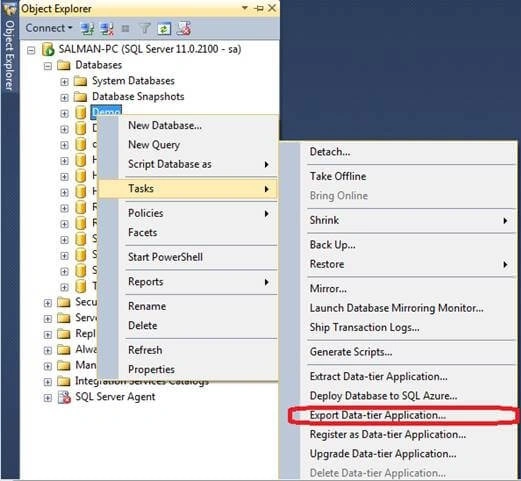
- After that, right-click on that database name and go to Tasks -> Export Data-tier Application, as shown in the below image.
A pop-up Screen will appear where you need to click on "Next".
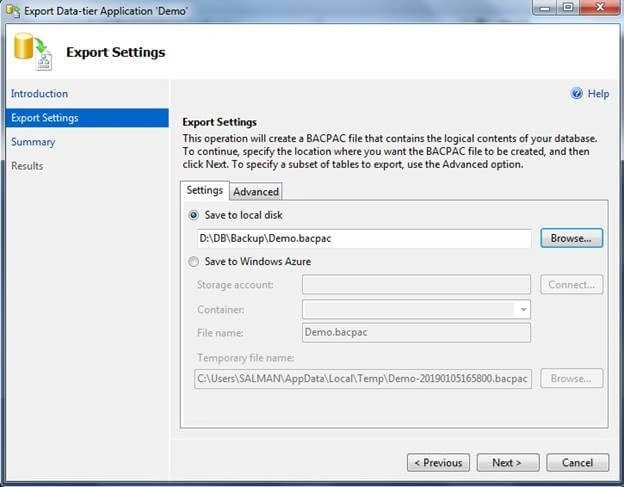
On the next screen, select the "Settings" tab and click the first radio button, i.e., "Save to local disk". Click on the Browse button and select the path where you want to save the file and give its name. This will take the extension as .bacpac and the screen looks like below.
Click "Next" and again click "Finish". And after that, it will take some time.
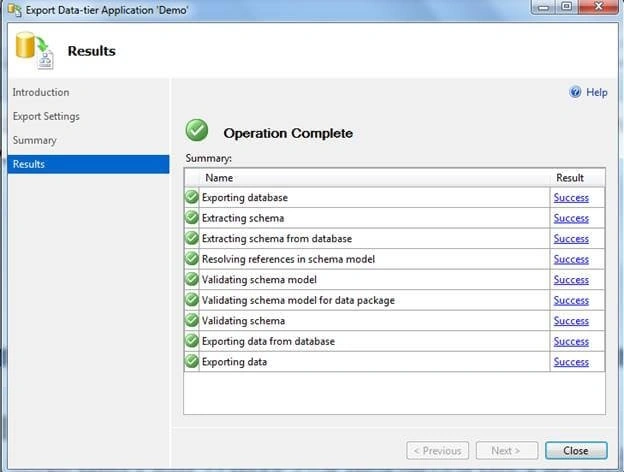
Finally, click "Close".
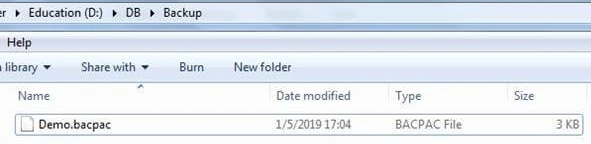
Now, go to the path where you have saved the file and you can see there is a bacpac file available there, as shown in the below figure.
Restore Database
Go to SQL Server Management Studio -> Databases, and right-click on it. Now, click on "Import Data-tier Application".
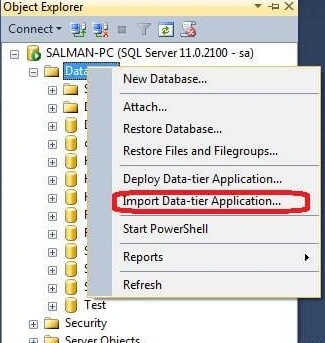
Click "Next" and from the next pop-up screen, check the "Import From local Disk" radio button.
After that, click the "Browse" button and select the Demo.bacpac file which you had previously exported. Now, our screen will look like below.
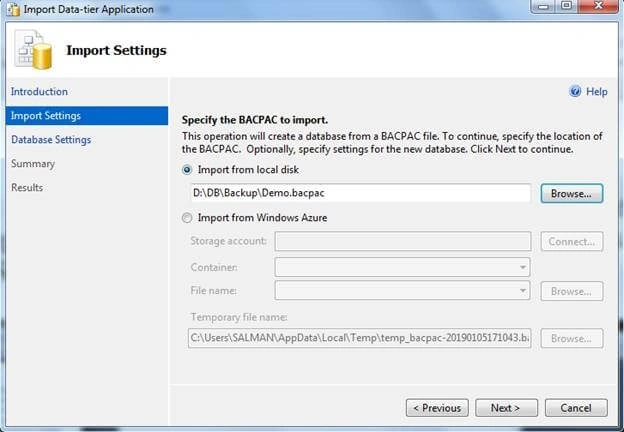
Click "Next".
A new screen appears where we can change our database name (it is optional).
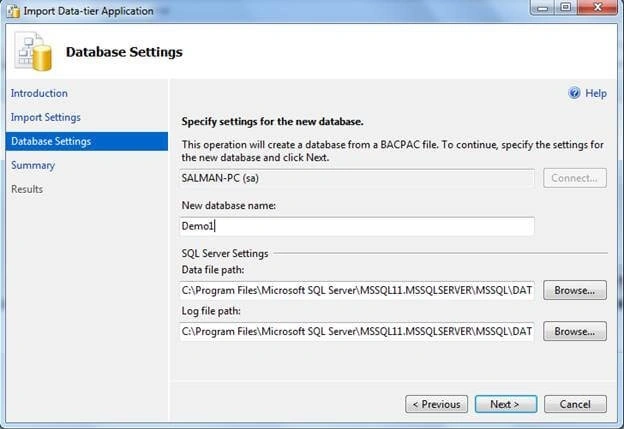
Click "Next" and again, click "Finish". It will take some time to restore. Once done, click "Close".
Now, refresh your databases in SQL Server Management Studio and you can see the restored database in the Object Explorer of SQL Server Management Studio.
Note. Here, we used the .bacpac file to backup and restore the database. A bacpac file (.bacpac) is a zipped file that can contain tables, procedures, and the entire schema, similar to the .bak file.
Saif ShaikhPosted Feb 13, 2019, 5:02 AM
Nice.. Article
Sreekanth ReddyPosted Feb 1, 2019, 12:47 AM
Super.. Thanks for sharing.