

In this article, we will learn an easy way to perform background processing in .NET Core applications. A background process/job is a process that runs behind the scenes without user intervention. Hangfire is a simple, persistent, transparent, reliable, and efficient open-source library used to perform background processing in .NET and .NET Core applications.
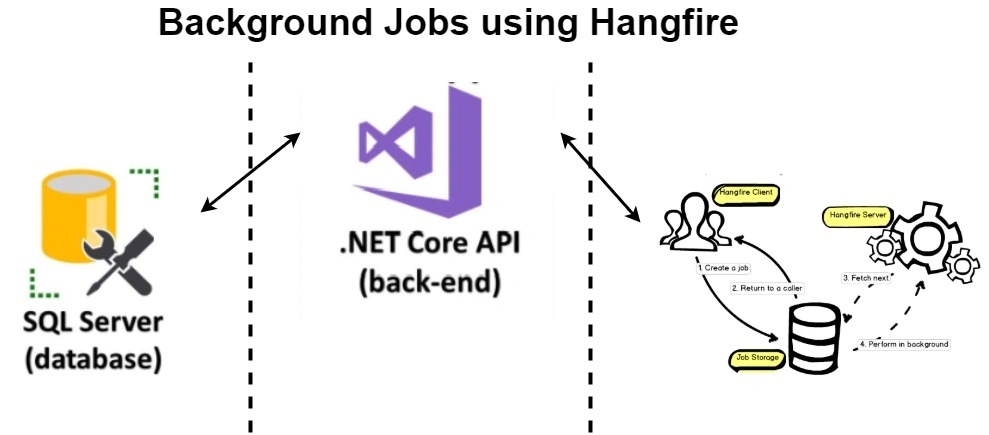
Why Background Processing?
- Lengthy operations like database updates
- Invoice generation
- Monthly reports
- Automatic subscription renewal
- Email upon sign-up
Background Jobs/Tasks
- Fire and Forget
- Delayed
- Periodic and Scheduled
- Continuations
These tasks happen only once. For example, sending a welcome email when a user signup.
Delayed
Delayed tasks are like fire and forget but do not execute them as soon as the action is taken instead, we define a time when the background job is going to run. For example when we want to send a voucher or discount to a user 5 hours after they signed up.
Periodic and Scheduled
These jobs are performed periodically based on a schedule, for example, generating marketing emails or generating invoices.
Continuations
Continuations are executed when their parent job has been finished.
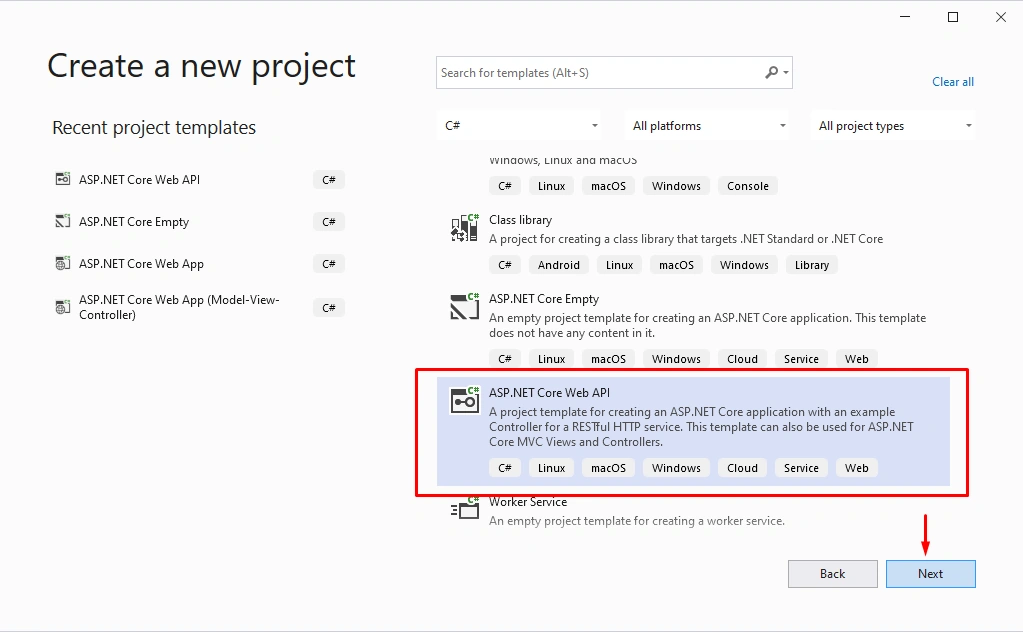
Step 1
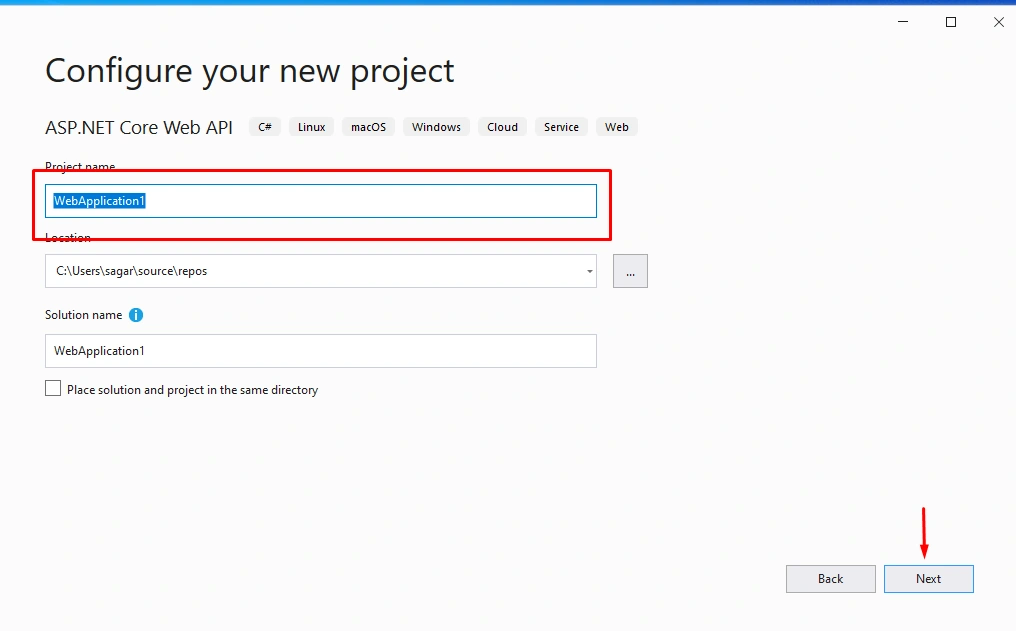
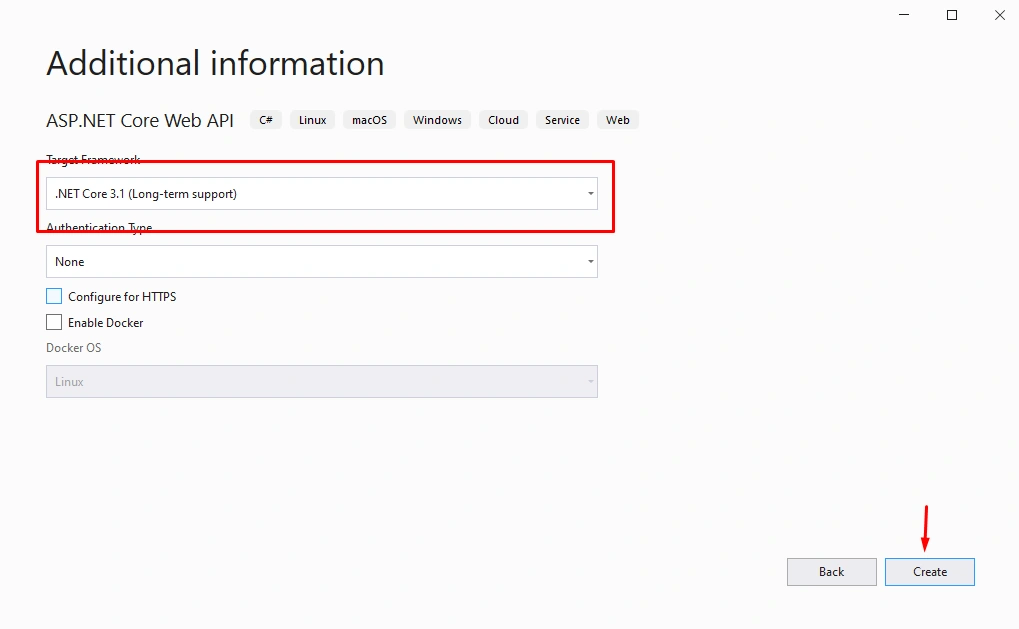
Create a new project as shown below,
Step 2
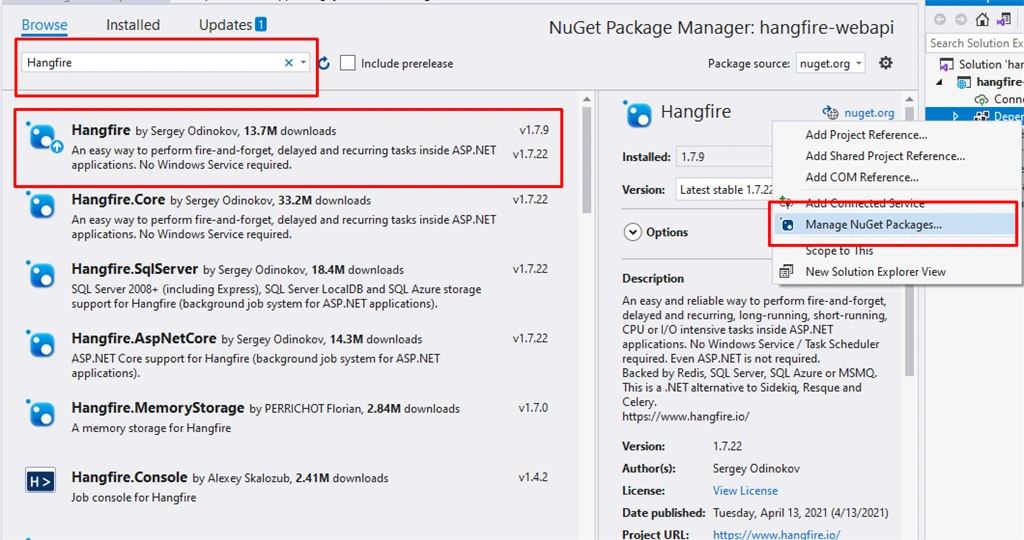
Let's install the Hangfire Nuget package as shown below,
Step 3
Open Startup.cs file and change as per the readme file from hangfire. Inside the configure services plese add the hangfire services as shown below,
- using System;
- using System.Collections.Generic;
- using System.Linq;
- using System.Threading.Tasks;
- using Hangfire;
- using Microsoft.AspNetCore.Builder;
- using Microsoft.AspNetCore.Hosting;
- using Microsoft.AspNetCore.HttpsPolicy;
- using Microsoft.AspNetCore.Mvc;
- using Microsoft.Extensions.Configuration;
- using Microsoft.Extensions.DependencyInjection;
- using Microsoft.Extensions.Hosting;
- using Microsoft.Extensions.Logging;
- namespace hangfire_webapi
- {
- public class Startup
- {
- public Startup(IConfiguration configuration)
- {
- Configuration = configuration;
- }
- public IConfiguration Configuration { get; }
- // This method gets called by the runtime. Use this method to add services to the container.
- public void ConfigureServices(IServiceCollection services)
- {
- services.AddHangfire(x => x.UseSqlServerStorage(@"Data Source=.;Initial Catalog=hangfire-webapi-db;Integrated Security=True;Pooling=False"));
- services.AddHangfireServer();
- services.AddControllers();
- }
- // This method gets called by the runtime. Use this method to configure the HTTP request pipeline.
- public void Configure(IApplicationBuilder app, IWebHostEnvironment env)
- {
- if (env.IsDevelopment())
- {
- app.UseDeveloperExceptionPage();
- }
- app.UseHttpsRedirection();
- app.UseHangfireDashboard();
- app.UseRouting();
- app.UseAuthorization();
- app.UseEndpoints(endpoints =>
- {
- endpoints.MapControllers();
- });
- }
- }
- }
Step 4
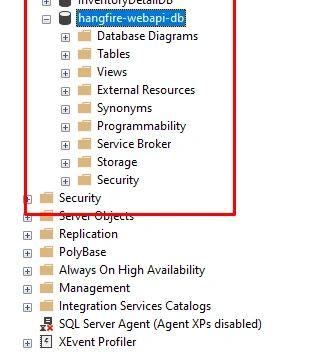
Let's configure the database open SQL server and create a database as shown below,
Step 5
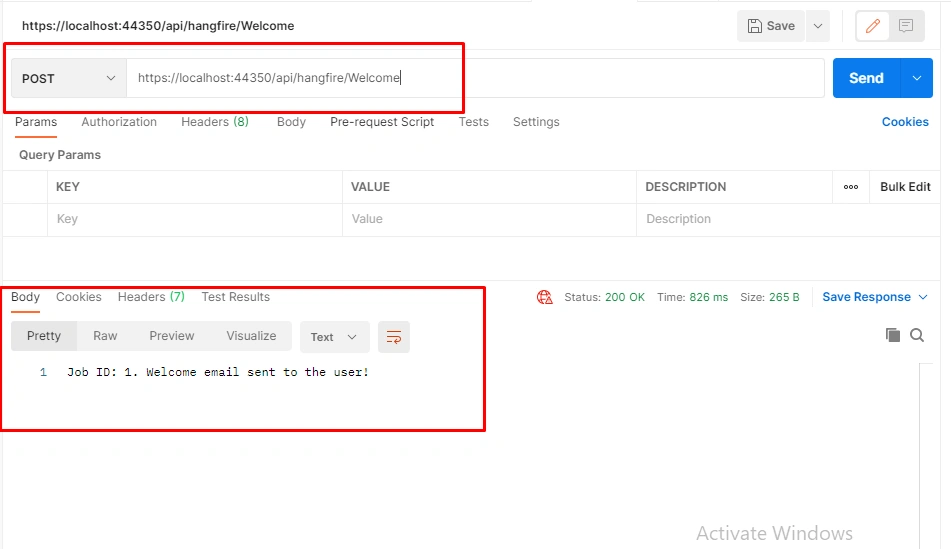
Create a controller and schedule all types of background jobs,
- using System;
- using System.Collections.Generic;
- using System.Linq;
- using System.Threading.Tasks;
- using Hangfire;
- using Microsoft.AspNetCore.Mvc;
- using Microsoft.Extensions.Logging;
- namespace hangfire_webapi.Controllers
- {
- [ApiController]
- [Route("api/[controller]")]
- public class HangfireController : ControllerBase
- {
- [HttpPost]
- [Route("[action]")]
- public IActionResult Welcome()
- {
- var jobId = BackgroundJob.Enqueue(() => SendWelcomeEmail("Welcome to our app"));
- return Ok($"Job ID: {jobId}. Welcome email sent to the user!");
- }
- [HttpPost]
- [Route("[action]")]
- public IActionResult Discount()
- {
- int timeInSeconds = 30;
- var jobId = BackgroundJob.Schedule(() => SendWelcomeEmail("Welcome to our app"), TimeSpan.FromSeconds(timeInSeconds));
- return Ok($"Job ID: {jobId}. Discount email will be sent in {timeInSeconds} seconds!");
- }
- [HttpPost]
- [Route("[action]")]
- public IActionResult DatabaseUpdate()
- {
- RecurringJob.AddOrUpdate(() => Console.WriteLine("Database updated"), Cron.Minutely);
- return Ok("Database check job initiated!");
- }
- [HttpPost]
- [Route("[action]")]
- public IActionResult Confirm()
- {
- int timeInSeconds = 30;
- var parentJobId = BackgroundJob.Schedule(() => Console.WriteLine("You asked to be unsubscribed!"), TimeSpan.FromSeconds(timeInSeconds));
- BackgroundJob.ContinueJobWith(parentJobId, () => Console.WriteLine("You were unsubscribed!"));
- return Ok("Confirmation job created!");
- }
- public void SendWelcomeEmail(string text)
- {
- Console.WriteLine(text);
- }
- }
- }
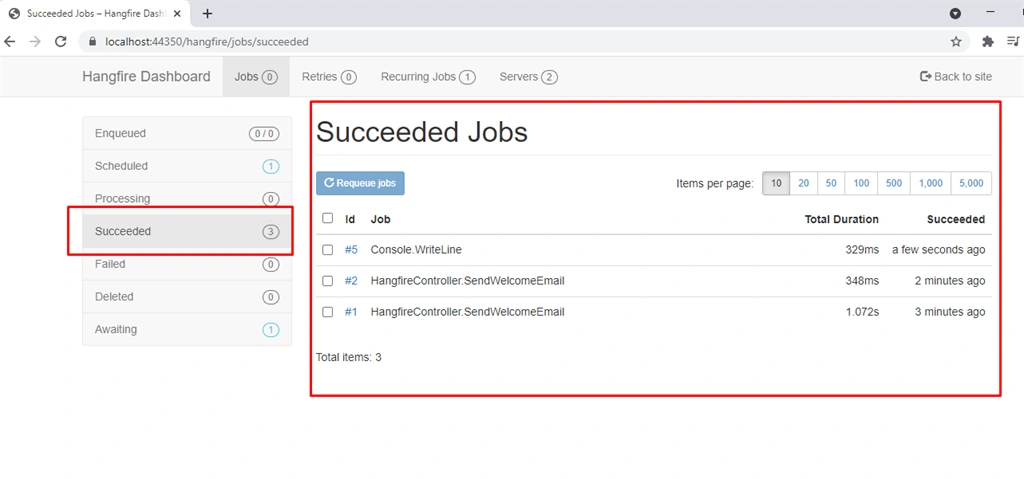
Now we can see the hangfire Dashboard as below,
Conclusion
In this article, we discussed how to schedule background jobs/tasks using .Net core, Hangfire, and SQL server. I hope you all enjoyed reading this and learned from it. For better understanding download the source code.
Join the conversation! Your thoughts help the community grow.