

Prerequisites
- Visual Studio
- Active Microsoft Azure Account
Process 1 (Start with Visual Studio)
Step 1 (New project creation)
New project >> Installed >> Visual C# >> Web
Select ASP.NET Web Application.
Click OK.
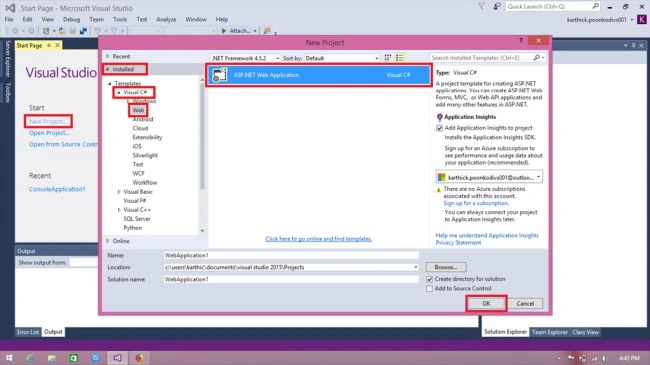
Now, it’ll open the template.
Select Empty and click OK.
It’ll take some time to add libraries.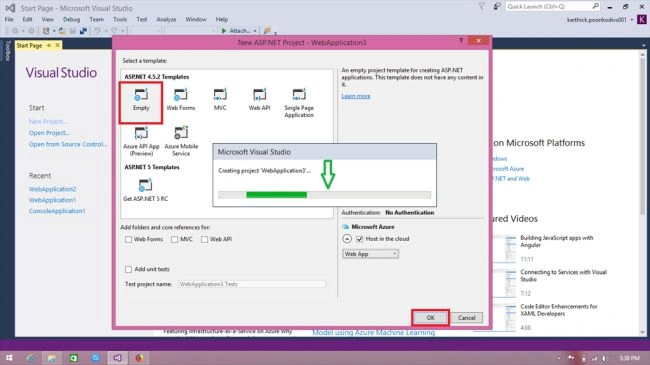
Step 2 (Adding the form)
In the Solution Explorer, right click the Web Application for adding a new form.
Add >> New item...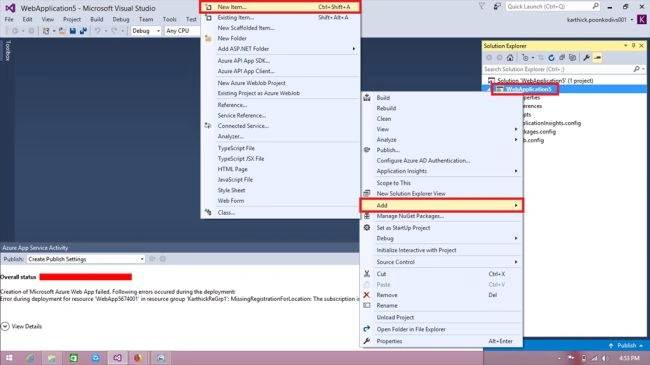
Select Web Form.
If you need to, you can change the form name as below.
Click add.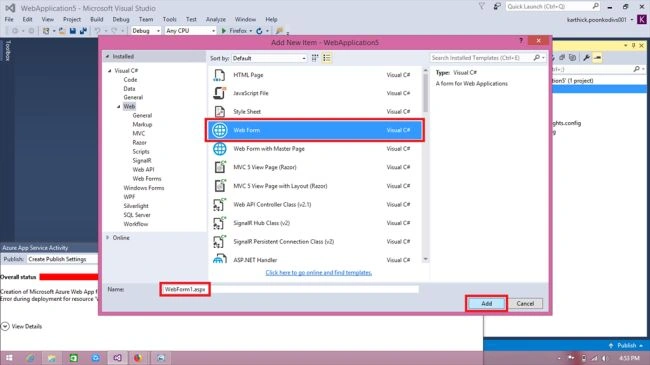
Step 3 (Programming Part)
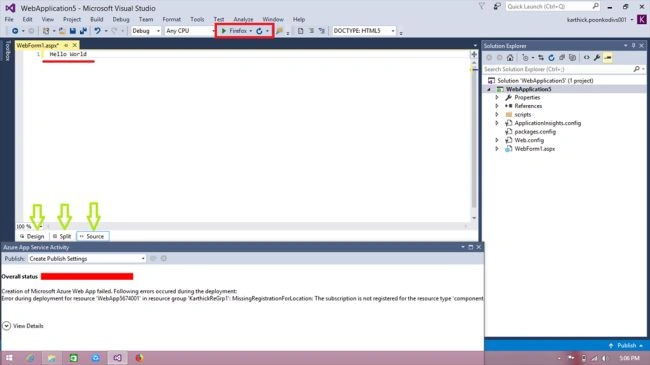
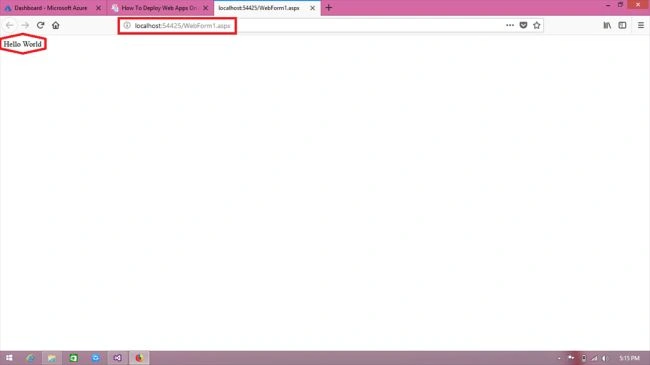
Write the HTML code or design it using the GUI method (Hello World).
Here, Visual Studio has three parts,
- Design (for design in the application without using HTML)
- Split (Offers both the options, HTML & GUI)
- Source (for designing the application through HTML hardcode)
Process 2 (Web App Creation)
Step 1
Open the Azure portal
http://portal.azure.com/
App Services >> Add >> Select Web App >> Create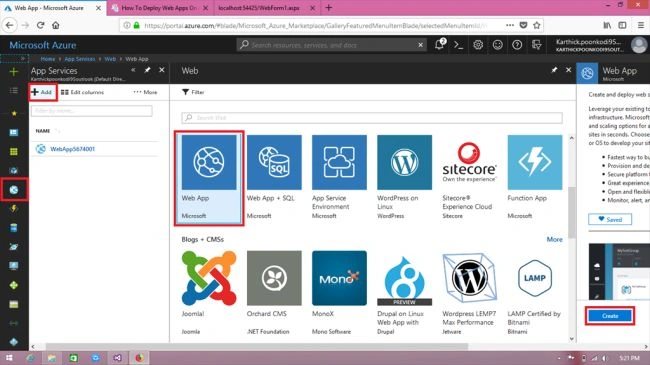
Step 2
We want to give some specific unique details here.
If you need, you can create a new App Service Plan. Otherwise, it’ll be set in default. (This plan setting will determine the location, features, cost and compute resources associated with your app.)
After giving the details Click Create.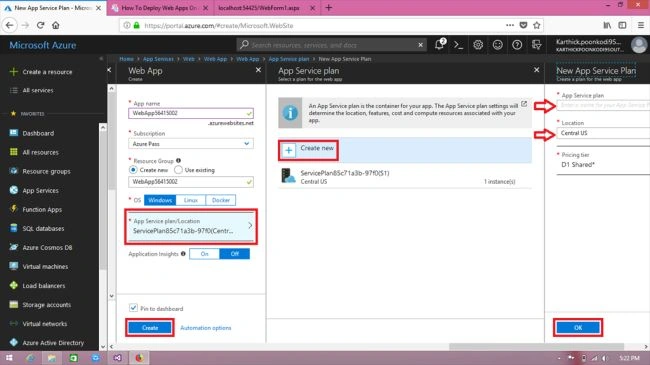
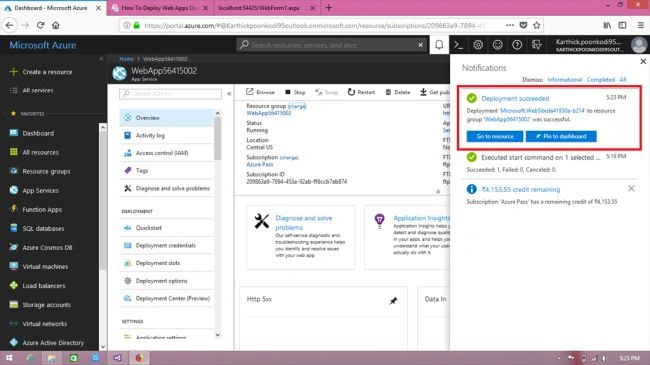
Click the domain name of your application (URL).
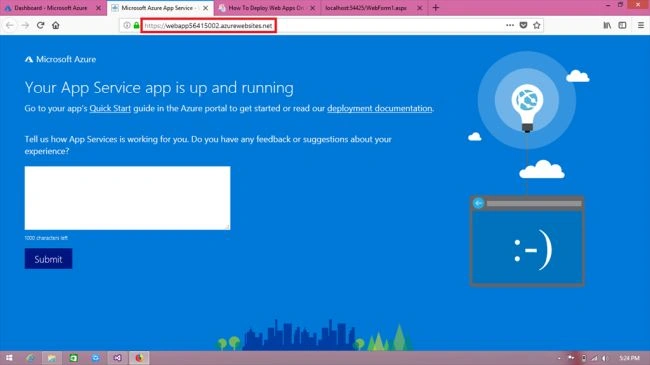
It’ll show your app.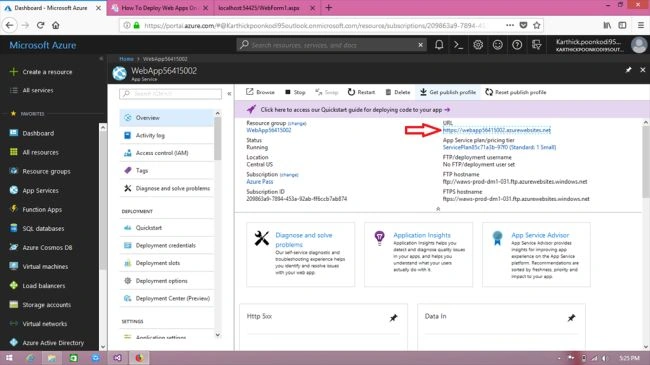
We can access it from anywhere, at anytime.
Step 1
Click Get publish profile on the top ribbon in the Azure portal.
This step is for saving our publish profile.
Click OK.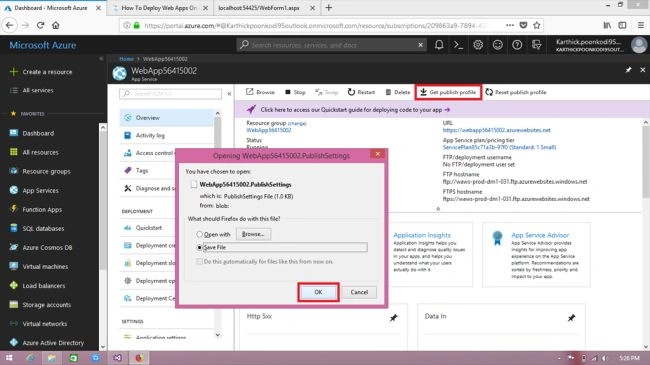
Step 2
Go to Visual Studio.
Right click on the WebApplication in the Solution Explorer.
Select Publish.
It’ll open the Publish Web and we’re going to import our file here.
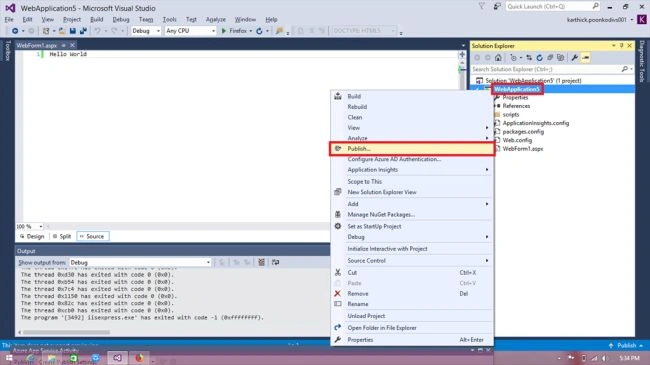
Select Import and click Next.
Click Browse to import your saved profile.
Select the file and click Open.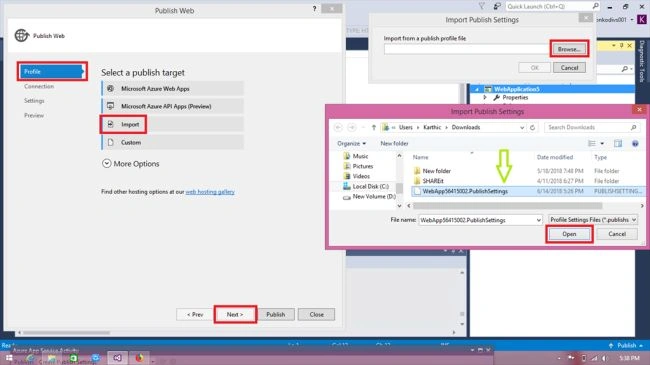
Step 3
After importing your file, click OK.
It’ll open the Connection.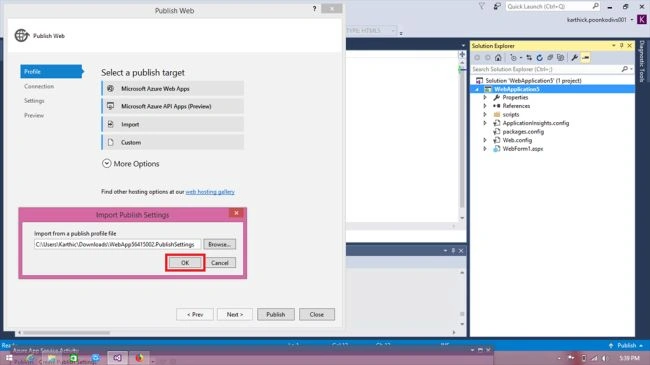
This shows your profile of your Web App.
Now, you need to check the Validation of your Web App that you want to deploy.
If any problem occurs, download the file again on Azure.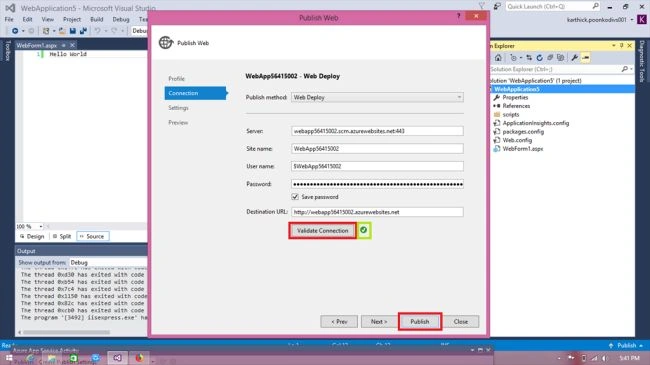
Step 5
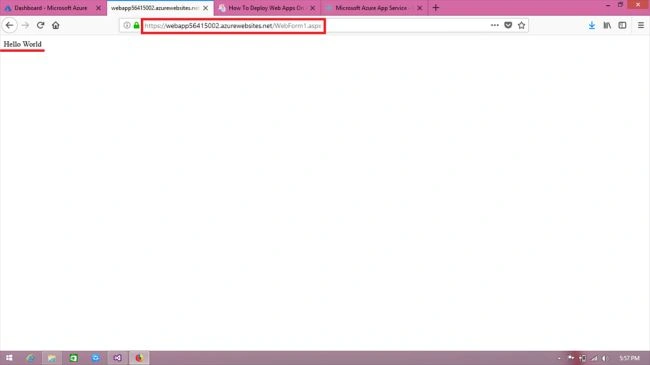
Type your form name, continuation with received URL.
(http://webapp56415002.azurewebsites.net/WebForm1.aspx)
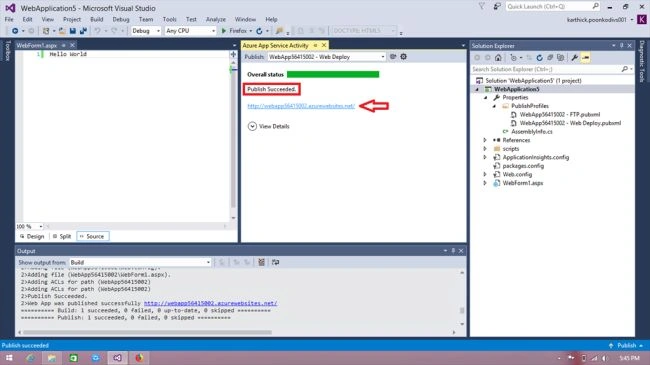
We can access it anywhere.
Summary
I hope this will be useful to you.
Thank you.
JosephsPosted Sep 8, 2018, 1:55 AM
It will directly hosted in azure VM?
Karthick PoonkodiPosted Jun 20, 2018, 10:58 PM
Thanks to all the brothers...
Rushi MehtaPosted Jun 19, 2018, 4:26 AM
Nice explanation with every step
Deepak VermaPosted Jun 19, 2018, 2:04 AM
Great job buddy..................... :)
Elavarasan RPosted Jun 19, 2018, 1:08 AM
nice explanation, easily understand..
Kartik PawarPosted Jun 18, 2018, 11:55 AM
Nice article...