

Introduction
In my last article, I discussed about Azure Service Bus Queue, which is basically a one to one communication. This article tells you how to work with Azure Service Bus topics with a sample console application.
Content
- Service Bus Topics
- Create Service Bus Topics and subscriptions on the Azure portal
- Send and receive a message using service bus topics
Pre-request
- Visual Studio 2017 update 3 or later
- Azure Subscription
- Basic Knowledge of the Azure portal
Topics is similar to Queue but Inside a topic, we have subscriptions and each subscription will have multiple subscribers. The process is simple - just put data to the subscription and one or more subscriber will pull the data out.
Creating a Service Bus Topic in Azure Portal
Step 1
Login into Azure Portal https://portal.azure.com/
Step 2
I’m going to use an existing Azure Service Bus namespace which is used for creating a Queue, please refer to the last article where I have explained how to create an Azure Service Bus and it’ namespace.
Step 3
Once the Azure Service Bus has been created successfully, now, we can start to create a topic for the service bus. Working with topics is similar to queue in Azure Service Bus.
Go to Azure service bus namespace. In my case I’m using my existing namespace msgdemobus .
Step 5
In overview, you can find a topic, click on it to add a new topic as shown in the below figure.
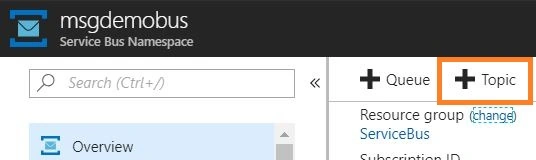
Step 6 - Add Topic
- Give the name for the topic, in my case I named it as mytopics
- Set a max topic size based on the requirement
- Time for message to live -- by default it will be 14 days
- By enabling duplicate detection, topic will not store any duplicate messages
- By enabling the partioning, the topics itself spreads into multiple storage systems, that means more than one message broker will be backing up the message.
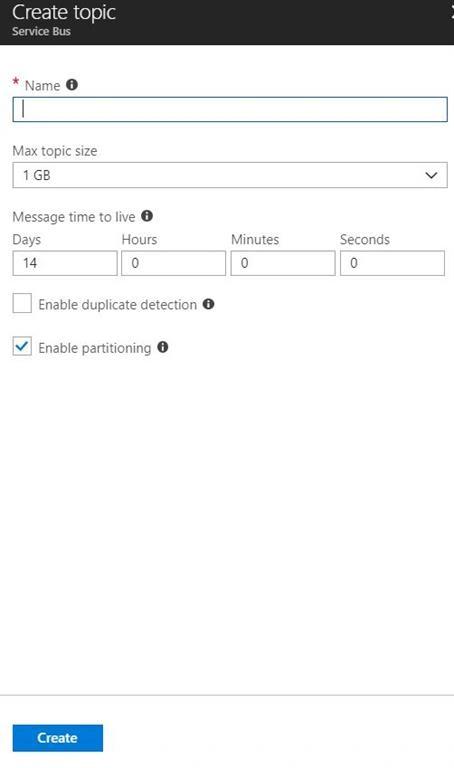
Finally click on create.
Step 7
Once the topic is created successfully, we are able to create a subscription for the topic. In topic overview, click on subscription as shown below.
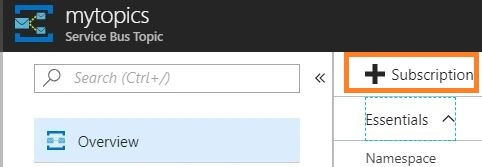
Step 8
Add the subscription, name the subscription, and I'm going with default values for other fields, as shown below,
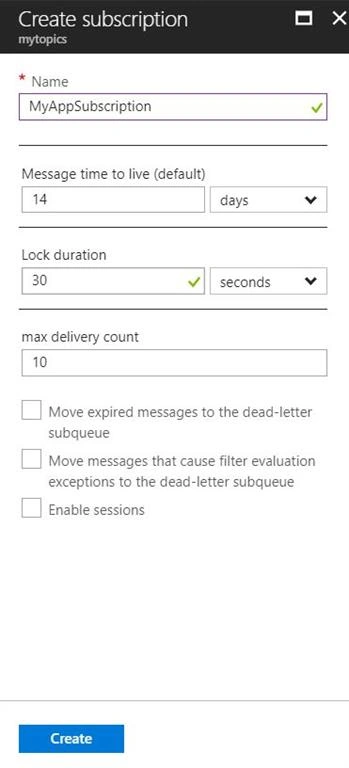
I’m going to create a new console application using C# to send and receive a message with Azure Service Bus Topics using Topic Client.
MyTopicApp.cs
- using Microsoft.ServiceBus.Messaging;
- using System;
- namespace MyTopicApp
- {
- class Program
- {
- private static string _serviceBusConn = "Endpoint=sb://<namespace>.servicebus.windows.net/;SharedAccessKeyName=<policy name>;SharedAccessKey=<key>";
- private static string _serviceBustopic = "<Topic Name>";
- static void Main(string[] args)
- {
- SendMessage("Hello I'm Azure Service Bus Topic ");
- }
- static void SendMessage(string message)
- {
- var topicClient = TopicClient.CreateFromConnectionString(_serviceBusConn, _serviceBustopic);
- var msg = new BrokeredMessage(message);
- topicClient.Send(msg);
- }
- static void ReadMessage()
- {
- var subClient = SubscriptionClient.CreateFromConnectionString(_serviceBusConn, _serviceBustopic, "<subscription name>");
- subClient.OnMessage(m =>
- {
- Console.WriteLine(m.GetBody<string>());
- });
- }
- }
- }
_serviceBustopic will holds a topic Name.
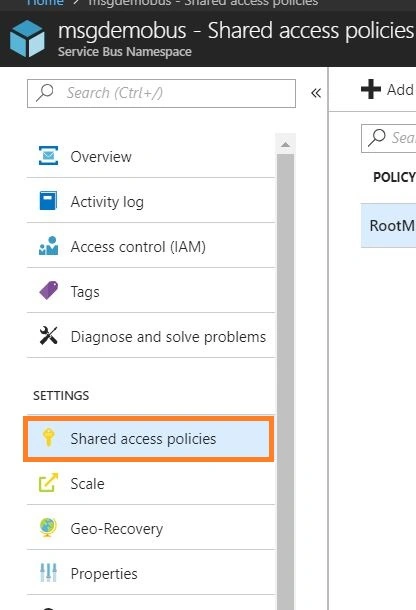
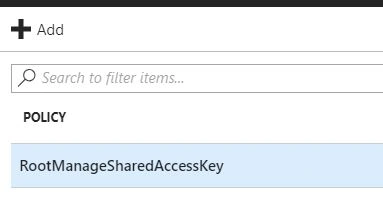
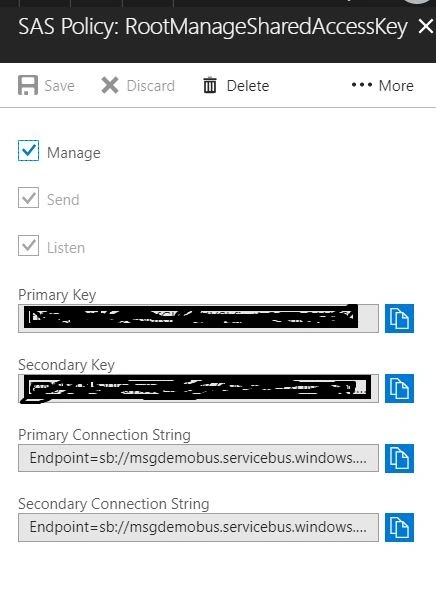
Send Message
SendMessage function is used to send a message to Azure service bus topic using topic client and the BrokeredMessage is used to hold the message.
- static void Main(string[] args)
- {
- SendMessage("Hello I'm Azure Service Bus Topic ");
- }
- static void SendMessage(string message)
- {
- var topicClient = TopicClient.CreateFromConnectionString(_conn, _topic);
- var msg = new BrokeredMessage(message);
- topicClient.Send(msg);
- }
Switch to Azure portal, you can notice the message count will be updated from 0 to 1.
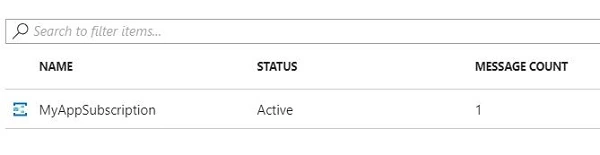
ReadMessage function is used to received a message based on the subscription using subscription client.
- static void Main(string[] args)
- {
- ReadMessage();
- Console.ReadKey();
- }
- static void ReadMessage()
- {
- var subClient = SubscriptionClient.CreateFromConnectionString(_serviceBusConn, _serviceBustopic, "MyAppSubscription");
- subClient.OnMessage(m =>
- {
- Console.WriteLine(m.GetBody<string>());
- });
- }
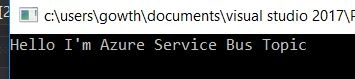
Result

Amit PatelPosted Nov 9, 2021, 8:51 PM
Type or name space name brokeredMessage cound not be found.
Amit PatelPosted Nov 9, 2021, 8:50 PM
TopicClient does not contain a defination for CreateFromConnectionString do you know this error
Hamid KhanPosted Mar 25, 2021, 3:31 PM
Nice article
Kalakonda RajuPosted Jun 12, 2020, 9:53 AM
How to re size topic size. I am trying to re size to 5 GB. after one min it's again reset to 1 GB.
Santosh LakhorePosted Jul 24, 2019, 8:58 AM
Any difference between topic and queue.?
Manoj KumarPosted Jun 27, 2019, 10:12 PM
Can I achieve using CRM plugin? if Yes could you please let me know how to register the plugin under service end point?