

Introduction
Azure Multi-Factor Authentication (MFA) helps protect access to information and applications while keeping up simplicity for users. It provides extra security by requiring a second form of authentication/verification and conveys solid validation by means of a scope of simple to utilize confirmation techniques.
Azure Multi-Factor Authentication (MFA) Provider
There are two types of Auth providers, and the refinement is around how your Azure subscription is charged. The pre-authentication option calculates the number of authentications performed against your tenant in a month. This alternative is best if you have a few users authenticating only occasionally. The per-client option calculates the number of individuals in your tenant who perform two-step verification in a month. This choice is ideal on the off chance that you have a few clients with licenses yet need to stretch out MFA to more clients past your authorizing limits.
Configure Azure Multi-Factor Authentication
Sign in to the Azure portal as an administrator. Browsing to Azure Active Directory > MFA.
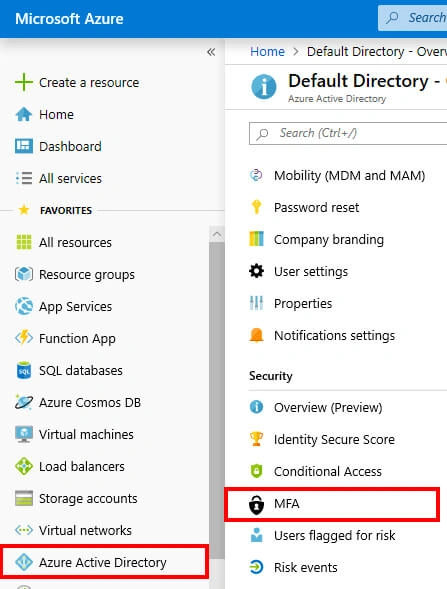
Some of these settings apply to Multi-Factor Authentication (MFA) Server, Azure Multi-Factor Authentication (MFA)
| Block/unblock users | Used to block specific clients/users from having the option to get Multi-Factor Authentication requests. Any authentication endeavors for blocked clients/users are automatically denied. Clients/users stay hindered for 90 days from the time that they are blocked. |
| Fraud alert | Configure settings related to Clients/Users ability to report fraudulent verification requests. |
| OATH tokens | Used in cloud-based Azure MFA environments to manage OATH tokens for users. |
| Phone call settings | Configure settings related to phone calls and greetings for cloud and on-premises environments. |
Block and unblock users
Block a user /Client
Sign in to the Azure portal as an administrator.
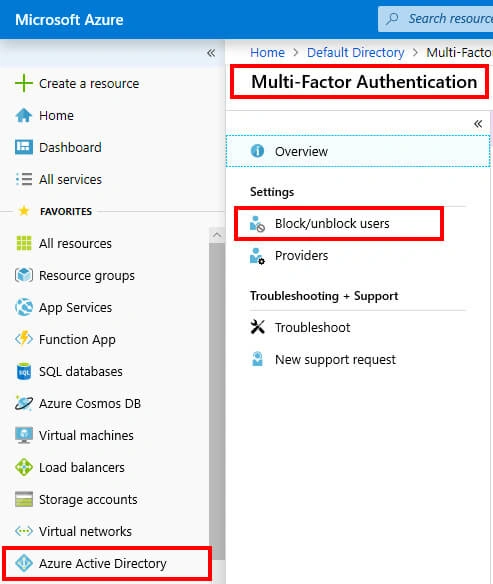
Browse to Azure Active Directory > Multi-Factor Authentication (MFA) > Block/unblock users.
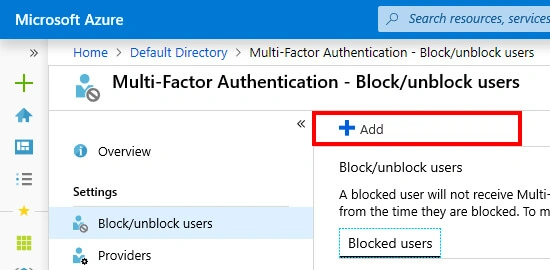
Then, Select Add to block a user.
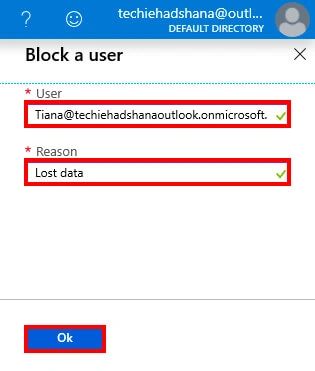
After that, select the Replication Group. Enter the username for the blocked user as [email protected]. Enter a comment in the Reason field.
And, Select Add to finish blocking the user.
Finally, successful Notifications
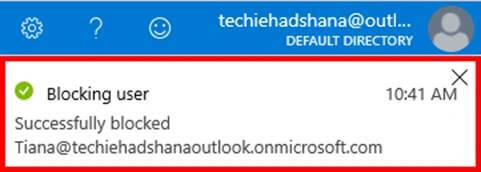
Unblock a user /Client
Sign in to the Azure portal as an administrator.
Browse to Azure Active Directory > MFA > Block/unblock users.
After, Select Unblock in the Action column next to the user to unblock open that.

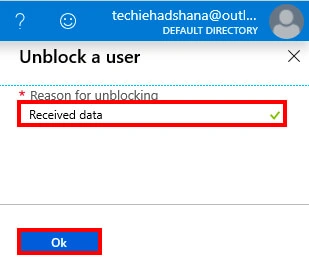
After that, enter a comment in the Reason for unblocking field.
Then, Select Unblock to finish unblocking the user.
Finally, successful Notifications
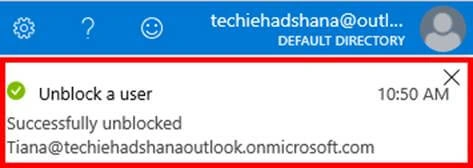
Summary
In this article, I discussed Azure Multi-Factor Authentication for blocking/unblocking users. In my next article, I will cover the next step of this series.
Viknaraj ManogararajahPosted Jun 22, 2019, 12:16 AM
Superb Article!!!!
Sana KamalPosted Jun 21, 2019, 10:10 PM
Nice Article.