

Introduction
In this article, we will cover how to setup an Azure Data Lake Storage for Big Data Analytics and Machine Learning through the Azure portal.
Azure Data Lake Storage Gen2 is built as part of the Azure storage with the hierarchical namespace. This PaaS (platform as a service) provides performance, management, and security for big data workloads.
Challenges
Before we dive into the tutorial, we need to discuss 4 common topics and challenges we face:
- Data redundancy to prevent data loss during major outages or failures:
- For high durability scenarios, Azure offers data duplication across multiple data centers from the primary and secondary regions (GRS/RA-GRS). This option is only available for the standard performance tier.
- For higher performance, we can select the data duplication to be within the primary region (LRS/ZRS). The common option is to select ZRS as the data is duplicated across multiple data centers within the region.
- Data access tier:
- By default, the Hot tier is selected as files need to be accessed frequently. A policy might be used to handle infrequently accessed files.
- By implementing a Cool tier policy will help with cost management.
- Data recovery:
- The ability to recover file and container deletion is very important as the data lake will accumulate a large amount of data. Azure Storage provides 'Soft delete' capabilities to recover both files and containers.
- Network and access security
- In order to protect the data from cyber-attacks, we need to limit who and where people can access our data lake. At a minimum, the firewall and Azure AD authentication should be enabled. A common approach is to implement a Private endpoint or Virtual network integration.
Tutorial
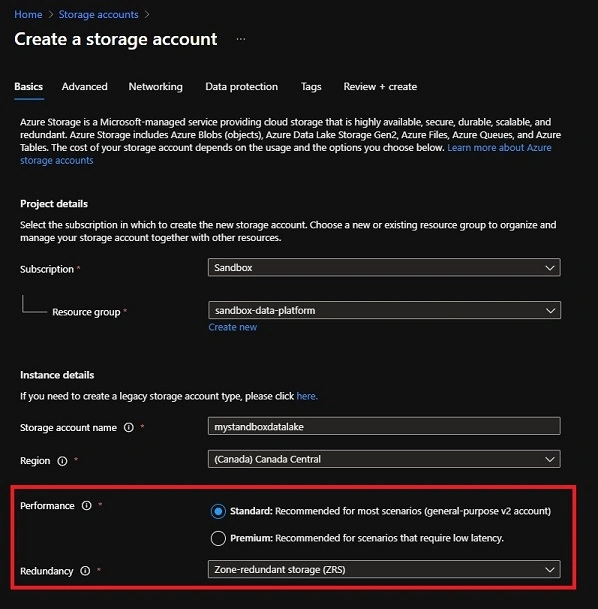
Create Storage account - Basics
In this example, we will create our data lake in Canada's Central region. To limit the cost, we will select Standard performance with ZRS redundancy.
It is very important to select the correct performance tier and redundancy because this cannot be changed after the data lake is created.
Click 'Next: Advanced' to continue.
Create Storage account - Advanced
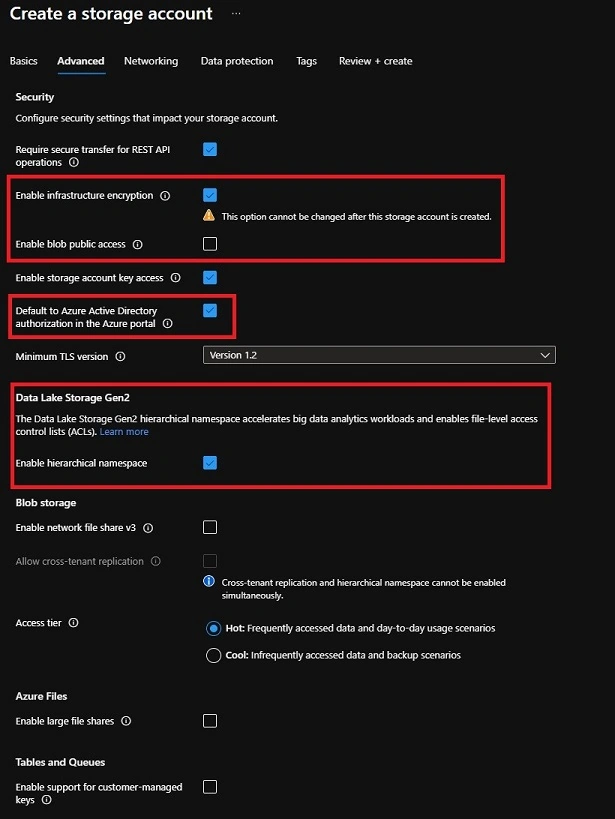
In this section, we are going to make the following changes,
- Enable infrastructure encryption: Checked.
- Enable blob public access: Unchecked.
- Default to Azure Active Directory authorization in the Azure portal: Checked.
- Enable hierarchical namespace: Checked.
Click 'Next: Networking' to continue.
Create Storage account - Networking
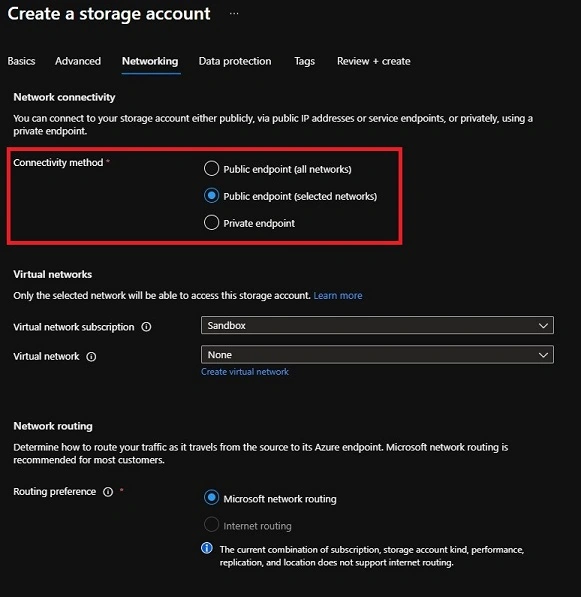
In our example, we will keep our setup to minimal for now,
- Connectivity method: Public endpoint (selected networks). This will enable the storage account's firewall and limit access.
- We will not be selecting a Virtual network.
Click 'Next: Data protection' to continue.
Create Storage account - Data protection
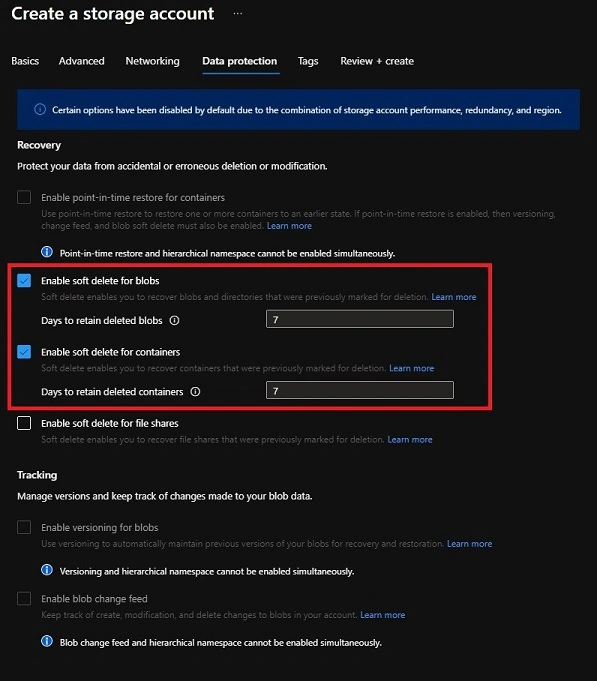
In this section, we want to make sure both files and containers can be restored through 'Soft Delete'.
- Enable soft delete for blobs: Checked
- Note: Currently, this feature is in public preview. if this option is disabled, you need to sign-up to access it.
- Enable soft delete for containers: Checked.
- Enable soft delete for a file shared: Unchecked.
I selected to leave the soft delete for 7 days. For production workloads, you might want to consider increasing the blob soft delete to 14 days.
Click 'Next: Tags' to continue.
Tags
- Tags can be used to group services into various cost categories. Generally, a data lake is a shared component of the data platform so we will create the following tags:
- "solution: dataPlatform"
- "environment: sandbox"
- "cost-center: shared"
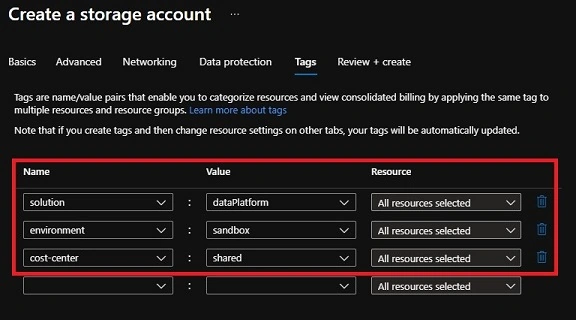
Click 'Next: Review + create' to review all the settings. After a final review, click 'Create' to create our sandbox data lake.
Summary
In this article, we gave a turtorial on how to properly setup a data lake for big data analytics and ML workloads. We addressed the issues of data redundancy vs performance, data security, networking security, and cost management.
Happy Learning!
References
Sagar LadPosted Oct 8, 2021, 2:50 PM
Thanks for sharing