

Introduction
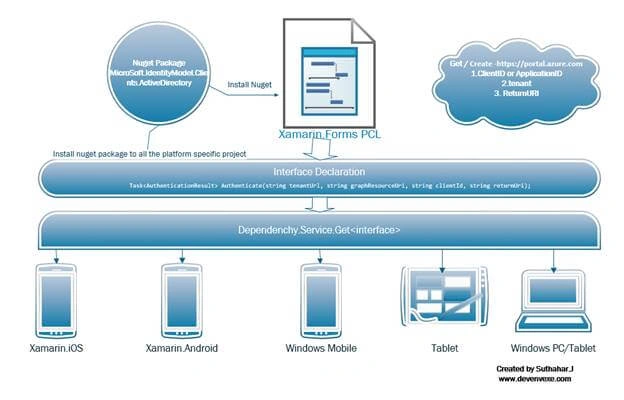
Microsoft Azure Active Directory (Azure AD) is required to add authentication and authorization to our Web, mobile application and Web APIs. In this article, I have explained how to create/implement Azure Active Directory authentication login, using Xamarin.Forms.
I have seen many articles for the process of moving the management experience for all Azure Services from the ‘classic’ portal here. I am showing new portal here for Azure AD Application creation and user creation.
Azure Subscription Login
The new Azure portal is that you don’t need an Azure subscription to use it. You and other administrators in your organization can manage your tenant in the new portal without your need to get and manage to an Azure subscription. You can directly sign -in as usual with your work or school account.
Azure Active Directory Application creation
I will show the steps given below for the application's creation, user creation and permission configuration. While implementing mobile application, we need Client ID, tenant, return URL, so here I will show how to get all the configuration information from the steps given below.
Step 1
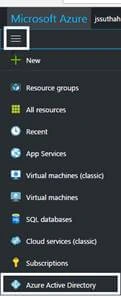
Login to Microsoft Azure portal and choose Azure Active Directory from the sidebar.
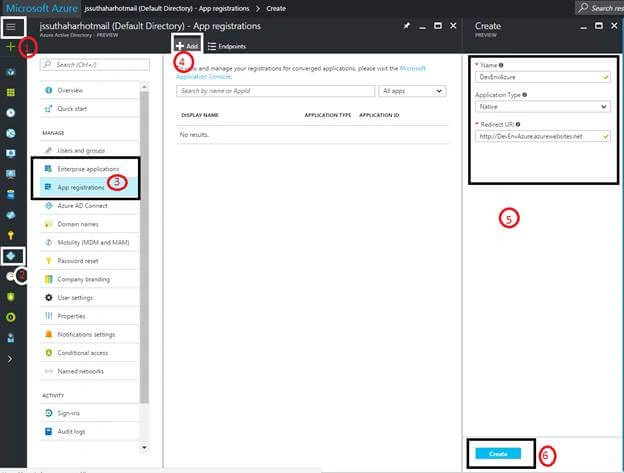
Under Manage, select App Registration, click on + Add button.
Provide the details given below, name for the application, select the application type as Native (Mobile Application) or Web app/API and to sign in, enter your application URL and click Create.
Step 2
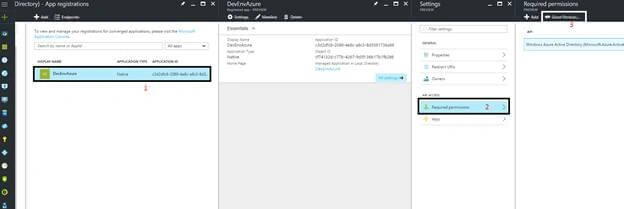
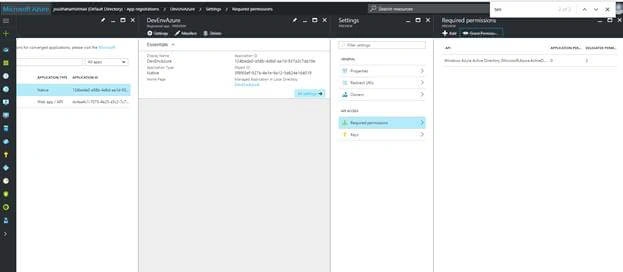
We need to give the permission to access the application from mobile or Web, so follow the steps given below for grand permission. Select newly created Application => select Required Permission => Click Grand permission.
Step 3
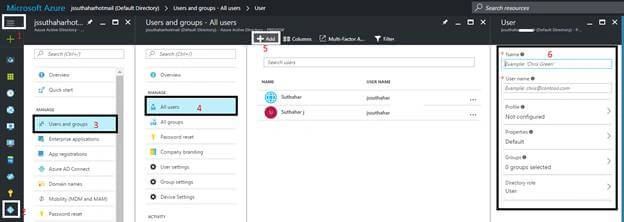
Create the user to access the application. Choose Azure Active Directory from the sidebar. Select Users and groups. Select All Users. Click on +Add and provide the user details, as shown below, where there is name of the user, user name (Email Id).
Step 4
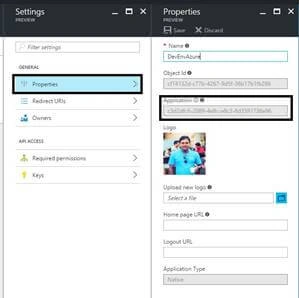
The Client Id is a unique aidentifier for our application. We need client Id to implement Azure AD authentication in the mobile application, so you can follow the steps given below to get client Id. Choose Azure Active Directory from the sidebar. Select App registrations. Select newly created application. Click property and use application Id as a client ID.
Click redirected URL under settings and get redirected URL/ update redirected URL.
Step 5
We already need to register our application in a Azure AD tenant. We need tenant ID to implement AD authentication in mobile application. You can follow the steps given below to get tenant Id.
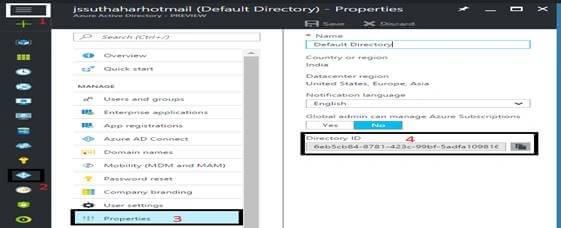
Choose Azure Active Directory from the sidebar, select Properties and use Directory ID as tenant ID.
Implement Xamarin.Forms Application
After completing your Azure app registration, you can start the steps given below to create Xamarin Application with Login AD Authentication.
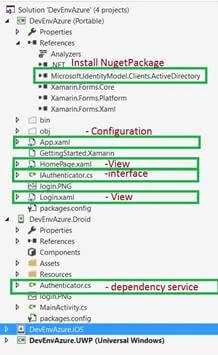
Step 1
Let's start creating new Xamarin Forms Project in Visual Studio. Open Run ➔ Type Devenev.Exe and enter ➔ New Project (Ctrl+Shift+N)➔ select Blank Xamarin.Forms Portable template.
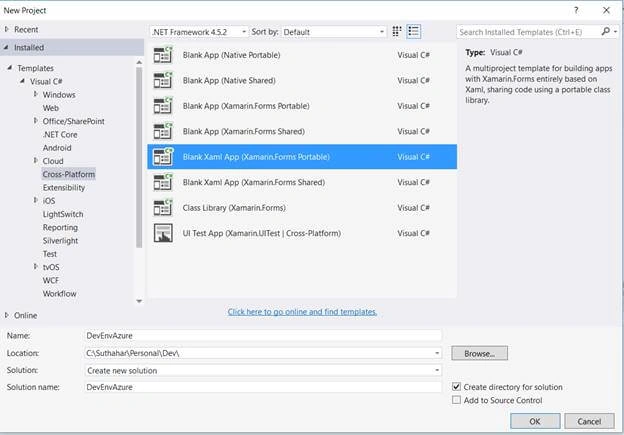
It will automatically create multiple projects like Portable, Android, iOS and UWP. First, we will start to edit the portable project, followed by platform specific project.
Step 2
Microsoft ADAL provides Xamarin Portable Class Library with an easy to use authentication functionality for.NET client on various platforms including UWP, Xamarin iOS and Xamarin.Android. You can get more info( https//www.nuget.org/packages/Microsoft.IdentityModel.Clients.ActiveDirectory/)
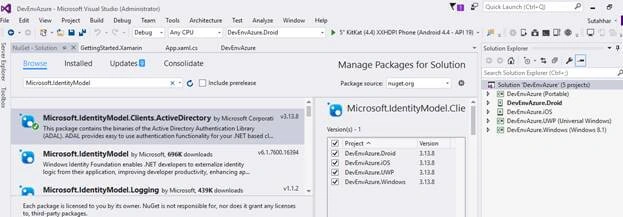
To implement Azure active directory login, we need to install Active Directory Authentication Library, I will show the steps given below to install ADAL library.
Select Solution => Right Click Manage nuget Packages for Solution => Search “Microsoft IdentityModel” => Select Microsoft.IdentityModel.Clients.ActiveDirectory => Select all Project => Click on Install
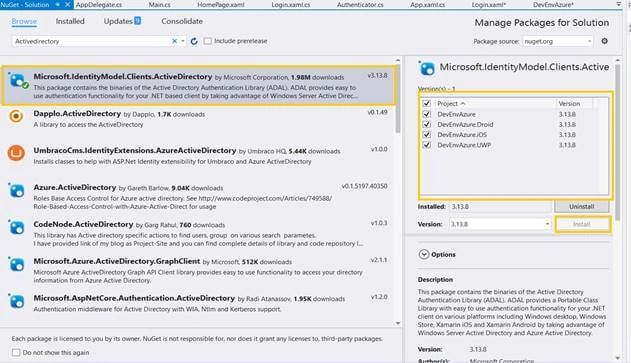
Step 3
I have added Azure configuration like ApplicationID, tenantUrl, returnURL and GraphresourceURL in APP.xaml.cs.
In portable project, open App.xaml.cs, update all the configuration.
- using Microsoft.IdentityModel.Clients.ActiveDirectory;
- using System;
- using System.Collections.Generic;
- using System.Linq;
- using System.Text;
- using Xamarin.Forms;
- namespace DevEnvAzure {
- public partial class App Application {
- // update your Application ID or client ID
- public static string ApplicationID = "----dfc6-2089-4e8c-ssss-8d3591736a96";
- //modify your Azure tenant
- public static string tenanturl = "https//login.microsoftonline.com/<Azure Tenant >
- //Update your return url
- public static string ReturnUri = "http//DevEnvAzure.microsoft.net";
- //No need to change
- public static string GraphResourceUri = "https//graph.microsoft.com";
- public static AuthenticationResult AuthenticationResult = null;
- public App() {
- InitializeComponent();
- MainPage = new DevEnvAzure.Login();
- }
- protected override void OnStart() {
- // Handle when your app starts
- }
- protected override void OnSleep() {
- // Handle when your app sleeps
- }
- protected override void OnResume() {
- // Handle when your app resumes
- }
- }
- }
Step 3
I have created quick and simple login screen. You can modify, as per your requirement.
Right click on Portable Class Library ➔ Add New Item ➔ Select XAML Page(Login).
- <?xml version="1.0" encoding="utf-8" ?>
- <ContentPage xmlns="http//xamarin.com/schemas/2014/forms" xmlnsx="http//schemas.microsoft.com/winfx/2009/xaml" xmlnslocal="clr-namespaceDevEnvAzure" xClass="DevEnvAzure.Login">
- <StackLayout HorizontalOptions="Center" VerticalOptions="Center" Padding="10" Spacing="10">
- <Button Text="" Clicked="Login_OnClicked" Image="login.png" /> </StackLayout>
- </ContentPage>
Step 4
Add LoginClick event in the login page code at the backend file and if the login is succeed, as the page navigates to the home page
- using Microsoft.IdentityModel.Clients.ActiveDirectory;
- using System;
- using Xamarin.Forms;
- namespace DevEnvAzure {
- public partial class Login ContentPage {
- public Login() {
- InitializeComponent();
- }
- private async void Login_OnClicked(object sender, EventArgs e) {
- try {
- var data = await DependencyService.Get < IAuthenticator > ().Authenticate(App.tenanturl, App.GraphResourceUri, App.ApplicationID, App.ReturnUri);
- App.AuthenticationResult = data;
- NavigateTopage(data);
- } catch (Exception) {}
- }
- public async void NavigateTopage(AuthenticationResult data) {
- var userName = data.UserInfo.GivenName + " " + data.UserInfo.FamilyName;
- await Navigation.PushModalAsync(new HomePage(userName));
- }
- }
- }
Step 4
I have created quick and simple home screen. You can modify, as per your requirement
Right click on Portable Class Library ➔ Add New Item ➔ Select XAML Page(Homepage)
- <?xml version="1.0" encoding="utf-8" ?>
- <ContentPage xmlns="http//xamarin.com/schemas/2014/forms" xmlnsx="http//schemas.microsoft.com/winfx/2009/xaml" xClass="DevEnvAzure.HomePage">
- <Label Text="" xName="lblname" VerticalOptions="Center" HorizontalOptions="Center" />
- </ContentPage>
Modify the code at the backend file given below.
- using Xamarin.Forms;
- namespace DevEnvAzure {
- public partial class HomePage ContentPage {
- public HomePage(string username) {
- InitializeComponent();
- lblname.Text = " Welcome Mr " + username;
- }
- }
- }
Step 5
In a portable project, add a new interface for Authentication method. The authentication method will return Authentication result from ADAL, which contains the AccessToken and the user details .
Right click on PCL project and select Interface => name as IAuthenticator.cs => Click OK.
- using Microsoft.IdentityModel.Clients.ActiveDirectory;
- using System.Threading.Tasks;
- namespace DevEnvAzure {
- public interface IAuthenticator {
- Task < AuthenticationResult > Authenticate(string tenantUrl, string graphResourceUri, string ApplicationID, string returnUri);
- }
- }
Step 6
We need to implement platform specific dependency Services for login authentication.
The code given below is Xamarin.Forms DependencyService, which maps Authenticator.
- [assembly Dependency(typeof(DevEnvAzure.Droid.Authenticator))]
Android Application
Add Authenicator clsss in Xamarin Android Application.
Right click on Android Project => Select Class=> Name as an Authenticator.
- using Android.App;
- using Microsoft.IdentityModel.Clients.ActiveDirectory;
- using System;
- using System.Linq;
- using System.Threading.Tasks;
- using Xamarin.Forms;
- [assembly Dependency(typeof(DevEnvAzure.Droid.Authenticator))]
- namespace DevEnvAzure.Droid {
- class Authenticator IAuthenticator {
- public async Task < AuthenticationResult > Authenticate(string tenantUrl, string graphResourceUri, string ApplicationID, string returnUri) {
- try {
- var authContext = new AuthenticationContext(tenantUrl);
- if (authContext.TokenCache.ReadItems().Any()) authContext = new AuthenticationContext(authContext.TokenCache.ReadItems().FirstOrDefault().Authority);
- var authResult = await authContext.AcquireTokenAsync(graphResourceUri, ApplicationID, new Uri(returnUri), new PlatformParameters((Activity) Forms.Context));
- return authResult;
- } catch (Exception) {
- return null;
- }
- }
- }
- }
Now, run your Application and see the result given below.
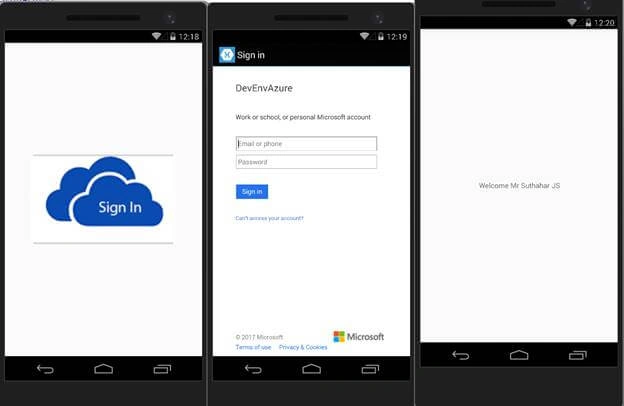
UWP Application
Add Authenicator clsss in Xamarin UWP Application
Right click on UWP Project => select Class=> Name as an Authenticator.
- using System;
- using System.Collections.Generic;
- using System.Linq;
- using System.Text;
- using System.Threading.Tasks;
- using Microsoft.IdentityModel.Clients.ActiveDirectory;
- using Xamarin.Forms;
- [assembly Dependency(typeof(DevEnvAzure.UWP.Authenticator))]
- namespace DevEnvAzure.UWP {
- public class Authenticator IAuthenticator {
- public async Task < AuthenticationResult > Authenticate(string tenantUrl, string graphResourceUri, string ApplicationID, string returnUri) {
- try {
- var authContext = new AuthenticationContext(tenantUrl);
- if (authContext.TokenCache.ReadItems().Any()) authContext = new AuthenticationContext(authContext.TokenCache.ReadItems().First().Authority);
- var authResult = await
- authContext.AcquireTokenAsync(graphResourceUri, ApplicationID, new Uri(returnUri), new PlatformParameters(PromptBehavior.Auto, false));
- return authResult;
- } catch (Exception) {
- return null;
- }
- }
- }
- }
Now, run your Application and see the result given below.
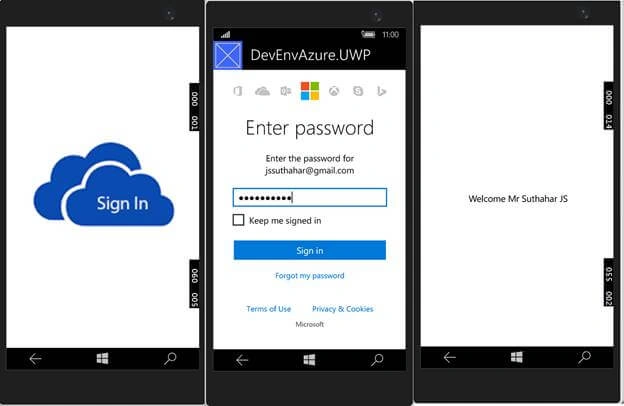
iOS Application
Add Authenicator clsss in Xamarin iOS Application
Right click on iOS Project => Select Class=> Name it as an Authenticator.
- using System;
- using System.Linq;
- using Microsoft.IdentityModel.Clients.ActiveDirectory;
- using UIKit;
- using Xamarin.Forms;
- using System.Threading.Tasks;
- [assembly Dependency(typeof(DevEnvAzure.iOS.Authenticator))]
- namespace DevEnvAzure.iOS {
- class Authenticator IAuthenticator {
- public async Task < AuthenticationResult > Authenticate(string tenantUrl, string graphResourceUri, string ApplicationID, string returnUri) {
- try {
- var authContext = new AuthenticationContext(tenantUrl);
- if (authContext.TokenCache.ReadItems().Any()) authContext = new AuthenticationContext(authContext.TokenCache.ReadItems().FirstOrDefault().Authority);
- var authResult = await authContext.AcquireTokenAsync(graphResourceUri, ApplicationID, new Uri(returnUri), new PlatformParameters(UIApplication.SharedApplication.KeyWindow.RootViewController));
- return authResult;
- } catch (Exception) {
- return null;
- }
- }
- }
- }
Now, run your application and see the result given below.
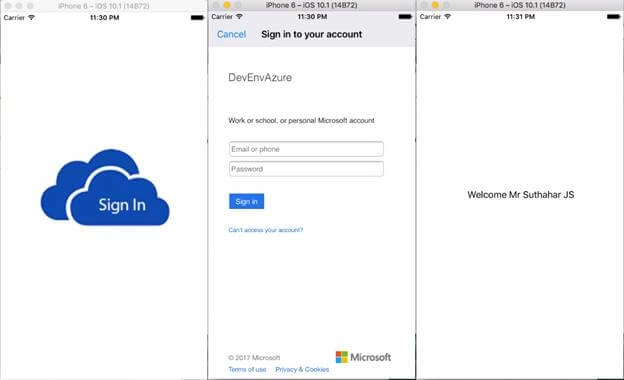
Issues and Solution
I have shared some implementation, development issues, and solutions, which are given below.

Error: cannot install Package Microsoft.IdentityModel.Client.ActiveDirectory
While trying to add NuGet package for Azure Active Directory ('Microsoft.IdentityModel.Clients.ActiveDirectory 3.13.8') , it is possible that you will receive an error complaining that the package does not contain any assembly references which are compatible with the targets of your PCL project. For your reference, the error is given below.
Error
Cannot install the package 'Microsoft.IdentityModel.Clients.ActiveDirectory 3.13.8'. You are trying to install this package into a project that targets '.NETPortable,Version=v4.5,Profile=Profile259', but the package does not contain any assembly references or content files that are compatible with the framework. For more information, contact the package author.
Solution
ADAL does not support Windows phone 8.1 version, so we need to follow the steps given below to resolve above shown issue.
- Remove all the installed NuGet packages.
- Removing the windows Phone 8.1 project from the solution.
- Remove the target platform from the PCL project.
Step 1
Go to solution > Right Click on Manage NuGet Packages > Click on Installed tab > Uninstall all the installed packages like (Including Xamarin.Form etc ) .
If you are not uninstalling the package and trying to change the targeted platforms by removing the target Windows Phone 8.1, you will get an error.
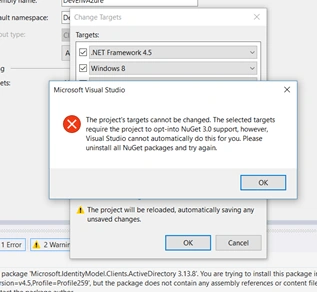
Step 2
ADAL does not support Windows phone 8.1, so you need to remove Windows 8.1 project from the solution. Only removing Windows Phone 8.1 project from your solution will not resolve this issue. You still need to follow the next steps as well.
Step 3
Right click on your PCL project > Click Properties > Go to the tab “Library” > You can see the list of the targeted platforms > Press the button “Change” > uncheck the target “Windows phone 8.1” and “ Windows phone Silvelight 8” > Press OK button.
Wait for few seconds, the dialog will be gone and the target is removed from the PCL project.
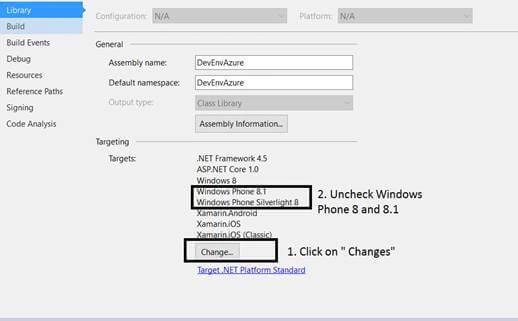
Now, you are able to install ADAL NuGet package from your solution.
Error
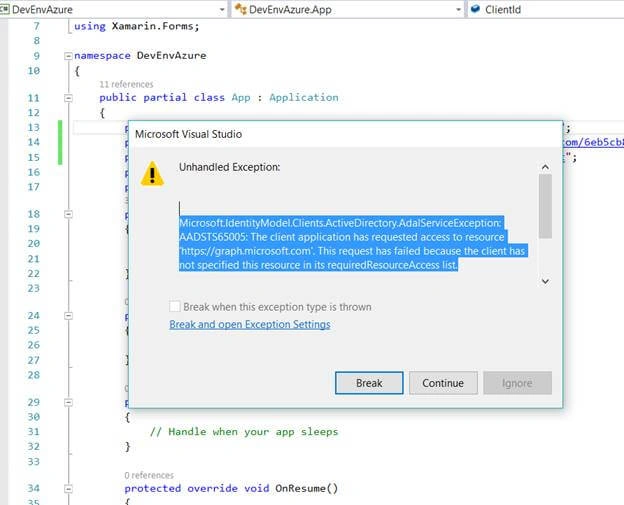
Micrsoft.identityModel.Clients.ActiveDirectory.AdalServiceExceptionAADSTS65005The Client application has requested an access to the resource ‘https//graph.microsoft.com’. The request has failed because the client has no specific resource in its requredResourceAccss list. If you get the error given above, it means try the solution given below.
Solution
You have missed granting grand permission to your Application, so we need to give permission to access the application from mobile or the Web, so follow the steps given below for grand permission. Select newly created application and select Required Permission, followed by clicking on Grand permission.
Related Articles
Gnana SekharPosted Jun 29, 2019, 6:06 AM
Is it possible to get access token without user login screen, like basic authentication by passing credentials or using certificate. If yes, please share sample code that works for Xamarin.Forms. Thanks in advance
Ankita GuptaPosted May 8, 2019, 1:43 AM
I used the above code and i am getting "System.NullReferenceException: Object reference not set to an instance of an object." exception for tenanturl and hence data variable is having null value passed to method getting called. Can someone help me with the value format?
faisal haroonPosted Aug 7, 2018, 5:36 AM
I did all steps you mentioned. When I log in I still stay at Login.xaml and the homepage activity never opens
akash manePosted Oct 28, 2017, 5:39 AM
Hello Suthahar J, Your article is awsome and I am follwing this for my project demo. The issue I am facing is on Login_OnClicked (button click) the variable data is fetching null as a result its not going further ie from Login.xal to HomePage.xaml.
Yasintha PereraPosted Oct 18, 2017, 8:39 AM
Please provide the logout as well!
Priyanka SinhaPosted Aug 28, 2017, 5:24 AM
Cannot call determinedVisibility() - never saw a connection for the pid: 526208-28 14:46:23.632 D/Mono ( 5262): [0x9b23f930] hill climbing, change max number of threads 3 08-28 14:46:24.760 W/BindingManager( 5262): Cannot call determinedVisibility() - never saw a connection for the pid: 5262 08-28 14:46:24.787 E/EGL_emulation( 5262): tid 5287: eglSurfaceAttrib(1165): error 0x3009 (EGL_BAD_MATCH) 08-28 14:46:24.787 W/OpenGLRenderer( 5262): Failed to set EGL_SWAP_BEHAVIOR on surface 0x92e3bc80, error=EGL_BAD_MATCH 08-28 14:46:24.902 E/Surface ( 5262): getSlotFromBufferLocked: unknown buffer: 0x9b9c9d10 08-28 14:46:51.667 D/Mono ( 5262): [0x9b23f930] hill climbing, change max number of threads 2
Priyanka SinhaPosted Aug 28, 2017, 5:24 AM
It is giving below error:
Priyanka SinhaPosted Aug 28, 2017, 5:23 AM
I am entering username and after that it is redirecting to starting page.
Priyanka SinhaPosted Aug 28, 2017, 3:17 AM
I am not able to login itself. Please help
Priyanka SinhaPosted Aug 28, 2017, 3:14 AM
I am using android emulator
Priyanka SinhaPosted Aug 28, 2017, 3:13 AM
Please help with below error:W/BindingManager( 4483): Cannot call determinedVisibility() - never saw a connection for the pid: 4483 me with below error:
android iosPosted Jul 14, 2017, 3:54 PM
What happens is that after logging in to the Azure account, the onResume method is called and it doesn't complete the rest of the Login_OnClicked function. Var data is still null, because no data is returned from the Android Authenticator.cs class because onResumed is called. PLEASE HELP
android iosPosted Jul 13, 2017, 4:31 PM
Hello, the app lets me login but when I login, it won't get my name and display it on the Homepage activity. I don't know why it cannot get my information. I have followed all the steps. PLEASE HELP
Sachin SrivastavaPosted Mar 1, 2017, 5:35 AM
Great article Suthahar. But I'm facing one issue if you can help. I tried your implementation and other similar blogs. When the app runs & shows the logon screen, after entering my microsoft account to log in, it just keeps showing the log in screen again, i know the username pwd is correct. There is no error and the control does not come back to the code( debug). Just keeps showing microsoft login screen