

Introduction
To work with Asynchronous programming we use the await keyword, and also the "Async" keyword. We call the asynchronous APIs in response to a user's action, such as when the user presses the button etc. In this article I explain how to perform asynchronous programming.
In this article I use an example in which, when I click on the button, it fetches the RSS Feed using the syndication class. This feed includes all the latest articles and their published date of any website; in this example I fetch the RSS feed from the http://www.dotnetheaven.com/ site. The asynchronous method SyndicationClient.RetrieveFeedAsync is used to fetch or download the feed.
To work with it use the following steps.
Step 1
First open Visual Studio 2012 RC in Windows 8. Then click File -> New -> Project. Then select Window Store from Visual C#, and select a blank page in the center tab then give the name of the application and then click ok.
Step 2
Add XAML code to MainPage.xaml as in the following:
<Page
x:Class="acron.MainPage"
xmlns="http://schemas.microsoft.com/winfx/2006/xaml/presentation"
xmlns:x="http://schemas.microsoft.com/winfx/2006/xaml"
xmlns:local="using:acron"
xmlns:d="http://schemas.microsoft.com/expression/blend/2008"
xmlns:mc="http://schemas.openxmlformats.org/markup-compatibility/2006"
mc:Ignorable="d">
<Grid>
<Grid.Background>
<LinearGradientBrush EndPoint="0.5,1" StartPoint="0.5,0">
<GradientStop Color="Black"/>
<GradientStop Color="#FFD2D710" Offset="1"/>
</LinearGradientBrush>
</Grid.Background>
<StackPanel HorizontalAlignment="Left" VerticalAlignment="Top" Height="96" Width="983" Orientation="Horizontal">
<Button Margin="50,50,0,0" Height="50" Width="100" HorizontalAlignment="Left" VerticalAlignment="Top" Content="Load Titles" Click="Button_Click_1"></Button>
<TextBlock Margin="50,50,0,0" Text=" Latest Articles Titles and Their Publish Date of DotNetHeaven.com" HorizontalAlignment="Left" VerticalAlignment="Top" Height="50" Width="750" FontSize="25"></TextBlock>
</StackPanel>
<StackPanel Orientation="Horizontal">
<ListView x:Name="listitems" HorizontalAlignment="Left" Margin="150,150,0,0" ItemsSource="{Binding}" SelectionChanged="listitems_SelectionChanged_1" Width="500">
<ListView.Background>
<LinearGradientBrush EndPoint="0.5,1" StartPoint="0.5,0">
<GradientStop Color="Black"/>
<GradientStop Color="#FFA3ECF3" Offset="1"/>
</LinearGradientBrush>
</ListView.Background>
<ListView.ItemTemplate>
<DataTemplate>
<StackPanel>
<TextBlock Text="{Binding Title}" FontSize="20" ></TextBlock>
<TextBlock Text="{Binding Date}" FontSize="10"></TextBlock>
</StackPanel>
</DataTemplate>
</ListView.ItemTemplate>
</ListView>
<WebView x:Name="web" Visibility="Collapsed" Width="1000" Margin="150,150,0,0"></WebView>
</StackPanel>
</Grid>
</Page>
Step 3
Right-click on the project in the Solution Explorer to add a class and choose the class from the window that appears and give a name for the class as you want and then click ok.
Step 4
Add the following code in this class:
namespace acron
{
public class feeddata
{
private List<items> items1=new List<items>();
public List<items> items
{
get{
return this.items1;
}
}
}
public class items
{
public string Title
{
get;
set;
}
public DateTime Date
{
get;
set;
}
public Uri link
{
get;
set;
}
}
}
Step 5
Now add the following namespace in the MainPage.xaml.cs file:
using Windows.Web.Syndication;
Step 6
Now write the following code in the MainPage.xaml.cs file:
namespace acron
{
public sealed partial class MainPage : Page
{
SyndicationFeed feed = new SyndicationFeed();
public MainPage()
{
this.InitializeComponent();
}
private void listitems_SelectionChanged_1(object sender, SelectionChangedEventArgs e)
{
items I = new items();
I.link = feed.Items[listitems.SelectedIndex].Links[0].Uri;
web.Navigate(I.link);
web.Visibility = Visibility.Visible;
}
private async void Button_Click_1(object sender, RoutedEventArgs e)
{
SyndicationClient client = new SyndicationClient();
client.BypassCacheOnRetrieve = true;
Uri feedUri = new Uri("http://www.dotnetheaven.com/rss/latestarticles.aspx");
feed = await client.RetrieveFeedAsync(feedUri);
feeddata feeddata = new feeddata();
items feeditem = null;
foreach (SyndicationItem item in feed.Items)
{
feeditem = new items();
feeditem.Title = item.Title.Text;
feeditem.Date = item.PublishedDate.DateTime;
feeditem.link = new Uri("http://www.dotnetheaven.com");
feeddata.items.Add(feeditem);
}
listitems.DataContext = feeddata.items;
}
}
}
Step 7
Now Press F5 to run the application. The Screen is displayed with the load button and a simple message. When I click on the button, all the latest feed URLs will be fetched from the site and displayed in the listbox as in: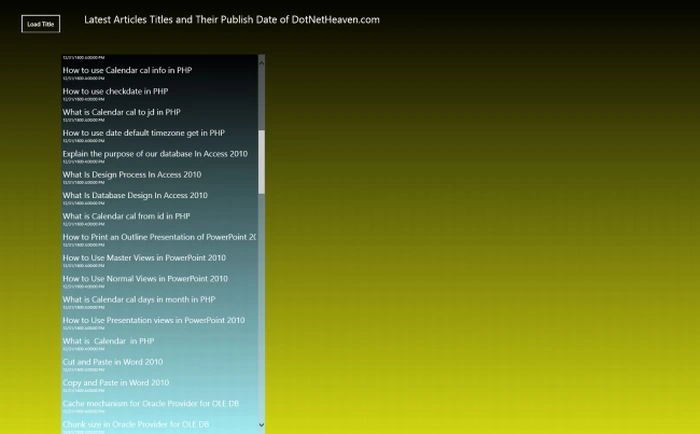
When I click any of these links the specified article will be opened in the Web View as:
Summary
In this article I explained how to use the await keyword to perform asynchronous programming.
Join the conversation! Your thoughts help the community grow.