

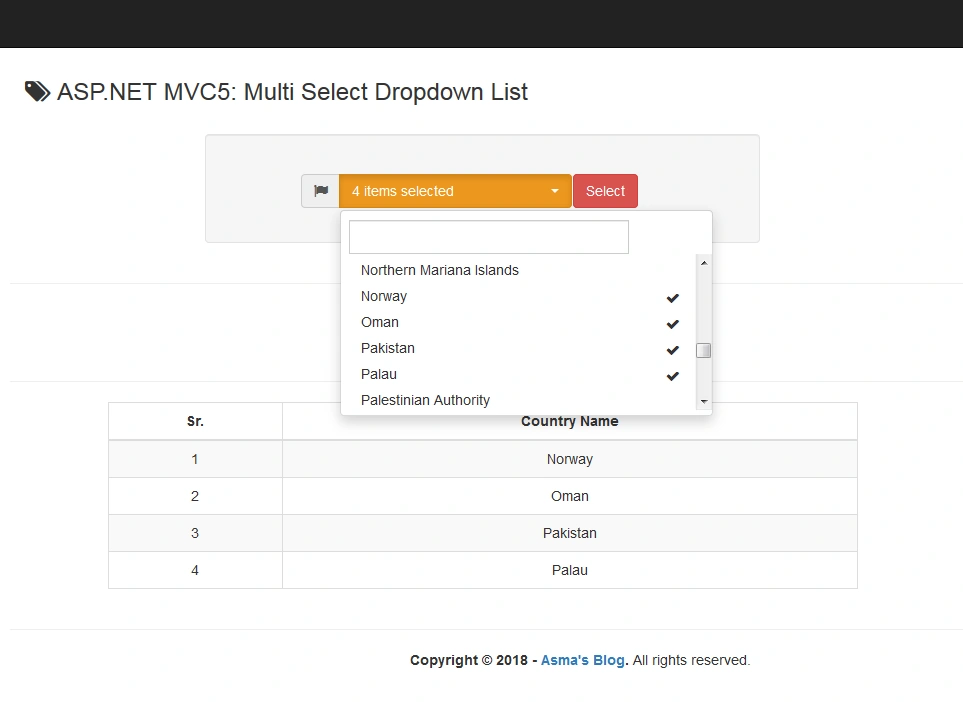
Multiple-selection is an important part of drop-down UI component as it improves the user interactivity with the website in order to allow the user to make his/her choice first and then send the request to the server for batch processing instead of again and again sending a request to the server for same choice selection. One of the cool things about the Bootstrap CSS framework is that it provides very rich and interactive built-in plugins which are easy to use and integrate with any server-side technology.
Today, I shall be demonstrating the integration of the Bootstrap CSS style drop-down with the enabling of multi-selection choice by using Bootstrap Select plugin into ASP.NET MVC5 platform.
Prerequisites
Following are some prerequisites before you proceed any further in this tutorial.
- Knowledge of ASP.NET MVC5.
- Knowledge of HTML.
- Knowledge of JavaScript.
- Knowledge of Bootstrap.
- Knowledge of Jquery.
- Knowledge of C# Programming.
You can download the complete source code for this tutorial or you can follow the step by step discussion below. The sample code is being developed in Microsoft Visual Studio 2015 Enterprise. I am using Country table data extract from the Adventure Works Sample Database.
Let's begin now.Step 1
Step 2
Step 3
- <!DOCTYPE html>
- <html>
- <head>
- <meta charset="utf-8" />
- <meta name="viewport" content="width=device-width, initial-scale=1.0">
- <title>@ViewBag.Title</title>
- @Styles.Render("~/Content/css")
- @Scripts.Render("~/bundles/modernizr")
- <!-- Font Awesome -->
- <link rel="stylesheet" href="https://maxcdn.bootstrapcdn.com/font-awesome/4.4.0/css/font-awesome.min.css" />
- </head>
- <body>
- <div class="navbar navbar-inverse navbar-fixed-top">
- <div class="container">
- <div class="navbar-header">
- <button type="button" class="navbar-toggle" data-toggle="collapse" data-target=".navbar-collapse">
- <span class="icon-bar"></span>
- <span class="icon-bar"></span>
- <span class="icon-bar"></span>
- </button>
- </div>
- </div>
- </div>
- <div class="container body-content">
- @RenderBody()
- <hr />
- <footer>
- <center>
- <p><strong>Copyright © @DateTime.Now.Year - <a href="http://wwww.asmak9.com/">Asma's Blog</a>.</strong> All rights reserved.</p>
- </center>
- </footer>
- </div>
- @*Scripts*@
- @Scripts.Render("~/bundles/jquery")
- @Scripts.Render("~/bundles/jqueryval")
- @Scripts.Render("~/bundles/bootstrap")
- @RenderSection("scripts", required: false)
- </body>
- </html>
In the above code, I have simply created a basic default layout page and linked the require libraries into it.
Step 4
- //-----------------------------------------------------------------------
- // <copyright file="CountryObj.cs" company="None">
- // Copyright (c) Allow to distribute this code and utilize this code for personal or commercial purpose.
- // </copyright>
- // <author>Asma Khalid</author>
- //-----------------------------------------------------------------------
- namespace SaveMultiSelectDropDown.Helper_Code.Objects
- {
- using System;
- using System.Collections.Generic;
- using System.Linq;
- using System.Web;
- /// <summary>
- /// Country object class.
- /// </summary>
- public class CountryObj
- {
- #region Properties
- /// <summary>
- /// Gets or sets country ID property.
- /// </summary>
- public int Country_Id { get; set; }
- /// <summary>
- /// Gets or sets country name property.
- /// </summary>
- public string Country_Name { get; set; }
- #endregion
- }
- }
In the above code, I have simply created an object class which will map my sample list data in order to populate the drop-down list.
Step 5
- //-----------------------------------------------------------------------
- // <copyright file="MultiSelectDropDownViewModel.cs" company="None">
- // Copyright (c) Allow to distribute this code and utilize this code for personal or commercial purpose.
- // </copyright>
- // <author>Asma Khalid</author>
- //-----------------------------------------------------------------------
- namespace SaveMultiSelectDropDown.Models
- {
- using System.Collections.Generic;
- using System.ComponentModel.DataAnnotations;
- using System.Web;
- using Helper_Code.Objects;
- /// <summary>
- /// Multi select drop down view model class.
- /// </summary>
- public class MultiSelectDropDownViewModel
- {
- #region Properties
- /// <summary>
- /// Gets or sets choose multiple countries property.
- /// </summary>
- [Required]
- [Display(Name = "Choose Multiple Countries")]
- public List<int> SelectedMultiCountryId { get; set; }
- /// <summary>
- /// Gets or sets selected countries property.
- /// </summary>
- public List<CountryObj> SelectedCountryLst { get; set; }
- #endregion
- }
- }
In the above code, I have created my view model which I will attach with my view. Here, I have created integer type list property which will capture my multiple selection values from the Razor View drop-down control and country object type list property which will display my multiple-selection choice in a table after processing on the server via ASP.NET MVC5 platform.
Step 6
- //-----------------------------------------------------------------------
- // <copyright file="MultiSelectDropDownController.cs" company="None">
- // Copyright (c) Allow to distribute this code and utilize this code for personal or commercial purpose.
- // </copyright>
- // <author>Asma Khalid</author>
- //-----------------------------------------------------------------------
- namespace SaveMultiSelectDropDown.Controllers
- {
- using System;
- using System.Collections.Generic;
- using System.IO;
- using System.Linq;
- using System.Reflection;
- using System.Web;
- using System.Web.Mvc;
- using Helper_Code.Objects;
- using Models;
- /// <summary>
- /// Multi select drop down controller class.
- /// </summary>
- public class MultiSelectDropDownController : Controller
- {
- #region Index view method.
- #region Get: /MultiSelectDropDown/Index method.
- /// <summary>
- /// Get: /MultiSelectDropDown/Index method.
- /// </summary>
- /// <returns>Return index view</returns>
- public ActionResult Index()
- {
- // Initialization.
- MultiSelectDropDownViewModel model = new MultiSelectDropDownViewModel { SelectedMultiCountryId = new List<int>(), SelectedCountryLst = new List<CountryObj>() };
- try
- {
- // Loading drop down lists.
- this.ViewBag.CountryList = this.GetCountryList();
- }
- catch (Exception ex)
- {
- // Info
- Console.Write(ex);
- }
- // Info.
- return this.View(model);
- }
- #endregion
- #region POST: /MultiSelectDropDown/Index
- /// <summary>
- /// POST: /MultiSelectDropDown/Index
- /// </summary>
- /// <param name="model">Model parameter</param>
- /// <returns>Return - Response information</returns>
- [HttpPost]
- [AllowAnonymous]
- [ValidateAntiForgeryToken]
- public ActionResult Index(MultiSelectDropDownViewModel model)
- {
- // Initialization.
- string filePath = string.Empty;
- string fileContentType = string.Empty;
- try
- {
- // Verification
- if (ModelState.IsValid)
- {
- // Initialization.
- List<CountryObj> countryList = this.LoadData();
- // Selected countries list.
- model.SelectedCountryLst = countryList.Where(p => model.SelectedMultiCountryId.Contains(p.Country_Id)).Select(q => q).ToList();
- }
- // Loading drop down lists.
- this.ViewBag.CountryList = this.GetCountryList();
- }
- catch (Exception ex)
- {
- // Info
- Console.Write(ex);
- }
- // Info
- return this.View(model);
- }
- #endregion
- #endregion
- #region Helpers
- #region Load Data
- /// <summary>
- /// Load data method.
- /// </summary>
- /// <returns>Returns - Data</returns>
- private List<CountryObj> LoadData()
- {
- // Initialization.
- List<CountryObj> lst = new List<CountryObj>();
- try
- {
- // Initialization.
- string line = string.Empty;
- string rootFolderPath = this.Server.MapPath("~/Content/files/");
- string fileName = "country_list.txt";
- string fullPath = rootFolderPath + fileName;
- string srcFilePath = new Uri(fullPath).LocalPath;
- StreamReader sr = new StreamReader(new FileStream(srcFilePath, FileMode.Open, FileAccess.Read));
- // Read file.
- while ((line = sr.ReadLine()) != null)
- {
- // Initialization.
- CountryObj infoObj = new CountryObj();
- string[] info = line.Split(',');
- // Setting.
- infoObj.Country_Id = Convert.ToInt32(info[0].ToString());
- infoObj.Country_Name = info[1].ToString();
- // Adding.
- lst.Add(infoObj);
- }
- // Closing.
- sr.Dispose();
- sr.Close();
- }
- catch (Exception ex)
- {
- // info.
- Console.Write(ex);
- }
- // info.
- return lst;
- }
- #endregion
- #region Get country method.
- /// <summary>
- /// Get country method.
- /// </summary>
- /// <returns>Return country for drop down list.</returns>
- private IEnumerable<SelectListItem> GetCountryList()
- {
- // Initialization.
- SelectList lstobj = null;
- try
- {
- // Loading.
- var list = this.LoadData()
- .Select(p =>
- new SelectListItem
- {
- Value = p.Country_Id.ToString(),
- Text = p.Country_Name
- });
- // Setting.
- lstobj = new SelectList(list, "Value", "Text");
- }
- catch (Exception ex)
- {
- // Info
- throw ex;
- }
- // info.
- return lstobj;
- }
- #endregion
- #endregion
- }
- }
In the above code, I have created "LoadData(...)" and "GetCountryList(...)" helper methods which will help in country data loading from .txt file. I have also created GET & POST "Index(...)" methods for request & response purpose.
Let's break down each method and try to understand what have we added here. The first method that is created here is "LoadData()" method i.e.
- #region Load Data
- /// <summary>
- /// Load data method.
- /// </summary>
- /// <returns>Returns - Data</returns>
- private List<CountryObj> LoadData()
- {
- // Initialization.
- List<CountryObj> lst = new List<CountryObj>();
- try
- {
- // Initialization.
- string line = string.Empty;
- string rootFolderPath = this.Server.MapPath("~/Content/files/");
- string fileName = "country_list.txt";
- string fullPath = rootFolderPath + fileName;
- string srcFilePath = new Uri(fullPath).LocalPath;
- StreamReader sr = new StreamReader(new FileStream(srcFilePath, FileMode.Open, FileAccess.Read));
- // Read file.
- while ((line = sr.ReadLine()) != null)
- {
- // Initialization.
- CountryObj infoObj = new CountryObj();
- string[] info = line.Split(',');
- // Setting.
- infoObj.Country_Id = Convert.ToInt32(info[0].ToString());
- infoObj.Country_Name = info[1].ToString();
- // Adding.
- lst.Add(infoObj);
- }
- // Closing.
- sr.Dispose();
- sr.Close();
- }
- catch (Exception ex)
- {
- // info.
- Console.Write(ex);
- }
- // info.
- return lst;
- }
- #endregion
In the above method, I am simply loading my sample country list data extract from the ".txt" file into an in-memory list of type "CountryObj".
The second method that is created here is "GetCountryList()" method.
- #region Get country method.
- /// <summary>
- /// Get country method.
- /// </summary>
- /// <returns>Return country for drop down list.</returns>
- private IEnumerable<SelectListItem> GetCountryList()
- {
- // Initialization.
- SelectList lstobj = null;
- try
- {
- // Loading.
- var list = this.LoadData()
- .Select(p =>
- new SelectListItem
- {
- Value = p.Country_Id.ToString(),
- Text = p.Country_Name
- });
- // Setting.
- lstobj = new SelectList(list, "Value", "Text");
- }
- catch (Exception ex)
- {
- // Info
- throw ex;
- }
- // info.
- return lstobj;
- }
- #endregion
In the above method, I have converted my data list into the type that is acceptable by the Razor View Engine drop-down control.
Notice the following lines of codes in the above code.
- // Loading.
- var list = this.LoadData()
- .Select(p =>
- new SelectListItem
- {
- Value = p.Country_Id.ToString(),
- Text = p.Country_Name
- });
- // Setting.
- lstobj = new SelectList(list, "Value", "Text");
In the above lines of code, the text values i.e. "Value" & "Text" pass in the "SelectList" constructor are the properties of "SelectListItem" class. I am simply telling "SelectList" class that these two properties contain the dropdown display text value and the corresponding id value mapping.
The third method that is created here is GET "Index()" method i.e.
- #region Get: /MultiSelectDropDown/Index method.
- /// <summary>
- /// Get: /MultiSelectDropDown/Index method.
- /// </summary>
- /// <returns>Return index view</returns>
- public ActionResult Index()
- {
- // Initialization.
- MultiSelectDropDownViewModel model = new MultiSelectDropDownViewModel { SelectedMultiCountryId = new List<int>(), SelectedCountryLst = new List<CountryObj>() };
- try
- {
- // Loading drop down lists.
- this.ViewBag.CountryList = this.GetCountryList();
- }
- catch (Exception ex)
- {
- // Info
- Console.Write(ex);
- }
- // Info.
- return this.View(model);
- }
- #endregion
In the above code, I have mapped the dropdown list data into a view bag property, which will be used in Razor View control and done some basic initialization of my attached view model to the UI view.
The forth and the final created method is POST "Index(...)" method i.e.
- #region POST: /MultiSelectDropDown/Index
- /// <summary>
- /// POST: /MultiSelectDropDown/Index
- /// </summary>
- /// <param name="model">Model parameter</param>
- /// <returns>Return - Response information</returns>
- [HttpPost]
- [AllowAnonymous]
- [ValidateAntiForgeryToken]
- public ActionResult Index(MultiSelectDropDownViewModel model)
- {
- // Initialization.
- string filePath = string.Empty;
- string fileContentType = string.Empty;
- try
- {
- // Verification
- if (ModelState.IsValid)
- {
- // Initialization.
- List<CountryObj> countryList = this.LoadData();
- // Selected countries list.
- model.SelectedCountryLst = countryList.Where(p => model.SelectedMultiCountryId.Contains(p.Country_Id)).Select(q => q).ToList();
- }
- // Loading drop down lists.
- this.ViewBag.CountryList = this.GetCountryList();
- }
- catch (Exception ex)
- {
- // Info
- Console.Write(ex);
- }
- // Info
- return this.View(model);
- }
- #endregion
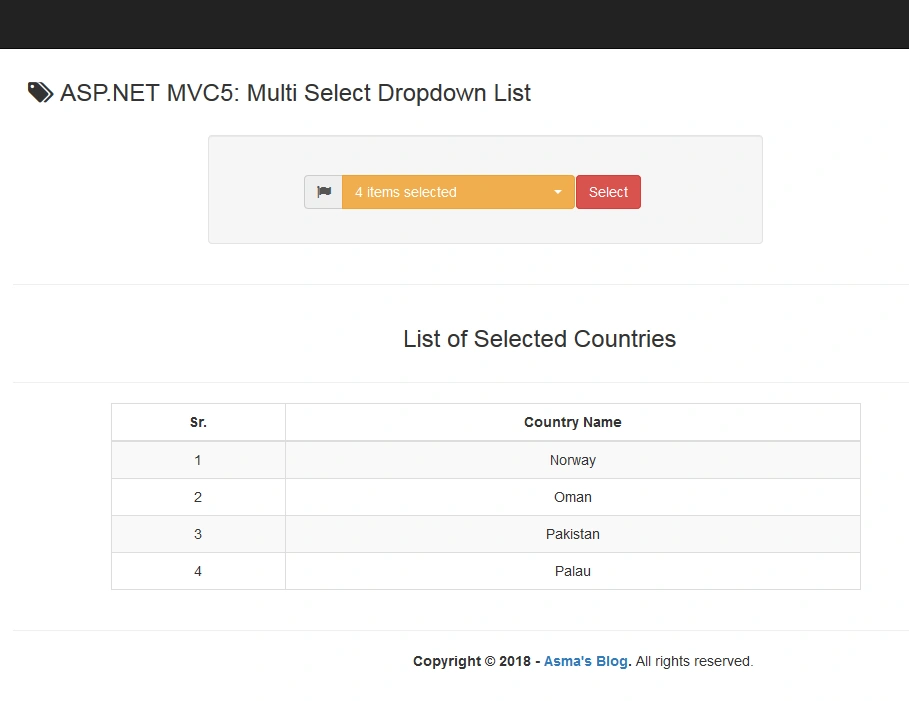
In the above code, I have populated & mapped the selected countries list into my model and then pass the Model back to the View.
Step 7
- $(document).ready(function ()
- {
- // Enable Live Search.
- $('#CountryList').attr('data-live-search', true);
- //// Enable multiple select.
- $('#CountryList').attr('multiple', true);
- $('#CountryList').attr('data-selected-text-format', 'count');
- $('.selectCountry').selectpicker(
- {
- width: '100%',
- title: '- [Choose Multiple Countries] -',
- style: 'btn-warning',
- size: 6,
- iconBase: 'fa',
- tickIcon: 'fa-check'
- });
- });
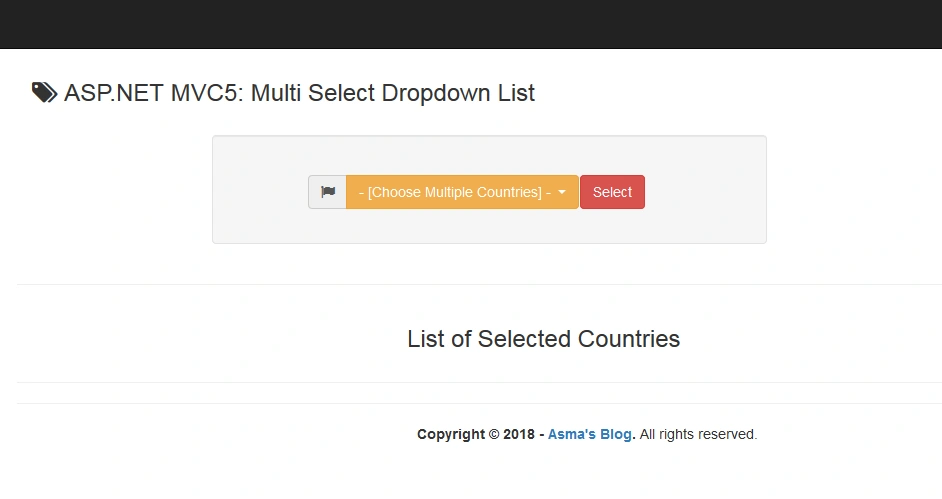
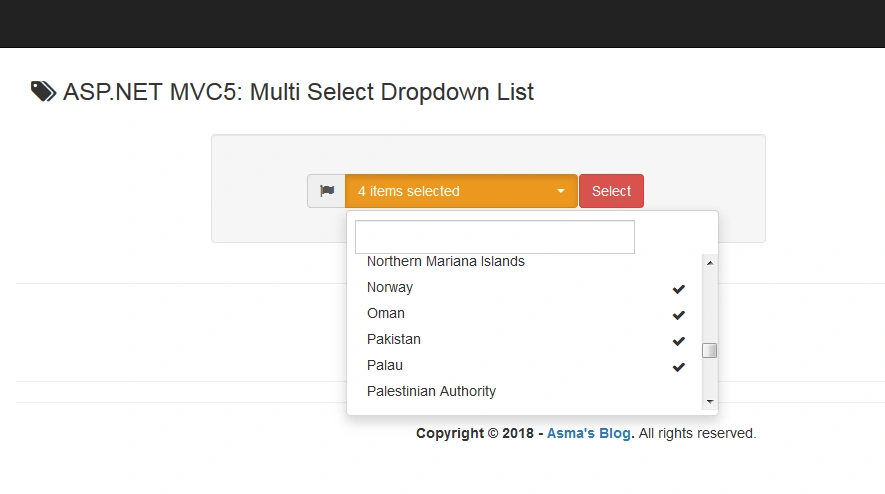
In the above code, I have called "slectpicker()" method of the bootstrap-select plugin with the basic settings. Before calling this method I have also set the live search property of the plugin, so, the end-user can search for the required value from the dropdown list. I have also set the multiple property as true which will enable the drop-down selection multiple and I have also set the text format property as count which will display the selection count for multi-select choice on the dropdown plugin.
Step 8
- @using SaveMultiSelectDropDown.Models
- @model SaveMultiSelectDropDown.Models.MultiSelectDropDownViewModel
- @{
- ViewBag.Title = "ASP.NET MVC5: Multi Select Dropdown List";
- }
- <div class="row">
- <div class="panel-heading">
- <div class="col-md-8">
- <h3>
- <i class="fa fa-tags"></i>
- <span>ASP.NET MVC5: Multi Select Dropdown List</span>
- </h3>
- </div>
- </div>
- </div>
- <br />
- <div class="row">
- <div class="col-md-6 col-md-push-2">
- <section>
- @using (Html.BeginForm("Index", "MultiSelectDropDown", FormMethod.Post, new { enctype = "multipart/form-data", @class = "form-horizontal", role = "form" }))
- {
- @Html.AntiForgeryToken()
- <div class="well bs-component">
- <br />
- <div class="row">
- <div class="col-md-6 col-md-push-2">
- <div class="form-group">
- <div class="input-group">
- <span class="input-group-addon icon-custom"><i class="fa fa-flag"></i></span>
- @Html.ListBoxFor(m => m.SelectedMultiCountryId, this.ViewBag.CountryList as SelectList, new { id = "CountryList", @class = "selectCountry show-tick form-control input-md" })
- </div>
- </div>
- </div>
- <div class="col-md-6 col-md-push-2">
- <div class="form-group">
- <input type="submit" class="btn btn-danger" value="Select" />
- </div>
- </div>
- </div>
- </div>
- }
- </section>
- </div>
- </div>
- <hr />
- <div class="row">
- <div class="col-md-offset-4 col-md-8">
- <h3>List of Selected Countries </h3>
- </div>
- </div>
- <hr />
- @if (Model.SelectedCountryLst != null &&
- Model.SelectedCountryLst.Count > 0)
- {
- <div class="row">
- <div class="col-md-offset-1 col-md-8">
- <section>
- <table class="table table-bordered table-striped">
- <thead>
- <tr>
- <th style="text-align: center;">Sr.</th>
- <th style="text-align: center;">Country Name</th>
- </tr>
- </thead>
- <tbody>
- @for (int i = 0; i < Model.SelectedCountryLst.Count; i++)
- {
- <tr>
- <td style="text-align: center;">@(i + 1)</td>
- <td style="text-align: center;">@Model.SelectedCountryLst[i].Country_Name</td>
- </tr>
- }
- </tbody>
- </table>
- </section>
- </div>
- </div>
- }
- @section Scripts
- {
- @*Scripts*@
- @Scripts.Render("~/bundles/bootstrap-select")
- @*Styles*@
- @Styles.Render("~/Content/Bootstrap-Select/css")
- }
In the above code, I have created the multi-select drop-down control with Bootstrap style plugin integration. I have also created the display list which will display the list of multiple countries as the user makes multiple selection choices via bootstrap style drop-down plugin and finally, I have also linked the require reference libraries for bootstrap style plugin.
The below lines of code have enabled the multiple-selection in bootstrap style dropdown Razor View UI component. Notice here that instead of using traditional razor view drop-down list UI component, I am using razor view List box UI component simply because I am making my dropdown plugin a multi-selection choice UI component.
- <div class="input-group">
- <span class="input-group-addon icon-custom"><i class="fa fa-flag"></i></span>
- @Html.ListBoxFor(m => m.SelectedMultiCountryId, this.ViewBag.CountryList as SelectList, new { id = "CountryList", @class = "selectCountry show-tick form-control input-md" })
- </div>
Step 9
Conclusion
In this article, you will learn about multiple selection via "Bootstrap Select" dropdown plugin. You will also learn about the integration of the bootstrap style plugin with ASP.NET MVC5 platform. You will also learn in this article about the creation of list data which is compatible with razor view engine. You will also learn to load data from text file and you will learn to utilize the multiple-select choice via the Bootstrap Select drop-down plugin.
Nelson NunesPosted Apr 15, 2020, 5:08 AM
Hello Asma, you should put the snippet with the necessary changes in BundleConfig.cs in order to the following code work: @*Scripts*@ @Scripts.Render("~/bundles/bootstrap-select") @*Styles*@ @Styles.Render("~/Content/Bootstrap-Select/css")
Yogi SPosted Nov 26, 2018, 4:16 AM
Its a very lengthy article with lots of unnecessary things, which you can certainly remove.
Asma KhalidPosted Nov 23, 2018, 10:13 PM
Thank You for the support
Abdul AzizPosted Nov 23, 2018, 1:02 AM
Great Post
Sarathlal SaseendranPosted Nov 23, 2018, 12:59 AM
Very nice and useful article Asma. Thanks for sharing.