

In one of my previous articles, I explained how to upload an image to the Server in MVC. You can find the link, given below:
In this article, I will explain how to upload multiple images by using Drag and Drop to the Server, using a JavaScript library called DropZone.js.
DropZone.js is an open source library, which provides drag and drop file uploading with the image preview. This library is independent and does not require JQuery library. It is a very lightweight library.
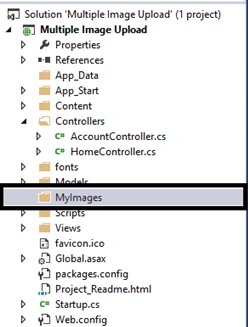
Thus, to use this, we have to create an MVC project. I created a project inside the project. I will create a folder as "MyImages" to store the uploaded images, as given below:
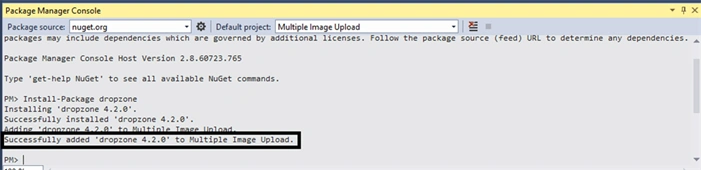
Now, I will go to the Package Manager Console and install DropZone.js, as given below:

After installing, it will show me the success message, as given below:
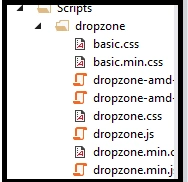
Now, it will add the following CSS and JavaScript to the project:
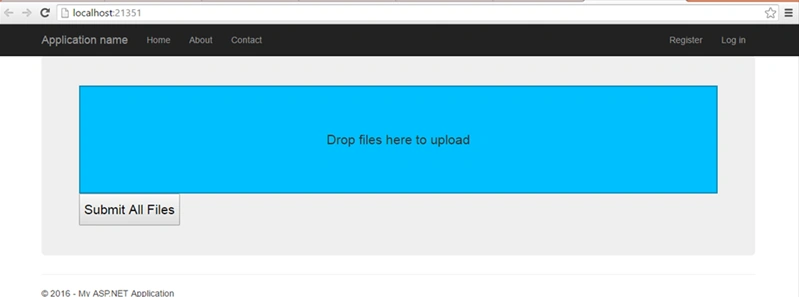
Now, I will go to my Index.cshtml. Add the script, given below, to the page and design the view:
- @
- {
- ViewBag.Title = "Home Page";
- }
- < script src = "~/Scripts/dropzone/dropzone.min.js" >< /script>< script src = "~/Scripts/bootstrap.min.js" >< /script>< link href = "~/Scripts/dropzone/dropzone.min.css" rel = "stylesheet" / >< div class = "jumbotron" >< form action = "~/Home/Upload"
- class = "dropzone"
- id = "dropzoneJsForm"
- style = "background-color:#00BFFF" >< /form>< button id = "submit-all" >
- Submit All Files
- < /button>< /div>
- <script type="text/javascript">
- Dropzone.options.dropzoneForm =
- {
- init: function() {
- this.on("complete", function(data) {
- //var res = eval('(' + data.xhr.responseText + ')');
- var res = JSON.parse(data.xhr.responseText);
- });
- }
- };
- </script>
- public class HomeController: Controller
- {
- public ActionResult Index()
- {
- return View();
- }
- }
Now, add the action method, given below, in the Home controller to save the files to the Server folder, when uploaded.
- public ActionResult Upload()
- {
- bool isSavedSuccessfully = true;
- string fName = "";
- try
- {
- foreach(string fileName in Request.Files)
- {
- HttpPostedFileBase file = Request.Files[fileName];
- fName = file.FileName;
- if (file != null && file.ContentLength > 0) {
- var path = Path.Combine(Server.MapPath("~/MyImages"));
- string pathString = System.IO.Path.Combine(path.ToString());
- var fileName1 = Path.GetFileName(file.FileName);
- bool isExists = System.IO.Directory.Exists(pathString);
- if (!isExists) System.IO.Directory.CreateDirectory(pathString);
- var uploadpath = string.Format("{0}\\{1}", pathString, file.FileName);
- file.SaveAs(uploadpath);
- }
- }
- } catch (Exception ex) {
- isSavedSuccessfully = false;
- }
- if (isSavedSuccessfully) {
- return Json(new {
- Message = fName
- });
- } else {
- return Json(new {
- Message = "Error in saving file"
- });
- }
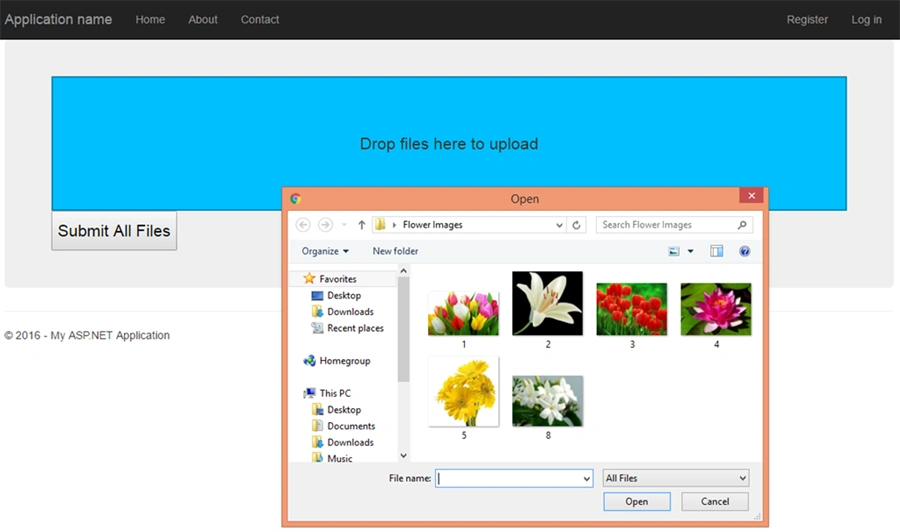
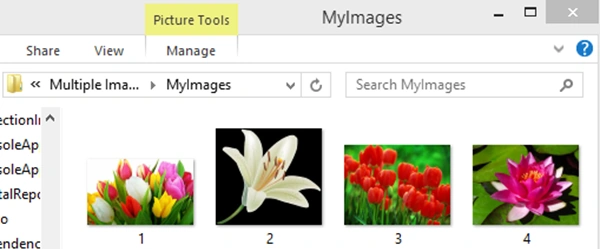
Now, select the multiple files you want to upload, as given below:
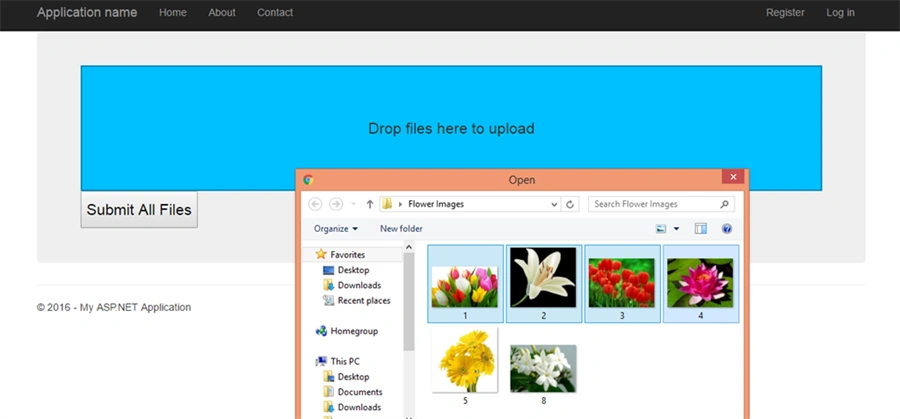
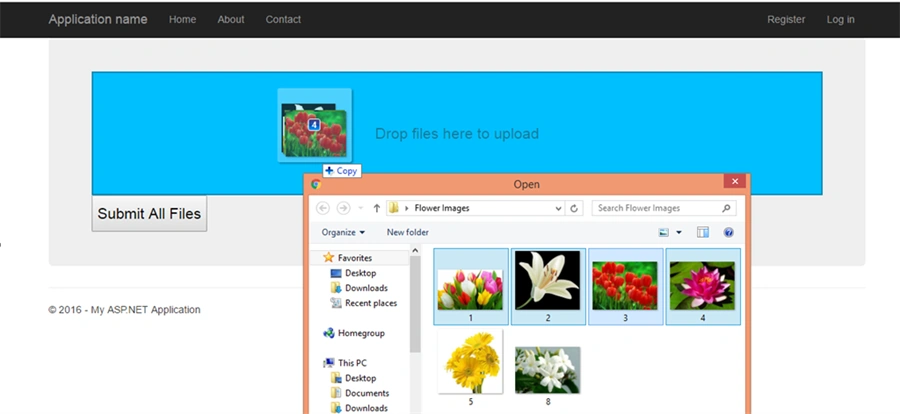
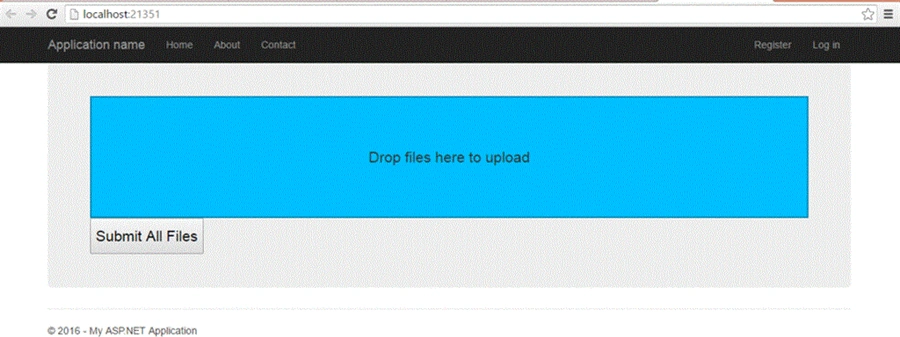
Now, drag the files and drop into the UI, as given below:
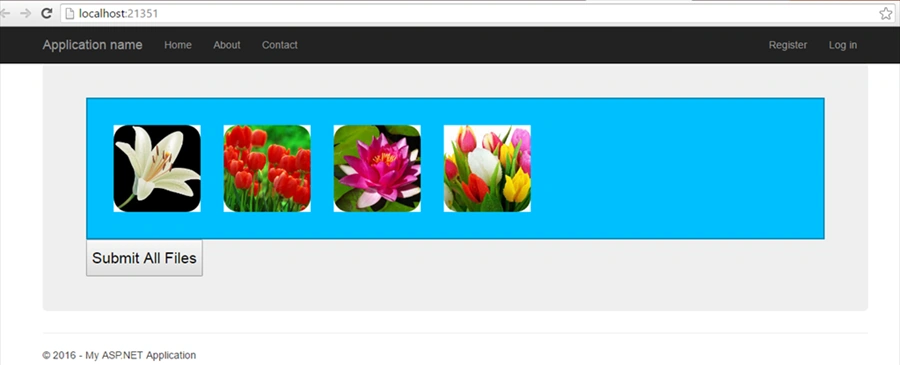
Now, check after dropping the files. It will immediately upload to the Server.
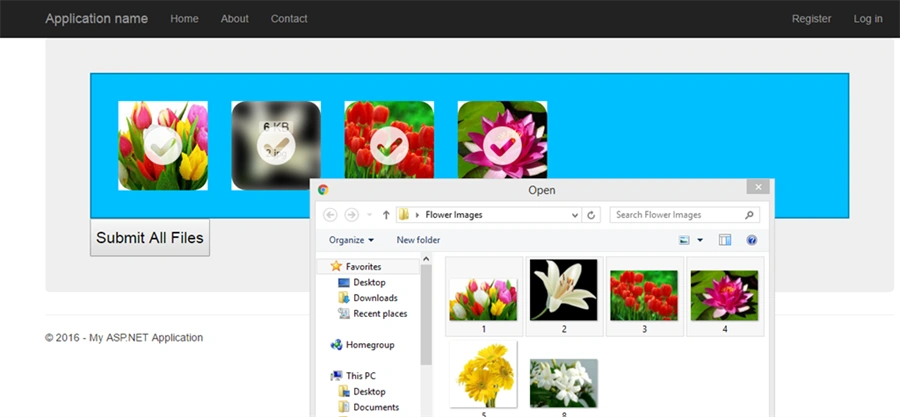
This will save the images in the Server.
Now, you can go to the Project folder and check for the files. The files will be available in this folder.
Thus, in this way, we can upload multiple images by dragging and dropping, using DropZone.js in MVC.
Hope you understood this tutorial. If you have any queries related to this tutorial, you can comment below, so that the next time, I will try to improve my article.
Cesar GuillenPosted Feb 27, 2023, 7:55 PM
Excelent, work very good, but how i can i delete an image after add, if dont want it ?
Niharika VachhaniPosted Oct 9, 2018, 11:12 PM
Helping article. But when i drop images it upload the files direct in the folder rather it should upload after clicking submit all button and what about delete ..? how can i delete image from folder ...? any idea about it.?
Mohammad MansoorPosted Mar 26, 2018, 11:09 PM
Nice helping article. But when i drop images it upload the files straight in the folder rather it should upload after clicking submit all button. The button is not doing any thing is it?
Humayun Kabir MamunPosted Jul 24, 2016, 2:05 AM
Very Helpful...
Bhavik PatelPosted Jul 23, 2016, 9:31 AM
Nice
Manas MohapatraPosted Jul 22, 2016, 1:48 AM
Good to know the implementation
kalu singh raoPosted Jul 22, 2016, 1:28 AM
Good one
Vignesh ManiPosted Jul 21, 2016, 4:40 PM
Nice
Pankaj Kumar ChoudharyPosted Jul 21, 2016, 1:19 PM
Useful Article Thanks for sharing..........