

In this article, we will learn how to configure formats in ASP.NET Core Web API like,
- Support specific format for specific action as example XML
- Support specific format as a default format as example XML
JSON is the default format in ASP.NET Core but assume you need, for some reasons, to support XML format globally. Doing that is easy.
Step 1
Open Visual Studio.

Step 2
Create a new project.

Step 3
Select Web >> ASP.NET CORE Web Application

Step 4
Select Web API.
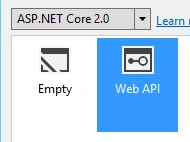
Step 5
Add a new folder and name it Models. Then, add a new class with the following code and name it Employee.
- public class Employee
- {
- public int Id;
- public string FirstName;
- public string LastName;
- }
Step 6
Open ValuesController.cs
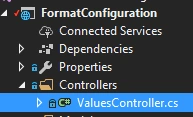
Step 6
Modify "Get" method to return the list of employees.
- [HttpGet]
- public List<Employee> Get()
- {
- return new List<Employee> { new Employee { Id = 1, FirstName = "Omar", LastName = "Maher" },
- new Employee { Id = 2, FirstName = "Ahmed", LastName = "Ali" }};
- }
Run the project by pressing F5. You will get the following result.

Step 7
To support XML format, you should add Microsoft.AspNetCore.Mvc.Formatters.Xml package.
Step 8
Right click on the project and select "Manage NuGet Packages".
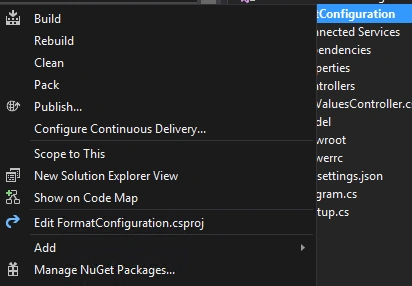
Step 9
Type Microsoft.AspNetCore.Mvc.Formatters.Xml in the box and install it.
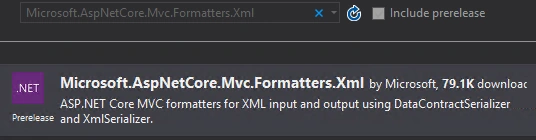
Step 10
Open Startup.cs file and edit ConfigureServices.
- public void ConfigureServices(IServiceCollection services)
- {
- services.AddMvc().AddXmlSerializerFormatters();
- }
AddXmlSerializerFormatters() method will add XML format to our project.
Step 11
Coem back to the ValuesController.cs file and edit Get method to add Produces filter.
Produces filter takes the type of format that you want to use. In our example, we are trying to use XML format. So, we will pass “application/xml".
- [HttpGet]
- [Produces("application/xml")]
- public List<Employee> Get()
- {
- return new List<Employee> { new Employee { Id = 1, FirstName = "Omar", LastName = "Maher" },
- new Employee { Id = 2, FirstName = "Ahmed", LastName = "Ali" }};
- }
Step 12
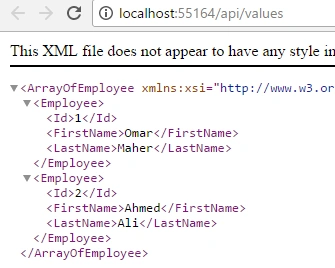
Run the project. You will get the following result.
Step 13
To ensure if other actions still return JSON, edit Get(int id) as shown below.
- // GET api/values/1
- [HttpGet("{id}")]
- public Employee Get(int id)
- {
- var employees = new List<Employee> { new Employee { Id = 1, FirstName = "Omar", LastName = "Maher" },
- new Employee { Id = 2, FirstName = "Ahmed", LastName = "Ali" }};
- return employees.Where(e=>e.Id == id).Select(e=>e).FirstOrDefault();
- }
Step 14
Run the project. You will see the JSON result.

Now, what if you want to support XML for all the applications?
Step 1
Go back to Startup.cs file and add edit ConfigureServices.
Add the filtter here to be applied in the whole application.
- public void ConfigureServices(IServiceCollection services)
- {
- services.AddMvc(options =>
- {
- options.Filters.Add(new ProducesAttribute("application/xml"));
- })
- .AddXmlSerializerFormatters();
- }
Step 2
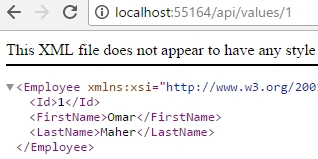
Run the project.
Summary
Changing the format in ASP.NET Core is very easy and flexible.
I hope this article will help you someday in real world apps.
Eman AhmedPosted May 21, 2017, 3:11 AM
Nice one :)..........
Mona AhmedPosted May 19, 2017, 3:20 PM
Great one , thanks a lot :)
Thiruppathi RPosted May 19, 2017, 7:26 AM
Nice article,Thanks for sharing..