

In Power Automate, array expressions are essential when working with multiple records, lists, or collections of data. Most real-world flows—especially those involving SharePoint, Dataverse, Outlook, or HTTP responses—depend heavily on arrays.
Understanding array expressions allows you to:
Process multiple items efficiently
Apply conditions on collections
Transform data for emails and reports
Build scalable and error-free flows
This article explains commonly used array expressions in Power Automate with clear explanations and step-by-step practical examples .
What Is an Array in Power Automate?
An array is a collection of values stored in a list format.
Simple Example
["HR", "IT", "Finance"]
Where Arrays Commonly Appear
Get items (SharePoint)
List rows (Dataverse)
Filter array
Split expression
HTTP responses
Practical Scenario Used in This Article
Business Requirement
We have a SharePoint list that stores employee requests.
We want to:
Read multiple records
Count them
Filter specific records
Combine values into a readable format
This will help demonstrate array expressions in real usage.
Step 1: SharePoint List Setup
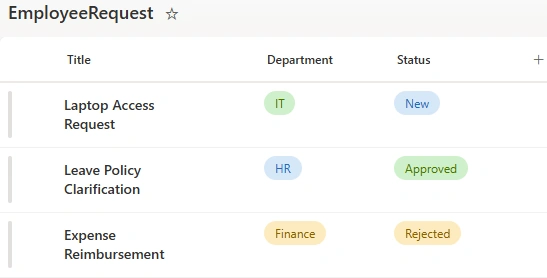
Create a SharePoint list named Employee Requests .
Columns
| Column Name | Type |
|---|---|
| Title | Single line of text |
| Department | Choice (HR, IT, Finance) |
| Status | Choice (New, Approved, Rejected) |
Step 2: Create the Power Automate Flow
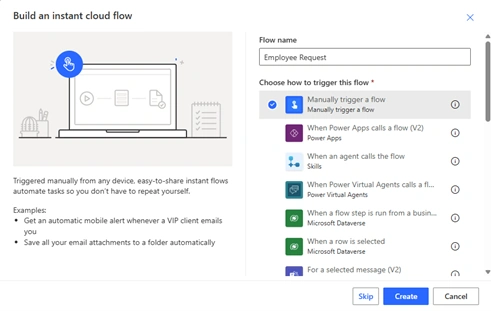
Go to Power Automate
Create an Instant cloud flow
Select Manually trigger a flow
This makes testing array expressions easier.
Step 3: Get Items (Array Source)
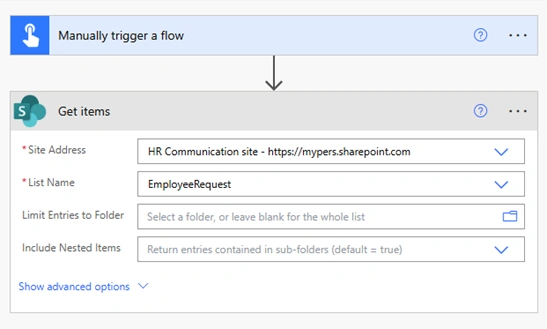
Add the Get items action.
Configuration
Site Address: Your site
List Name: Employee Requests
Important Output
body('Get_items')?['value']
This output is an array of objects , where each object represents one list item.
Common Array Expressions with Examples
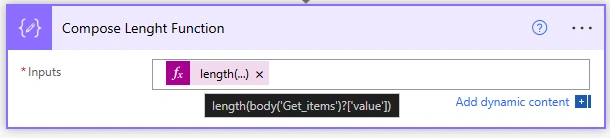
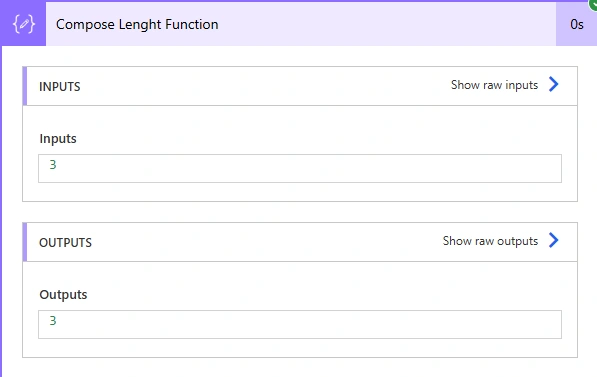
1. length() – Count Items in an Array
Purpose
Returns the number of elements in an array.
Expression
length(body('Get_items')?['value'])
Use Case
Count number of requests
Validate if records exist
Output
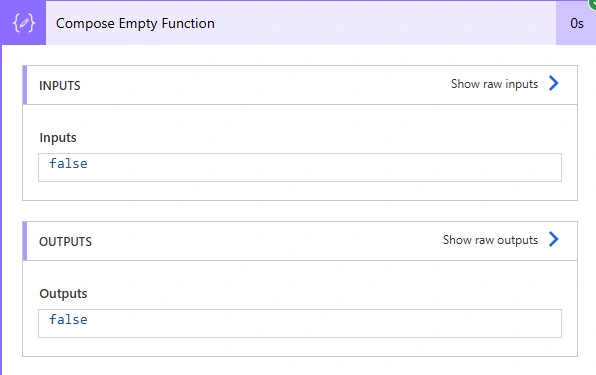
2. empty() – Check if Array Is Empty
Purpose
Checks whether an array has no items.
Expression
empty(body('Get_items')?['value'])
Use Case
Stop flow if no records are found
Avoid unnecessary loops

Output
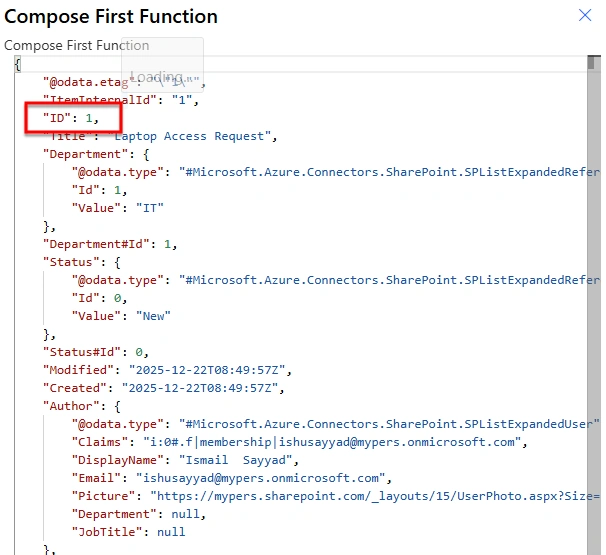
3. first() – Get the First Item
Purpose
Returns the first element of an array.
Expression
first(body('Get_items')?['value'])
Use Case
Fetch the earliest record
Preview sample data

Output
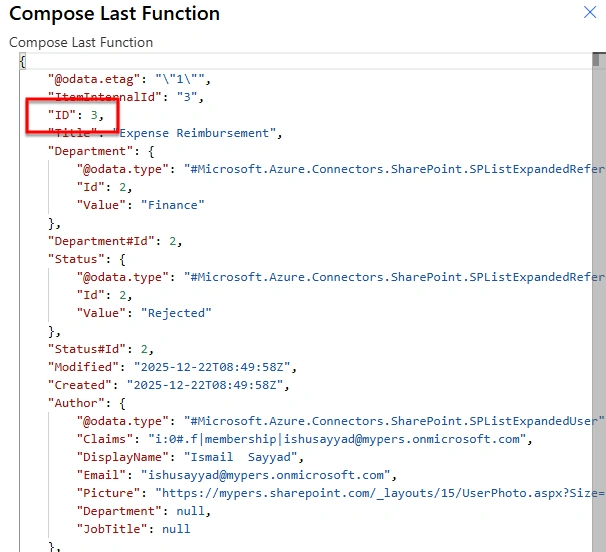
4. last() – Get the Last Item
Purpose
Returns the last element of an array.
Expression
last(body('Get_items')?['value'])
Use Case
Get the most recent entry
Audit latest record
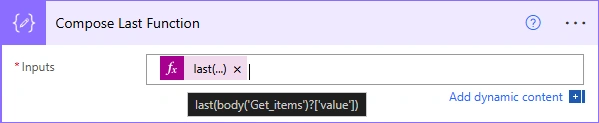
Output
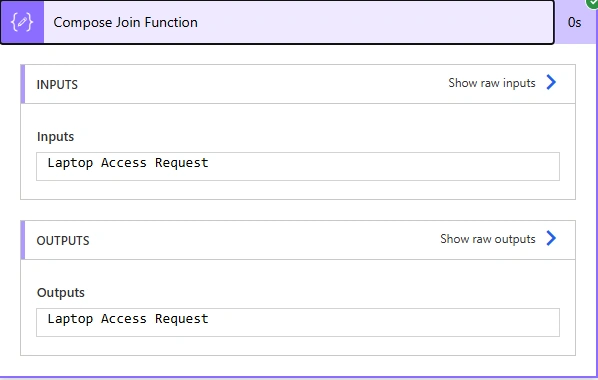
5. join() – Convert Array to String
Purpose
Combines array values into a single string.
Practical Example
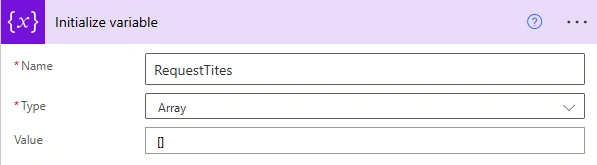
Step 1: Initialize Array Variable
Name: RequestTitles
Type: Array
Value: []
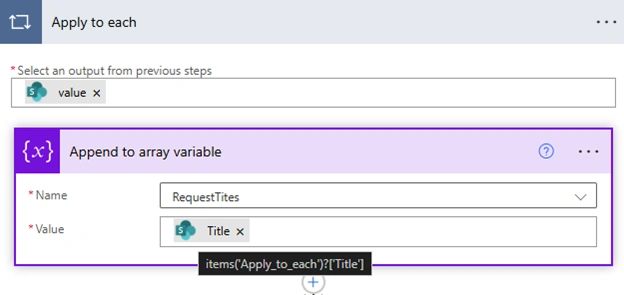
Step 2: Append Titles Inside Apply to each
items('Apply_to_each')?['Title']
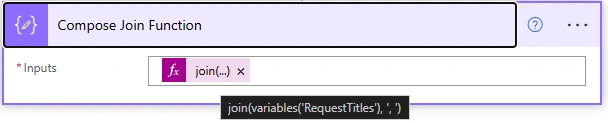
Step 3: Join Array
join(variables('RequestTitles'), ', ')
Output
6. split() – Convert String to Array
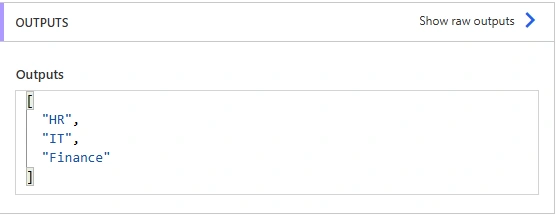
Purpose
Splits a string into an array based on a delimiter.
Expression
split('HR,IT,Finance', ',')
Use Case
Convert comma-separated values
Prepare data for looping

Output
Common Mistakes with Array Expressions
Treating arrays as single values
Forgetting Apply to each
Not handling empty arrays
Using conditions instead of Filter array
Formatting data before processing
Conclusion
Array expressions are a core part of Power Automate development.
Once you understand how to use functions like length(), join(), split(), and Filter array, handling complex data becomes simple and predictable.
Mastering array expressions significantly improves the reliability and scalability of your flows.
Join the conversation! Your thoughts help the community grow.