

In this article, I have explained how to create and configure App Services using Microsoft Windows Azure.
- Create web and mobile apps for any platform or device.
- Integrate your apps with Solutions-as-a-Services SaaS solutions
- Connect with on-premises applications, and automate your business processes.
Note
Azure runs your apps on fully managed virtual machines (VMs) with your choice of shared VM resources or dedicated VMs.
Azure runs your apps on fully managed virtual machines (VMs) with your choice of shared VM resources or dedicated VMs.
VM – Virtual Machine
App Services Types
- Web - Hosting websites and web applications
- Mobile – Hosting mobile app backends
- API - Hosting RESTFUL Services
- Logic Apps – Automating business process, Integrating Systems, and data across cloud without writing code.
Now, lets’ s go and create a web app using Azure portal.
Open http://manage.windowsazure.com
Log into your Azure subscription using your live email.
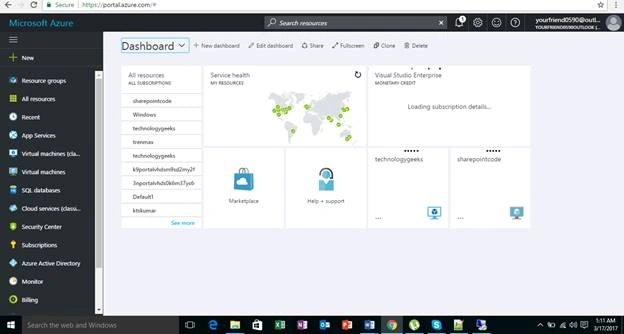
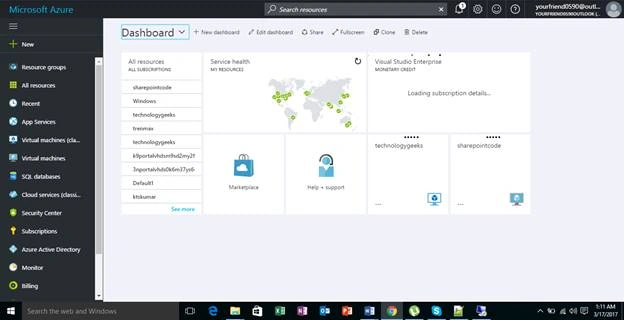
Navigate to the App Services.
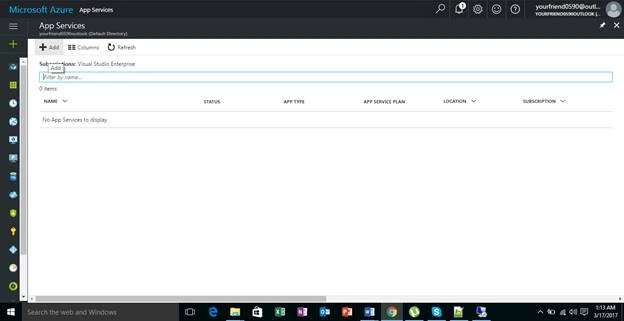
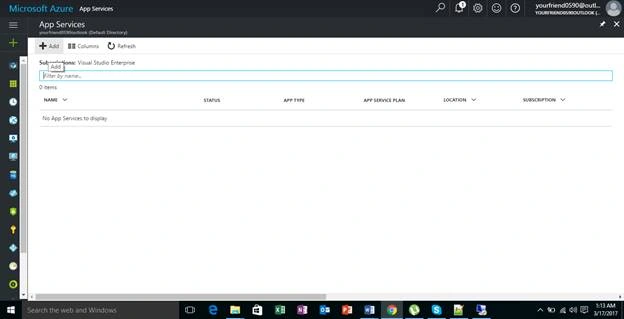
Click "Add" to create a new web app.
Click "Web app template" on the page.
Lots of templates are available here; ex - WordPress, Web app + SQL
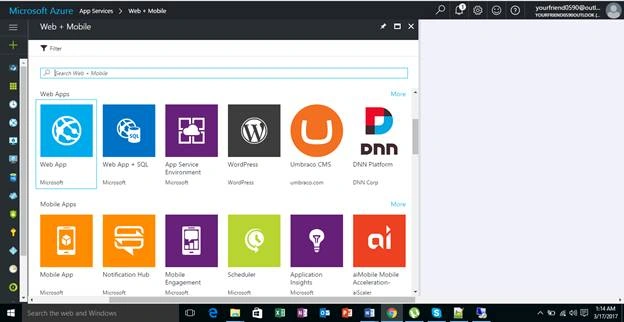
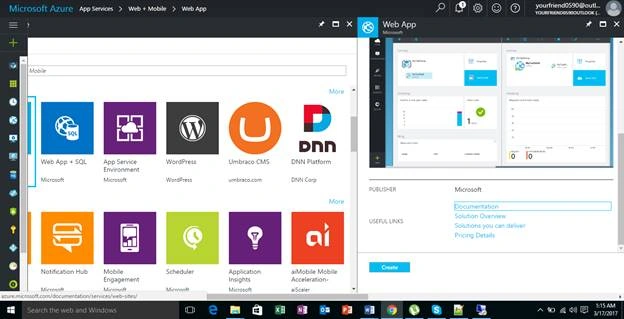
Click "Create".
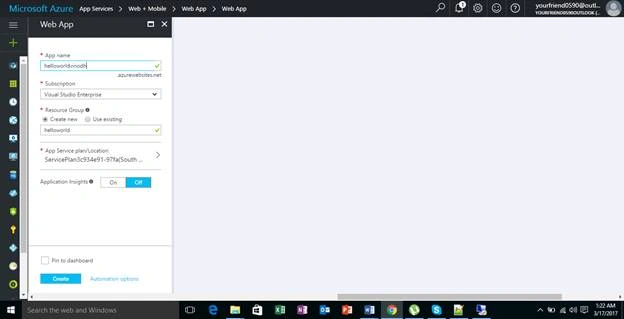
Provide the app name as “helloworldvinodh” and pick your subscription.
Create a new resource “helloworld” and click "Create".
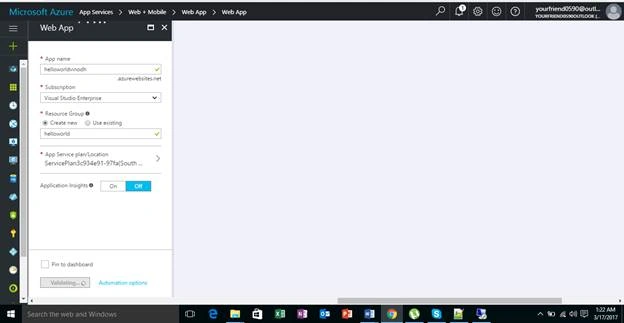
After successful creation of web app, navigate it into browser.
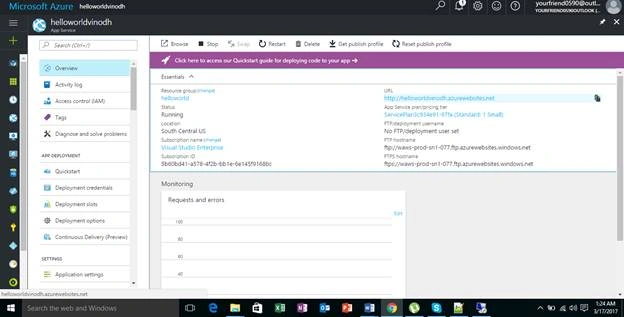
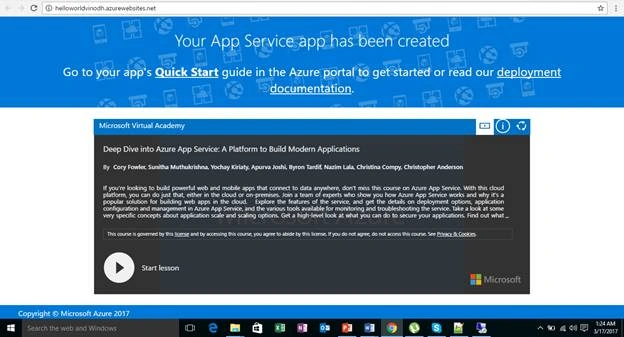
Provide the deployment credentials for FTP.
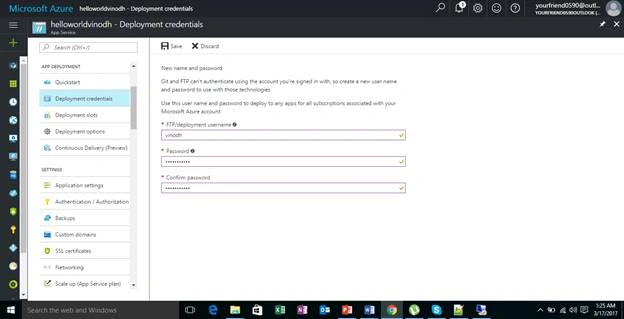
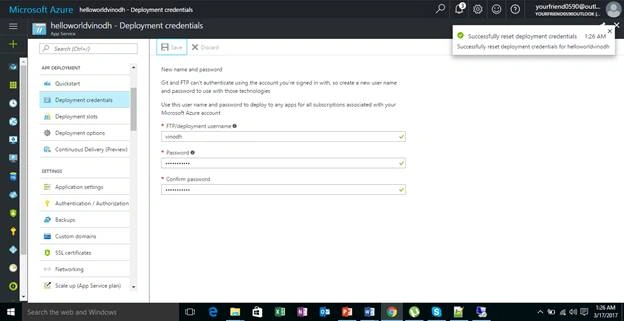
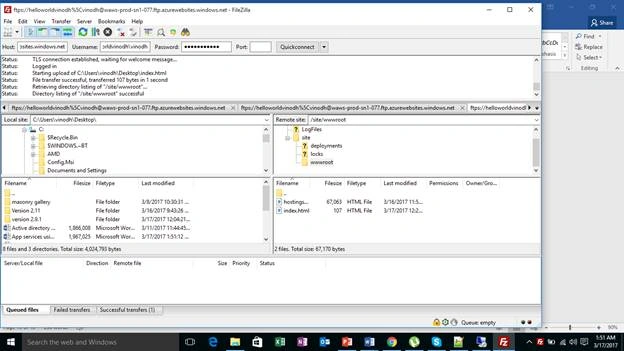
Open some third-party FTP software
In this scenario, I am using FileZilla Client.
Open FileZilla Client.
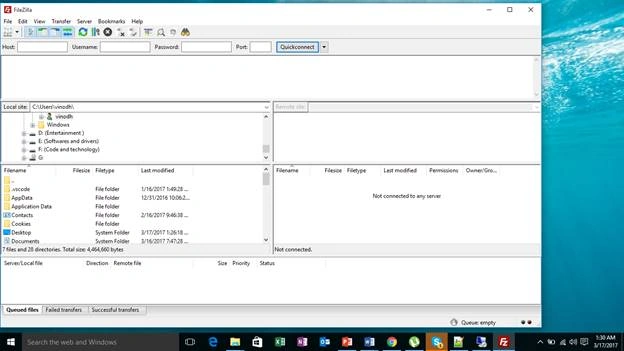
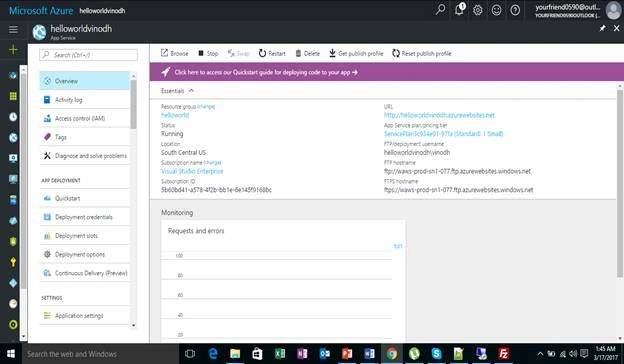
Provide the host name
Hostname: ftps://waws-prod-sn1-077.ftp.azurewebsites.windows.net
Username: helloworldvinodh\vinodh
Password: *************
Click Quickconnect
After successful connection
Navigate to WWWROOT directory
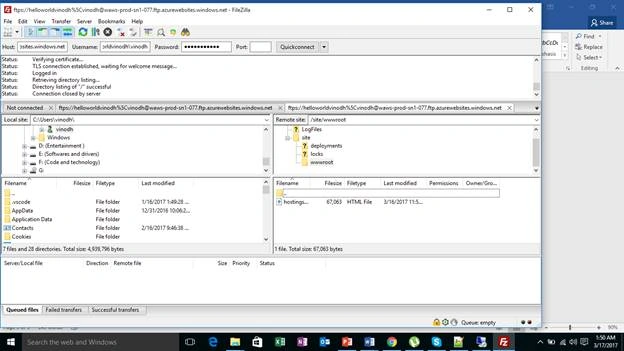
Create a sample helloworld HTML named index.html
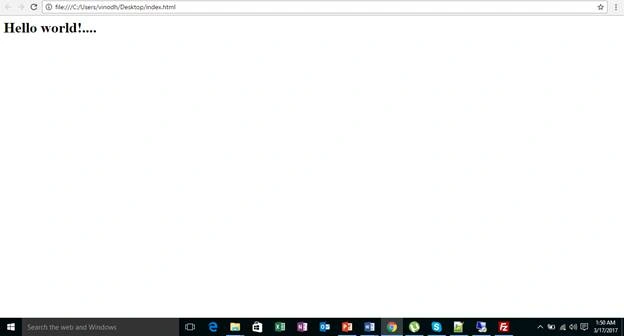
Move the index.html file to root directory
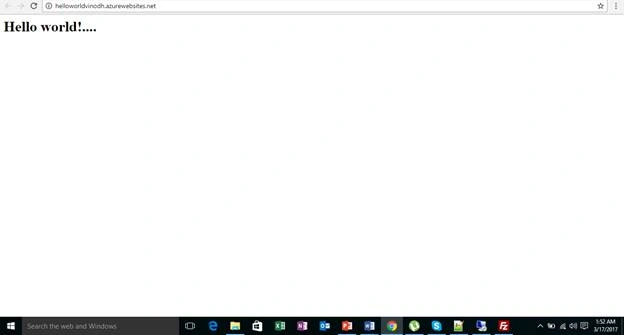
Now open the web app url http://helloworldvinodh.azurewebsites.net/
Happy learning!......
Join the conversation! Your thoughts help the community grow.