
Introduction
In this article, we will learn how to display the data from the database in DataTable plugin with AngularJS.
In this article, we are going to
- Create a database.
- Create Web API Application.
- Configuring Entity Framework ORM.
- Create controller.
- AngularJS part.
SQL database part
Here, you can find the scripts to create a database and a table.
Create a database
- USE [master]
- GO
- /****** Object: Database [CustomerDB] Script Date: 29/03/2017 16:15:43 ******/
- CREATE DATABASE [CustomerDB] ON PRIMARY
- ( NAME = N'CustomerDB', FILENAME = N'C:\Program Files\Microsoft SQL Server\MSSQL10_50.MSSQLSERVER\MSSQL\DATA\CustomerDB.mdf' , SIZE = 11264KB , MAXSIZE = UNLIMITED, FILEGROWTH = 1024KB )
- LOG ON
- ( NAME = N'CustomerDB_log', FILENAME = N'C:\Program Files\Microsoft SQL Server\MSSQL10_50.MSSQLSERVER\MSSQL\DATA\CustomerDB_log.ldf' , SIZE = 26816KB , MAXSIZE = 2048GB , FILEGROWTH = 10%)
- GO
- ALTER DATABASE [CustomerDB] SET COMPATIBILITY_LEVEL = 100
- GO
- IF (1 = FULLTEXTSERVICEPROPERTY('IsFullTextInstalled'))
- begin
- EXEC [CustomerDB].[dbo].[sp_fulltext_database] @action = 'enable'
- end
- GO
- ALTER DATABASE [CustomerDB] SET ANSI_NULL_DEFAULT OFF
- GO
- ALTER DATABASE [CustomerDB] SET ANSI_NULLS OFF
- GO
- ALTER DATABASE [CustomerDB] SET ANSI_PADDING OFF
- GO
- ALTER DATABASE [CustomerDB] SET ANSI_WARNINGS OFF
- GO
- ALTER DATABASE [CustomerDB] SET ARITHABORT OFF
- GO
- ALTER DATABASE [CustomerDB] SET AUTO_CLOSE OFF
- GO
- ALTER DATABASE [CustomerDB] SET AUTO_SHRINK OFF
- GO
- ALTER DATABASE [CustomerDB] SET AUTO_UPDATE_STATISTICS ON
- GO
- ALTER DATABASE [CustomerDB] SET CURSOR_CLOSE_ON_COMMIT OFF
- GO
- ALTER DATABASE [CustomerDB] SET CURSOR_DEFAULT GLOBAL
- GO
- ALTER DATABASE [CustomerDB] SET CONCAT_NULL_YIELDS_NULL OFF
- GO
- ALTER DATABASE [CustomerDB] SET NUMERIC_ROUNDABORT OFF
- GO
- ALTER DATABASE [CustomerDB] SET QUOTED_IDENTIFIER OFF
- GO
- ALTER DATABASE [CustomerDB] SET RECURSIVE_TRIGGERS OFF
- GO
- ALTER DATABASE [CustomerDB] SET DISABLE_BROKER
- GO
- ALTER DATABASE [CustomerDB] SET AUTO_UPDATE_STATISTICS_ASYNC OFF
- GO
- ALTER DATABASE [CustomerDB] SET DATE_CORRELATION_OPTIMIZATION OFF
- GO
- ALTER DATABASE [CustomerDB] SET TRUSTWORTHY OFF
- GO
- ALTER DATABASE [CustomerDB] SET ALLOW_SNAPSHOT_ISOLATION OFF
- GO
- ALTER DATABASE [CustomerDB] SET PARAMETERIZATION SIMPLE
- GO
- ALTER DATABASE [CustomerDB] SET READ_COMMITTED_SNAPSHOT OFF
- GO
- ALTER DATABASE [CustomerDB] SET HONOR_BROKER_PRIORITY OFF
- GO
- ALTER DATABASE [CustomerDB] SET RECOVERY FULL
- GO
- ALTER DATABASE [CustomerDB] SET MULTI_USER
- GO
- ALTER DATABASE [CustomerDB] SET PAGE_VERIFY CHECKSUM
- GO
- ALTER DATABASE [CustomerDB] SET DB_CHAINING OFF
- GO
- ALTER DATABASE [CustomerDB] SET READ_WRITE
- GO
Create a table
- USE [CustomerDB]
- GO
- /****** Object: Table [dbo].[Customers] Script Date: 29/03/2017 16:16:32 ******/
- SET ANSI_NULLS ON
- GO
- SET QUOTED_IDENTIFIER ON
- GO
- SET ANSI_PADDING ON
- GO
- CREATE TABLE [dbo].[Customers](
- [Id] [int] IDENTITY(1,1) NOT NULL,
- [FirstName] [varchar](50) NULL,
- [LastName] [varchar](50) NULL,
- [City] [varchar](50) NULL,
- [Country] [varchar](50) NULL,
- CONSTRAINT [PK_Customers] PRIMARY KEY CLUSTERED
- (
- [Id] ASC
- )WITH (PAD_INDEX = OFF, STATISTICS_NORECOMPUTE = OFF, IGNORE_DUP_KEY = OFF, ALLOW_ROW_LOCKS = ON, ALLOW_PAGE_LOCKS = ON) ON [PRIMARY]
- ) ON [PRIMARY]
- GO
- SET ANSI_PADDING OFF
- GO
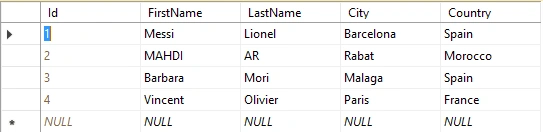
After creating the table, you can add some records, as shown below.
Create your Web API Application
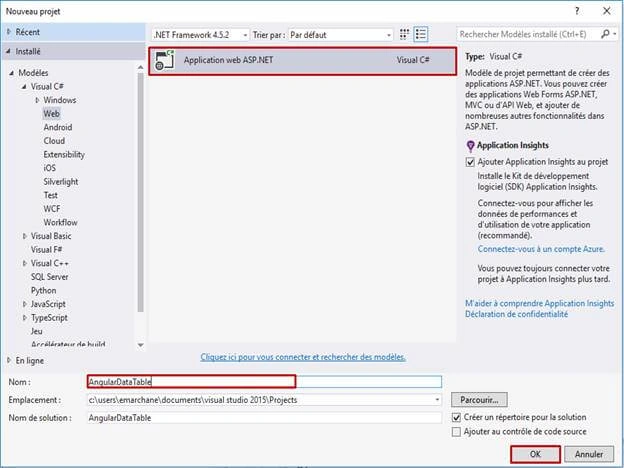
Open Visual Studio and select File >> New Project.
The New Project Window will pop up. Select ASP.NET Web Application (.NET Framework), name your project and click OK.
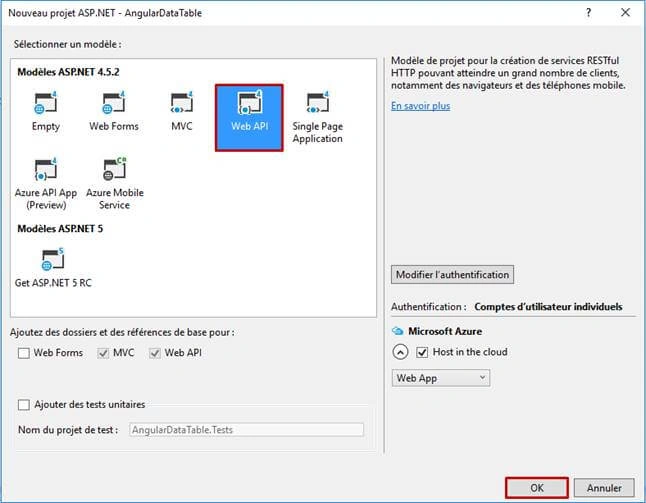
Now, anew dialog will pop up for selecting the template. We are going to choose Web API template and click OK button.
After creating our project, we are going to add ADO.NET Entity Data Model.
Adding ADO.NET Entity Data Model
To add ADO.NET Entity Framework, right click on Mapping EDMX file >> Add >> Add New Item. Dialog box will pop up. Inside Visual C#, select Data >> ADO.NET Entity Data Model and enter a name for your Dbcontext model as CustomerModel.
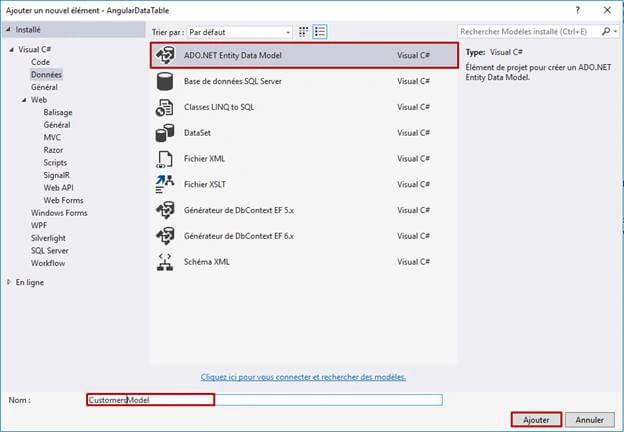
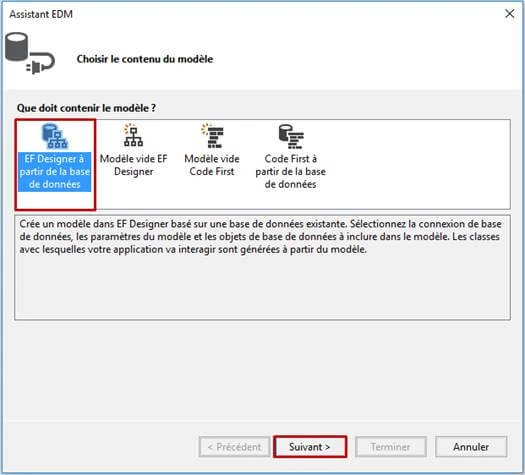
Next, we need to choose EF Designer from the database, which model contains.
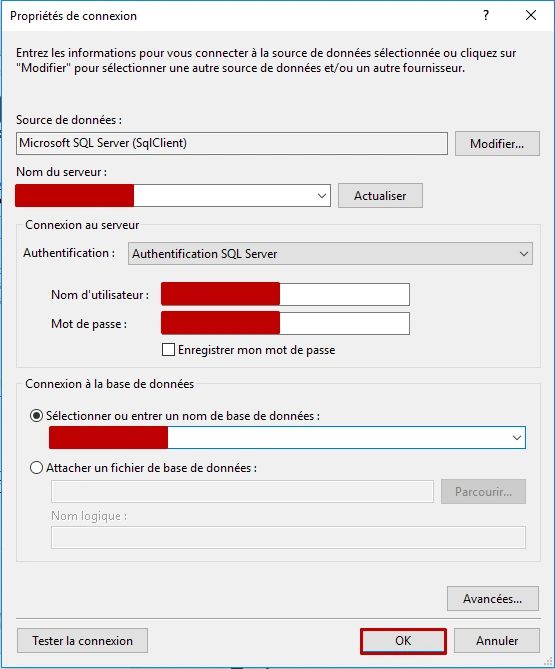
As you can see below, we need to select Server name, then via dropdown list, connect to a database panel. You should choose your database name. Finally, click OK.
Now, the dialog Entity Data Model Wizard will pop up for choosing the object, which we need to use. In our case, we are going to choose Customers table and click Finish button.
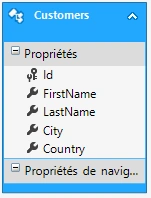
Finally, we will see that EDMX model generates a Customers class.
Create a controller
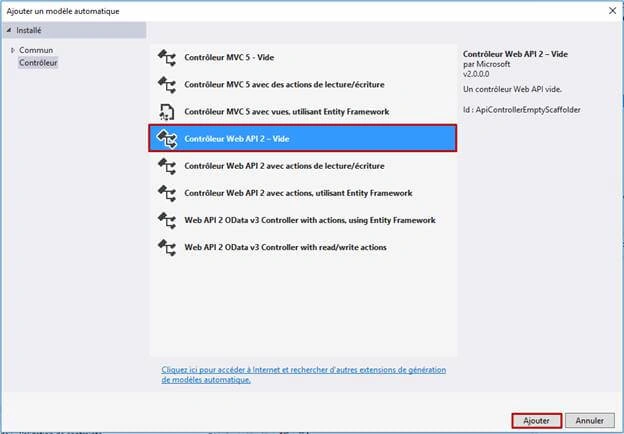
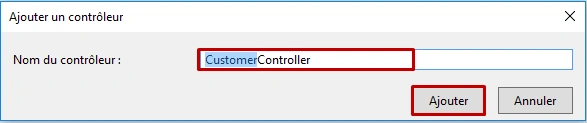
Now, we are going to create a controller. Right click on Controllers folder >> Add >> Controller>> select Web API 2 Controller – Empty >> click Add.
Enter Controller name (‘CustomerController’).
CustomerController.cs
- using System;
- using System.Collections.Generic;
- using System.Linq;
- using System.Net;
- using System.Net.Http;
- using System.Web.Http;
- using System.Web.Http.Description;
- namespace AngularDataTable.Controllers
- {
- [RoutePrefix("api/Customer")]
- public class CustomerController : ApiController
- {
- [Route("Display")]
- [HttpGet]
- public IHttpActionResult Display()
- {
- if (!ModelState.IsValid)
- {
- return BadRequest(ModelState);
- }
- using (CustomerDBEntities dc = new CustomerDBEntities())
- {
- var data = dc.Customers.ToList();
- return Ok(data);
- }
- }
- }
- }
Here, I am creating Display() action to retrieve all the data from Customer table in JSON format.
AngularJS part
To create new JS file, right click on Scripts folder > Add > JavaScript file.
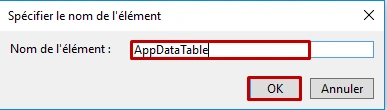
AppDataTable.js
- angular.module('showcase.withPromise', ['datatables']).controller('WithPromiseCtrl', WithPromiseCtrl);
- function WithPromiseCtrl(DTOptionsBuilder, DTColumnBuilder, $http, $q) {
- var vm = this;
- vm.dtOptions = DTOptionsBuilder.fromFnPromise(function () {
- var defer = $q.defer();
- $http.get('api/Customer/Display').then(function (result) {
- defer.resolve(result.data);
- });
- return defer.promise;
- }).withPaginationType('full_numbers');
- vm.dtColumns = [
- DTColumnBuilder.newColumn('Id').withTitle('ID'),
- DTColumnBuilder.newColumn('FirstName').withTitle('First Name'),
- DTColumnBuilder.newColumn('LastName').withTitle('Last Name'),
- DTColumnBuilder.newColumn('City').withTitle('City'),
- DTColumnBuilder.newColumn('Country').withTitle('Country')
- ];
- }
Create HTML Page
To add HTML page, right click on the project name > Add > HTML page.
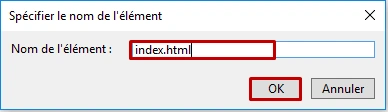
Index.html
- <!DOCTYPE html>
- <html>
- <head>
- <meta http-equiv="Content-Type" content="text/html; charset=utf-8"/>
- <title>.: Display Data - Angular DataTable :.</title>
- <meta charset="utf-8" />
- <!-- CSS -->
- <link href="Content/angular-datatables.css" rel="stylesheet" />
- <link href="Content/DataTables/css/dataTables.bootstrap4.min.css" rel="stylesheet" />
- <link href="Content/DataTables/css/dataTables.jqueryui.min.css" rel="stylesheet" />
- </head>
- <body ng-app="showcase.withPromise">
- <h2>Customer Table</h2>
- <div ng-controller="WithPromiseCtrl as showCase">
- <table datatable="" dt-options="showCase.dtOptions" dt-columns="showCase.dtColumns" class="row-border hover"></table>
- </div>
- <!-- JS -->
- <script src="Scripts/jquery-1.10.2.min.js"></script>
- <script src="Scripts/DataTables/jquery.dataTables.min.js"></script>
- <script src="Scripts/angular.min.js"></script>
- <script src="Scripts/angular-datatables.min.js"></script>
- <script src="Scripts/AppDataTable.js"></script>
- </body>
- </html>
Note
You can download all the required libraries from AngularJS DataTable.
Don’t forget to add the libraries given below in index.html.
- <!-- CSS -->
- <link href="Content/angular-datatables.css" rel="stylesheet" />
- <link href="Content/DataTables/css/dataTables.bootstrap4.min.css" rel="stylesheet" />
- <link href="Content/DataTables/css/dataTables.jqueryui.min.css" rel="stylesheet" />
- <!-- JS -->
- <script src="Scripts/jquery-1.10.2.min.js"></script>
- <script src="Scripts/DataTables/jquery.dataTables.min.js"></script>
- <script src="Scripts/angular.min.js"></script>
- <script src="Scripts/angular-datatables.min.js"></script>
- <script src="Scripts/AppDataTable.js"></script>
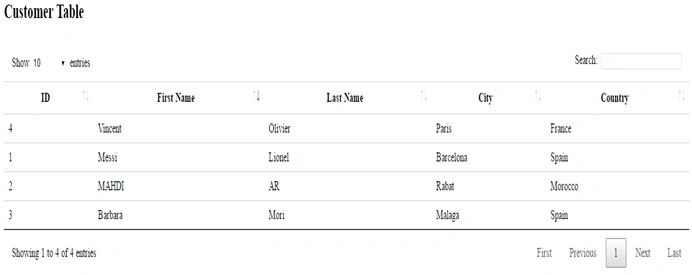
Output
Now, you can run your Application. Let’s see the output.
Vijay KumarPosted Mar 31, 2017, 4:58 AM
Could you please give some example related CRUD in smart data table
Former memberPosted Mar 31, 2017, 4:56 AM
I have one request that can you please show how to work with angular smart table when web api or mvc will provide data to smart table with in line edit/delete and insert data. thanks