

Introduction
What is CRUD ?
CRUD is an acronym for CREATE, READ, UPDATE, DELETE.
What is Firebase ?
Firebase is a technology that allows us to create web applications without server-side-programming, making development faster and easier. It can control data without thinking about how data is stored and synchronized across different instances of the application in real-time.
It is a mobile platform from Google offering a number of different features.These features allow users to save and retrieve data to be accessed from any device or browser.
Prerequisites
- Basic knowledge of Angular
- Visual Studio Code must be installed
- Angular CLI must be installed
- Node JS must be installed
- Basic Knowledge of Firebase
Step 1
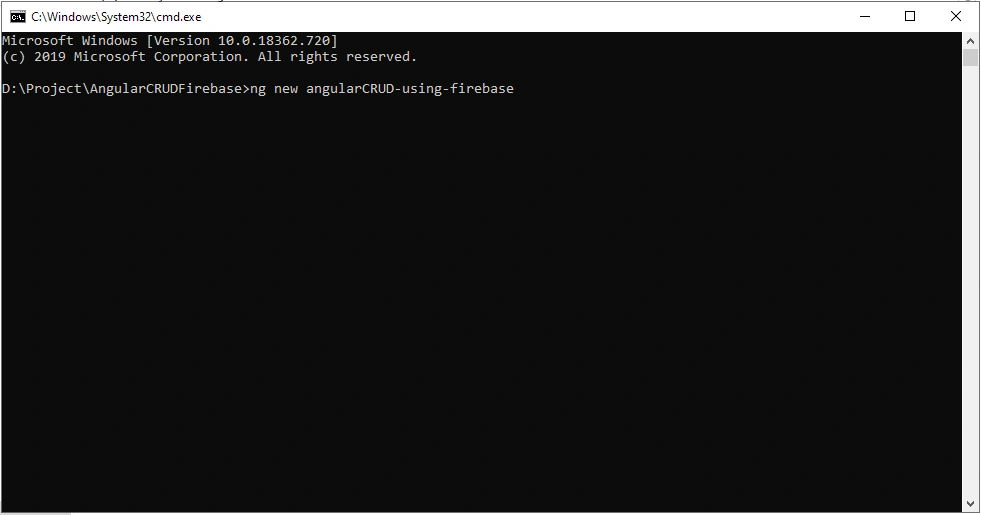
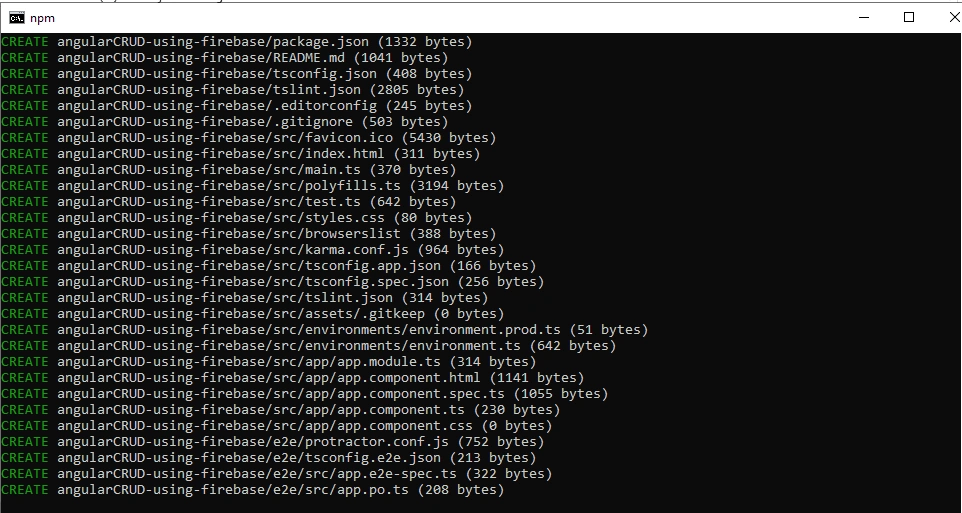
Open cmd and and type the following command.
- ng new angularCRUD-using-firebase
Step 2
In cmd go to the project folder and type 'code .' to open the project in Visual Studio code .
Step 3
Now, let's create a new component by using the following command and nstall Firebase and Angular Firebase.
- npm install firebase @angular/fire
Step 4
To integrate our Angular application with Firebase just visit my article Introduction to Firebase. There I explained in detail how to create an account in Firebase and how to setup the project .
Go to Firebase and login in console.firebase.com
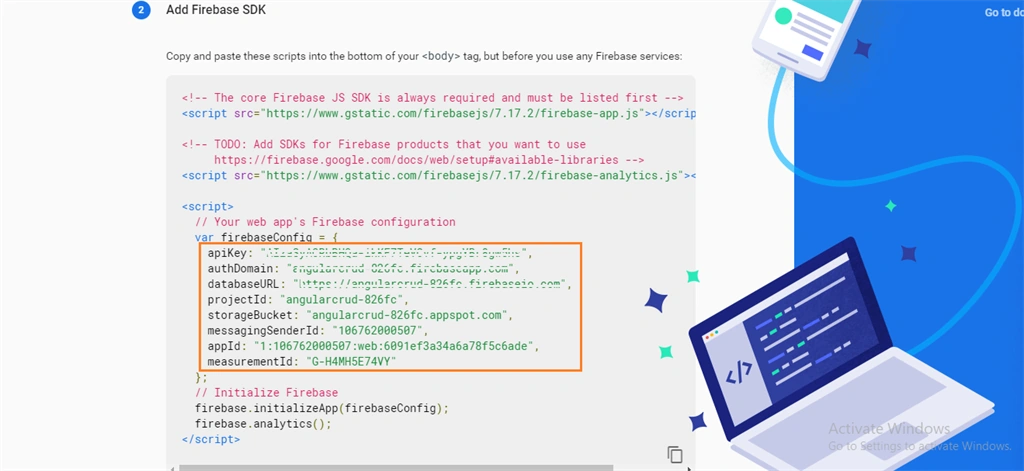
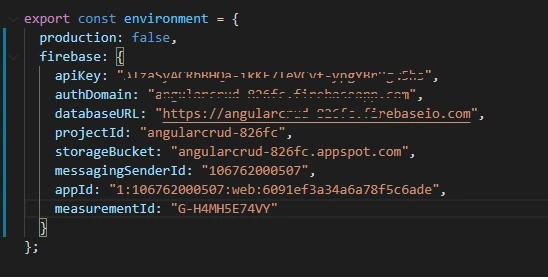
On the left menu of the home page Click on Project overview. Go to Settings. On the general tab, scroll down and you can see your configuration.You only need to copy the config object from this page.
Step 5
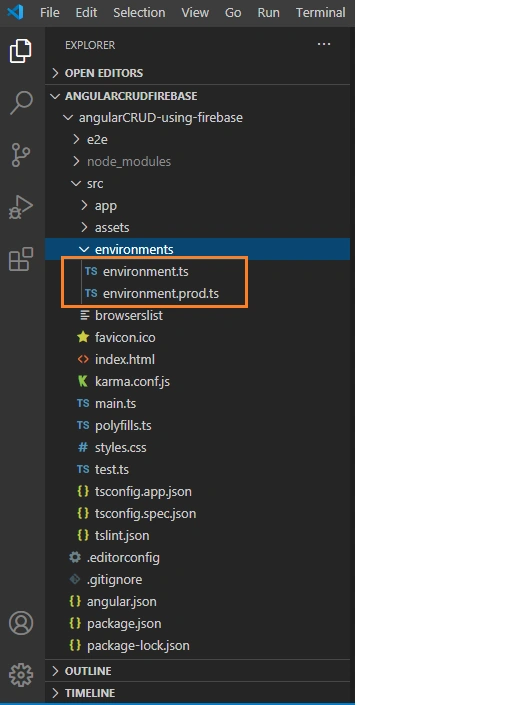
Copy the configuration and paste it inside your enviroment.ts file
Step 6
Go to environment.ts file and paste your firebase configuration code inside firebase:{} (You need to create one object)
Step 7
Open the file app.module.ts and paste the below code,
- import { BrowserModule } from '@angular/platform-browser';
- import { NgModule } from '@angular/core';
- import { AppComponent } from './app.component';
- import { FormsModule } from '@angular/forms';
- import { HttpClientModule } from '@angular/common/http';
- import { AngularFireModule } from '@angular/fire';
- import { AngularFireDatabaseModule } from '@angular/fire/database';
- import { AngularFirestoreModule } from '@angular/fire/firestore';
- import { environment } from 'src/environments/environment';
- import { RealTimeDatabaseComponent } from './real-time-database/real-time-database.component';
- import { CloudFirestoreComponent } from './cloud-firestore/cloud-firestore.component';
- @NgModule({
- declarations: [
- AppComponent,
- RealTimeDatabaseComponent,
- CloudFirestoreComponent
- ],
- imports: [
- BrowserModule,
- FormsModule,
- HttpClientModule,
- AngularFireModule.initializeApp(environment.firebase),
- AngularFireDatabaseModule,
- AngularFirestoreModule
- ],
- providers: [AngularFireModule],
- bootstrap: [AppComponent]
- })
- export class AppModule { }
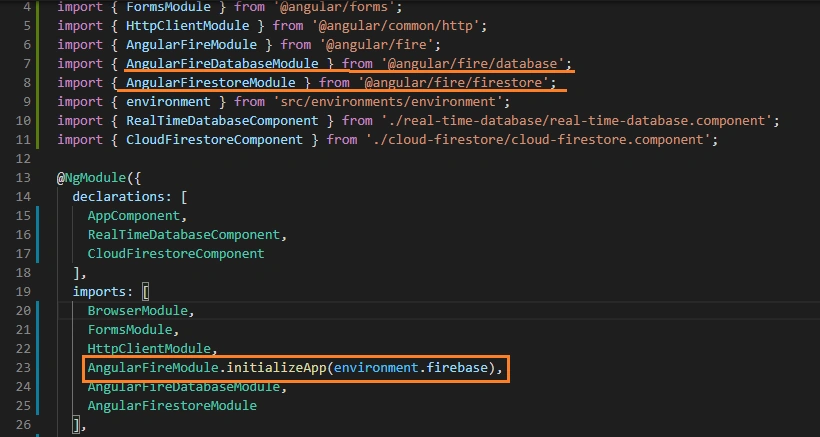
The above image shows that we need to import Angular fire module and inside initializeapp and give the path of our firebase web configuration. Also we have imported 2 files ,Angular Fire database module for Realtime Database and Angular FireStore module for Cloud Firestore.
Step 8
There are two ways to store our data in firebase
- Cloud Firestore- Store and sync data in real time across all connected clients
- Real-Time Database- Realtime Updates poweful queries and automatic scaling
In this article we are storing data in both ways to store data in Cloud Firestore and in Real-time Database.
Using Cloud Firestore
Step 9
Create a component "cloud -firestore" using the following command
- ng g c cloud-firestore
Step 10
Now, open the cloud-firestore.component.ts file and add the following code in this file,
- import { Component, OnInit } from '@angular/core';
- import { Country } from '../country';
- import { CountryService } from '../country.service';
- import { AngularFirestore } from '@angular/fire/firestore';
- @Component({
- selector: 'app-cloud-firestore',
- templateUrl: './cloud-firestore.component.html',
- styleUrls: ['./cloud-firestore.component.css']
- })
- export class CloudFirestoreComponent {
- updateCountry: boolean = false;
- countries: Country[];
- Country: Country = new Country();
- countryId = null;
- isToggle: boolean = false;
- formSubmitted: boolean;
- isDelete: boolean;
- constructor(private _countryService: CountryService,
- private angularFirestore: AngularFirestore
- ) {
- this.getAllCountry();
- }
- getAllCountry() {
- this._countryService.getAllCountry().subscribe((data: any) => {
- this.countries = data.map(e => {
- return {
- id: e.payload.doc.id,
- ...e.payload.doc.data()
- } as Country;
- });
- console.log(this.countries);
- });
- }
- onSubmit(f) {
- if (f.form.valid) {
- const CountryData = JSON.parse(JSON.stringify(this.Country));
- debugger;
- if (this.countryId == null) {
- this._countryService.addCountryInforamtion(CountryData);
- } else {
- this._countryService.updateCountryInforamtion(this.countryId, CountryData);
- }
- this.Country = new Country();
- f.submitted = false;
- this.formSubmitted = true;
- this.updateCountry = false;
- setInterval(() => {
- this.formSubmitted = false;
- }, 2000);
- }
- }
- //Edit Country method
- editCountry(countryId) {
- this.countryId = countryId;
- let obj: any = this.countries.filter((x: any) => {
- return x.id == countryId;
- });
- this.updateCountry = true;
- this.Country = obj[0];
- }
- // Delete Country method
- deleteCountry(countryId) {
- if (confirm('Please note! This action can NOT be undone. Are you sure you want to delete?')) {
- this._countryService.deleteCountry(countryId);
- this.isDelete = true;
- setInterval(() => {
- this.isDelete = false;
- }, 2000);
- }
- }
- }
Step 11
Open the cloud-firestore.component.html file and add the following code in this file,
- <div class="card">
- <form name="form" (ngSubmit)=" onSubmit(f)" #f="ngForm" novalidate>
- <div class="card-body pb-0">
- <div class="card">
- <div class="card-header main-search dash-search">
- <h1 style="text-align: center;">
- MANAGE COUNTRY- Using Cloud Firestore
- </h1>
- </div>
- </div>
- <div class="row">
- <div class="col-12 col-md-12">
- <div class="card">
- <div *ngIf="!updateCountry" class="card-header">
- Add New Country
- <h3 *ngIf="formSubmitted" style="text-align: center; color: green;">New Country has been
- added
- successfully...</h3>
- <h3 *ngIf="isDelete" style="text-align: center; color: green;">Country has been deleted
- successfully...</h3>
- </div>
- <div *ngIf="updateCountry" class="card-header">
- Update Country
- <h3 *ngIf="formSubmitted" style="text-align: center; color: green;">Existing Country has
- been updated
- successfully...</h3>
- </div>
- <div class="card-body">
- <div class="center-form">
- <div class="row">
- <div class="col-12 col-md-6">
- <div class="form-group">
- <label class="col-form-label">Name<span
- class="mandatoryFieldColor">*</span></label>
- <input type="text" class="form-control" name="CountryName" autofocus
- [(ngModel)]="Country.CountryName" #country="ngModel"
- [ngClass]="{ 'is-invalid': f.submitted && country.invalid }" required />
- <div *ngIf="f.submitted && country.invalid" class="invalid-feedback">
- <div *ngIf="country.errors.required || country.pristine==false">Country
- Name is required</div>
- </div>
- </div>
- </div>
- <div class="col-12 col-md-6">
- <div class="form-group">
- <label class="col-form-label">Country short name<span
- class="mandatoryFieldColor">*</span></label>
- <input type="text" class="form-control" name="CountryShortName"
- [(ngModel)]="Country.CountryShortName" #countryShortName="ngModel"
- [ngClass]="{ 'is-invalid': f.submitted && countryShortName.invalid }"
- required />
- <div *ngIf="f.submitted && countryShortName.invalid"
- class="invalid-feedback">
- <div
- *ngIf="countryShortName.errors.required || countryShortName.pristine==false">
- Country Short
- Name is required</div>
- </div>
- </div>
- </div>
- <div class="col-12 col-md-6">
- <div class="form-group">
- <label class="col-form-label">Currency name<span
- class="mandatoryFieldColor">*</span></label>
- <input type="text" class="form-control" name="Currency"
- [(ngModel)]="Country.Currency" #currencyName="ngModel"
- [ngClass]="{ 'is-invalid': f.submitted && currencyName.invalid }"
- required />
- <div *ngIf="f.submitted && currencyName.invalid" class="invalid-feedback">
- <div
- *ngIf="currencyName.errors.required || currencyName.pristine==false">
- Currency Name is
- required</div>
- </div>
- </div>
- </div>
- <div class="col-12 col-md-6">
- <div class="form-group">
- <label class="col-form-label">Currency short name<span
- class="mandatoryFieldColor">*</span></label>
- <input type="text" class="form-control" name="CurrencyShortName"
- [(ngModel)]="Country.CurrencyShortName" #currencyShortName="ngModel"
- [ngClass]="{ 'is-invalid': f.submitted && currencyShortName.invalid }"
- required />
- <div *ngIf="f.submitted && currencyShortName.invalid"
- class="invalid-feedback">
- <div
- *ngIf="currencyShortName.errors.required || currencyShortName.pristine==false">
- Currency
- Short Name is required</div>
- </div>
- </div>
- </div>
- <div class="col-12 col-md-12">
- <div class="btn-group mb-3 mt-2 cmn-btn-grp">
- <button *ngIf="!updateCountry" type="submit" style="margin-left:1px"
- class="btn btn-success">Add
- Country</button>
- <button *ngIf="updateCountry" type="submit" style="margin-left:1px"
- class="btn btn-success">Update
- Country</button>
- </div>
- </div>
- </div>
- </div>
- </div>
- </div>
- </div>
- <div class="col-12 col-md-12">
- <div class="card">
- <div class="card-header">Country Management</div>
- <div class="card-body position-relative">
- <div class="table-responsive cnstr-record product-tbl">
- <table class="table table-bordered heading-hvr">
- <thead>
- <tr>
- <th class="active">Country Name</th>
- <th>Short name</th>
- <th>Currency name</th>
- <th>Currency short name</th>
- <th width="60"> </th>
- <th width="60"> </th>
- </tr>
- </thead>
- <tbody>
- <tr *ngFor="let countryList of countries">
- <td>{{countryList.CountryName}}</td>
- <td>{{countryList.CountryShortName | uppercase}}</td>
- <td>{{countryList.Currency}}</td>
- <td>{{countryList.CurrencyShortName | uppercase}}</td>
- <td class="case-record">
- <button type="button" class="btn btn-info"
- (click)="editCountry(countryList.id)">Edit</button>
- </td>
- <td> <button type="button" class="btn btn-danger"
- (click)="deleteCountry(countryList.id)">Delete</button></td>
- </tr>
- </tbody>
- </table>
- </div>
- </div>
- </div>
- </div>
- </div>
- </div>
- </form>
- </div>
Step 12
Open the app.component.html file and add the following code in this file,
- <app-cloud-firestore></app-cloud-firestore>
Step 13
Create a class "country.ts" and paste the code:
- ng g class country
- export class Country {
- CountryName: string;
- CountryShortName: string;
- Currency: string;
- CurrencyShortName: string;
- }
Step 14
Create one service "countryService"
- ng g s country
Paste the following code in country service.ts
- import { Injectable } from '@angular/core';
- import { HttpClient } from '@angular/common/http';
- import { AngularFirestore } from '@angular/fire/firestore';
- @Injectable({
- providedIn: 'root'
- })
- export class CountryService {
- constructor(public http: HttpClient, private angularFirestore: AngularFirestore) {
- }
- getAllCountry() {
- return this.angularFirestore.collection('Country').snapshotChanges();
- }
- //Adding new Country
- addCountryInforamtion(countryInfo) {
- return this.angularFirestore.collection('Country').add(countryInfo);
- }
- //Update Existing Country
- updateCountryInforamtion(countryid, countryInfo) {
- delete countryInfo.id;
- this.angularFirestore.doc('Country/' + countryid).update(countryInfo);
- }
- //Delete Country
- deleteCountry(id) {
- this.angularFirestore.doc('Country/' + id).delete();
- }
- }
To add data in Cloud Firestore we use .collection and .add()
To edit data in Cloud Firestore we use .doc(id) and .update()
To get data from Cloud Firestore we use .collection and .snapshotChanges()
To Delete data from Cloud Firestore we use .doc(id) and .delete()
Now the coding part is done for storing data in cloud firestore


Time to see its output
Cloud Firestore Add
Cloud Firestore Edit
Cloud Firestore Delete

Storing data in firestore
Using Real-Time Database
Step 15
Create a component "real-time-database" using the following command:
- ng g c real-time-database
Step 16
Now, open the real-time-database.component.ts file and add the following code in this file,
- import { Component, OnInit } from '@angular/core';
- import { Country } from '../country';
- import { CountryService } from '../country.service';
- import { AngularFireDatabase, AngularFireList } from '@angular/fire/database/database';
- @Component({
- selector: 'app-real-time-database',
- templateUrl: './real-time-database.component.html',
- styleUrls: ['./real-time-database.component.css']
- })
- export class RealTimeDatabaseComponent {
- updateCountry: boolean = false;
- countries: Country[];
- Country: Country = new Country();
- countryId = null;
- isToggle: boolean = false;
- formSubmitted: boolean;
- isDelete: boolean;
- CountryList: AngularFireList<any>;
- constructor(private _countryService: CountryService,
- private angularFireDatabase: AngularFireDatabase
- ) {
- this.getAllCountry();
- }
- getAllCountry() {
- this.CountryList = this.angularFireDatabase.list('Country');
- this.CountryList.snapshotChanges().subscribe((data: any) => {
- this.countries = data.map(e => {
- return {
- id: e.payload.key,
- ...e.payload.val()
- } as Country;
- });
- console.log(this.countries);
- });
- }
- onSubmit(f) {
- if (f.form.valid) {
- if (this.countryId == null) {
- this.CountryList.push({
- CountryName: this.Country.CountryName,
- CountryShortName: this.Country.CountryShortName,
- Currency: this.Country.Currency,
- CurrencyShortName: this.Country.CurrencyShortName
- })
- } else {
- this.CountryList.update(this.countryId, {
- CountryName: this.Country.CountryName,
- CountryShortName: this.Country.CountryShortName,
- Currency: this.Country.Currency,
- CurrencyShortName: this.Country.CurrencyShortName
- })
- }
- this.Country = new Country();
- f.submitted = false;
- this.formSubmitted = true;
- this.updateCountry = false;
- setInterval(() => {
- this.formSubmitted = false;
- }, 2000);
- }
- }
- //Edit Country method
- editCountry(countryId) {
- this.countryId = countryId;
- let obj: any = this.countries.filter((x: any) => {
- return x.id == countryId;
- });
- this.updateCountry = true;
- this.Country = obj[0];
- }
- // Delete Country method
- deleteCountry(countryId) {
- if (confirm('Please note! This action can NOT be undone. Are you sure you want to delete?')) {
- this.CountryList.remove(countryId);
- this.isDelete = true;
- setInterval(() => {
- this.isDelete = false;
- }, 2000);
- }
- }
- }
To add data in Real-time database we use parameter which is of type AngularDatabaseList and .push method
To edit data in Real-time database we use parameter which is of type AngularDatabaseList and .update() method
To get data from Real-time database we use .list()
To delete data from Real-time database we use parameter which is of type AngularDatabaseList and .remove()
Step 11
Open the real-time-database.component.html file and add the following code in this file,
- <div class="card">
- <form name="form" (ngSubmit)=" onSubmit(f)" #f="ngForm" novalidate>
- <div class="card-body pb-0">
- <div class="card">
- <div class="card-header main-search dash-search">
- <h1 style="text-align: center;">
- MANAGE COUNTRY-Using Real-time Database
- </h1>
- </div>
- </div>
- <div class="row">
- <div class="col-12 col-md-12">
- <div class="card">
- <div *ngIf="!updateCountry" class="card-header">
- Add New Country
- <h3 *ngIf="formSubmitted" style="text-align: center; color: green;">New Country has been
- added
- successfully...</h3>
- <h3 *ngIf="isDelete" style="text-align: center; color: green;">Country has been deleted
- successfully...</h3>
- </div>
- <div *ngIf="updateCountry" class="card-header">
- Update Country
- <h3 *ngIf="formSubmitted" style="text-align: center; color: green;">Existing Country has
- been updated
- successfully...</h3>
- </div>
- <div class="card-body">
- <div class="center-form">
- <div class="row">
- <div class="col-12 col-md-6">
- <div class="form-group">
- <label class="col-form-label">Name<span
- class="mandatoryFieldColor">*</span></label>
- <input type="text" class="form-control" name="CountryName" autofocus
- [(ngModel)]="Country.CountryName" #country="ngModel"
- [ngClass]="{ 'is-invalid': f.submitted && country.invalid }" required />
- <div *ngIf="f.submitted && country.invalid" class="invalid-feedback">
- <div *ngIf="country.errors.required || country.pristine==false">Country
- Name is required</div>
- </div>
- </div>
- </div>
- <div class="col-12 col-md-6">
- <div class="form-group">
- <label class="col-form-label">Country short name<span
- class="mandatoryFieldColor">*</span></label>
- <input type="text" class="form-control" name="CountryShortName"
- [(ngModel)]="Country.CountryShortName" #countryShortName="ngModel"
- [ngClass]="{ 'is-invalid': f.submitted && countryShortName.invalid }"
- required />
- <div *ngIf="f.submitted && countryShortName.invalid"
- class="invalid-feedback">
- <div
- *ngIf="countryShortName.errors.required || countryShortName.pristine==false">
- Country Short
- Name is required</div>
- </div>
- </div>
- </div>
- <div class="col-12 col-md-6">
- <div class="form-group">
- <label class="col-form-label">Currency name<span
- class="mandatoryFieldColor">*</span></label>
- <input type="text" class="form-control" name="Currency"
- [(ngModel)]="Country.Currency" #currencyName="ngModel"
- [ngClass]="{ 'is-invalid': f.submitted && currencyName.invalid }"
- required />
- <div *ngIf="f.submitted && currencyName.invalid" class="invalid-feedback">
- <div
- *ngIf="currencyName.errors.required || currencyName.pristine==false">
- Currency Name is
- required</div>
- </div>
- </div>
- </div>
- <div class="col-12 col-md-6">
- <div class="form-group">
- <label class="col-form-label">Currency short name<span
- class="mandatoryFieldColor">*</span></label>
- <input type="text" class="form-control" name="CurrencyShortName"
- [(ngModel)]="Country.CurrencyShortName" #currencyShortName="ngModel"
- [ngClass]="{ 'is-invalid': f.submitted && currencyShortName.invalid }"
- required />
- <div *ngIf="f.submitted && currencyShortName.invalid"
- class="invalid-feedback">
- <div
- *ngIf="currencyShortName.errors.required || currencyShortName.pristine==false">
- Currency
- Short Name is required</div>
- </div>
- </div>
- </div>
- <div class="col-12 col-md-12">
- <div class="btn-group mb-3 mt-2 cmn-btn-grp">
- <button *ngIf="!updateCountry" type="submit" style="margin-left:1px"
- class="btn btn-success">Add
- Country</button>
- <button *ngIf="updateCountry" type="submit" style="margin-left:1px"
- class="btn btn-success">Update
- Country</button>
- </div>
- </div>
- </div>
- </div>
- </div>
- </div>
- </div>
- <div class="col-12 col-md-12">
- <div class="card">
- <div class="card-header">Country Management</div>
- <div class="card-body position-relative">
- <div class="table-responsive cnstr-record product-tbl">
- <table class="table table-bordered heading-hvr">
- <thead>
- <tr>
- <th class="active">Country Name</th>
- <th>Short name</th>
- <th>Currency name</th>
- <th>Currency short name</th>
- <th width="60"> </th>
- <th width="60"> </th>
- </tr>
- </thead>
- <tbody>
- <tr *ngFor="let countryList of countries">
- <td>{{countryList.CountryName}}</td>
- <td>{{countryList.CountryShortName | uppercase}}</td>
- <td>{{countryList.Currency}}</td>
- <td>{{countryList.CurrencyShortName | uppercase}}</td>
- <td class="case-record">
- <button type="button" class="btn btn-info"
- (click)="editCountry(countryList.id)">Edit</button>
- </td>
- <td> <button type="button" class="btn btn-danger"
- (click)="deleteCountry(countryList.id)">Delete</button></td>
- </tr>
- </tbody>
- </table>
- </div>
- </div>
- </div>
- </div>
- </div>
- </div>
- </form>
- </div>
Step 12
Open the app.component.html file and add the following code in this file,
- <app-real-time-database></app-real-time-database>



Now it's time to see the output of real time database
Real-time Database Add
Real-time Database Edit
Real-time Database Delete
Conclusion
In this article, we have seen how to perform CRUD operations in Angular 8 with Firebase Cloud Firestore and Real-Time Database.
Please give your valuable feedback/comments/questions about this article.
Join the conversation! Your thoughts help the community grow.