

Best practices in Software Development is the right way to create good quality software and nowadays the developers/architects/managers are more consciousn of it or should be!
There are many of different tools for measuring the quality of software development, NDepend is one of these tools.
This purpose of this article is to show the analysis done by NDepend and the main focus is on queries and rules, metrics and dependency graphs, but NDepend has more features.
Description
NDepend is a Visual Studio static analyzer: analyze layering, specify design rules, plan refactoring, compare different versions of the code, software metrics, dependency graphs, dependency matrix, declarative code query and more!
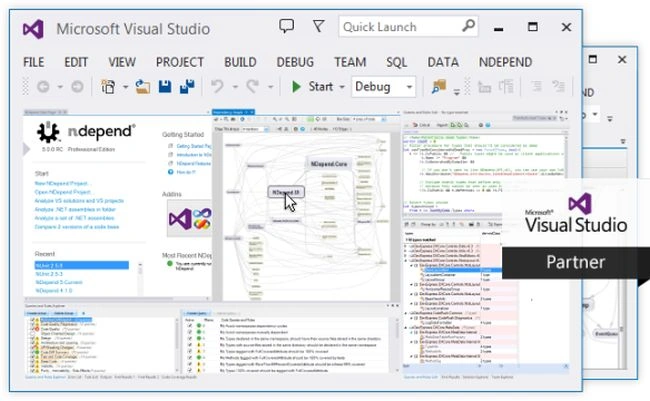
There is a trial version for 14 days, we can get it here and there is a Visual Studio Extension that can be found here.
This tool will analyse the DLL output from the project and at the end it allows showind various metrics, graphics, diagrams and rules. Here are what the analysis by NDepend can tell us:
- Application Metric: This section gives you an idea of the topology of your application.
- Assembly Metric: This section gives you an idea of the size of each assembly within your application in terms of #IL instructions and others metrics.
- VisualNDepend View: This section illustrates the size of your assemblies, namespaces, types and methods in terms of #IL instructions. You can browse this view dynamically by clicking the Launch Visual NDepend on this Project icon in the NDepend.Project UI.
- Assembly Abstracness vs. Instability: This section illustrate the Abstracness/Instability principle explained in the assemblies metrics section.
- Assembly Dependencies: This section shows all the dependencies among the assemblies of your application in a table.
- Assembly Dependency Diagram: This section shows all the dependencies among the assemblies of your application in a diagram
- Assembly build order: This section gives you one of the possible build order for your assemblies. If a cycle exists in your assemblies
dependencies graph, this section will report it.
- NDepend information and warnings: This sections gives you advice about your code:
- It warns you when an assembly depends on a less stable assembly than itself.
- It warns you when the visibility of a type or of a member is not optimal (in the context of the analysed application).
- It warns you when a type or a member is not used (in the context of the analysed application).
- CQLinq Queries and Rules: This section reports default CQLinq rules that have been violated. More about CQLinq here.
- Type Metrics: This section recaps type metrics in a table. A link to the documentation is provided for each metric.
This article will use an Azure Mobile Service as a demo project, but could be another project type.
After opening the project, we should attach the NDepend project to the Azure Mobile Service project as in the following:
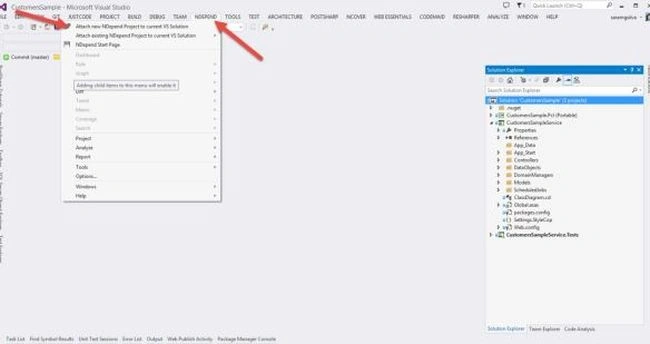
After attaching the project, we can choose the output folder and which DLL we want to analyse as in the following: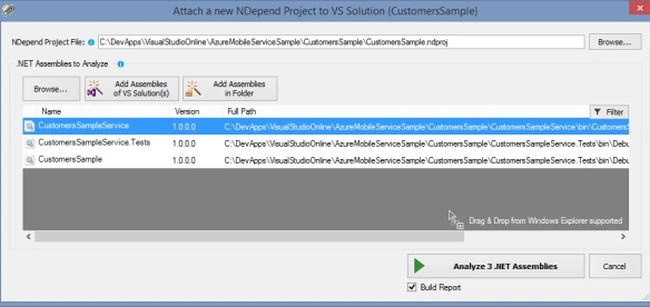
For help understanding each DLL, here is an overview:
- CustomersSample.Service is the DLL output for the project that contains the Azure Mobile Service that will be deploy to the server.
- CustomersSample.Pcl is the DLL that contains the entities that can be used in client apps (like Windows Phone, Windows Store Apps, Xamarin or in Tests.)
- CustomersSample.Tests is the DLL that contains tests for help to understand if the service is working correctly. This project simulates a client app doing requests to the service.
Note: For help in development, the Pcl contains the dtos file from the Service, but these files are “added as linked” and use directives (#if !PCL #else #endif) to change the names and to remove the base class from dtos (each dto is an EntityData).
During the analysis we can see the analysis error list as in the following: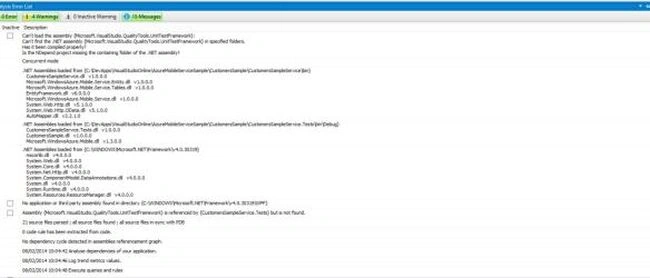
Is a little strange to have this message.
WARNING: No application or third-party assembly found in the directory {C:WINDOWSMicrosoft.NETFrameworkv4.0.30319WPF}.
Because we are analyzing an Azure Mobile Service and there is nothing related to WPF. It makes sense to me for a WPF project but not for this project.
After the analysis, it shows a window that allows choosing what we want to see as in the following: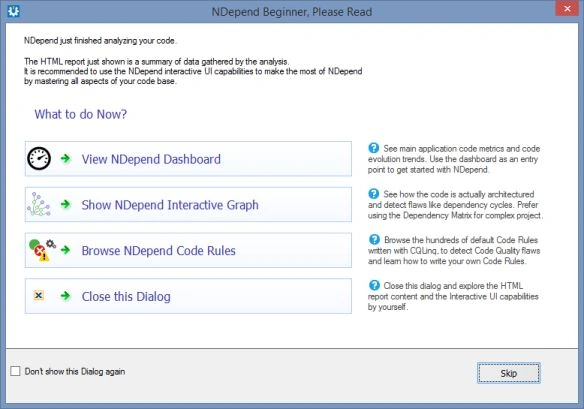
But after this choice we can see the other options, using the Visual Studio menu as in the following: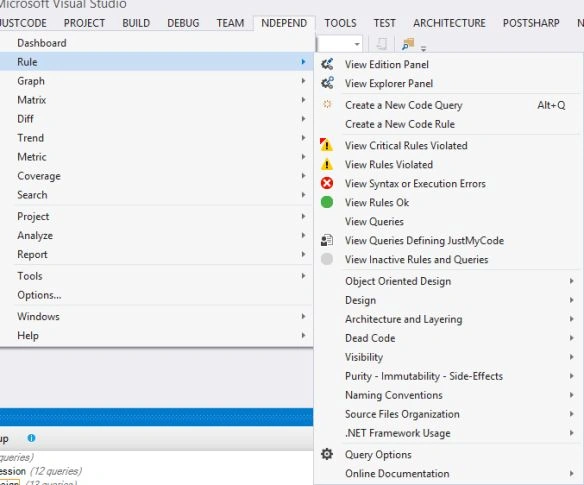
All output can be seen in Visual Studio, but after the analysis, an HTML page will be opened in our default browser that contains an overview about the output.
Yes, there are two ways to see the results, in a browser and in Visual Studio. This is a good thing for managers, for example.
See the output in the project folder, the project look like this: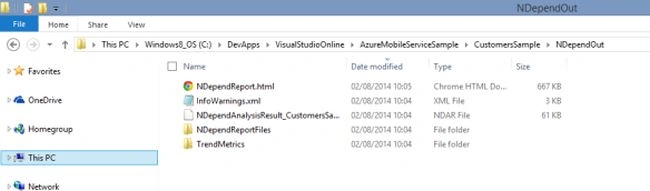
In the browser it looks like: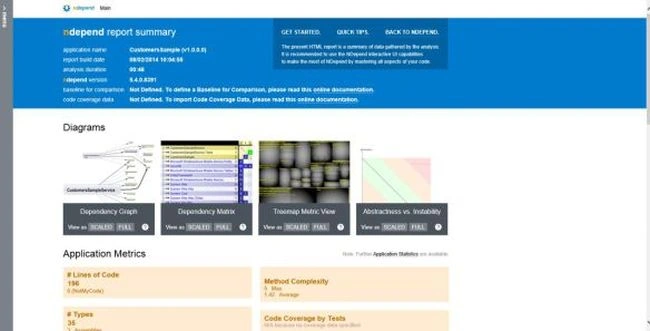
See the output for this demo here.
In Visual Studio, it is recommended to open the dashboard, because it contains an interesting overview.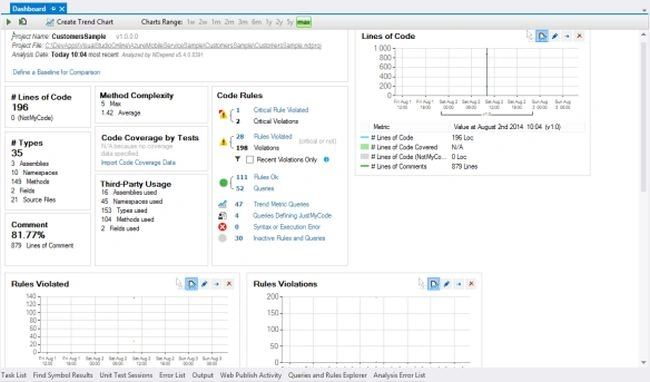
This overview allows making some conclusion about the code, for example this sample has 81,77% of comments and that is not bad. The graphics don´t have so much information because the first time we ran the NDepend for this project.
To understood the metrics in the dashboard, see this reference.
Note: Code Coverage by Tests is empty because it is necessary to import this information. NDepend can import coverage data from:
- NCover™ 3.x and above coverage files
- Visual Studio™ 2013, 2012, 2010 and 2008 XML coverage files
- JetBrains DotCover™ 1.1 and above XML coverage files (with special NDepend formatting)
The Code Rules section has some violations, rules that are okay and inactive. And there is one rule that should be seen, because there is a Critical Rule Violated! Really?
Let's see it!
We can click in “Critical Rule Violated” and a window will be opened.
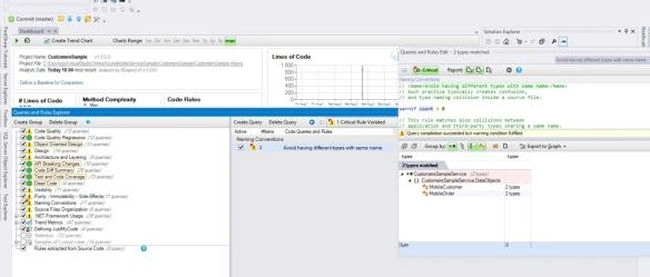
The rule violated is “Avoid having different types with the same name” and we can click in the “Avoid having different types with same name” to see more details. And in the right windows we will see that there are two classes with the repeated name, see it in Solution Explorer.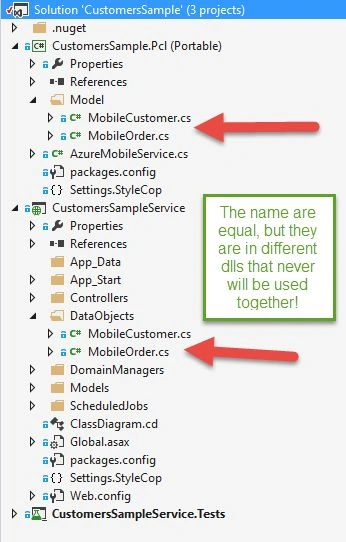
It is true, it is uses the same name in different DLLs, but these DLLs will never be used together and the NDepend should be smart enough to understand that these types are not used in the same context.
It is possible to see the query used to verify this rule.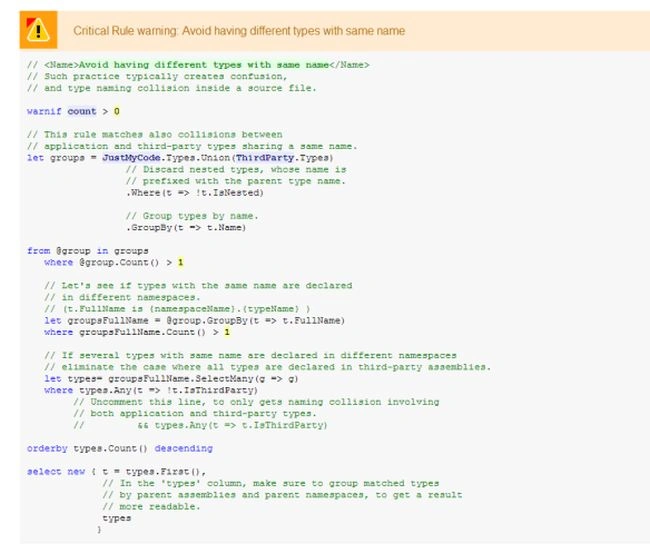
The question is, can I change this query to support this specific case?
Yes, we can change the query used and should create the query to support this.
Later we will see a simple case where we will change the query.
Let's see another violation, for it click in left menu: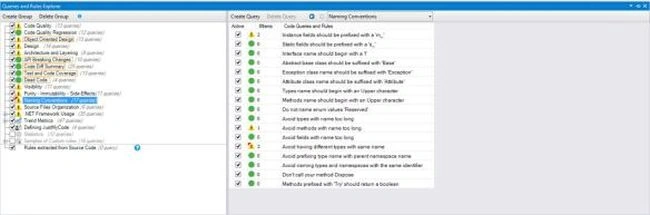
It is possible to filter to see, for example, the Rules Violated, here is the list: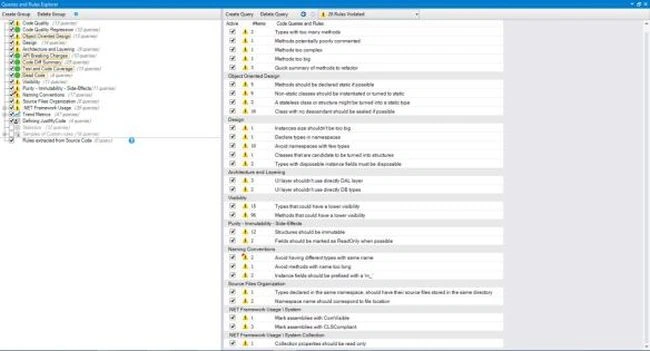
There are rules that should be fixed, for example:
- Methods too big
- UI layer shouldn't use directly DAL layer
- UI layer shouldn't use directly DB types
And others…
But there are rules that do not make sense, for example:
Instance fields should be prefixed with a "m_": some developers use the keyword “this” and other uses “_” as a prefix for the field name.
And the question is, why “m_”? This reference helps in that response and we can change it for that we want!
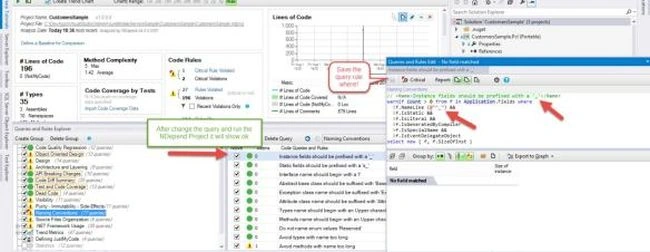
With it, it is very simple to change the rules for what we want!
There are more queries that need to be changed, another example is:
- Class with no descendant should be sealed if possible: this is another great rule, but if the model is related with a database and is using EF and the properties are virtual, the class cannot be sealed.
See more about change queries rules here and here.
NDepend generates a Dependency Graph, that is very interesting, Visual Studio Ultimate has this feature too. Here is the result for this project:
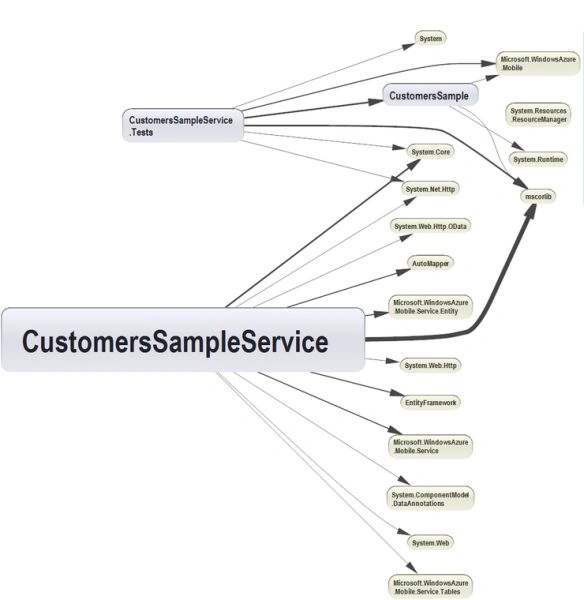
This graph should be clean, if it shows many connections and looks confusing
then that means your code has many dependencies and maybe something is not okay.
If you are using dependency injection your graph will be clean and beautiful.
Note: This project doesn´t use DI, but it is a small project and for that
reason does not look confusing and shows that all is okay.
NDepend has more diagrams: Dependency Matrix, Treemap Metric View and
Abstractness vs. Instability, but they are complex, because in a first attempt
is not easy to understand what they mean.
See the complete list of features here.
For finalizing, it is important to define all options related with this tool.
For example, define when the NDepend report should be done.
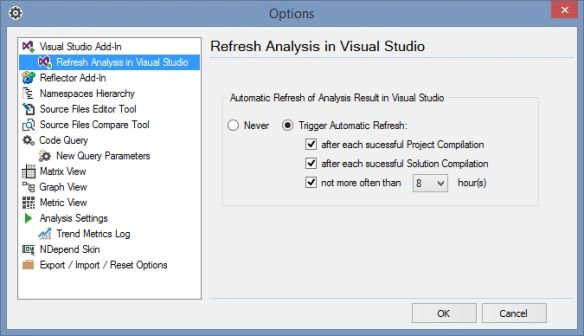
See more about it in this reference: Rules Execution Options.
Conclusion
In conclusion, NDepend is a great tool for analyzing the quality of the code from .Net projects. In this article we only generated twice the reports but for a real project it can be useful for following the metrics, violated rules and so on. The possibility of editing the queries rules is a plus for this tool.
See also
Arun KumarPosted Apr 18, 2016, 1:26 AM
How to implement Ndepend dynamically. ie, I want to test the code statics using ndepend at run time and get the result in list. Code can be dynamic.
SharadPosted Jul 17, 2015, 3:58 AM
good one...
Sara SilvaPosted Aug 7, 2014, 9:59 AM
I am not sure, or it is only available in some proejcts, not in all
Guest UserPosted Aug 7, 2014, 9:54 AM
you mean FxCop is not supported in VS2013, i didn't know this. thanks for this info!
Sara SilvaPosted Aug 7, 2014, 9:31 AM
FxCop dead in VS2013, not? NDepend has a trial version.
Guest UserPosted Aug 7, 2014, 8:49 AM
ok..is it like FxCop, if yes, then what's the advantage of using NDepend over FxCop. Secondly, is NDepend free or paid software.
Sara SilvaPosted Aug 7, 2014, 8:40 AM
is very interesting, and we learn a lot with the errors in the report .D
Guest UserPosted Aug 7, 2014, 8:14 AM
Sara, I've never used NDepend, but I'll try sometime.
Anupam SinghPosted Aug 7, 2014, 4:47 AM
well described. I have heard about it but never use. But will try now. Thanx for sharing :)
Sara SilvaPosted Aug 7, 2014, 4:20 AM
All in the article can be used in the free license.
Akhil MittalPosted Aug 7, 2014, 3:41 AM
I agree.I guess this article is the outcome of the free license offered by NDepend?? I got the mail too for this offer.It's OK if you really liked it, but the category should be different as Sandeep quoted :-).
Sandeep Singh ShekhawatPosted Aug 7, 2014, 12:25 AM
Its not suitable in Article C# category . There should be different category for third party product show case. It should not be featured in C# category because its not open source and its price is too much high. It may be featured in in other category.