

In this article, we will see some of the features of the newly introduced Azure Data Studio. This is a cross-platform, lightweight database tool for data professionals and developers who are using the Microsoft family of on-premises and cloud data platforms on Windows, MacOS, and Linux.
Using T-SQL Code Snippets in Azure Data Studio
One of the major advantages in Azure Data Studio is its T-SQL Code Snippets. It has many built-in Code Snippets available.
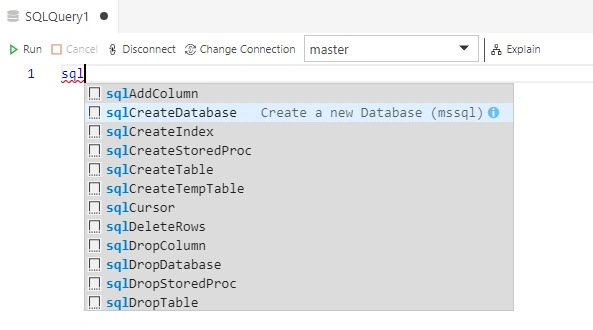
We can use T-SQL Code Snippet to Create a new Database. Please open a new SQL Query window (Ctrl+N) and type “SQL”
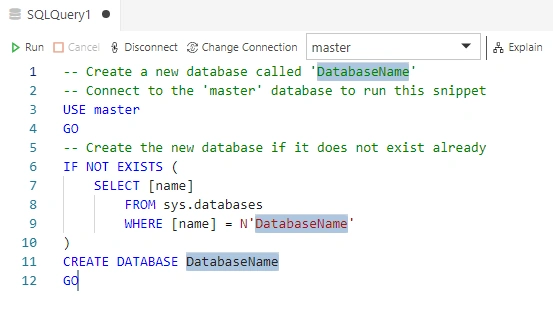
- -- Create a new database called 'DatabaseName'
- -- Connect to the 'master' database to run this snippet
- USE master
- GO
- -- Create the new database if it does not exist already
- IF NOT EXISTS (
- SELECT [name]
- FROM sys.databases
- WHERE [name] = N'DatabaseName'
- )
- CREATE DATABASE DatabaseName
- GO
It will automatically fill the code snippets to the Query editor. You can give a valid name to the Database and execute the Query.
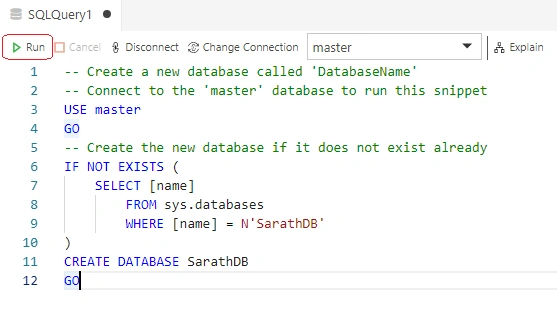
- -- Create a new database called 'DatabaseName'
- -- Connect to the 'master' database to run this snippet
- USE master
- GO
- -- Create the new database if it does not exist already
- IF NOT EXISTS (
- SELECT [name]
- FROM sys.databases
- WHERE [name] = N'SarathDB'
- )
- CREATE DATABASE SarathDB
- GO
We can create our own T-SQL Code Snippets very easily. Please open Command Pallet (Ctrl+Shift+P) and type “snip”


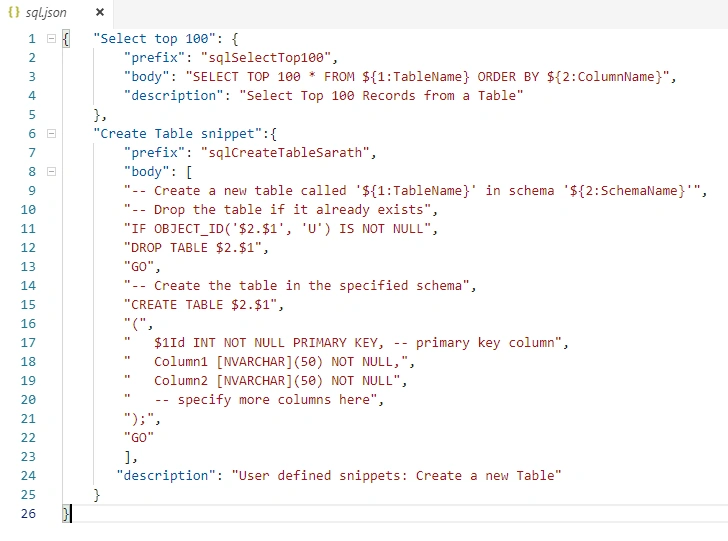
- { "Select top 100": {
- "prefix": "sqlSelectTop100",
- "body": "SELECT TOP 100 * FROM ${1:TableName} ORDER BY ${2:ColumnName}",
- "description": "Select Top 100 Records from a Table"
- },
- "Create Table snippet":{
- "prefix": "sqlCreateTableSarath",
- "body": [
- "-- Create a new table called '${1:TableName}' in schema '${2:SchemaName}'",
- "-- Drop the table if it already exists",
- "IF OBJECT_ID('$2.$1', 'U') IS NOT NULL",
- "DROP TABLE $2.$1",
- "GO",
- "-- Create the table in the specified schema",
- "CREATE TABLE $2.$1",
- "(",
- " $1Id INT NOT NULL PRIMARY KEY, -- primary key column",
- " Column1 [NVARCHAR](50) NOT NULL,",
- " Column2 [NVARCHAR](50) NOT NULL",
- " -- specify more columns here",
- ");",
- "GO"
- ],
- "description": "User defined snippets: Create a new Table"
- }
- }
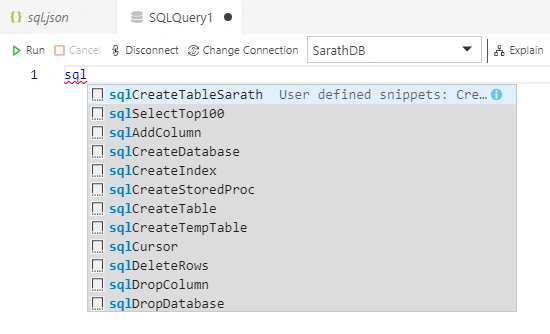
We can check the new code snippets in Query editor window. Please type “SQL” again
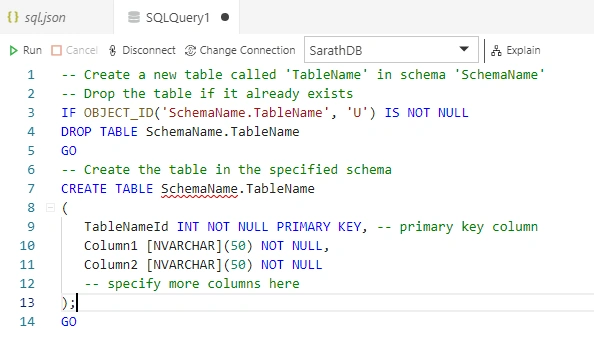
- -- Create a new table called 'TableName' in schema 'SchemaName'
- -- Drop the table if it already exists
- IF OBJECT_ID('SchemaName.TableName', 'U') IS NOT NULL
- DROP TABLE SchemaName.TableName
- GO
- -- Create the table in the specified schema
- CREATE TABLE SchemaName.TableName
- (
- TableNameId INT NOT NULL PRIMARY KEY, -- primary key column
- Column1 [NVARCHAR](50) NOT NULL,
- Column2 [NVARCHAR](50) NOT NULL
- -- specify more columns here
- );
- GO
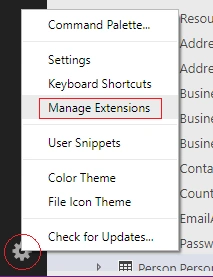
Adding new Extensions to Azure Data Studio
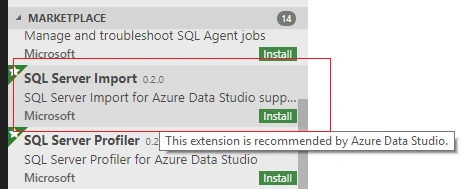
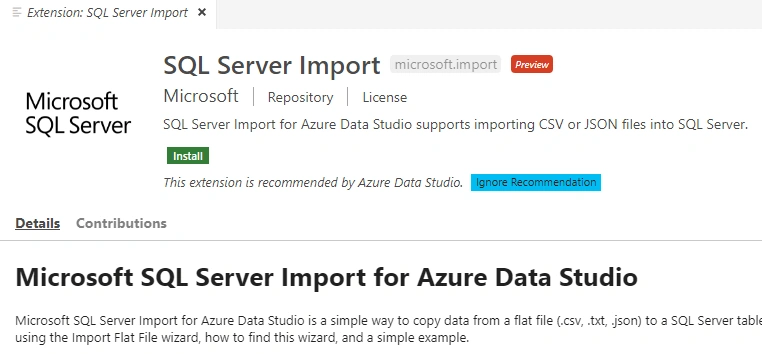
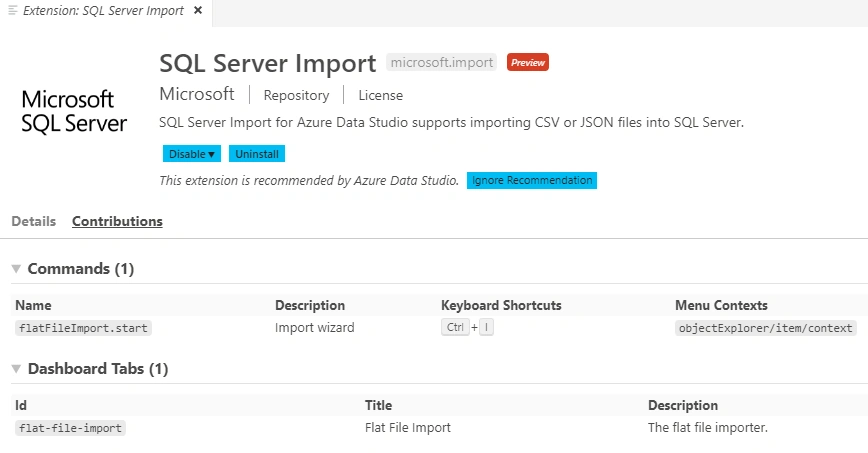
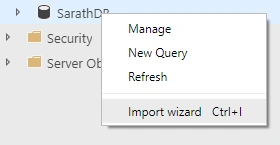
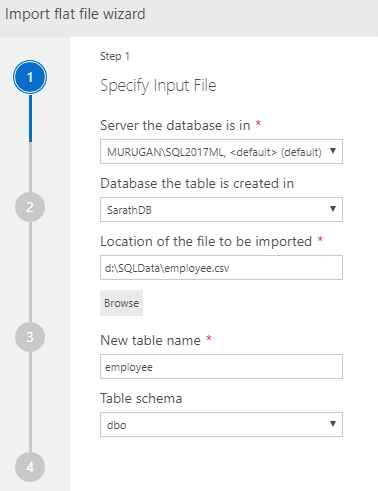
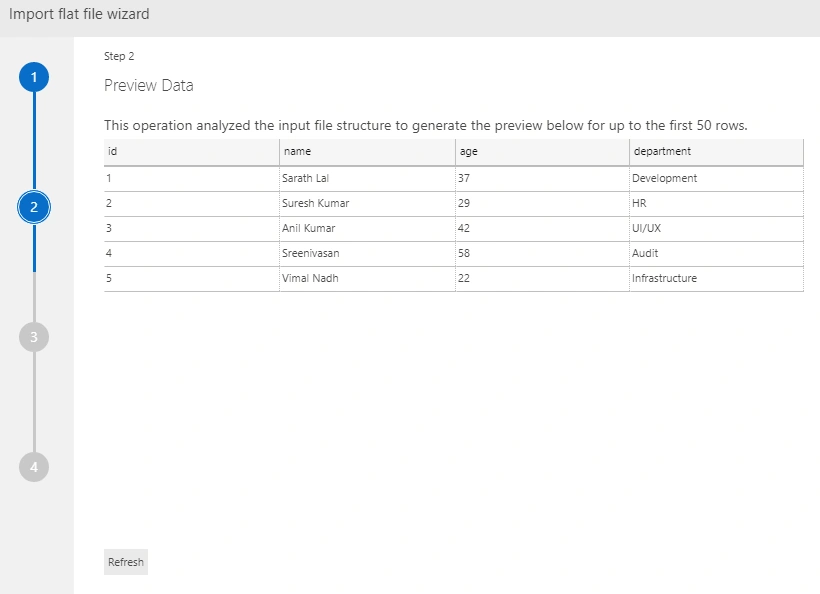
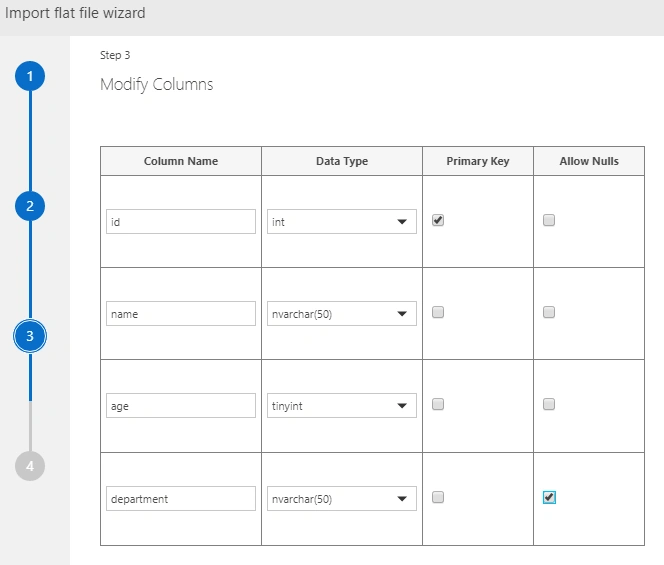
After making the modifications (if needed) in the columns you can click the “Import” button.
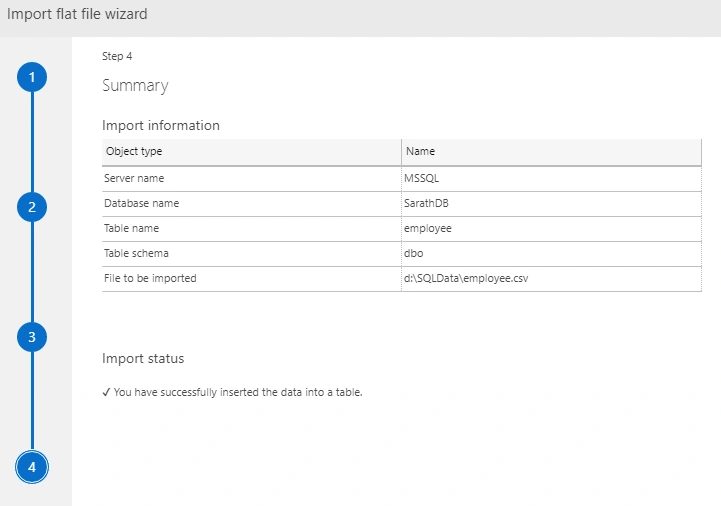
Our Import process will be finished soon.
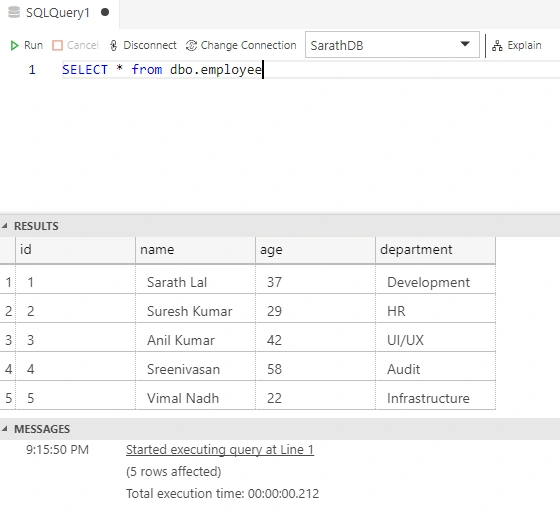
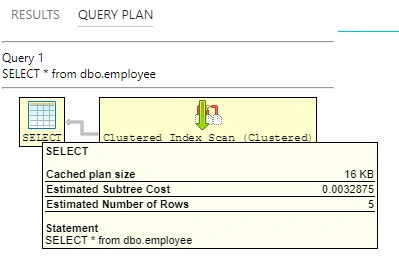
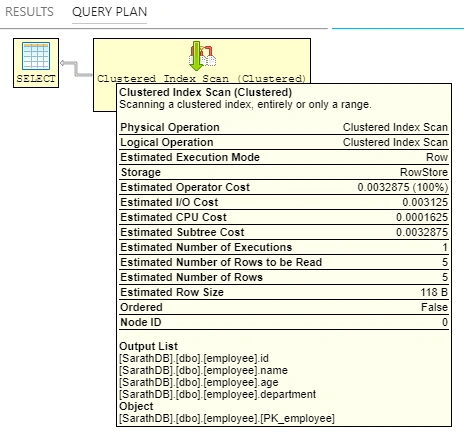
- SELECT * from dbo.employee

Satyaprakash SamantarayPosted Oct 17, 2018, 12:54 PM
It's very helpful and new topic for me and thanks for describing in details....
Ankur MistryPosted Oct 10, 2018, 2:38 AM
Nice, Learn something new - Azure Data Studio