

Introduction
Nowadays, we hear a lot of terms in the Artificial Intelligence world, like Gen AI, Agents, and Autonomous Agents, especially when it comes to automating tasks from simple to complex. In simple words, an agent can be defined as a specialized assistant that optimizes business processes and enhances the user productivity and experience. Think of a situation where you are required
To run a SharePoint site usage report
Get all the expired SPNs (Service Principal Names) in the Entra,
Get an inventory of all the agents in your tenant
Get the frequently used flows in a Power Platform environment
Get the documents that are externally shared in SharePoint sites
and much more
For any of these tasks, you can work on the ways to get it done, either by using a flow with a premium connector or writing a powershell script with Graph Powershell modules. Imagine you want to get this job once a quarter, then you can
Either run these reports manually
Or schedule the jobs using Azure Automation
or PowerShell with premium connector
or use Azure functions in conjunction with Logic Apps
or schedule jobs in a dedicated VM to run the batch jobs on a designated schedule
What if you have a chat application that does the job, accepting the user input in plain English (aka simple prompt in AI terminology) and gives you the desired output instantaneously? This is where Agent comes to picture. With the evolution of Copilot, MSFT introduced Copilot Agents, which allow users to design, develop, and deploy agents easily without worrying about the backend infrastructure. Please note that you need to have Copilot licenses assigned to users to develop and deploy the agent.
Anatomy of the Copilot agent:
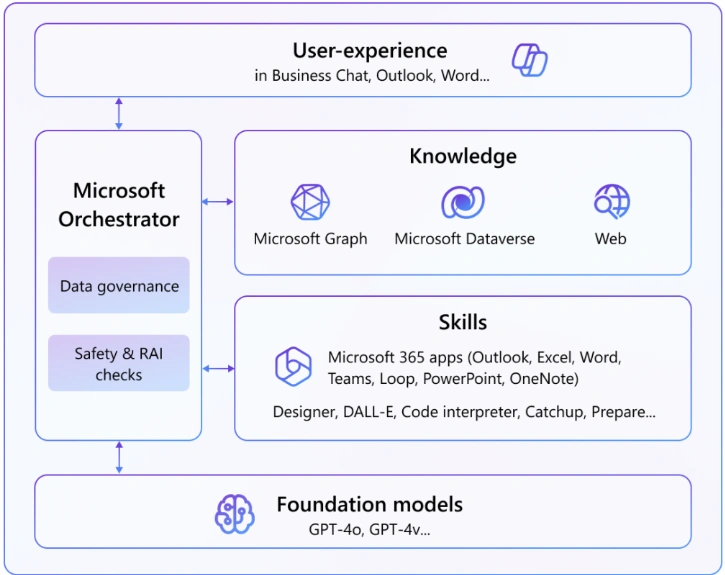
A copilot agent is an agent that is built on top of Copilot infrastructure. It can also be defined as the agent that is extending the Copilot chat and scoping to specific needs. It comprises the following building blocks
Knowledge
This is where you tell the agent to look for information when the user asks a question. The knowledge component involves integration of MS Graph, which contains information about users, user activities, and organizational data. This allows agents to access user information, Teams chat, emails, etc.
Skills
This component can be used to add capabilities to the agent. For instance, you can add the capability of generating a code, generating an image, sending an email, creating a note in OneNote, or anything that you want the agent to perform on the user’s behalf.
Foundation Models
These are the models coming from the Azure AI Foundry, which are provided by Microsoft. In the Copilot agent, you don’t have an option to choose the AI model. In fact, the Copilot agent will use the same infrastructure as Copilot chat.
Orchestrator
The job of the orchestrator is to make sure the Foundation models are generating the correct / intended responses. As shown in the block diagram, it manages the flow between user experience, knowledge, and Skills and makes sure the response generated is related to the user’s context. You don’t have an option to choose your own orchestrator. This is from MSFT.
What is a declarative agent
Now, let’s try to understand what a declarative agent is. In software terms, declarative means the user provides input and expects the output. The user won’t need to know the details of
How the input is sent to the backend,
What processes are happening at the backend and
How is the output being generated?
All the users care whether the generated output is accurate or not.
Pre-requisites
To design, develop, and deploy the agents, you need a Microsoft 365 Copilot license in addition to E5 licenses.
Building Agents
The picture below from MSFT documentation shows that there are 3 different ways to create agents for M365. You have no-code, low-code and pro-code options
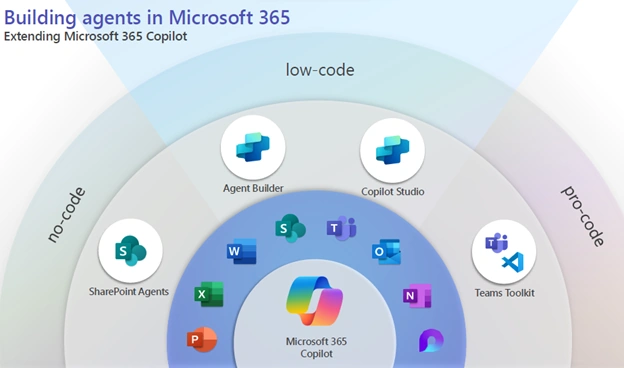
Based on the above picture, building agents can be divided into 3 flavors.
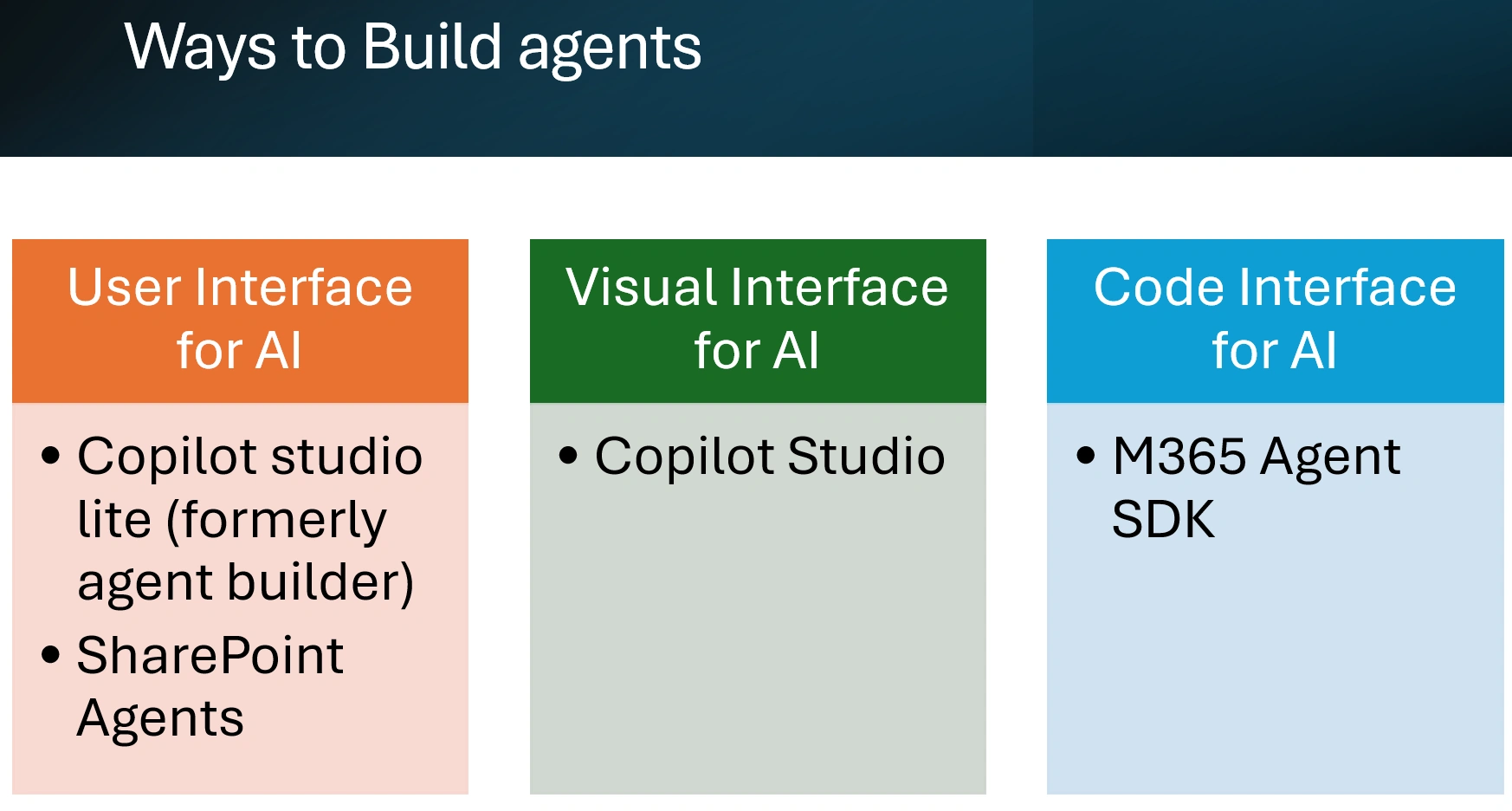
User Interface for AI (UI for AI)
These are no-code tools, where users just use the UI option to create the agents. The link in the references section from MSFT guides on how to create the agent, and it is very simple to design and deploy. It is just like filling out an application form, defining the knowledge and agent behavior, and you have an agent built in minutes. The tools that can be used in this category are
Copilot Studio Lite (formerly Agent Builder), which is available from Copilot Chat (https://m365.cloud.microsoft). You can follow the link below to create an agent using Copilot Studio Lite
https://github.com/MicrosoftDocs/m365copilot-docs/blob/main/docs/copilot-studio-lite-build.md
SharePoint agents that are available in SharePoint sites, which are scoped to a single SharePoint site collection. You can follow the link below to create SP agents.
Visual Interface for AI (VI for AI)
This option contains pre-defined / pre-designed action blocks where users can drag and drop and connect the actions seamlessly using a visual interface. This is like creating flows in Power Automate. You can design a very simple agent or a custom complex agent using all the available connectors and plug-ins. You have the option of designing your own connector.
You can follow the instructions below from MSFT, which guide from a very simple scenario to designing and developing a complex agent.
https://microsoft.github.io/agent-academy/recruit/
Code Interface for AI
This option is for pro-coders wanting to develop the agent using an IDE and SDKs. The recommended approach from MSFT is to use VS Code (lightweight IDE) with the M365 Agents SDK extension. You can follow the link below that guides users on building different agents using the pro-code approach.
https://microsoft.github.io/copilot-camp/
Benefits
Below are some of the benefits of Copilot Agents.
Streamline your workflow
Agents can automate repetitive tasks to save time and increase efficiency.
Make Informed Decisions
Agents leverage data-driven insights to enhance your decision-making process
Boost Productivity
Agents empower your team to achieve more with enhanced productivity tools.
Use-cases
Site Assistant in SPO site: Summarization of documents and wiki pages
Hiring assistant: helps in filtering the profiles based on user's prompt
Human Resources Benefits assistant: Explaining the benefits by taking prompts
Azure Dev Board Monitoring assistant: To monitor and get the latest content and stats from Azure resources
Product Support Assistant: helping the users in troubleshooting and giving specific information about the product from knowledge sources.
Conclusion
Thus, in this article, we have seen
What is an agent and a copilot agent and
the building blocks of agents
Pre-requisite for building agents
Ways to build agents with reference links
Use-cases
Benefits of Copilot agents.
Hope you find this article useful.
Join the conversation! Your thoughts help the community grow.