

Hi guys, XML data is very easy to handle and import, just need to define specified data in the XML file and use it anywhere you want most precisely bind it to any control or display it as it is. Here in this article I'll be using a Listbox to display the contents of the XML data source.
Follow the steps below:
Step 1 : Open Expression blend and select new WPF project. Choose the language preference.
- Either you can goto file-->new project and then select the WPF project.
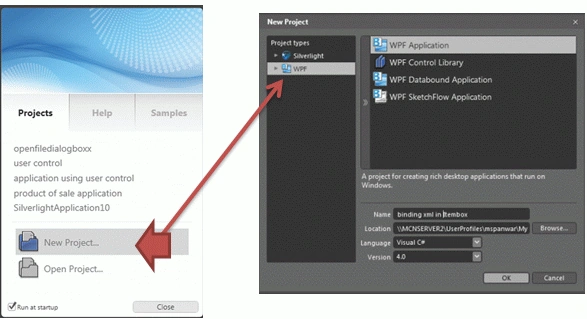
Step 2 : The design page called artboard opens up, do the following:
- Go to the asset library
- Drag a Listbox on the artboard.
- Add a button
Step 3 : Now the artboard is ready with the necessary stuffs. Select the controls.
- Go to the property window
- Now name the listbox as "listboxxml"
- Name the button as "addxml"
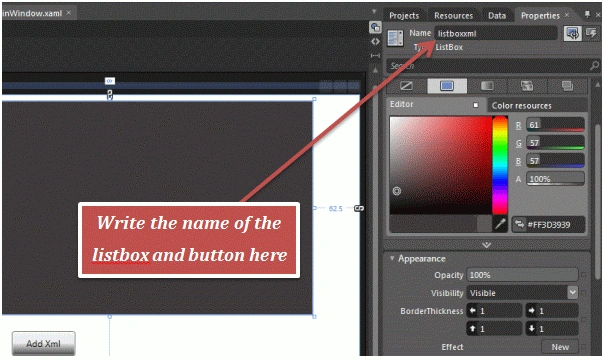
Step 4 : Here I'll first write the XML.
- Open note pad and write the following lines
<?xml
version="1.0"
encoding="utf-8"
?>
<student>
<Course>Btech</Course>
<branch>IT</branch>
<name>Manoj</name>
<rollno>073384</rollno>
<address>New_tehri</address>
<state>uttarakhand</state>
<Course>mca</Course>
<branch>IT</branch>
<name>Rajesh</name>
<rollno>9834894</rollno>
<address>Bareily</address>
<state>UttarPradesh</state>
<Course>Btech</Course>
<branch>IT</branch>
<name>Brijesh</name>
<rollno>8478384</rollno>
<address>kanpur</address>
<state>Uttarpradesh</state>
<Course>BTech</Course>
<branch>CS</branch>
<name>Nitil</name>
<rollno>454894</rollno>
<address>Dehradun</address>
<state>Uttarakhand</state>
</student>
Step 5 : Save the so created XML file withe the name "Student.xml". Now select Listbox.
- Go to the property panel
- Select the Data tab
- Select the Datasource --> Create Xml data source
- Now the window opens up asking the xml file path, browse and select the XML file and press OK
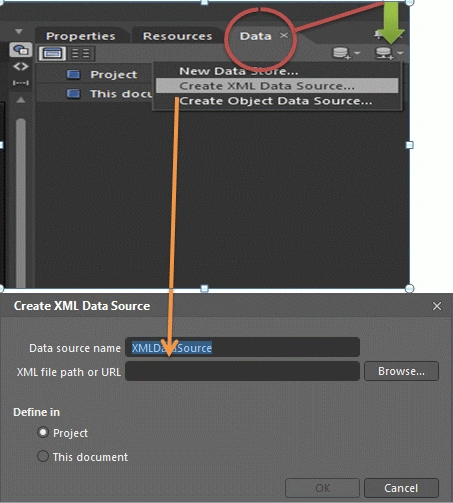
Step 6 : You'll see that the XML file is attached in the Data panel and it shows all the tags/ contents of the XML file.
- Now again select the Listbox
- Go to the property window
- Go to Custom Properties--> Itemsource
- In the ItemSource property select the small yellow square button( advanced option button)
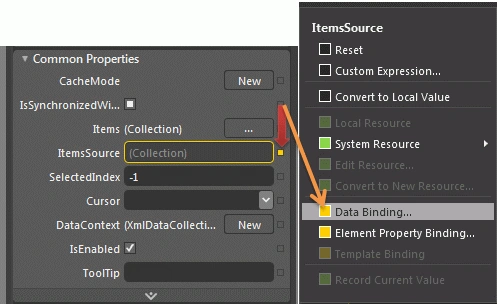
- It opens a window, in this window select--> Databinding.
Step 7 : Selceting databinding option a window opens up, in this window:
- Select Data field tab
- In the Datafield tab select the XML file on the left side and drop down item of the file appears on the right panel
- Before proceeding inthe combobox below select "All properties" instead of "Matching Types only"
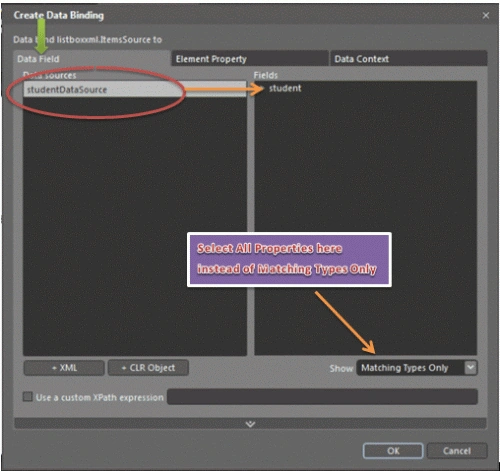
Step 8 : Now the you can drop the XML file contents list and select the property you would like to bind into the Listbox.
- select the name property and press OK and exit
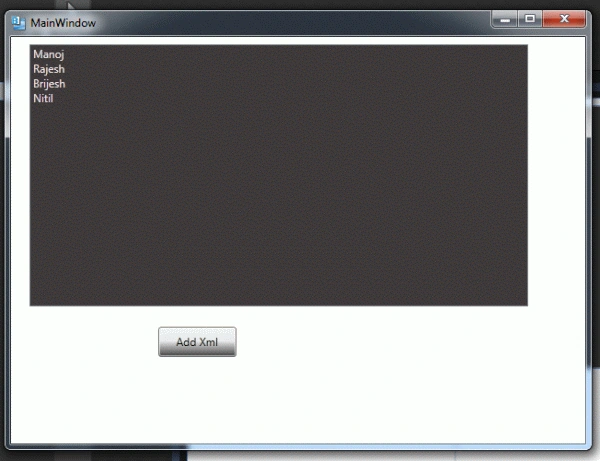
- The listbox shows the list of names present in the XML file
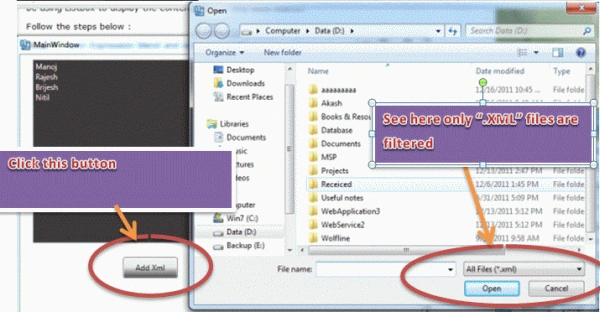
Step 9 : In the Add button you can write a code to insert an XML file into the listbox for this do the following:
- Select the add button
- Go to property panel and select the event button
- In the Click event write any name of the event you are assigning to the add button
- Press enter. The code opens up into the Click event method
- Write the following lines of code to allow the user to manually insert the XML file into the listbox
private
void
add(object
sender, System.Windows.RoutedEventArgs e)
{
//
TODO: Add event handler implementation here.
Microsoft.Win32.OpenFileDialog fd =
new
Microsoft.Win32.OpenFileDialog();
fd.InitialDirectory =
"D:\\";
fd.Filter ="All
Files (*.*)|*.*|Text files (*.txt)|*.xml";
fd.RestoreDirectory =
true
;
bool?
result = fd.ShowDialog();
if(result==true)
{
String mypath = fd.FileName.ToString();
if(File.Exists(mypath))
listboxxml.ItemsSource= System.IO.File.ReadAllLines(mypath);
}
}
Step 10 : Save the application and press F5 to see the output.
Output 1`
Join the conversation! Your thoughts help the community grow.