

Introduction
This article will help you to add a recurrence in Microsoft Flow.
What is Recurrence in Microsoft Flow?
Normally, we work with Flow app to create a flow, which performs the same task or tasks, such as sending a report in Email, every day, hour or minute. Perhaps, here we create a flow, which waits for a certain number of minutes or until a certain date before performing a task or tasks, which has been scheduled by us.
Note
Microsoft Flow is under preview. Thus, it is free of cost and any one can access it.
Useful Links
- Kickstart to Microsoft Flow and Creating a Flow from Template
- Creating a Flow from Scratch/Blank to manage specific tweets
- Monitor activity from your phone by Flow App
- Create Flow to manage the Email with remainders
- Connections in Microsoft Flow
- Add a connection in Microsoft Flow
Follow the steps, given below, to add a recurrence in Microsoft Flow app-
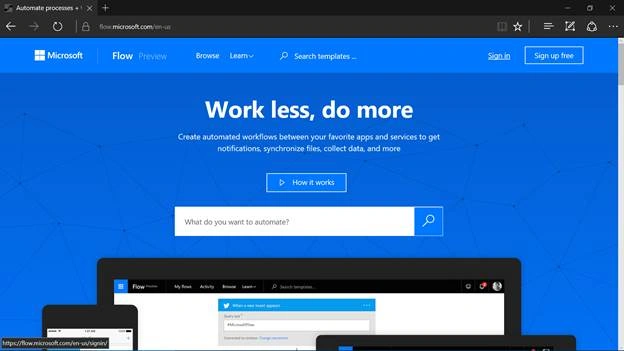
Step 1 - Open your trusted Web Browser and login here.
Sign in with your account, if you already have it. If you do not have it, sign up for a new account and it’s free of cost.
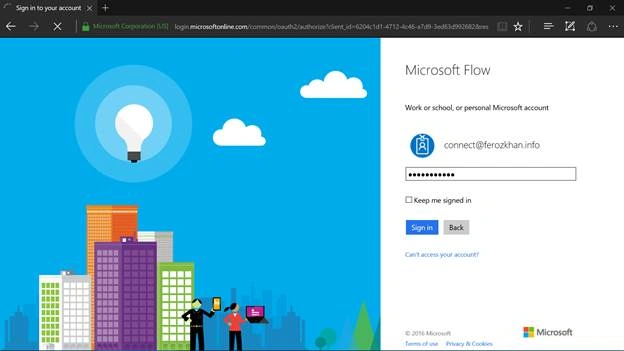
Step 2 - Sign in with your login credentials here.
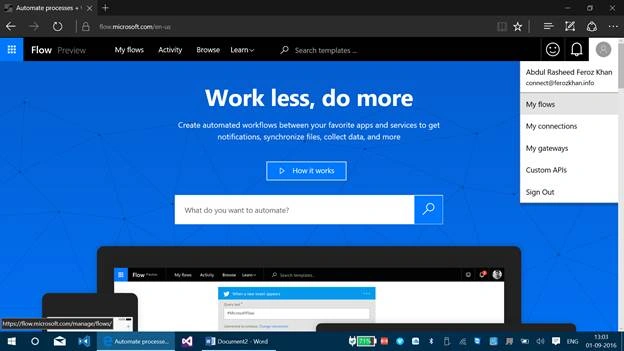
Step 3 - Go to the Settings panel and click My Flows.
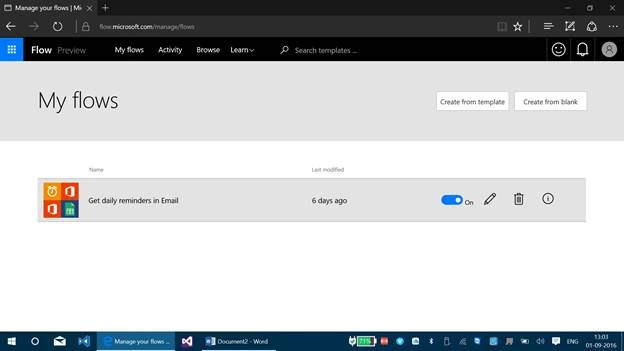
Step 4 - Click Flow app, which you have already created under My Flows.
Step 5 - Here, you have the very first option as Every day. This is where the recurrence occurs. This means, we will be running this flow on everyday schedule.
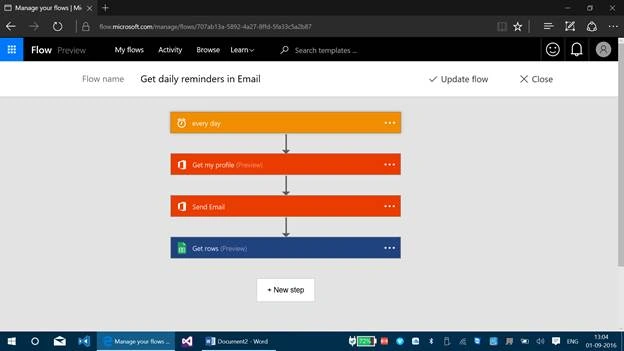
Click the every day panel now.
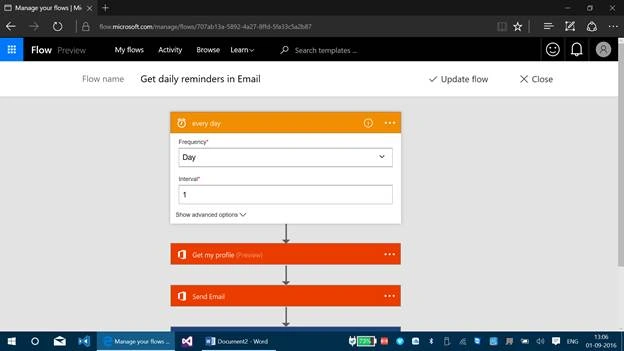
Select the frequency and interval, as per your wish.
You can click the arrow, which is available at the frequency panel and interval panel.
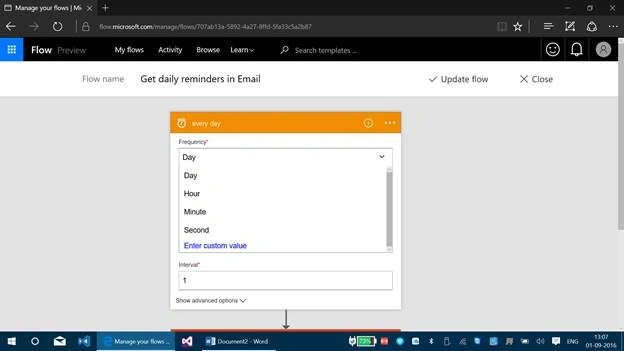
Here, in the above image, you can find, we have various options like Day, Hour, Minute and Second or even a custom value, where you can add your own values followed by the same for interval, which allows your Flow to run.
Once after this recurrence is added, click Update Flow to save the changes.
Manav PandyaPosted Sep 6, 2016, 2:39 AM
Great share brother ...
Prasanna MuraliPosted Sep 4, 2016, 11:13 PM
Nice post..