

Dropzone is a lightweight and open source library for uploading images. We can drag and drop an image in Dropzone and then upload to the server using server-side technologies. It provides the drag and drop functionality to upload and preview images and also provides image upload progress bar. It supports large images and thumbnail previews of images. With Dropzone, we can upload multiple images in a single click.

Prerequisites
- We should have a basic knowledge of Angular
- Visual Studio Code should be installed
- Node and NPM installed
- Angular CLI
- Bootstrap
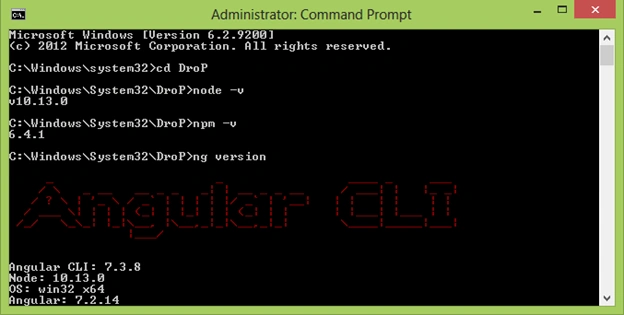
First of all, let's check Node, NPM, and CLI versions in our system. To check the versions, open command prompt and type -
- node -v
- npm -v
- ng version
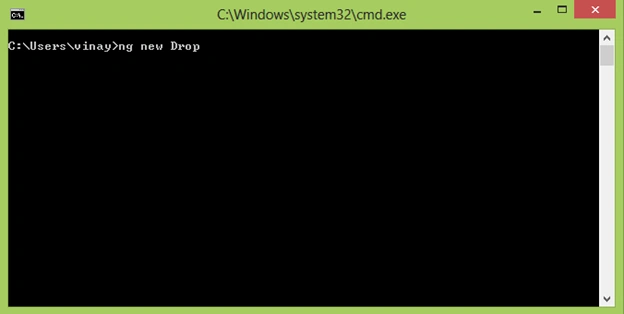

Now, open the integrated terminal by pressing Ctrl + and ~ and add the following command to add Bootstrap in this project.
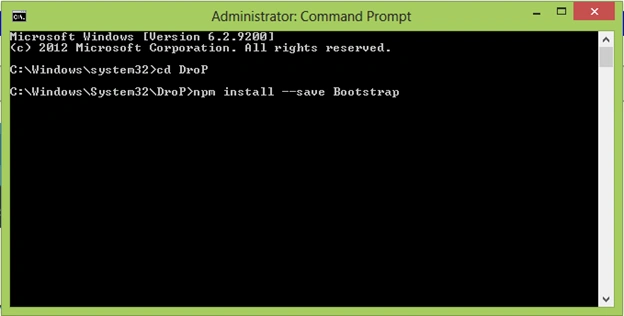
To add the reference in styles.css file, add this line -
Step 4
Now, create a component. To create the component, open terminal and use the following command.
ng g c DropZone

Step 5
- import { BrowserModule } from '@angular/platform-browser';
- import { NgModule } from '@angular/core';
- import { AppRoutingModule } from './app-routing.module';
- import { AppComponent } from './app.component';
- import { DropZoneComponent } from './drop-zone/drop-zone.component';
- import { DropzoneModule } from 'ngx-dropzone-wrapper';
- import { DROPZONE_CONFIG } from 'ngx-dropzone-wrapper';
- import { DropzoneConfigInterface } from 'ngx-dropzone-wrapper';
- const DROPZONECONFIG: DropzoneConfigInterface = {
- url: 'localhost:52367/post',
- maxFilesize: 100,
- acceptedFiles: 'image/jpg,image/png,image/jpeg/*'
- };
- @NgModule({
- declarations: [
- AppComponent,
- DropZoneComponent
- ],
- imports: [
- BrowserModule,
- AppRoutingModule, DropzoneModule
- ],
- providers: [
- {
- provide: DROPZONE_CONFIG,
- useValue: DROPZONECONFIG
- }
- ],
- bootstrap: [AppComponent]
- })
- export class AppModule { }
Step 6
Open the dropzone.component.css file and add the following code.
- .header {
- text-align: center;
- background:blue;
- color: white;
- font-size: 20px;
- }
Step 7
Open the dropzone.component.html file and add the following code.
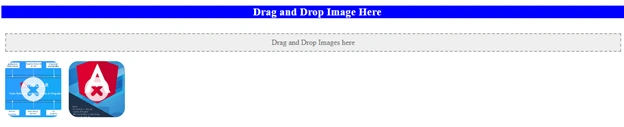
- <div class="header">
- <h3>Drag and Drop Image Here</h3>
- </div>
- <dropzone [config]="config" [message]="'Drag and Drop Images here'"></dropzone>
Step 8
Join the conversation! Your thoughts help the community grow.