

Introduction
In this article, you will see how to add multiple Dropdown Lists in the Web API. Here we create two dropdown lists, one for employee name and another is for the employee's address.
The following is the procedure for creating the application.
Step 1
Create a Web API application.
- Start Visual Studio 2012.
- From the Start window select "New project".
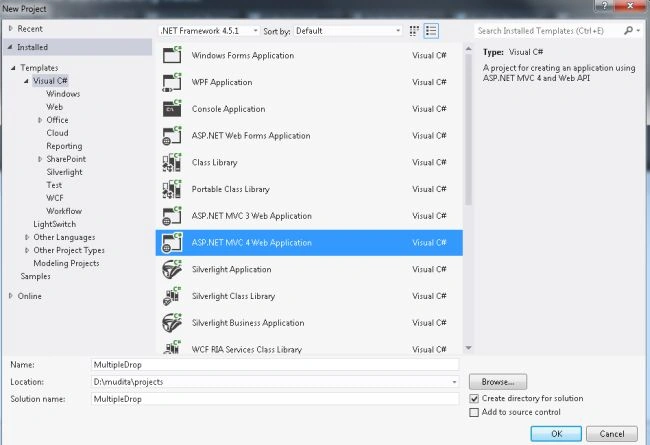
- Then Select "Installed" -> "Visual C#" -> "Web"
- Select "MVC4 Web Application" and click on the "OK" button.
- From the "MVC4" window select "Web API".
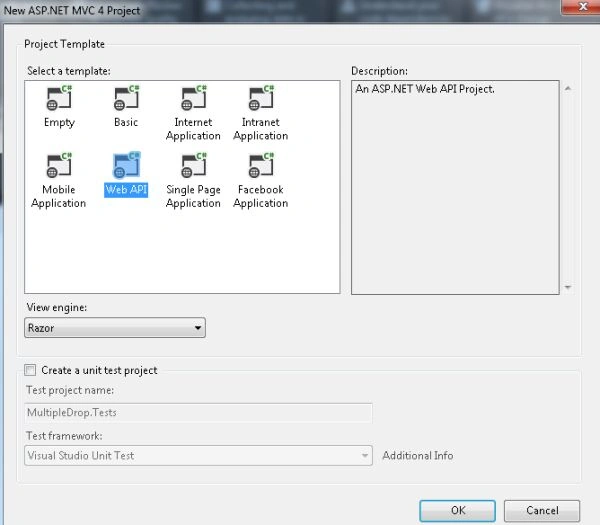
- Click on the "OK" button.
Step 2
Create a Model class using the following procedure:
- In the "Solution Explorer".
- Right-click on the "Model" -> "Add" -> "Class".
- Select "Installed" -> "Visual C#".
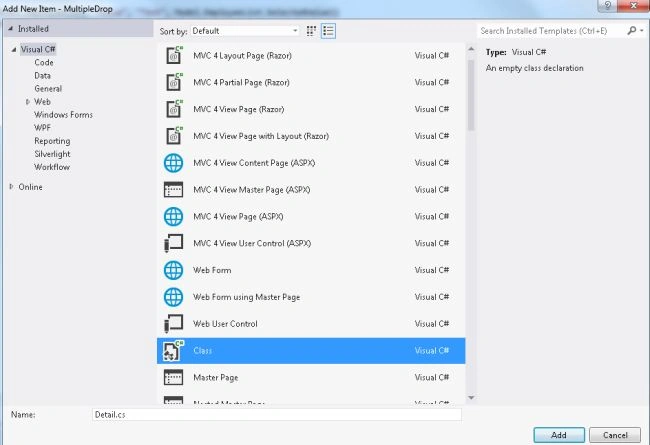
- And then select "Class" and click on the "OK' button.
Add the following code:
- using System;
- using System.Collections.Generic;
- using System.Linq;
- using System.Web;
- using System.Web.Mvc;
- namespace MultipleDrop.Models
- {
- public class Detail
- {
- public SelectList EmployeeList { get; set; }
- public SelectList AddressList { get; set; }
- }
- public class Employee
- {
- public int ID { get; set; }
- public string EmployeeName { get; set; }
- }
- public class Emp_Address
- {
- public int ID { get; set; }
- public string Address { get; set; }
- }
- }
Step 3
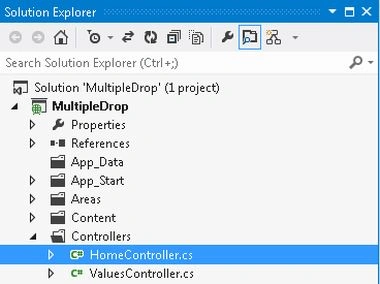
Select the "HomeController".
-
In the "Solution Explorer".
-
Expand the "Controller" folder.
-
Select the "Home Controller".
Add the following code:
- using System;
- using System.Collections.Generic;
- using System.Linq;
- using System.Web;
- using System.Web.Mvc;
- using MultipleDrop.Models;
- namespace MultipleDrop.Controllers
- {
- public class HomeController : Controller
- {
- public ActionResult Index()
- {
- ViewBag.Message = "Multiple DropDown List";
- Detail obj = new Detail();
- List<Employee> obj1 = new List<Employee>();
- List<Emp_Address> objAdd = new List<Emp_Address>();
- obj1 = GetEmployeeList();
- SelectList objlistofcountrytobind = new SelectList(obj1, "ID", "EmployeeName", 0);
- objAdd = GetAddressList();
- SelectList objlistofstatebind = new SelectList(objAdd, "ID", "Address", 0);
- obj.EmployeeList = objlistofcountrytobind;
- obj.AddressList = objlistofstatebind;
- return View(obj);
- }
- public List<Employee> GetEmployeeList()
- {
- List<Employee> objEmp = new List<Employee>();
- objEmp.Add(new Employee { ID = 0, EmployeeName = "SelectEmployee" });
- objEmp.Add(new Employee { ID = 1, EmployeeName = "Smith" });
- objEmp.Add(new Employee { ID = 2, EmployeeName = "Jhon" });
- objEmp.Add(new Employee { ID = 3, EmployeeName = "Jack" });
- objEmp.Add(new Employee { ID = 4, EmployeeName = "jony" });
- return objEmp;
- }
- public List<Emp_Address> GetAddressList()
- {
- List<Emp_Address> objaddress = new List<Emp_Address>();
- objaddress.Add(new Emp_Address { ID = 0, Address = "SelectAddress" });
- objaddress.Add(new Emp_Address { ID = 1, Address = "Delhi" });
- objaddress.Add(new Emp_Address { ID = 2, Address = "Banaras" });
- objaddress.Add(new Emp_Address { ID = 3, Address = "Gujrat" });
- objaddress.Add(new Emp_Address { ID = 4, Address = "Bihar" });
- return objaddress;
- }
- }
- }
Step 4
In the View add some code; this file exists:
-
In the "Solution Explorer".
-
Expand "Views" -> "Home".
-
Select "Index.cshtml" file.
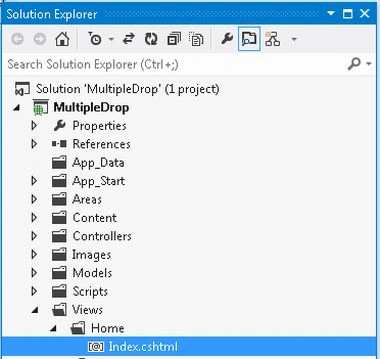
Add the following code:
- @model MultipleDrop.Models.Detail
- @{
- ViewBag.Title = "Home Page";
- }
- <h2>@ViewBag.Message</h2>
- <p>
- Employee : @Html.DropDownList("Employee", new SelectList(Model.EmployeeList, "Value", "Text", Model.EmployeeList.SelectedValue))
- Address : @Html.DropDownList("Address", new SelectList(Model.AddressList, "Value", "Text", Model.AddressList.SelectedValue))
- </p>
Step 5
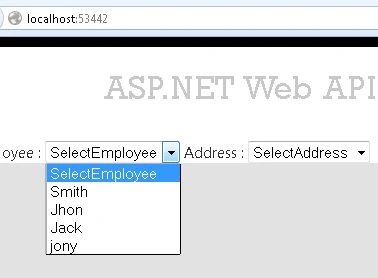
Execute the application.
Join the conversation! Your thoughts help the community grow.