

Introduction
This article demonstrates how to play audio with a button click using C# scripts in Unity.
Prerequisites
Unity Environment version 2018.4.19f1
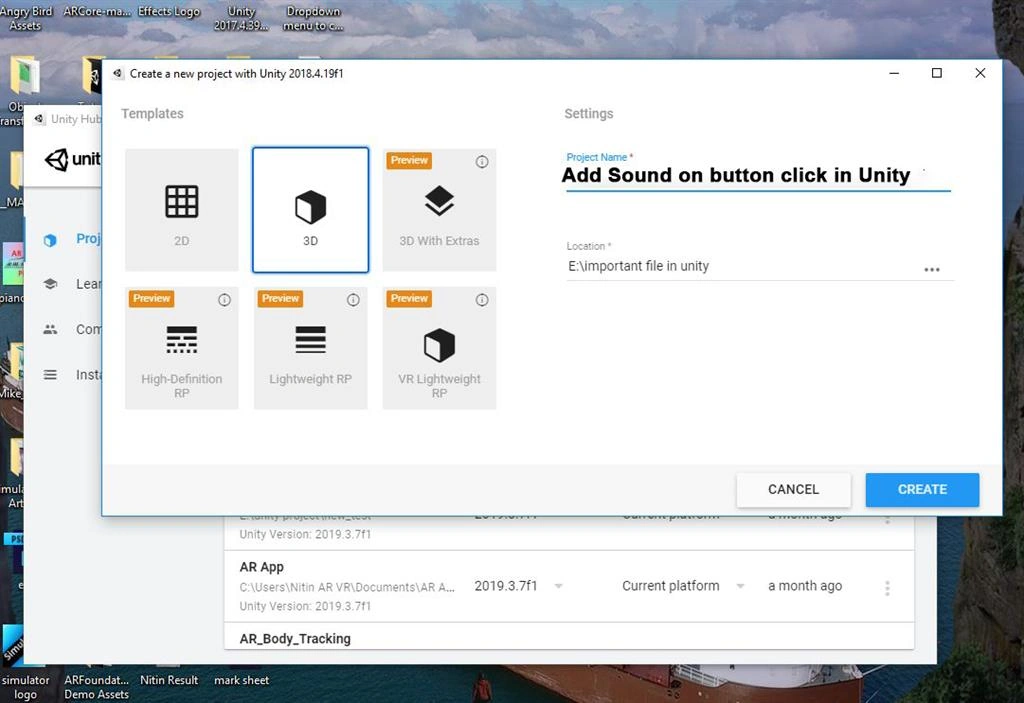
Create a New Project
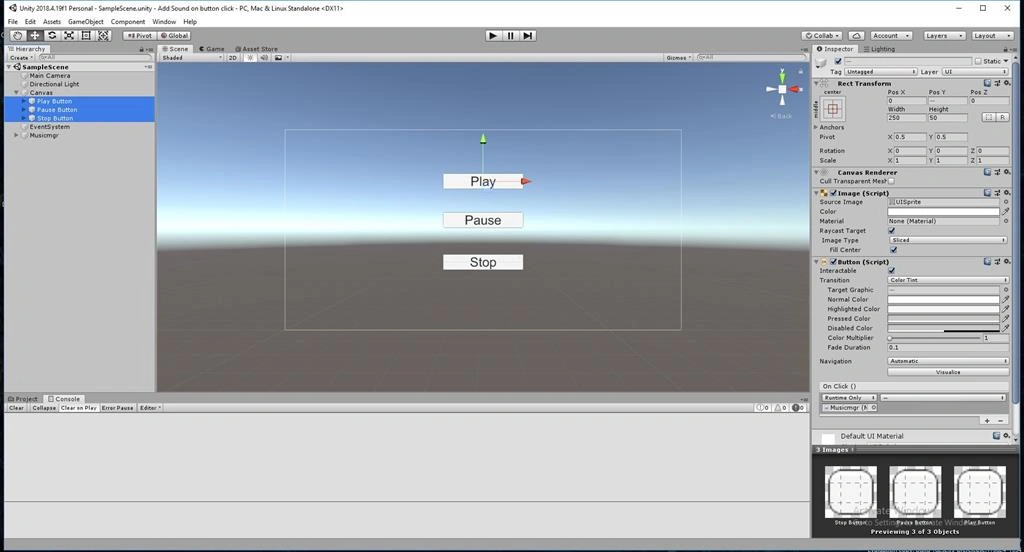
Create the Button
if a canvas is already present in the Hierarchy, right click the canvas and select UI > Button.
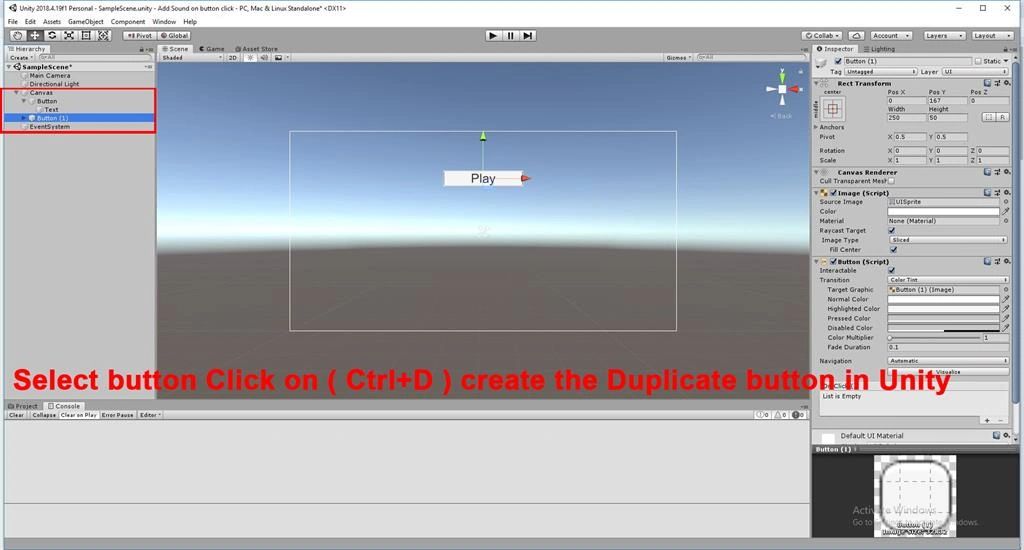
Select the button on click (Ctrl + D). Create a Duplicate Button.
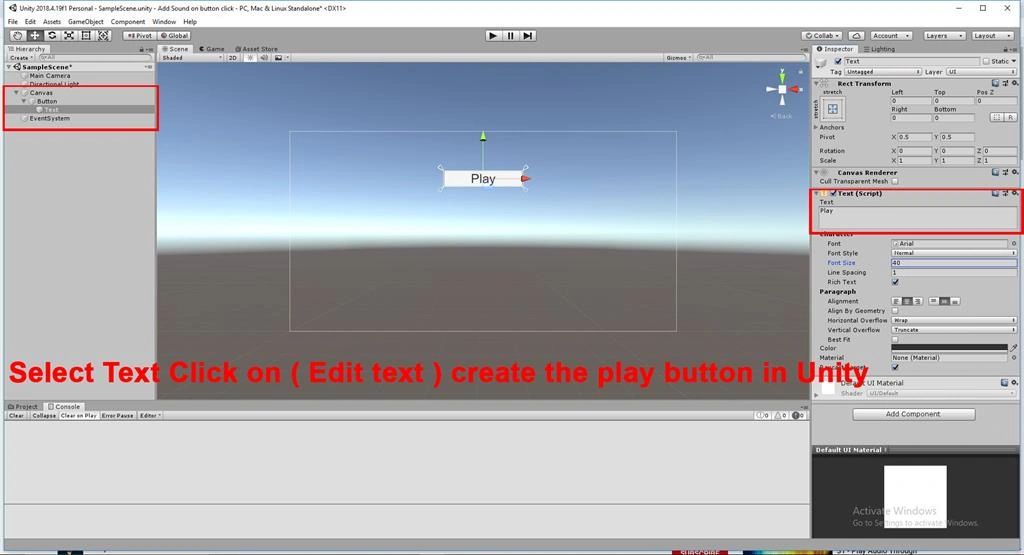
Select Button. GetComponentInChildren<Text>(). text = " button text" as Play, Pause and Stop in scene view.
Google Search text to speech Create the speech download.
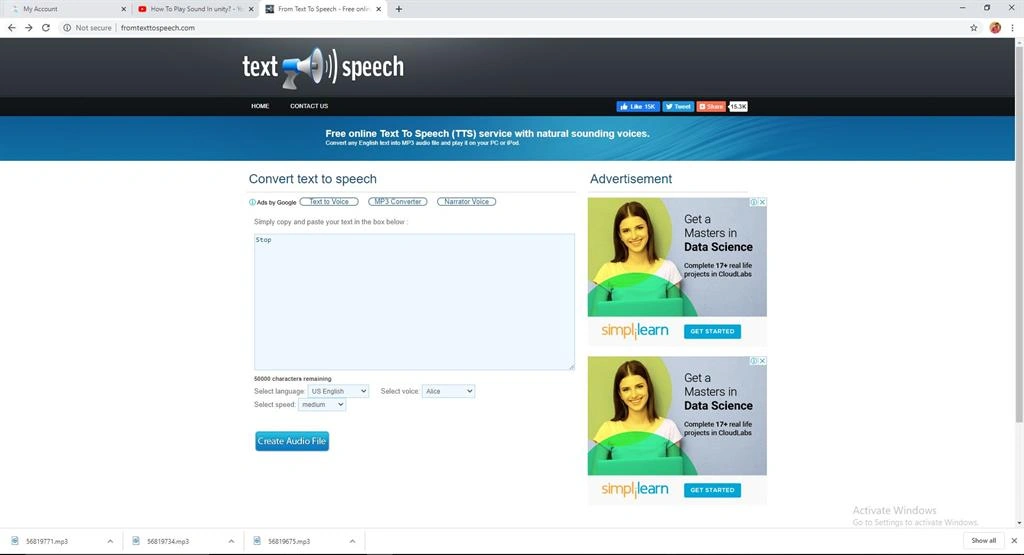
Import the Audio in scene view.
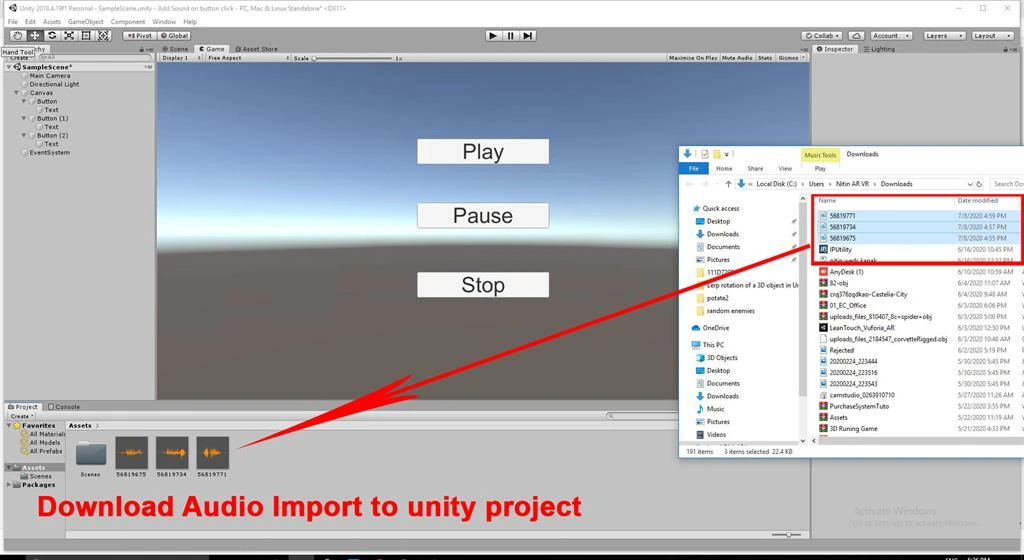
Rename the download Audio Play, Pause and Stop.
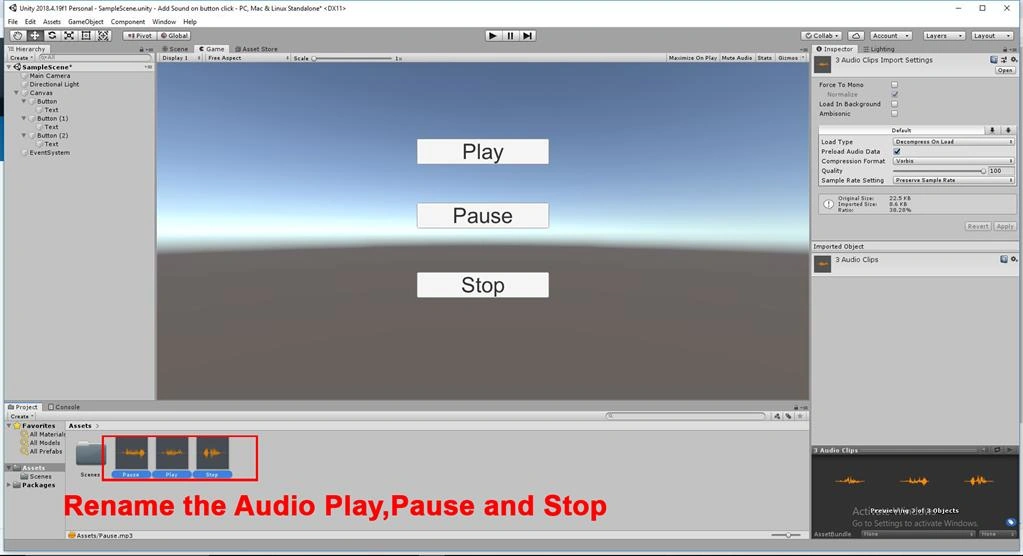
Create the Scripts
Right-click on Assets. Select Create >> C# script
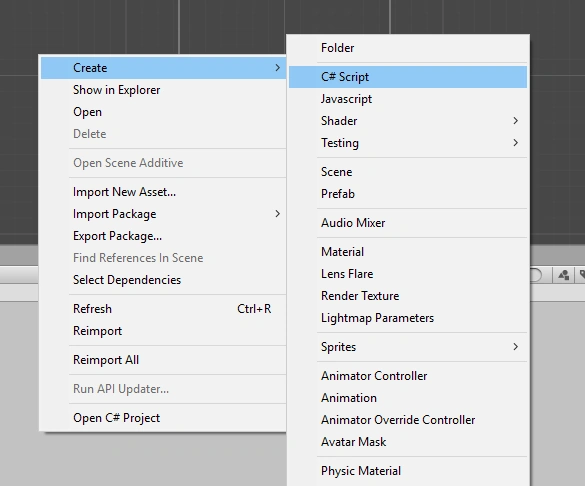
Rename the Scripts as Musicmgr.
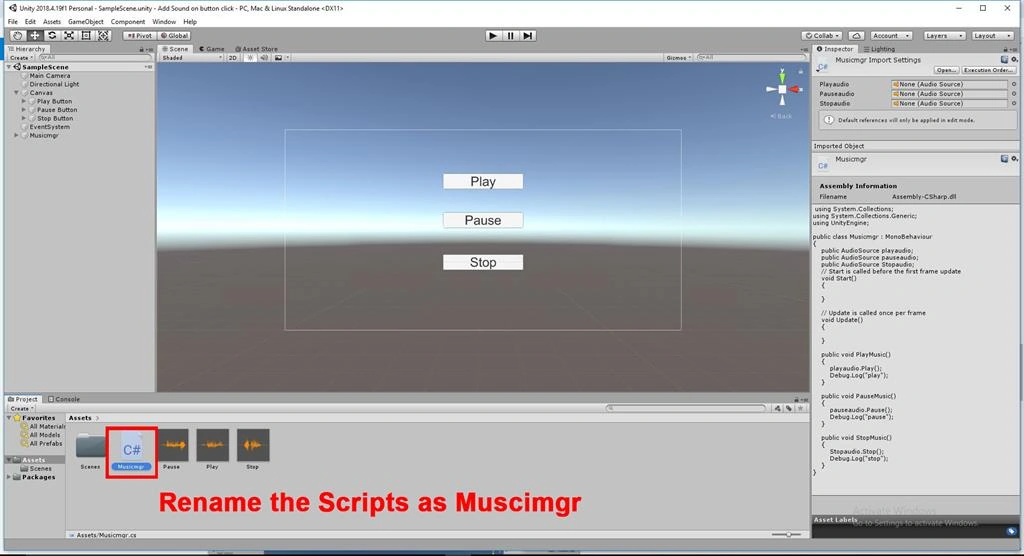
Double click on the Musicmgr script. Write the code as shown below,
- using System.Collections;
- using System.Collections.Generic;
- using UnityEngine;
- public class Musicmgr: MonoBehaviour {
- public AudioSource playaudio;
- public AudioSource pauseaudio;
- public AudioSource Stopaudio;
- // Start is called before the first frame update
- void Start() {}
- // Update is called once per frame
- void Update() {}
- public void PlayMusic() {
- playaudio.Play();
- Debug.Log("play");
- }
- public void PauseMusic() {
- pauseaudio.Pause();
- Debug.Log("pause");
- }
- public void StopMusic() {
- Stopaudio.Stop();
- Debug.Log("stop");
- }
- }
Save the program
Create the Empty gameobject
Create a empty game object (GameObject->Create Empty)
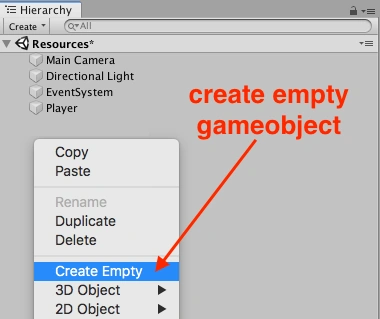
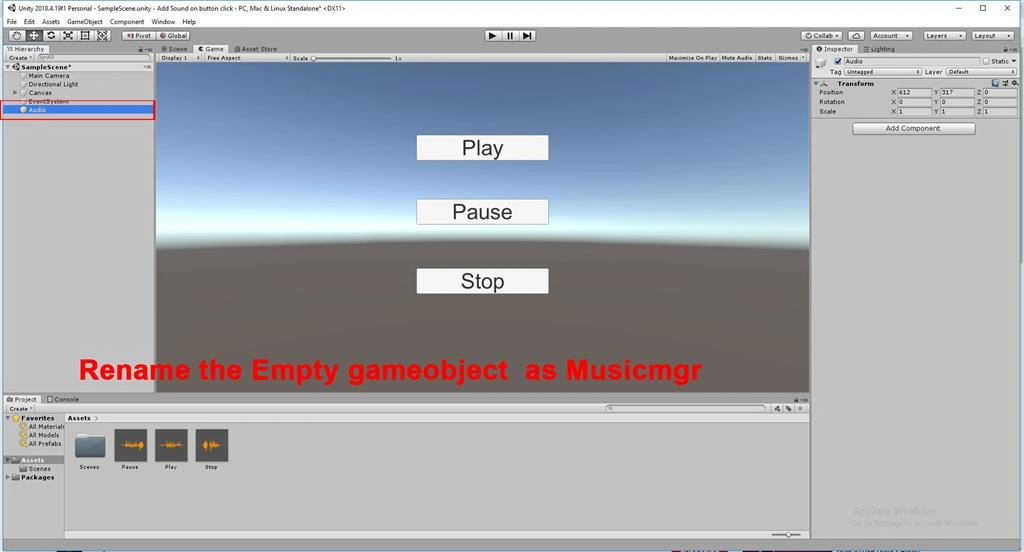
Rename the Empty GameObject as Musicmgr
Drag and drop the Musicmgr script onto the Musicmgr
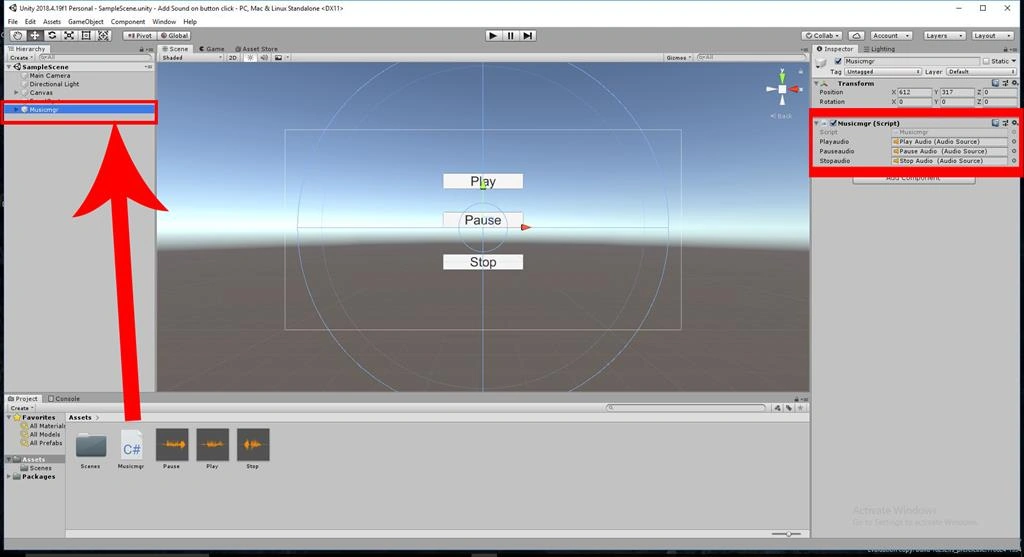
GameObject selected in the inspector, click Add Component.You can search for Audio Source and select this. Assign your AudioClip to the Audio Source.
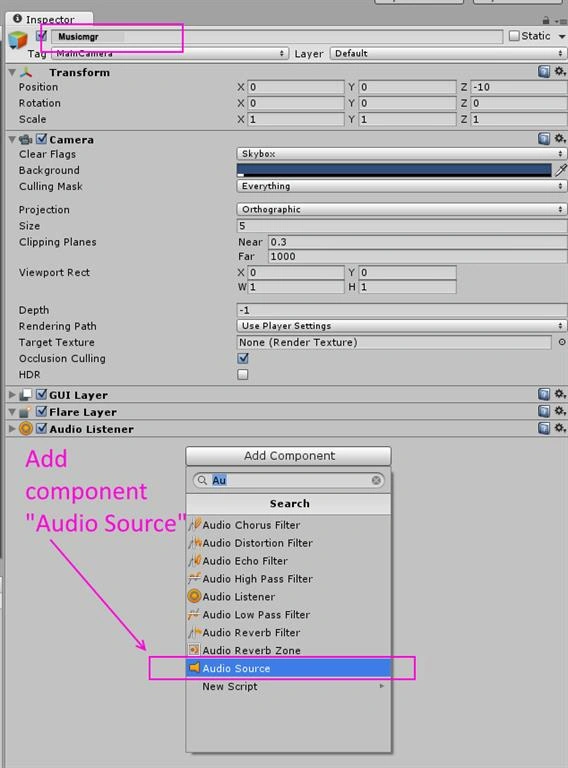
Drag n Drop Audio source to musicmgr
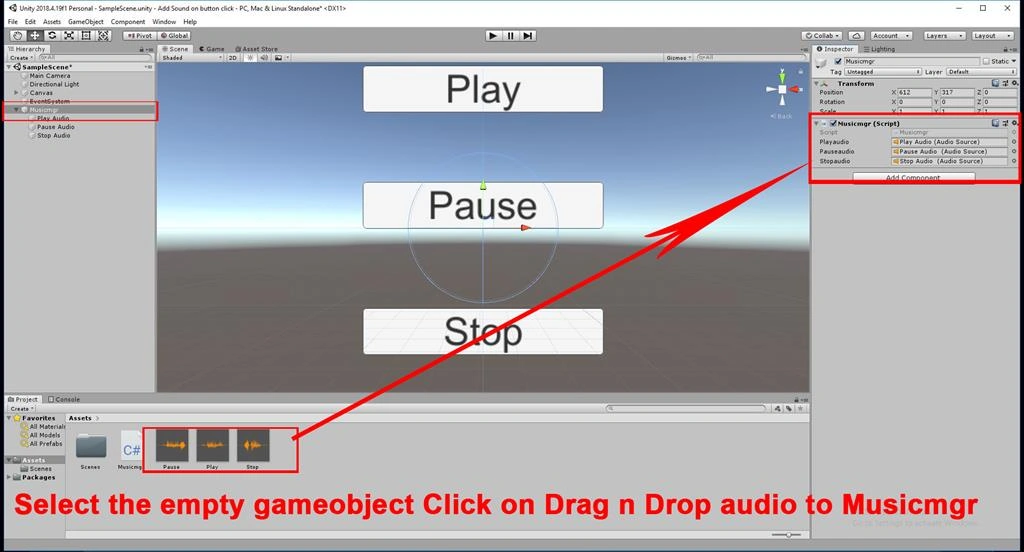
Add an audio source Musicgmgr to your scene.Assign an audio clip to it.Uncheck "Play on Awake"Go to the OnClick() section of the UI
Button.Click the plus sign to add an item to the list.
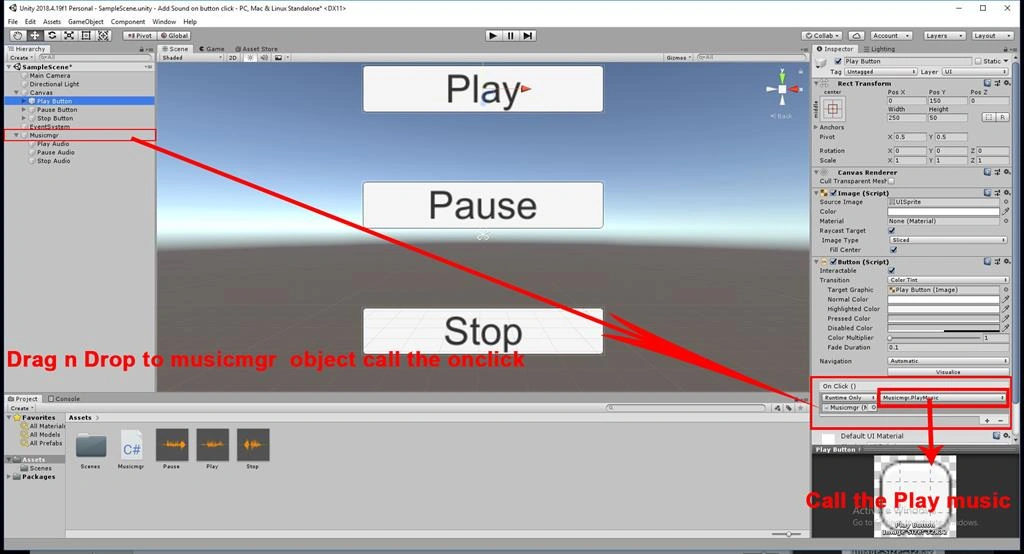
Click on the Play button. Select Button click Start on Audio Source.
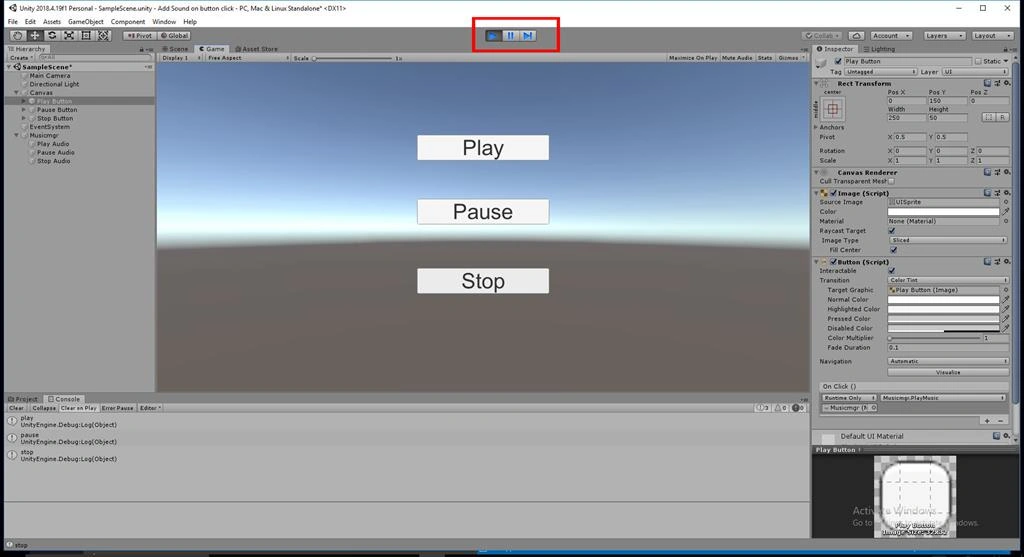
Summary
I hope you understood how to play audio on a button click using C# scripts in Unity.
Join the conversation! Your thoughts help the community grow.