

Introduction
Azure Functions provides a powerful mechanism for executing serverless code triggered by events. When working with SharePoint, Azure Functions can interact with SharePoint Online in many ways. One such secure way for authentication is with the self-signed certificate for app-only authentication. This article will walk you through the steps for using Azure Function to access SharePoint data using a self-signed certificate.
Step-by-step guide
- Create a new Azure AD App Registration. This is a common step please refer to articles available in the C# corner for how to create an Azure AD App registration.
- Depending on what kind of resources you are going to access in your Azure function, you can choose API permission. In this particular case, we will choose Application Permissions and Sites.FullControl.All of SharePoint.
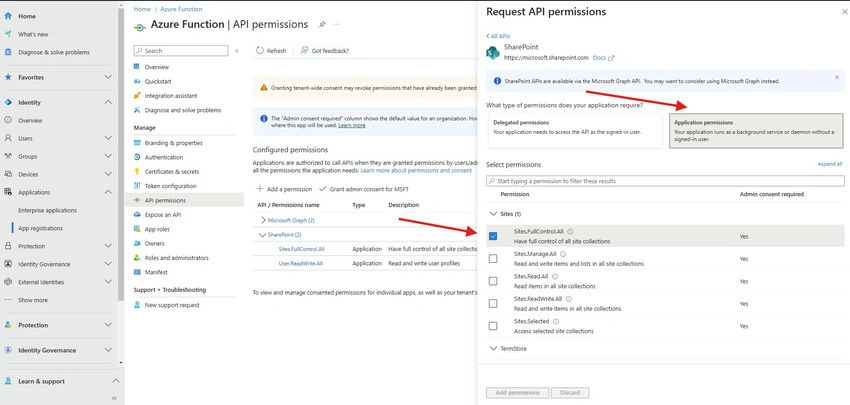
- Also, provide admin consent as we are using application permissions and will be accessing SharePoint Data directly with any user intervention.
- Now Generate a Self-Signed Certificate in your local device.
- Paste the below code into PowerShell then Change the certificate name according to you and press enter to generate the certificate.
$certificate = New-SelfSignedCertificate -Subject "YourCertificateName" -CertStoreLocation "Cert:\CurrentUser\My" -KeyExportPolicy Exportable -KeySpec Signature -KeyLength 2048 -NotAfter (Get-Date).AddYears(5)
- Now that your certificate is generated, you need to export the certificate to install it on your local device. Paste below code in PowerShell. Define the file path to store the certificate and press enter.
Export-Certificate -Cert "Cert:\CurrentUser\My\$($certificate.Thumbprint)" -FilePath "C:\Projects\AzureFunctionCertifcate.cer" - You can see the certificate is exported at the desired file path
- Now generate a pfx file. Paste the below code in PowerShell, then add your password then press enter.
Export-PfxCertificate -Cert "Cert:\CurrentUser\My\$($ certificate.Thumbprint)" -FilePath "C:\AzureFunctionCertificate.pfx" -Password (ConvertTo-SecureString -String "YourPassword" -Force -AsPlainText) - Install the certificate on the local device.
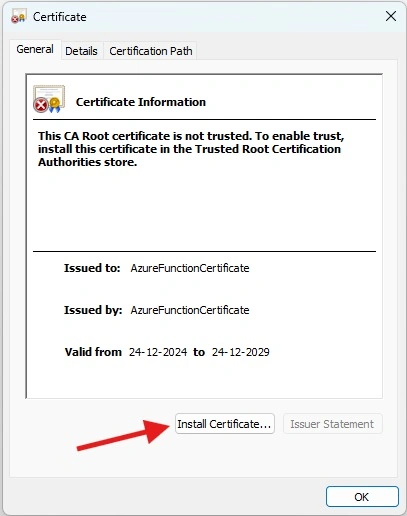
- Upload the certificate in the Certificates & Secrets section in your Azure Ad App Registration.
- Note down the Client ID, Tenant ID, and Certificate Thumbprint which will be used later.
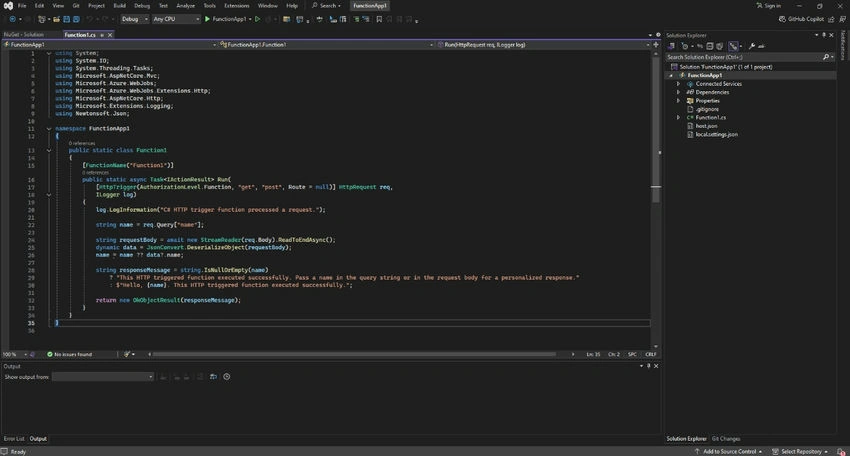
- Now create a new Azure Function in Visual Studio named CRUDOperations.
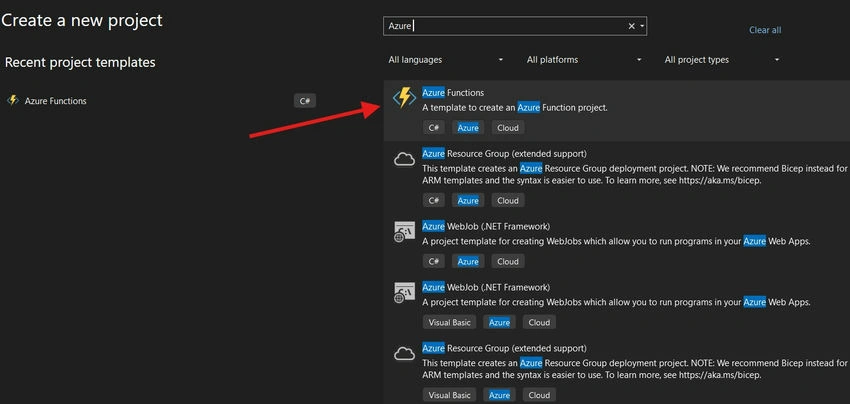
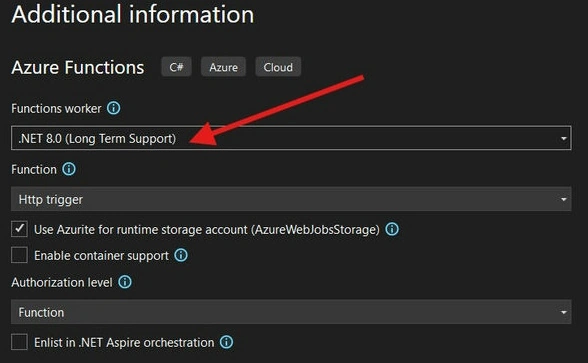
- Now you can see below screen.
- Install necessary NuGet packages:
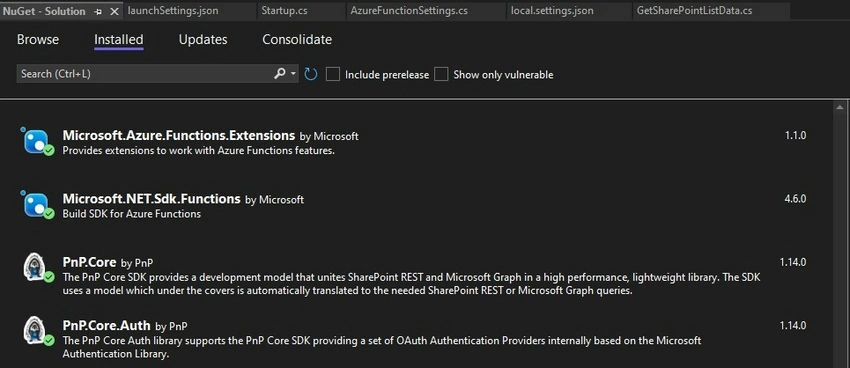
- Go to Tools-> NuGet Package Manager - Manage NuGet Packages for Solutions and search for the below packages.
- PnP.Core
- PnP.Core.Auth
- Microsoft.Azure.Functions.Extensions
- Replace the below code in the local.settings.json file.
{
  "IsEncrypted": false,
  "Values": {
    "AzureWebJobsStorage": "UseDevelopmentStorage=true",
    "FUNCTIONS_WORKER_RUNTIME": "dotnet",
    "CertificateThumbprint": "<Your-Certificate-Thumbprint>",
    "ClientId": "<Your-Client-Id>",
    "SiteUrl": "<Your-SharePoint-Site-URL>",
    "TenantId": "<Your-Tenant-Id>"
  }
}
- Replace your Client ID, Tenant ID, Certificate Thumbprint, and Site URL.
- Now create a class named Startup.cs class.
- Replace the below code in the Startup.cs file.
using Microsoft.Azure.Functions.Extensions.DependencyInjection;
using Microsoft.Extensions.Configuration;
using Microsoft.Extensions.DependencyInjection;
using PnP.Core.Auth;
using System.Security.Cryptography.X509Certificates;

[assembly: FunctionsStartup(typeof(CRUDOperations.Startup))]

namespace CRUDOperations
{
    class Startup : FunctionsStartup
    {
        public override void Configure(IFunctionsHostBuilder builder)
        {
            var config = builder.GetContext().Configuration;
            var azureFunctionSettings = new AzureFunctionSettings();
            config.Bind(azureFunctionSettings);

            builder.Services.AddPnPCore(options =>
            {
                options.DisableTelemetry = true;

                var authProvider = new X509CertificateAuthenticationProvider(
                    azureFunctionSettings.ClientId,
                    azureFunctionSettings.TenantId,
                    StoreName.My,
                    StoreLocation.CurrentUser,
                    azureFunctionSettings.CertificateThumbprint);

                options.DefaultAuthenticationProvider = authProvider;

                options.Sites.Add("Default", new PnP.Core.Services.Builder.Configuration.PnPCoreSiteOptions
                {
                    SiteUrl = azureFunctionSettings.SiteUrl,
                    AuthenticationProvider = authProvider
                });
            });
        }
    }
}
Now create a class named AzureFunctionSettings.cs class, This class will map the configuration settings from local.settings.json.
Replace the below code in the AzureFunctions.cs file.
namespace CRUDOperations
{
    public class AzureFunctionSettings
    {
        public string SiteUrl { get; set; }
        public string TenantId { get; set; }
        public string ClientId { get; set; }
        public string CertificateThumbprint { get; set; }
    }
}
Now in Your Function1.cs file replace the below code.
using System;
using System.Threading.Tasks;
using Microsoft.AspNetCore.Mvc;
using Microsoft.Azure.WebJobs;
using Microsoft.Azure.WebJobs.Extensions.Http;
using Microsoft.AspNetCore.Http;
using Microsoft.Extensions.Logging;
using PnP.Core.Services;
using System.Linq;
using PnP.Core.QueryModel;

namespace CRUDOperations
{
    public class GetSharePointListData
    {
        private readonly IPnPContextFactory pnpContextFactory;

        public GetSharePointListData(IPnPContextFactory pnpContextFactory)
        {
            this.pnpContextFactory = pnpContextFactory;
        }

        [FunctionName("GetSharePointListData")]
        public async Task<IActionResult> Run(
            [HttpTrigger(AuthorizationLevel.Function, "get", Route = null)] HttpRequest req,
            ILogger log)
        {
            log.LogInformation("Fetching data from the SharePoint list.");

            try
            {
                using var pnpContext = await pnpContextFactory.CreateAsync("Default");
                var list = await pnpContext.Web.Lists.GetByTitleAsync("ForEx Rates using API");
                var items = await list.Items.ToListAsync();

                var data = items.Select(item => new
                {
                    Id = item.Id,
                    Date = item["Date"],
                    BaseCurrency = item["BaseCurrency"],
                    Rupees = item["ComparedtoRupees"],
                    Euro = item["ComparedtoDoller"],
                    BritishPound = item["BritishPound"],
                    KuwaitiDinar = item["KuwaitiDinar"],
                    SwissFranc = item["SwissFranc"]
                }).ToList();

                return new OkObjectResult(data);
            }
            catch (Exception ex)
            {
                log.LogError($"Error: {ex.Message}");
                return new StatusCodeResult(500);
            }
        }
    }
}
In the above code make sure to change the List name with your list name. In my case I am using the "Forex Rates using API" list from my SharePoint site.
In the function, data is mapped to a custom object using item["FieldName"], where FieldName matches the internal names of your list columns. The properties in the object should align with your list fields to ensure accurate mapping. Update these fields based on your SharePoint list's structure.
Now Save all the files and run the project.
The below window will appear.
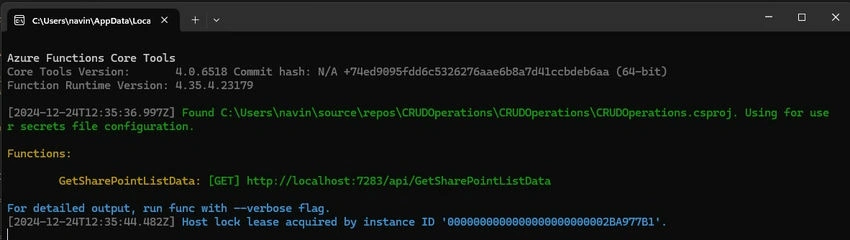
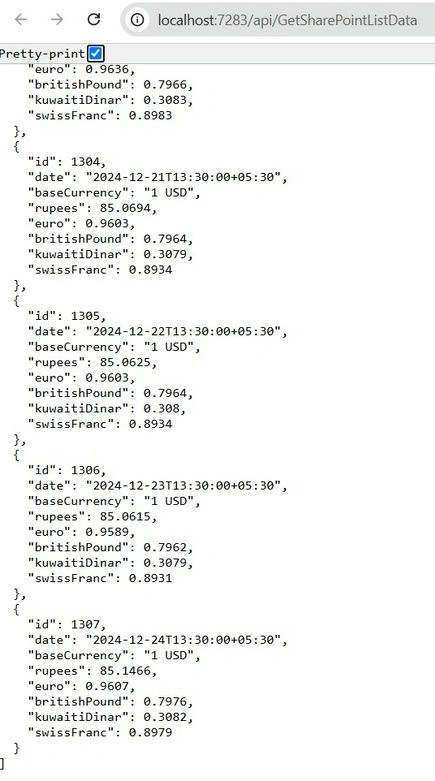
Now Hover on the URL, press Ctrl then click on the URL.
The browser will open and data will be displayed.
Join the conversation! Your thoughts help the community grow.