

In this article we are going to learn how to access the HomeGroup location in a Windows Store Application using C#.
Introduction
HomeGroup is one of the known locations that can be suggested to the file picker as a starting location. The file picker will open at the last opened location and not always the suggested location. You can also picki a video from the homegroup, and stream it to a video tag in a Windows Store Application.
HomeGroup will only be available if the PC belongs to a homegroup. You can access the files and folders from the HomeGroup location.
Now, let's begin to create an Windows Store Application using C#.
Step 1
Select a Blank template of Windows Store Application using XAML.
Now to add some capabilities in the application to easily access the network location.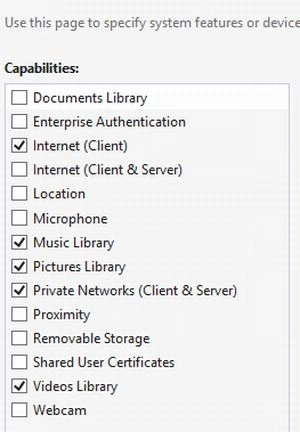
Add a Declaration of a FileOpenPicker Contract and select any file supported as the following image shows: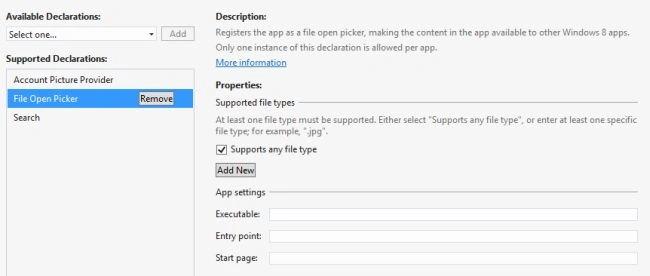
Step 2
In this step I put some UI control in the MainPage.xaml file.
<Page
x:Class="HomeGroup_Location.MainPage"
xmlns="http://schemas.microsoft.com/winfx/2006/xaml/presentation"
xmlns:x="http://schemas.microsoft.com/winfx/2006/xaml"
xmlns:local="using:HomeGroup_Location"
xmlns:d="http://schemas.microsoft.com/expression/blend/2008"
xmlns:mc="http://schemas.openxmlformats.org/markup-compatibility/2006"
mc:Ignorable="d">
<Grid Background="{StaticResource ApplicationPageBackgroundThemeBrush}">
<StackPanel Orientation="Vertical" Margin="0,10,0,0" Grid.Row="1">
<Button x:Name="openPicker" Content="Open picker" Margin="0,0,10,0" Click="OpenPickerButton_Click"/>
<StackPanel Orientation="Horizontal">
<Button x:Name="videoPicker" Content="Pick video" Margin="0,0,10,0" Click="PickVideo_Click"/>
<Grid x:Name="Output" >
<MediaElement x:Name="videoPlayer" AutomationProperties.Name="Video Placeholder" HorizontalAlignment="Left" VerticalAlignment="Top"/>
</Grid>
</StackPanel>
<TextBlock x:Name="Status" FontSize="15"></TextBlock>
</StackPanel>
</Grid>
</Page>
Step 3
Pick a file from the HomeGroup Location.
Windows.Storage.Pickers.FileOpenPicker picker = new Windows.Storage.Pickers.FileOpenPicker();
picker.ViewMode = Windows.Storage.Pickers.PickerViewMode.Thumbnail;
picker.SuggestedStartLocation = Windows.Storage.Pickers.PickerLocationId.HomeGroup;
picker.FileTypeFilter.Add("*");
Windows.Storage.StorageFile file = await picker.PickSingleFileAsync();
In the preceding code I set the Location of the Picker to the HomeGroup location. When the FileOpenPicker opens it displays the default location as HomeGroup.
Step 4
Code for picking a media file from the HomeGroup Network.
async private void PickVideo_Click(object sender, RoutedEventArgs e)
{
Windows.Storage.Pickers.FileOpenPicker picker = new Windows.Storage.Pickers.FileOpenPicker();
picker.ViewMode = Windows.Storage.Pickers.PickerViewMode.Thumbnail;
picker.SuggestedStartLocation = Windows.Storage.Pickers.PickerLocationId.HomeGroup;
picker.FileTypeFilter.Add(".mp4");
picker.FileTypeFilter.Add(".wmv");
Windows.Storage.StorageFile file = await picker.PickSingleFileAsync();
if (file != null)
{
var stream = await file.OpenAsync(Windows.Storage.FileAccessMode.Read);
videoPlayer.SetSource(stream, file.ContentType);
videoPlayer.Stop();
videoPlayer.Play();
}
}
Step 5
Now your application is ready to access the files from the HomeGroup Network location. Press F5 and run it.
Join the conversation! Your thoughts help the community grow.