

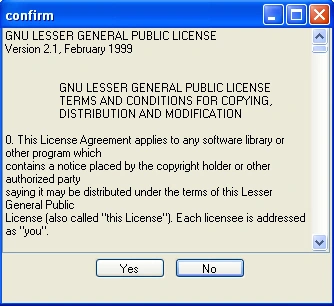
Figure 1 - Scrollable MessageBox
Introduction
Most of the time a message box is a simple sentence to display some information to the user or ask a simple yes/no question to the user. However, there are cases you may run across where you want to display a lot of information to your user, and it just won't seem to fit in that little piece of real estate on your screen. Currently the .NET message box expands to fit the message, but this starts getting undesirable when the message is larger than the screen. At the point when the message box fills the entire vertical limits of your screen, you may find it difficult to even grab the title bar to move the message box around. This is when you may decide that perhaps a scrollable message box would come in handy. The message box I created takes most of the parameters of the existing message box, such as caption, text, and MessageButtons. I have also added an additional feature to allow the message box to read the text from a file before displaying the message. Additionally, you can manipulate the font and color properties of the ScrollableMessageBox.
Design
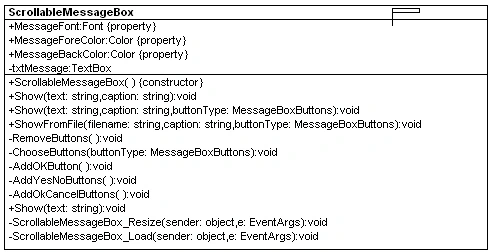
The ScrollableMessageBox Design Consists of a Form which contains a Multiline ReadOnly TextBox and a dynamically created button(s) set. Text is written to the Text property of the TextBox. The ChooseButtons method places and arranges he buttons in the form according to which MessageBoxButtons we want. The default button is the OK button seen in most message boxes. Several Show methods allow us to show the ScrollableMessageBox using different parameter combinations (just like the existing MessageBox). The MessageFont, MessageForeColor, and MessageBackColor Properties allow us to change the font and colors of our text message box by propagating the TextBox properties. This scrollable message box works a bit differently than the current message box, in that the ScrollableMessageBox does not have static methods so you must instantiate a ScrollableMessageBox before using it.
The Code
The various Show Methods allow us to populate the titlebar, the TextBox, and the buttons we wish to use for the dialog. Below are two of the Show methods. The first Show method just takes a message parameter and a caption for the title bar of the message. The second Show method also takes a type of MessageBoxButton as a parameter (You can also choose MessageBoxButtons.YesNo and MessageBoxButtons.OKCancel).
Listing 1 - Different Show Methods for the ScrollableMessageBox
- ///<summary>
- ///
- ///</summary>
- ///<param name="text">text inside the message box</param>
- ///<param name="caption">caption on the title bar</param>
- public void Show(string text, string caption) {
- // populate the text box with the message
- txtMessage.Text = text;
- // populate the caption with the passed in caption
- this.Text = caption;
- //Assume OK Button, by default
- ChooseButtons(MessageBoxButtons.OK);
- // the active control should be the OK button
- this.ActiveControl = this.Controls[this.Controls.Count - 1];
- this.ShowDialog(); // show the message box as a modal dialog
- }
- public void Show(string text, string caption, MessageBoxButtons buttonType) {
- txtMessage.Text = text;
- this.Text = caption;
- ChooseButtons(buttonType);
- this.ActiveControl = this.Controls[this.Controls.Count - 1];
- this.ShowDialog();
- }
Listing 2- Scrollable MessageBox Populated from a File
- public void ShowFromFile(string filename, string caption, MessageBoxButtons buttonType) {
- // read the file into the message box
- StreamReader sr = new StreamReader(filename);
- txtMessage.Text = sr.ReadToEnd();
- sr.Close();
- this.Text = caption;
- ChooseButtons(buttonType);
- this.ActiveControl = this.Controls[this.Controls.Count - 1];
- this.ShowDialog();
- }
Buttons are loaded dynamically in the Show methods by calling ChooseButtons. The method for ChooseButtons is shown in listing 3. This method switches on the different types of buttons and draws the appropriate set of buttons for the ScrollableMessageBox.
Listing 3 - Adding the chosen MessageBoxButton
- void ChooseButtons(MessageBoxButtons buttonType)
- {
- // remove existing buttons
- RemoveButtons();
- // decide which button set to add from buttonType, and add it
- switch (buttonType)
- {
- caseMessageBoxButtons.OK: AddOKButton();
- break;
- caseMessageBoxButtons.YesNo: AddYesNoButtons();
- break;
- caseMessageBoxButtons.OKCancel: AddOkCancelButtons();
- break;
- default:
- AddOKButton(); // default is an OK button
- break;
- }
- }
The buttons are added dynamically, just as they would be in the form designer. In fact I copied the code from the form designer to figure out every property I needed to set for each button. Listing 4 shows how we added the Yes No buttons:
Listing 4 - Adding Yes and No Buttons to the ScrollableMessageBox
- private void AddYesNoButtons() {
- Button btnYes = new Button();
- btnYes.Text = "Yes";
- this.Controls.Add(btnYes); // add the yes button to the form
- // calculate the location of the buttons so that they are centered
- // at the bottom
- btnYes.Location = new Point(this.Width / 2 - 75, this.txtMessage.Bottom + 5);
- btnYes.Size = new Size(70, 20);
- btnYes.DialogResult = DialogResult.Yes; // set the results for a modal dialog
- this.AcceptButton = btnYes; // set the yes button as a dialog accept button
- Button btnNo = new Button();
- btnNo.Text = "No";
- this.Controls.Add(btnNo); // add the no button to the form
- btnNo.Location = new Point(this.Width / 2 + 5, this.txtMessage.Bottom + 5);
- btnNo.Size = newSize(70, 20);
- btnNo.DialogResult = DialogResult.No; // set the results for a modal dialog
- this.CancelButton = btnNo; // set the no button as a dialog cancel button
- }
Listing 5 - Public Font and Color Properties Inside the Scrollable Picture Box
- public Font MessageFont {
- set {
- txtMessage.Font = value;
- }
- get {
- return txtMessage.Font;
- }
- }
- public Color MessageForeColor {
- get {
- return txtMessage.ForeColor;
- }
- set {
- txtMessage.ForeColor = value;
- }
- }
- public Color MessageBackColor {
- get {
- return txtMessage.BackColor;
- }
- set {
- txtMessage.BackColor = value;
- this.BackColor = value;
- }
- }
Unlike the MessageBox in .NET, the ScrollableMessageBox is instantiated. After it is instantiated, the ScrollableMessageBox is pretty much used the same way as a MessageBox, by calling Show. Listing 6 illustrates some different ways to use the ScrollableMessageBox,
- private void button1_Click(object sender, EventArgs e)
- {
- MicrogoldWindows.ScrollableMessageBox msgBox = new MicrogoldWindows.ScrollableMessageBox();
- // use of the different Show methods
- msgBox.Show("test", "query");
- msgBox.Show("Everything Okay?", "confirm", MessageBoxButtons.YesNo);
- msgBox.Show("Do you really want to remove the file?", "confirm", MessageBoxButtons.OKCancel);
- // use of the ShowFromFile method
- openFileDialog1.FileName = "*.txt";
- if (openFileDialog1.ShowDialog() == DialogResult.OK) {
- msgBox.ShowFromFile(openFileDialog1.FileName, "confirm", MessageBoxButtons.YesNo);
- }
- // altering fonts and colors of the messagebox
- msgBox.MessageFont = new Font("Ariel", 24);
- msgBox.MessageBackColor = Color.LightGray;
- msgBox.ForeColor = Color.Blue;
- msgBox.Show("test", "Check out the color and font functionality!!");
- }
.NET makes it easy to construct controls that go beyond the capability of existing controls inside the platform. The ScrollableMessageBox as an example of how you can quickly code a control that gives you much of the functionality of the existing message box and more. Anyway, the next time you decide to create those lengthy messages in your message box, take a break and have a scroll around the block using this scrollable solution in C# and .NET.
Tom McSkimmingPosted Oct 9, 2018, 10:42 PM
It seems to be ignoring "\n". Anyone else had this issue? UPDATE: also needed to include carriage return, "\r\n" for new line.
Nikhil SanganiPosted Sep 25, 2018, 2:00 AM
Its very useful thanks a lot
Felipe AlvesPosted Mar 13, 2014, 8:51 AM
I need to use your scrollable message box in another file, do you know how I can do that? Or is there a static library or a DLL available with the same functionality?
johnson fangPosted Feb 5, 2013, 2:28 AM
seems great Thanks
Nam NaPosted Feb 10, 2011, 2:21 AM
It's used full to me
wasan bonpunnPosted Aug 26, 2010, 11:25 PM
Thank you very much for Knowlade
a smPosted Jun 10, 2010, 11:05 AM
I just say thanks a lot