

Introduction
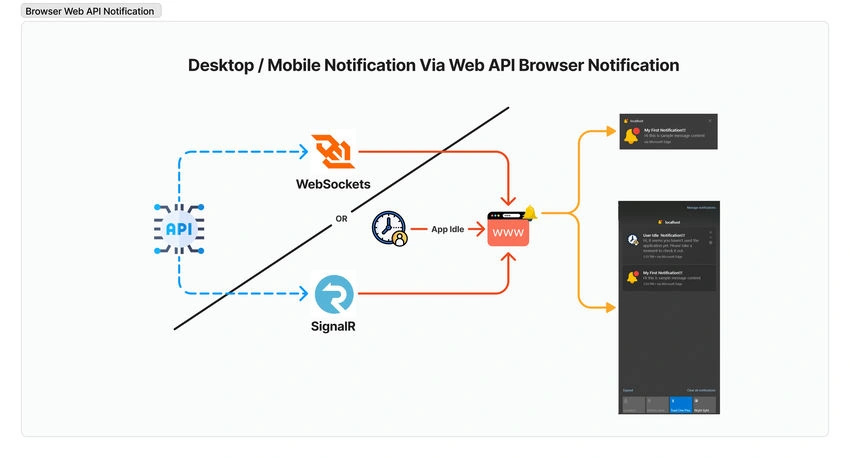
With the increasing reliance on web applications, it has become essential to keep users informed, even when they are not actively using the application. The Web Notification API is a tool that allows web applications to send notifications to users' browsers, similar to notifications from native apps. These notifications can be used for reminders, updates, or important alerts, even when the browser is not in focus.
In this article, we’ll read about what the Web Notification API is, how it works, and how you can implement it in your web applications.
What is the Web Notification API?
The Web Notification API enables web applications to display system notifications. These are messages that appear in the operating system’s notification area or on the browser, even when the user has navigated away from the website. This capability allows web developers to enhance user engagement by providing updates or alerts without requiring the user to keep the webpage open or in focus.
Key Features
Engage Users Outside of the Webpage: Notifications can be delivered to users even if the browser is minimized or in the background.
Cross-Browser Support: Most modern browsers like Chrome, Firefox, Safari, and Edge support this API.
Permission-Based: Users must explicitly grant permission for a website to send notifications.
How Does Web Notification API Work?
The Web Notification API works by allowing a website to request permission to display notifications. Once the user grants permission, the website can trigger notifications through JavaScript, providing a title, message, and other options.
Here’s the basic flow
- Request Permission: The web app asks for permission to send notifications.
- Create Notifications: If permission is granted, notifications can be created using the Notification constructor.
- Handle Events: Notifications can respond to user interactions, such as clicks.
Requesting Permission
Before sending notifications, a web application must request permission from the user. The request can be made using the Notification.requestPermission() method. The user can either grant or deny this request. It’s important to only ask for permission when necessary and to ensure the request makes sense in the context of the user’s interaction with the app.
Notification.requestPermission().then(permission => {
  console.log(`Permission: ${permission}`);
});
The possible responses are:
- granted: The app is allowed to send notifications.
- denied: The app is blocked from sending notifications.
- default: The user dismissed the permission request.
Creating a Notification
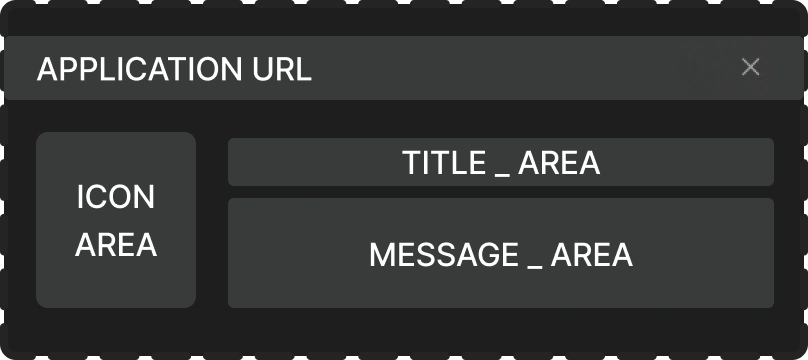
Once the user grants permission, you can create notifications using the Notification constructor. Notifications can include a title, body, icon, and more.
const notification = new Notification("New Message", {
  body: "You have a new message from John!",
  icon: "message-icon.png",
  tag: "message"
});
Notification Options
- body: The main text content of the notification.
- icon: A URL to an image to display with the notification.
- tag: A unique identifier for the notification that is useful for updating or replacing it later.
Responding to User Actions
Notifications can trigger events like clicks. You can handle these events by adding an event listener:
notification.onclick = function() {
  window.focus();
  console.log("Notification clicked!");
};
This makes the notification more interactive and allows users to return to the app directly from the notification.
Browser Support
Most modern browsers support the Web Notification API, including:
- Google Chrome
- Mozilla Firefox
- Microsoft Edge
- Safari (with some limitations)
Best Practices for Using the Web Notification API
While the Web Notification API is a useful tool for user engagement, it’s important to follow best practices to ensure a positive user experience:
- Be mindful of the timing: Avoid spamming users with notifications. Only send notifications when they are relevant and timely.
- Give users control: Always respect user preferences. Allow them to disable notifications or opt-out if desired.
- Use descriptive content: Ensure your notification title and body are concise but informative.
- Optimize for mobile devices: Notifications may appear differently on mobile devices, so test how they display on various screen sizes.
Conclusion
The Web Notification API provides a valuable way to keep users informed, engaged, and connected with your web application, even when it’s not in focus. By using this API thoughtfully, you can enhance the user experience and keep your audience engaged. However, always be mindful of user preferences and avoid overwhelming them with too many notifications.
Join the conversation! Your thoughts help the community grow.