

Introduction
This article shows the use of Backbone.js with ASP.NET MVC with a simple MVC application using backbone.js. Before this article we used backbone with HTML but here we will use with cshtml.
Use the following procedure to create the sample.
Step 1
Create a Web API application with the following:
- Start Visual Studio 2013.
- From Start window Select "New Project".
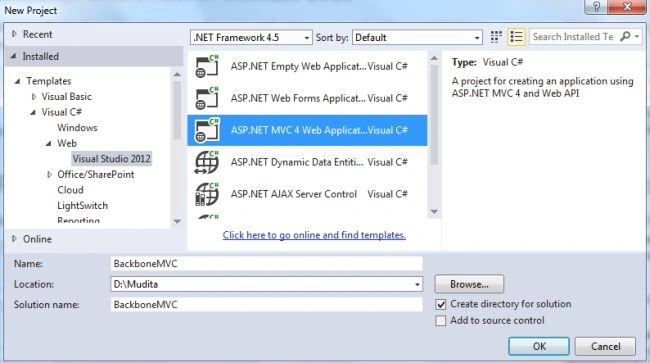
- Select "Installed" -> "Template" -> "Visual C#" -> "Web" -> "Visual Studio 2012" and select "ASP.NET MVC4 Web Application".
- Click the "OK" button.
- From the MVC4 project window select "Empty application".
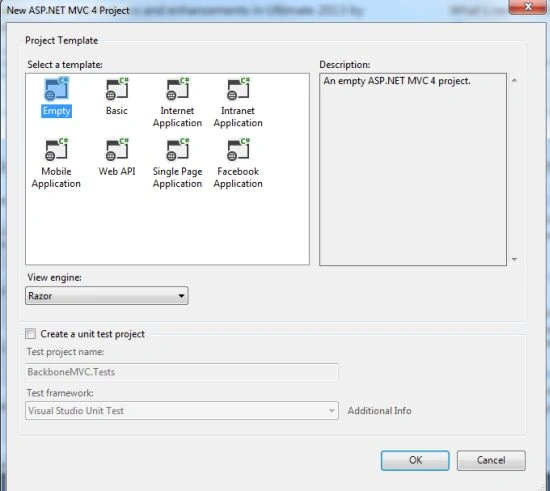
- Click on the "OK" button.
Step 2
Now add a MVC controller class in the Controller folder.
- In the Solution Explorer.
- Right-click on the Controller folder.
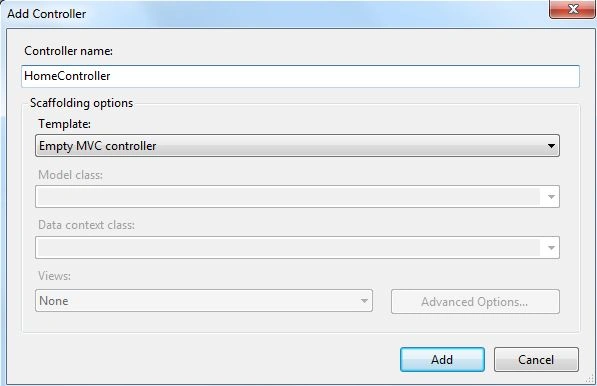
- Select "Add" -> "Controller" then select "Empty MVC Controller" and click on the "Add" button.
Add the "Person Action method".
public class HomeController : Controller
{
    //
    // GET: /Home/
    public ActionResult Index()
    {
        return View();
    }
    public ActionResult Person()
    {
        return View();
    }
}
Now we need to add a "index.cshtml" view in the Home folder.
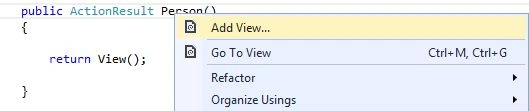
Right-click on the "Person()" action method, select "Add view" then open an "Add View" window then click on the "Add" button.
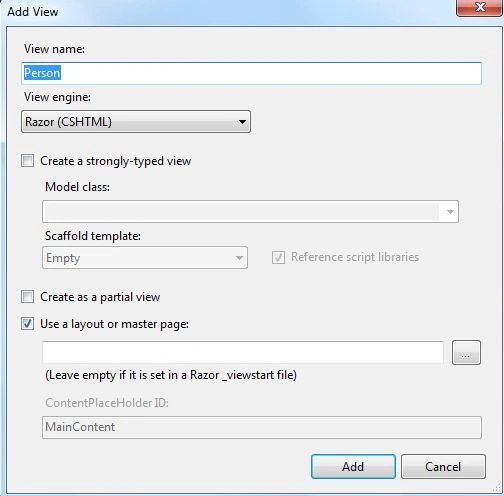
Add the following code in this view:
@{
    ViewBag.Title = "Person";
}
<!DOCTYPE html>
<html lang="en">
<head>
    <meta charset="UTF-8" />
    <title>Backbone.js Web App</title>
    <link href="~/Content/style.css" rel="stylesheet" type="text/css"/>
</head>
<body>
    <div id="persons"></div>
    <script id="personTemplate" type="text/template">
        <img src="<%= photo %>" alt="<%= name %>" />
        <h1><%= name %><span><%= type %></span></h1>
        <div><%= address %></div>
        <dl>
            <dt>Tel:</dt>
            <dd><%= tel %></dd>
            <dt>Email:</dt>
            <dd><a href="mailto:<%= email %>"><%= email %></a></dd>
        </dl>
    </script>
    <script src="~/Scripts/jquery-1.8.2.min.js"></script>
    <script src="~/Scripts/json2.js"></script>
    <script src="~/Scripts/underscore-min.js"></script>
    <script src="~/Scripts/backbone-min.js"></script>
    <script src="~/Scripts/main.js" type="text/javascript"></script>
    </div>
</body>
</html>
Step 3
Now we create a JavaScript file as "main.js".
- In the Solution Explorer.
- Right-click on the "Scripts" folder select "Add" -> "JavaScript".
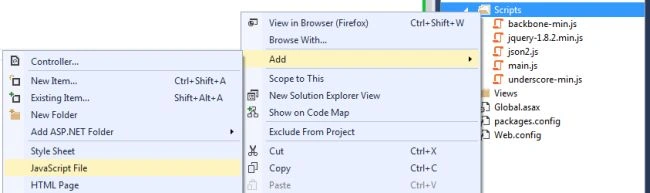
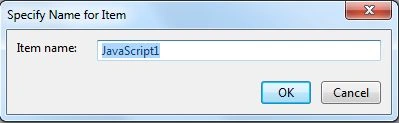
- Click on the "Add" button.
Add the following code;
(function ($) {
    //demo data
    var persons = [       { name: "Person 1", address: "Address 1", tel: "0123456789", email: "[email protected]", type: "family" },       { name: "Person 2", address: "Address 2", tel: "0123456789", email: "[email protected]", type: "family" },
    ];
    //define product model
    var Person= Backbone.Model.extend({
        defaults: {
            photo: "img/placeholder.png"
    }
    });
//define directory collection
var Directory = Backbone.Collection.extend({
    model: Person
});
//define individual person view
var PersonView = Backbone.View.extend({
    tagName: "article",
    className: "person-container",
    template: $("#personTemplate").html(),
    render: function () {
        var tmpl = _.template(this.template);
        $(this.el).html(tmpl(this.model.toJSON()));
        return  this;
    }
});
//define master view
var DirectoryView = Backbone.View.extend({
    el: $("#persons"),
    initialize: function () {
        this.collection = new Directory(persons);
        this.render();
    },
    render: function () {
        var that = this;
        _.each(this.collection.models, function (item) {
            that.renderPerson(item);
        }, this);
    },
    renderPerson: function (item) {
        var personView = new PersonView({
            model: item
        });
        this.$el.append(personView.render().el);
    }
});
//create instance of master view
var directory = new DirectoryView();
} (jQuery));
There is were we need the other scripting files "backbone.js","underscore.js", "json2.js" and "jquery-1.8.2.min.js".
Step 4
Now execute the application:
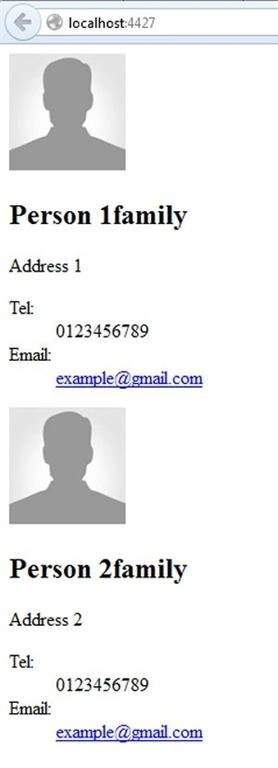
Mark CupitoPosted Jul 15, 2014, 1:18 PM
I'm not sure if this will ever get seen, but - if we were to use a database with this (is it made to be used with a database? I'm assuming yes) do we need to convert the data from the controller to JSON and then send it to the View in Backbone?