

Introduction
This question has been asked many times in forums (such as in http://forums.asp.net) and there definitely are already many solutions available. Most of the examples from the web use DataSource controls (for example SqlDataSource, ObjectDataSource, and so on) to implement a cascading DropDownList in a GridView and I can't seem to find a formal example that shows how to implement it without using DataSource controls.
Note
Before you proceed, make sure you already understand the basics of using the GridView control and how to bind it with data since I will not include the details of doing edit, update or delete scenarios for this exercise.
Scenario
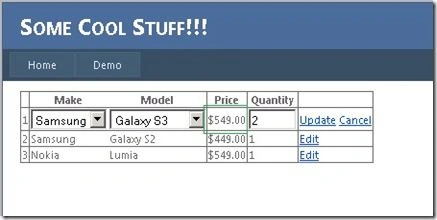
As a recap, a Cascading DropDownList enables a common scenario in which the contents of one list depends on the selection of another list. In this demo we will show a list of Product orders in a GridView and when the user edits the row, we will present the user with a DropDownList containing the list of available makes of products. Once they have made their selection, we will populate the second DropDownList with the available Models for the specific make they've chosen. And once they have chosen the model from the second DropDownList we will then update the Price field for that corresponding model.
ASPX Markup
This article will have a look at how to possibly do this. To get started let's setup our HTML .aspx markup. For the simplicity of this demo, I just set it up like this.
- <asp:GridView ID="gvProducts" runat="server" AutoGenerateColumns="false" DataKeyNames="ProductOrderID"
- onrowcancelingedit="gvProducts_RowCancelingEdit"
- onrowediting="gvProducts_RowEditing"
- onrowupdating="gvProducts_RowUpdating"
- onrowdatabound="gvProducts_RowDataBound">
- <Columns>
- <asp:BoundField DataField="ProductOrderID" ReadOnly="true"/>
- <asp:TemplateField HeaderText="Make">
- <ItemTemplate>
- <asp:Label ID="lblMake" runat="server" Text='<%# Bind("Make") %>' />
- </ItemTemplate>
- <EditItemTemplate>
- <asp:DropDownList ID="ddlProductMake" runat="server"
- OnSelectedIndexChanged="ddlProductMake_SelectedIndexChanged"
- AutoPostBack="true">
- </asp:DropDownList>
- </EditItemTemplate>
- </asp:TemplateField>
- <asp:TemplateField HeaderText="Model">
- <ItemTemplate>
- <asp:Label ID="lblModel" runat="server" Text='<%# Bind("Model") %>' />
- </ItemTemplate>
- <EditItemTemplate>
- <asp:DropDownList ID="ddlProductModel" runat="server"
- OnSelectedIndexChanged="ddlProductModel_SelectedIndexChanged"
- AutoPostBack="true">
- </asp:DropDownList>
- </EditItemTemplate>
- </asp:TemplateField>
- <asp:BoundField DataField="Price" HeaderText="Price" ReadOnly="True" DataFormatString="{0:c}"/>
- <asp:BoundField DataField="Quantity" HeaderText="Quantity"/>
- <asp:CommandField ShowEditButton="True" />
- </Columns>
- </asp:GridView>
The DataSource
Just for the simplicity of this exercise, I didn't use a database and instead I've just created some classes that will hold some properties on it. Here are the class definitions.
- public class ProductMake
- {
- public int ProductMakeID { get; set; }
- public string Make { get; set; }
- }
- public class ProductModel
- {
- public int ProductModelID { get; set; }
- public int ProductMakeID { get; set; }
- public string Model { get; set; }
- public decimal Price { get; set; }
- }
- public class ProductOrder
- {
- public int ProductOrderID { get; set; }
- public int ProductMakeID { get; set; }
- public int ProductModelID { get; set; }
- public string Make { get; set; }
- public string Model { get; set; }
- public short Quantity { get; set; }
- public decimal Price { get; set; }
- }
The ProductMake class holds two main properties. This is where we store the list of makes of the product. The ProductModel class is where we store all the models for each make. The ProductOrder class is where we store the list of orders the user has chosen. Now let's go ahead and provide this class with some sample data. The following is the code blocks.
- private List<ProductOrder> GetUserProductOrder() {
- List<ProductOrder> orders = new List<ProductOrder>();
- ProductOrder po = new ProductOrder();
- po.ProductOrderID = 1;
- po.ProductMakeID = 1;
- po.ProductModelID = 1;
- po.Make = "Apple";
- po.Model = "iPhone 4";
- po.Quantity = 2;
- po.Price = 499;
- orders.Add(po);
- po = new ProductOrder();
- po.ProductOrderID = 2;
- po.ProductMakeID = 2;
- po.ProductModelID = 4;
- po.Make = "Samsung";
- po.Model = "Galaxy S2";
- po.Quantity = 1;
- po.Price = 449;
- orders.Add(po);
- po = new ProductOrder();
- po.ProductOrderID = 3;
- po.ProductMakeID = 3;
- po.ProductModelID = 7;
- po.Make = "Nokia";
- po.Model = "Lumia";
- po.Quantity = 1;
- po.Price = 549;
- orders.Add(po);
- return orders;
- }
- private List<ProductMake> GetProductMakes() {
- List<ProductMake> products = new List<ProductMake>();
- ProductMake p = new ProductMake();
- p.ProductMakeID = 1;
- p.Make = "Apple";
- products.Add(p);
- p = new ProductMake();
- p.ProductMakeID = 2;
- p.Make = "Samsung";
- products.Add(p);
- p = new ProductMake();
- p.ProductMakeID = 3;
- p.Make = "Nokia";
- products.Add(p);
- return products;
- }
- private List<ProductModel> GetProductModels() {
- List<ProductModel> productModels = new List<ProductModel>();
- ProductModel pm = new ProductModel();
- pm.ProductMakeID = 1;
- pm.ProductModelID = 1;
- pm.Model = "iPhone 4";
- pm.Price = 499;
- productModels.Add(pm);
- pm = new ProductModel();
- pm.ProductMakeID = 1;
- pm.ProductModelID = 2;
- pm.Model = "iPhone 4s";
- pm.Price = 599;
- productModels.Add(pm);
- pm = new ProductModel();
- pm.ProductMakeID = 1;
- pm.ProductModelID = 3;
- pm.Model = "iPhone 5";
- pm.Price = 699;
- productModels.Add(pm);
- pm = new ProductModel();
- pm.ProductMakeID = 2;
- pm.ProductModelID = 4;
- pm.Model = "Galaxy S2";
- pm.Price = 449;
- productModels.Add(pm);
- pm = new ProductModel();
- pm.ProductMakeID = 2;
- pm.ProductModelID = 5;
- pm.Model = "Galaxy S3";
- pm.Price = 549;
- productModels.Add(pm);
- pm = new ProductModel();
- pm.ProductMakeID = 2;
- pm.ProductModelID = 6;
- pm.Model = "Galaxy Note2";
- pm.Price = 619;
- productModels.Add(pm);
- pm = new ProductModel();
- pm.ProductMakeID = 3;
- pm.ProductModelID = 7;
- pm.Model = "Nokia Lumia";
- pm.Price = 659;
- productModels.Add(pm);
- return productModels;
- }
- private List<ProductModel> GetProductModelByMake(int productMakeID) {
- var models = (from p in GetProductModels()
- where p.ProductMakeID == productMakeID
- select p);
- return models.ToList();
- }
The Implementation
Now it looks as if we already have some sample source of data to work with. Now let's go ahead and do the highlight of this exercise (which is the implementation of the cascading dropdownlist). Here are the code blocks below.
- private void BindGrid()
- {
- gvProducts.DataSource = GetUserProductOrder();
- gvProducts.DataBind();
- }
- protected void gvProducts_RowEditing(object sender, GridViewEditEventArgs e) {
- gvProducts.EditIndex = e.NewEditIndex;
- BindGrid();
- }
- protected void gvProducts_RowCancelingEdit(object sender, GridViewCancelEditEventArgs e) {
- gvProducts.EditIndex = -1;
- BindGrid();
- }
- protected void gvProducts_RowDataBound(object sender, GridViewRowEventArgs e) {
- if (e.Row.RowType == DataControlRowType.DataRow) {
- if ((e.Row.RowState & DataControlRowState.Edit) > 0) {
- DropDownList ddlMake = (DropDownList)e.Row.FindControl("ddlProductMake");
- ddlMake.DataSource = GetProductMakes();
- ddlMake.DataValueField = "ProductMakeID";
- ddlMake.DataTextField = "Make";
- ddlMake.DataBind();
- ddlMake.SelectedValue = gvProducts.DataKeys[e.Row.RowIndex].Value.ToString();
- DropDownList ddlModel = (DropDownList)e.Row.FindControl("ddlProductModel");
- ddlModel.DataSource = GetProductModelByMake(Convert.ToInt32(gvProducts.DataKeys[e.Row.RowIndex].Value));
- ddlModel.DataValueField = "ProductModelID";
- ddlModel.DataTextField = "Model";
- ddlModel.DataBind();
- ddlModel.SelectedValue = GetProductModelByMake(Convert.ToInt32(gvProducts.DataKeys[e.Row.RowIndex].Value))
- .FirstOrDefault().ProductModelID.ToString();
- }
- }
- }
- protected void ddlProductMake_SelectedIndexChanged(object sender, EventArgs e) {
- DropDownList ddlMake = (DropDownList)sender;
- GridViewRow row = (GridViewRow)ddlMake.NamingContainer;
- if (row != null) {
- if ((row.RowState & DataControlRowState.Edit) > 0) {
- DropDownList ddlModel = (DropDownList)row.FindControl("ddlProductModel");
- ddlModel.DataSource = GetProductModelByMake(Convert.ToInt32(ddlMake.SelectedValue));
- ddlModel.DataValueField = "ProductModelID";
- ddlModel.DataTextField = "Model";
- ddlModel.DataBind();
- }
- }
- }
- protected void ddlProductModel_SelectedIndexChanged(object sender, EventArgs e) {
- DropDownList ddlModel = (DropDownList)sender;
- GridViewRow row = (GridViewRow)ddlModel.NamingContainer;
- if (row != null) {
- if ((row.RowState & DataControlRowState.Edit) > 0) {
- row.Cells[3].Text = string.Format("{0:C}", GetProductModels()
- .Where(o => o.ProductModelID == Convert.ToInt32(ddlModel.SelectedValue))
- .FirstOrDefault().Price);
- }
- }
- }
Accessing the controls from within <EditItemTemplate> is a bit tricky, especially if you are not really familiar with how the stuff works within a GridView. Equating the RowState to DataControlState.Edit isn't really accurate and you might get an exception when doing so. The RowState property is a bitwise combination. Therefore, the RowState could indicate that you are in the Edit state and the Alternate state. Hence, you cannot do a simple equality check when you are in Edit mode. Instead you must do something like this.
- if ((e.Row.RowState & DataControlRowState.Edit) > 0)
- {
- //do your stuff here
- }
Once we've manage to determine the edit-state then we can now begin accessing the controls using the FindControl() method and bind it with the corresponding DataSources. If you notice, I've set the SelectedValue for the ddlMake and ddlModel DropDownLists so that by the time the user clicks edit, the DropDownList will be pre-selected with the previous item the user has chosen.
The ddlProductMake_SelectedIndexChanged event is where we actually do the cascading feature by populating the second DropDownList based from the value selected from the first DropDownList. But before that we need to cast the sender of the object triggering the event to determine which DropDownList is triggered within the GridView row. We then cast the NamingContainer of the sender to a type of GridViewRow to determine the actual row the user is editing.
The ddlProductModel_SelectedIndexChanged event is where we update the Price value based on the selected Model from the second DropDownList. It basically uses LINQ syntax to query the DataSource and to get the Price based on the selected value of the ddlModel.
Binding the GridView
Finally let's call the BindGrid() method to populate the GridView. Here's the code block below.
- protected void Page_Load(object sender, EventArgs e)
- {
- if (!IsPostBack)
- {
- BindGrid();
- }
- }
Here are some screenshots from running this code in the page:
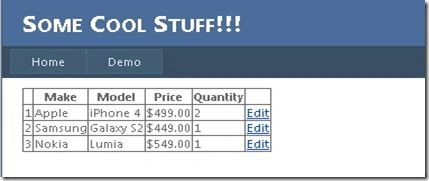
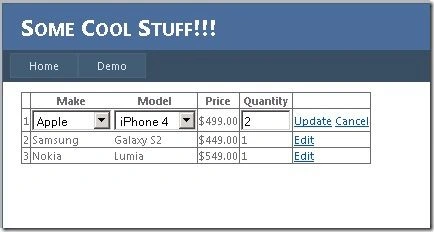
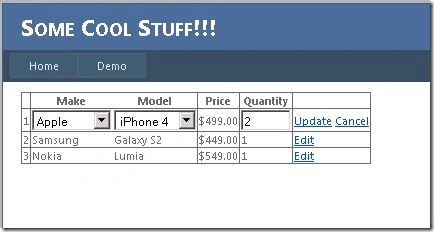
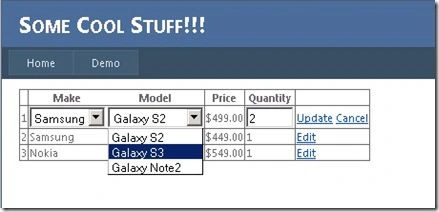
That's it! I hope someone finds this article useful.
Priyanka SinghPosted Jul 1, 2019, 4:34 AM
Here,we are unable to perform Update function.....
Sagar JadhavPosted Feb 10, 2019, 7:11 AM
Thanks bro....
Manav PandyaPosted May 27, 2017, 1:36 AM
Nice share brother..............
Raman KumarPosted Sep 3, 2015, 4:34 PM
i have a dropdownlist in gridview . values in dropdownlist are predefined using listitem and other columns are populated at runtime. But now i want the selected value of dropdownlist for a particular row in a variable . plz help
hami hamiPosted Jul 4, 2015, 5:36 AM
how to can i download this sample project ?
Santhakumar MunuswamyPosted Apr 28, 2015, 2:53 PM
Good work
Rahul Kumar SaxenaPosted Apr 28, 2015, 12:00 PM
Good Show...
Karthik Muthu KaruppanPosted Apr 28, 2015, 11:40 AM
Good
Gowtham RajamanickamPosted Apr 28, 2015, 4:08 AM
good
NitinPosted Apr 28, 2015, 1:04 AM
Nice