

Today, Microsoft Excel has become an increasingly popular tool for storing and processing data. It is quite common for some Excel files to contain sensitive or confidential information. When sending these files to others over the internet, there is a risk of exposing the information to unauthorized individuals, which could result in data breaches, privacy violations, or other security incidents. Protecting these files with passwords is a simple yet effective solution to this problem. In addition to password protection, Microsoft Excel also offers users many other ways to protect Excel files. This article will introduce 8 ways to protect Excel files using Java.
We will discuss the following topics:
- Protect an Excel Workbook with a Document-Open Password
- Protect an Excel Workbook with a Document-Modify Password
- Protect an Excel Worksheet
- Protect an Excel Worksheet with Specific Permissions
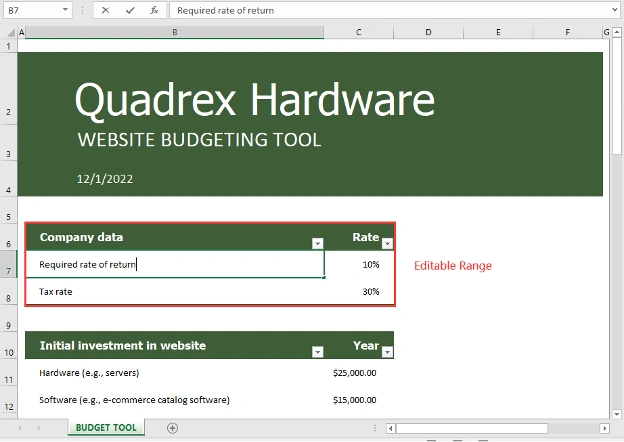
- Protect an Excel Worksheet while Allowing Certain Cell Ranges to be Edited
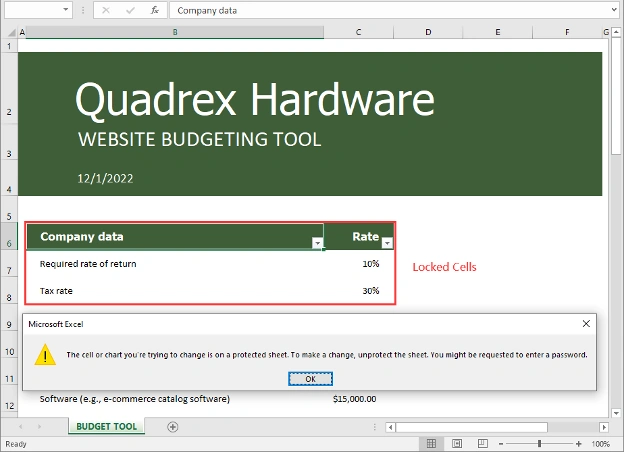
- Lock Specific Cells in an Excel Worksheet
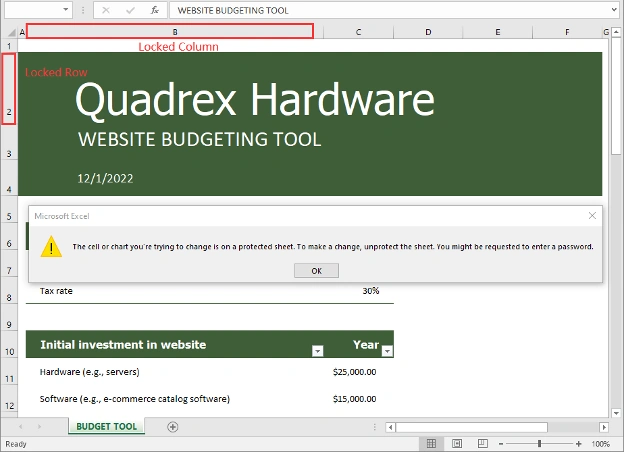
- Lock Specific Rows and Columns in an Excel Worksheet
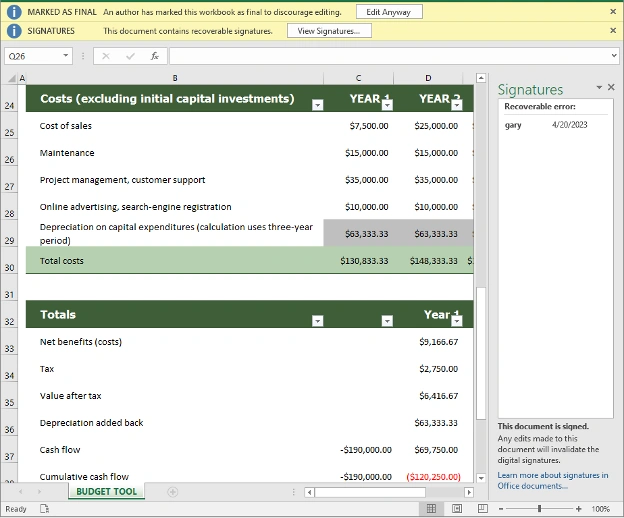
- Protect an Excel Workbook with Digital Signature
Add Dependencies
To implement protection on Excel files, this article uses Spire.XLS for Java library. Depending on the type of your project, there are two methods to include Spire.XLS for Java:
Method 1: If you are using maven, you can easily import the JAR file of Spire.XLS for Java into your application by adding the following code to your project's pom.xml file.
<repositories>
    <repository>
        <id>com.e-iceblue</id>
        <name>e-iceblue</name>
        <url>https://repo.e-iceblue.com/nexus/content/groups/public/</url>
    </repository>
</repositories>
<dependencies>
    <dependency>
        <groupId>e-iceblue</groupId>
        <artifactId>spire.xls</artifactId>
        <version>13.4.1</version>
    </dependency>
</dependencies>
Method 2: If you are not using maven, you can get Spire.XLS for Java from its official website, extract the zip file, then import the Spire.Xls.jar file under the lib folder into your project as a dependency.
Protect an Excel Workbook with a Document-Open Password in Java
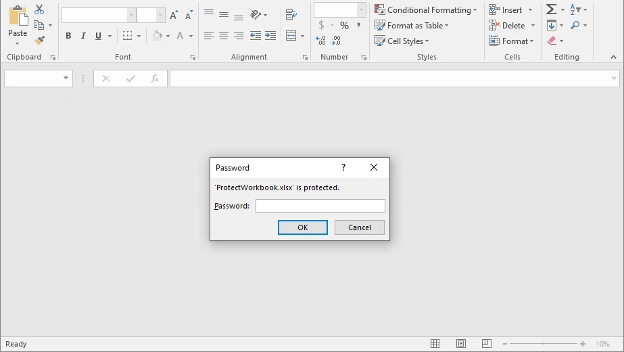
Protecting an Excel file with a document-open password can effectively prevent unauthorized users from viewing the information in the file. Whenever someone attempts to open the file, Excel will request a password beforehand.
The following steps demonstrate how to protect an Excel workbook with a password:
- Initialize an instance of the Workbook class.
- Load an Excel workbook using the Workbook.loadFromFile(string fileName) method.
- Protect the workbook with a document-open password using the Workbook.protect(String passwordToOpen) method.
- Save the workbook to another Excel file using the Workbook.saveToFile(String fileName, ExcelVersion version) method.
import com.spire.xls.ExcelVersion;
import com.spire.xls.Workbook;

public class ProtectWorkbookWithOpenPassword {
    public static void main(String[] args) {
        //Initialize an instance of the Workbook class
        Workbook workbook = new Workbook();
        //Load an Excel workbook
        workbook.loadFromFile("C:\\Users\\Administrator\\Desktop\\Website budget.xlsx");

        //Protect the workbook with a document-open password
        workbook.protect("123456");

        //Save the workbook to another Excel file
        workbook.saveToFile("ProtectWorkbook.xlsx", ExcelVersion.Version2016);
        workbook.dispose();
    }
}
Protect an Excel workbook with a Document-Modify Password in Java
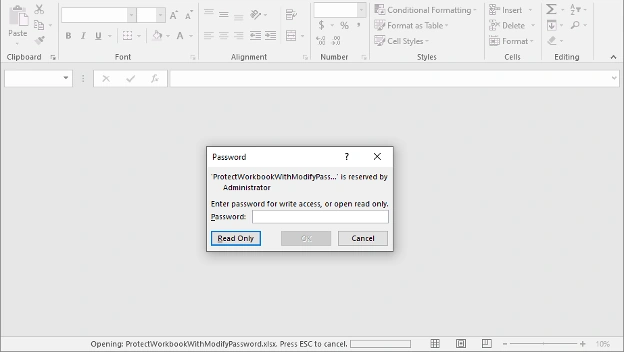
You can enable users to view an Excel file but only grant permissions to specific people to modify the file by protecting it with a document-modify password. When someone opens the protected file, Excel will require a password for write access. If he doesn’t have a password, he can open it as read-only.
The following steps demonstrate how to protect an Excel workbook with a document-modify password:
- Initialize an instance of the Workbook class.
- Load an Excel workbook using the Workbook.loadFromFile(string fileName) method.
- Protect the workbook with a document-modify password using the Workbook.setWriteProtectionPassword(String passwordToModify) method.
- Save the workbook to another Excel file using the Workbook.saveToFile(String fileName, ExcelVersion version) method.
import com.spire.xls.ExcelVersion;
import com.spire.xls.Workbook;

public class ProtectWorkbookWithModifyPassword {
    public static void main(String[] args) {
        //Initialize an instance of the Workbook class
        Workbook workbook = new Workbook();
        //Load an Excel workbook
        workbook.loadFromFile("C:\\Users\\Administrator\\Desktop\\Website budget.xlsx");

        //Protect the workbook with a document-modify password
        workbook.setWriteProtectionPassword("123456");

        //Save the workbook to another Excel file
        workbook.saveToFile("ProtectWorkbookWithModifyPassword.xlsx", ExcelVersion.Version2016);
        workbook.dispose();
    }
}
Protect an Excel Worksheet in Java
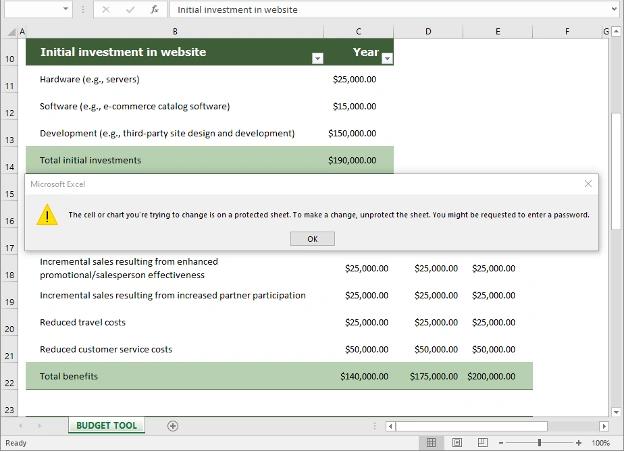
If you just want other users to view the data in an Excel worksheet without being able to change them, you can protect the worksheet with a password to make it non-editable.
The following steps demonstrate how to protect an Excel worksheet with a password:
- Initialize an instance of the Workbook class.
- Load an Excel workbook using the Workbook.loadFromFile(string fileName) method.
- Get a specific worksheet by its index using the Workbook.getWorksheets().get(int index) method.
- Protect the worksheet with a password using the Worksheet.protect(String password) method.
- Save the workbook to another Excel file using the Workbook.saveToFile(String fileName, ExcelVersion version) method.
import com.spire.xls.ExcelVersion;
import com.spire.xls.Workbook;
import com.spire.xls.Worksheet;

public class ProtectWorksheet {
    public static void main(String[] args) {
        //Initialize an instance of the Workbook class
        Workbook workbook = new Workbook();
        //Load an Excel workbook
        workbook.loadFromFile("C:\\Users\\Administrator\\Desktop\\Website budget.xlsx");

        //Get a specific worksheet by its index
        Worksheet worksheet = workbook.getWorksheets().get(0);

        //Protect the worksheet with a password
        worksheet.protect("123456");

        //Save the workbook to another Excel file
        workbook.saveToFile("ProtectWorksheet.xlsx", ExcelVersion.Version2016);
        workbook.dispose();
    }
}
Protect an Excel Worksheet with Specific Permissions in Java
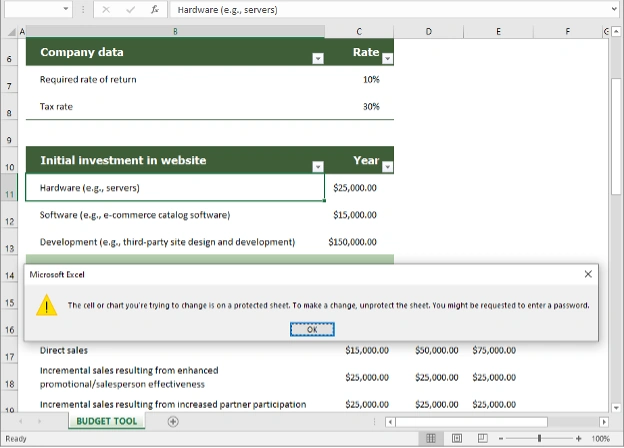
In addition to making worksheets non-editable, you can also control what types of changes people can make on protected worksheets. To achieve this feature, you need to specify the sheet protection type when protecting worksheets.
The following steps demonstrate how to protect an Excel worksheet with specific protection type(s):
- Initialize an instance of the Workbook class.
- Load an Excel workbook using the Workbook.loadFromFile(String fileName) method.
- Get a specific worksheet by its index using the Workbook.getWorksheets().get(int index) method.
- Protect the worksheet with specific protection type(s) using the Worksheet.protect(String password, EnumSet<SheetProtectionType> options) method.
- Save the workbook to another Excel file using the Workbook.saveToFile(String fileName, ExcelVersion version) method.
import com.spire.xls.*;

import java.util.EnumSet;

public class ProtectWorksheetWithSpecificPermissions {
    public static void main(String[] args) {
        //Initialize an instance of the Workbook class
        Workbook workbook = new Workbook();
        //Load an Excel workbook
        workbook.loadFromFile("C:\\Users\\Administrator\\Desktop\\Website budget.xlsx");

        //Get a specific worksheet by its index
        Worksheet worksheet = workbook.getWorksheets().get(0);

        //Protect the worksheet with specific protection types (select locked and unlocked cells)
        worksheet.protect("123456", EnumSet.of(SheetProtectionType.LockedCells, SheetProtectionType.UnLockedCells));

        //Save the workbook to another Excel file
        workbook.saveToFile("ProtectWorksheetWithProtectionType.xlsx", ExcelVersion.Version2016);
        workbook.dispose();
    }
}
Protect a Worksheet while Allowing Certain Cell Ranges to be Edited in Java
If you wish to allow editing in certain cell ranges in an Excel worksheet while keeping the rest of the cells non-editable, you can specify the editable cell ranges before protecting the worksheet.
The following steps demonstrate how to protect a worksheet while allowing certain cell ranges to be edited:
- Initialize an instance of the Workbook class.
- Load an Excel workbook using the Workbook.loadFromFile(String fileName) method.
- Get a specific worksheet by its index using the Workbook.getWorksheets().get(int index) method.
- Specify the editable cell range using the Worksheet.addAllowEditRange(String title, CellRange range) method.
- Protect the worksheet with a password using the Worksheet.protect(String password, EnumSet<SheetProtectionType> options) method.
- Save the workbook to another Excel file using the Workbook.saveToFile(String fileName, ExcelVersion version) method.
import com.spire.xls.ExcelVersion;
import com.spire.xls.SheetProtectionType;
import com.spire.xls.Workbook;
import com.spire.xls.Worksheet;

import java.util.EnumSet;

public class ProtectWorksheetWhileAllowEditingRanges {
    public static void main(String[] args) {
        //Initialize an instance of the Workbook class
        Workbook workbook = new Workbook();
        //Load an Excel workbook
        workbook.loadFromFile("C:\\Users\\Administrator\\Desktop\\Website budget.xlsx");

        //Get a specific worksheet by its index
        Worksheet worksheet = workbook.getWorksheets().get(0);

        //Specify the editable cell range
        worksheet.addAllowEditRange("Editable Range", worksheet.getCellRange("B6:C8"));

        //Protect the worksheet with a password
        worksheet.protect("123456", EnumSet.of(SheetProtectionType.All));

        //Save the workbook to another Excel file
        workbook.saveToFile("AllowEditingRanges.xlsx", ExcelVersion.Version2016);
        workbook.dispose();
    }
}
Lock Specific Cells in an Excel Worksheet in Java
Cell locking is helpful in situations where you need to prevent changes to critical data in certain cells while still allowing users to input or edit information in the rest of the cells in a worksheet.
The following steps demonstrate how to lock specific cells in a worksheet:
- Initialize an instance of the Workbook class.
- Load an Excel workbook using the Workbook.loadFromFile(String fileName) method.
- Get a specific worksheet by its index using the Workbook.getWorksheets().get(int index) method.
- Get the used range in the worksheet, then unlock all the cells in the range using the CellRange.getStyle().setLocked(false) method.
- Get the cell ranges that you want to prevent editing, then lock them using the CellRange.getStyle().setLocked(true) method.
- Protect the worksheet with a password using the Worksheet.protect(String password, EnumSet<SheetProtectionType> options) method.
- Save the workbook to another Excel file using the Workbook.saveToFile(String fileName, ExcelVersion version) method.
import com.spire.xls.*;

import java.util.EnumSet;

public class LockCells {
    public static void main(String[] args) {
        //Initialize an instance of the Workbook class
        Workbook workbook = new Workbook();
        //Load an Excel workbook
        workbook.loadFromFile("C:\\Users\\Administrator\\Desktop\\Website budget.xlsx");

        //Get a specific worksheet by its index
        Worksheet worksheet = workbook.getWorksheets().get(0);

        //Unlock all cells in the used range of the worksheet
        CellRange usedRange = worksheet.getRange();
        usedRange.getStyle().setLocked(false);

        //Lock specific cells
        CellRange cells = worksheet.getCellRange("B6:C8");
        cells.getStyle().setLocked(true);

        //Protect the worksheet with a password
        worksheet.protect("123456", EnumSet.of(SheetProtectionType.All));

        //Save the workbook to another Excel file
        workbook.saveToFile("LockCells.xlsx", ExcelVersion.Version2016);
        workbook.dispose();
    }
}
Lock Specific Rows and Columns in an Excel Worksheet in Java
In addition to locking certain cells, you are also able to lock specific rows and columns.
The following steps demonstrate how to lock a specific row and column:
- Initialize an instance of the Workbook class.
- Load an Excel workbook using the Workbook.loadFromFile(String fileName) method.
- Get a specific worksheet by its index using the Workbook.getWorksheets().get(int index) method.
- Get the used range in the worksheet, then unlock all the cells in the range using the CellRange.getStyle().setLocked(false) method.
- Lock a specific row and column using the Worksheet.getRows()[int rowIndex].getStyle().setLocked(true) and the Worksheet.getColumns()[int columnIndex].getStyle().setLocked(true) methods.
- Protect the worksheet with a password using the Worksheet.protect(String password, EnumSet<SheetProtectionType> options) method.
- Save the workbook to another Excel file using the Workbook.saveToFile(String fileName, ExcelVersion version) method.
import com.spire.xls.*;

import java.util.EnumSet;

public class LockRowsAndColumns {
    public static void main(String[] args) {
        //Initialize an instance of the Workbook class
        Workbook workbook = new Workbook();
        //Load an Excel workbook
        workbook.loadFromFile("C:\\Users\\Administrator\\Desktop\\Website budget.xlsx");

        //Get a specific worksheet by its index
        Worksheet worksheet = workbook.getWorksheets().get(0);

        //Unlock all cells in the used range of the worksheet
        CellRange usedRange = worksheet.getRange();
        usedRange.getStyle().setLocked(false);

        //Lock the second row and column
        worksheet.getRows()[1].getStyle().setLocked(true);
        worksheet.getColumns()[1].getStyle().setLocked(true);

        //Protect the worksheet with a password
        worksheet.protect("123456", EnumSet.of(SheetProtectionType.All));

        //Save the workbook to another Excel file
        workbook.saveToFile("LockRowsAndColumns.xlsx", ExcelVersion.Version2016);
        workbook.dispose();
    }
}
Protect an Excel Workbook with Digital Signature in Java
Adding a digital signature is an effective way to ensure the authenticity and integrity of an Excel file.
The following steps demonstrate how to add a digital signature to an Excel file:
- Initialize an instance of the Workbook class.
- Load an Excel workbook using the Workbook.loadFromFile(String fileName) method.
- Initialize an instance of the CertificateAndPrivateKey class, and pass the path of the certificate (.pfx) file and its password to the constructor of the class as parameters.
- Add a digital signature to the file using the Workbook.addDigitalSignature(CertificateAndPrivateKey certAndPrivateKey, String comments, Date signTime) method.
- Save the workbook to another Excel file using the Workbook.saveToFile(String fileName, ExcelVersion version) method.
import com.spire.xls.ExcelVersion;
import com.spire.xls.Workbook;
import com.spire.xls.digital.CertificateAndPrivateKey;

import java.util.Date;

public class AddDigitalSignature {
    public static void main(String[] args) throws Exception {
        //Initialize an instance of the Workbook class
        Workbook workbook = new Workbook();
        //Load an Excel workbook
        workbook.loadFromFile("C:\\Users\\Administrator\\Desktop\\Website budget.xlsx");

        //Add a digital signature to the file
        CertificateAndPrivateKey cap = new CertificateAndPrivateKey("test.pfx","psd");
        workbook.addDigitalSignature(cap, "psd",new Date());

        //Save the workbook to another Excel file
        workbook.saveToFile("LockCells.xlsx", ExcelVersion.Version2016);
        workbook.dispose();
    }
}
Mohamed Azarudeen ZPosted Apr 23, 2023, 8:27 AM
Informative