

Introduction and Goal
In this article we will try to understand the 4
important steps to consume web service directly in Ajax. In this sample we will
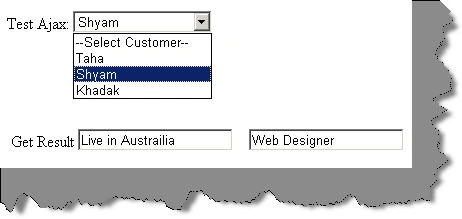
create a simple customer combo box as shown in the figure below. This customer
combo box will be filled by calling the web service methods directly of the
customer web service.
Here's my small gift for all my .NET friends , a complete 400 pages FAQ Ebook
which covers various .NET technologies like Azure , WCF , WWF , Silverlight ,
WPF , SharePoint and lot more http://www.questpond.com/SampleDotNetInterviewQuestionBook.zip
Video tutorial
This whole article is also demonstrated in video format which you can view from here http://www.youtube.com/watch?v=FvpXZdRTr4Q .
Introduction
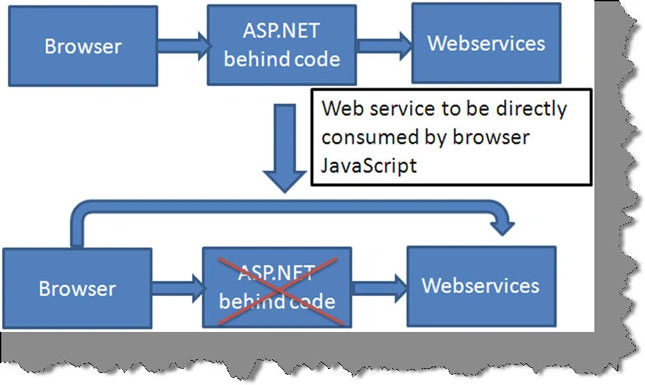
Normally consumption of web services happens as shown in the below figure. The browser Ajax controls calls the ASP.NET code and the ASP.NET code consumes the web service. But there are scenarios where you would like to call the web services directly from the ajax javascript functions rather than calling via the behind code. This article will demonstrate how we can achieve the same.
Step 1 Create your customer class
The first step is to create the customer class as
shown below. So our customer class has 4 properties on customer id, first name,
address and designation.
public class Customers
{
private int
_intCustomerID;
private string
_strFirstName;
private string
_strAddress;
private string
_strDesignation;
public int CustomerID
{
get
{
return _intCustomerID;
}
set
{
_intCustomerID = value;
}
}
public string
FirstName
{
get
{
return _strFirstName;
}
set
{
_strFirstName = value;
}
}
public string Address
{
get
{
return _strAddress;
}
set
{
_strAddress
= value;
}
}
public string
Designation
{
get
{
return _strDesignation;
}
set
{
_strDesignation = value;
}
}
}
Step 2:- Create your web service
The next step is we need to create the web service
which exposes the customer class to our UI. Below is a simple web service which
has encapsulated customer collection. In the constructor we are loading some
dummy data in to the list of customer as shown in the below code snippet.
[System.Web.Script.Services.ScriptService]
public class Customer : System.Web.Services.WebService
{
// Customer collection
List<Customers> listcust = new List<Customers>();
public Customer()
{
//Load some dummy data in to customer collection.
listcust.Clear();
Customers cust
= new Customers();
cust.CustomerID
= 1;
cust.FirstName
= "Taha";
cust.Address = "Live in India";
cust.Designation = "Software
Developer";
listcust.Add(cust);
cust = new Customers();
cust.CustomerID
= 2;
cust.FirstName
= "Shyam";
cust.Address = "Live in Austrailia";
cust.Designation = "Web Designer";
listcust.Add(cust);
cust = new Customers();
cust.CustomerID
= 3;
cust.FirstName
= "Khadak";
cust.Address = "Live in London";
cust.Designation = "Architect";
listcust.Add(cust);
}
{
private int _intCustomerID;
private string _strFirstName;
private string _strAddress;
private string _strDesignation;
{
get
{
return _intCustomerID;
}
set
{
_intCustomerID = value;
}
}
{
get
{
return _strFirstName;
}
set
{
_strFirstName = value;
}
}
{
get
{
return _strAddress;
}
set
{
_strAddress = value;
}
}
public string Designation
{
get
{
return _strDesignation;
}
set
{
_strDesignation = value;
}
}
}
// This function exposes all customers to the end client'
[WebMethod]
public List<Customers>
LoadCustomers()
{
return listcust;
}
// This function helps us to get customer object based in
ID
[WebMethod]
public Customers LoadSingleCustomers(int _customerid)
{
return (Customers)listcust[_customerid - 1];
}
We are also exposing two functions through the web service one which give out a list of customers and other which gives out individual customer data based in customer id.
Step 3:- Reference your web service using the asp:servicereference
Using the 'asp:ServiceReference' we will then point the path to the ASMX file as shown in the below code snippet. This will generate the JavaScript proxy which can be used to call the customer object.<asp:ScriptManager ID="ScriptManager1"
runat="server">
<Services>
<asp:ServiceReference Path="Customer.asmx"
/>
</Services>
</asp:ScriptManager>
Step 4:- Call the webservice and the
javascript code
Once you have defined the proxy you can now call
the 'Customer' proxy directly to make method calls.
<Services>
<asp:ServiceReference Path="Customer.asmx" />
</Services>
</asp:ScriptManager>
function LoadAll() { Customer.LoadCustomers(LoadCustomerToSelectOption, ErrorHandler, TimeOutHandler); }
When you call the JavaScript proxy object we need to provide three functions the first function ('LoadCustomerToSelectOption') will be called on the web service finishes and returns data. The data will be returned in the fill variable which will then be looped and added to the customer combo box.
function LoadCustomerToSelectOption(Fill)
{
var select = document.getElementById("cmbCustomers");
for (var i = 0; i
< Fill.length; i++)
{
var value = new
Option(Fill[i].FirstName, Fill[i].CustomerID);
select.options.add(value);
}
}
There are two more functions which are attached
one which handles error and the other which handles time out. Below are the code
snippets for the same.
function ErrorHandler(result)
{
var msg = result.get_exceptionType() + "\r\n";
msg +=
result.get_message() + "\r\n";
msg +=
result.get_stackTrace();
alert(msg);
}
function TimeOutHandler(result)
{
alert("Timeout :" + result);
}
Source code
Above is the attached source code Download from
top of this article.
{
var select = document.getElementById("cmbCustomers");
for (var i = 0; i < Fill.length; i++)
{
var value = new Option(Fill[i].FirstName, Fill[i].CustomerID);
select.options.add(value);
}
}
{
var msg = result.get_exceptionType() + "\r\n";
msg += result.get_message() + "\r\n";
msg += result.get_stackTrace();
alert(msg);
}
function TimeOutHandler(result)
{
alert("Timeout :" + result);
}
Join the conversation! Your thoughts help the community grow.