

Introduction
This is a simple application for beginners that shows how to use various compositions on canvas using HTML5. We know that HTML 5 is the advanced version of HTML. Basically HTML 5 can be used to develop 3D applications. This article is intended to help with the use of HTML5 tools to use various compositions on a canvas application. <canvas> is an HTML element which can be used to draw graphics using scripting. It can be used to draw graphs to make photo compositions or do simple animations. The <canvas> element is a bitmap drawing API and once you have committed to a set of pixels you are stuck with them. Canvas is an important tag of an HTML 5 that is used to show the image and text in an HTML 5 application. I hope this article helps to create various compositions on canvas using HTML5 tools.
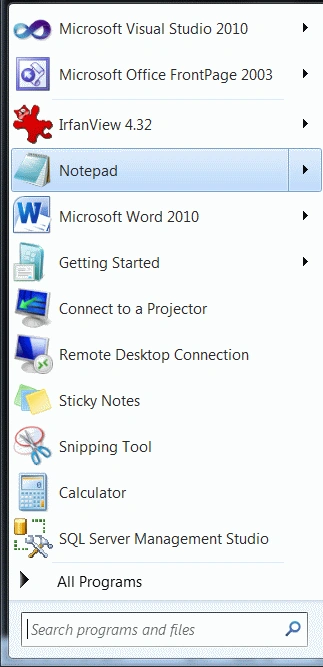
Step 1: First open an HTML editor such as Notepad.
- Open start->Notepad.
- The name of the editor is "canvas".
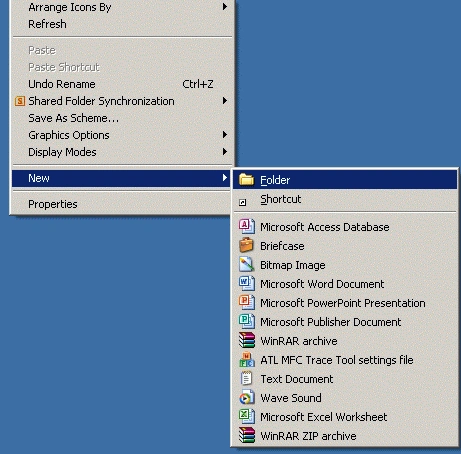
- Right-click on desktop->new->Folder.
- The name of the folder is "joy".
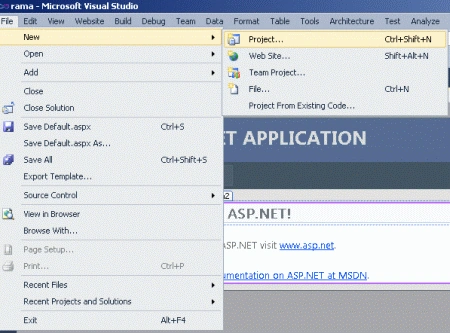
- Go to file -> New->Projects.
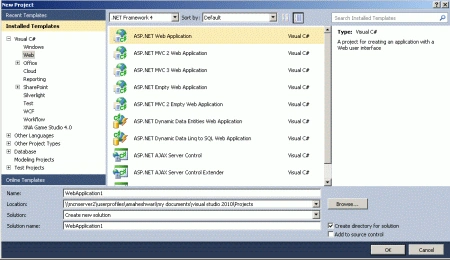
- Create an ASP. NET Web Application.
- Name of "composition.aspx".
- Right-click on Solution Explorer.
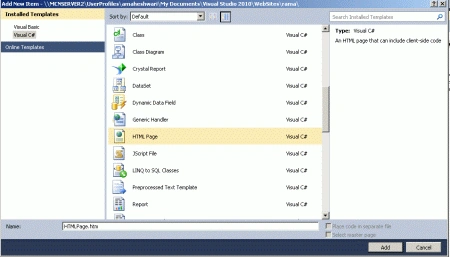
- Add->add new item->HTML form.
- The Name of the HTML form is "Demo.html".
Code
- function drawShape()
- {
- for (i = 0; i < rxt.length; i++)
- {
- var label = document.createTextNode(rxt[i]);
- document.getElementById('lab' + i).appendChild(label);
- var canvas = document.getElementById('tut' + i).getContext('2d');
- canvas.fillStyle = "green";
- canvas.fillRect(15, 15, 70, 70);
- canvas.globalCompositeOperation = rxt[i];
- canvas.fillStyle = "#ff3399";
- canvas.beginPath();
- canvas.arc(75, 75, 35, 0, Math.PI * 2, true);
- canvas.fill();
- }
- }
Step 6: Now in this step we set a structure of a table that used to display a different type of composition in a formatted way.
Code
- <table border="1" align="center" bgcolor="#FF99FF">
- <tr>
- <td><canvas id="tut0" width="150" height="150"></canvas><br/>
- <label id="lab0"></label>
- </td>
- <td><canvas id="tut1" width="150" height="150"></canvas><br/>
- <label id="lab1"></label>
- </td>
- <td><canvas id="tut2" width="150" height="150"></canvas><br/>
- <label id="lab2"></label>
- </td>
- </tr>
- <tr>
- <td><canvas id="tut3" width="150" height="150"></canvas><br/>
- <label id="lab3"></label>
- </td>
- <td><canvas id="tut4" width="150" height="150"></canvas><br/>
- <label id="lab4"></label>
- </td>
- <td><canvas id="tut5" width="150" height="150"></canvas><br/>
- <label id="lab5"></label>
- </td>
- </tr>
- <tr>
- <td><canvas id="tut6" width="150" height="150"></canvas><br/>
- <label id="lab6"></label>
- </td>
- <td><canvas id="tut7" width="150" height="150"></canvas><br/>
- <label id="lab7"></label>
- </td>
- <td><canvas id="tut8" width="150" height="150"></canvas><br/>
- <label id="lab8"></label>
- </tr>
- <tr>
- </td>
- <td><canvas id="tut9" width="150" height="150"></canvas><br/>
- <label id="lab9"></label>
- </td>
- <td><canvas id="tut10" width="150" height="150"></canvas><br/>
- <label id="lab10"></label>
- </td>
- <td><canvas id="tut11" width="150" height="150"></canvas><br/>
- <label id="lab11"></label>
- </td>
- </tr>
- </table>
Step 7: Now in this step we set a variable named "rxt" used to set the name of composition.
Code
- var rxt = [
- 'source-over', 'source-in', 'source-out', 'source-atop',
- 'destination-over', 'destination-in', 'destination-out',
- 'destination-atop', 'lighter', 'darker', 'copy', 'xor'
- ];
Step 8: The complete demonstration of a different composition application is given below.
Code
- <html>
- <head>
- <title>Tom developed html 5 application</title>
- <script type="text/javascript">
- var rxt = [
- 'source-over', 'source-in', 'source-out', 'source-atop',
- 'destination-over', 'destination-in', 'destination-out',
- 'destination-atop', 'lighter', 'darker', 'copy', 'xor'
- ];
- </script>
- function drawShape()
- {
- for (i = 0; i < rxt.length; i++)
- {
- var label = document.createTextNode(rxt[i]);
- document.getElementById('lab' + i).appendChild(label);
- var canvas = document.getElementById('tut' + i).getContext('2d');
- canvas.fillStyle = "green";
- canvas.fillRect(15, 15, 70, 70);
- canvas.globalCompositeOperation = rxt[i];
- canvas.fillStyle = "#ff3399";
- canvas.beginPath();
- canvas.arc(75, 75, 35, 0, Math.PI * 2, true);
- canvas.fill();
- }
- }
- </head>
- <body onload="drawShape();" bgcolor="#804040">
- <h1></h1>
- <table border="1" align="center" bgcolor="#FF99FF">
- <tr>
- <td>
- <canvas id="tut0" width="150" height="150"></canvas>
- <br/>
- <label id="lab0"></label>
- </td>
- <td>
- <canvas id="tut1" width="150" height="150"></canvas>
- <br/>
- <label id="lab1"></label>
- </td>
- <td>
- <canvas id="tut2" width="150" height="150"></canvas>
- <br/>
- <label id="lab2"></label>
- </td>
- </tr>
- <tr>
- <td>
- <canvas id="tut3" width="150" height="150"></canvas>
- <br/>
- <label id="lab3"></label>
- </td>
- <td>
- <canvas id="tut4" width="150" height="150"></canvas>
- <br/>
- <label id="lab4"></label>
- </td>
- <td>
- <canvas id="tut5" width="150" height="150"></canvas>
- <br/>
- <label id="lab5"></label>
- </td>
- </tr>
- <tr>
- <td>
- <canvas id="tut6" width="150" height="150"></canvas>
- <br/>
- <label id="lab6"></label>
- </td>
- <td>
- <canvas id="tut7" width="150" height="150"></canvas>
- <br/>
- <label id="lab7"></label>
- </td>
- <td>
- <canvas id="tut8" width="150" height="150"></canvas>
- <br/>
- <label id="lab8"></label>
- </tr>
- <tr>
- </td>
- <td>
- <canvas id="tut9" width="150" height="150"></canvas>
- <br/>
- <label id="lab9"></label>
- </td>
- <td>
- <canvas id="tut10" width="150" height="150"></canvas>
- <br/>
- <label id="lab10"></label>
- </td>
- <td>
- <canvas id="tut11" width="150" height="150"></canvas>
- <br/>
- <label id="lab11"></label>
- </td>
- </tr>
- </table>
- </body>
- </html>
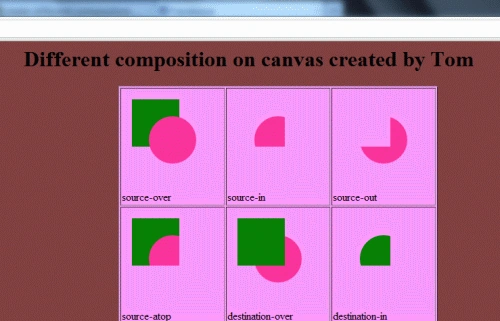
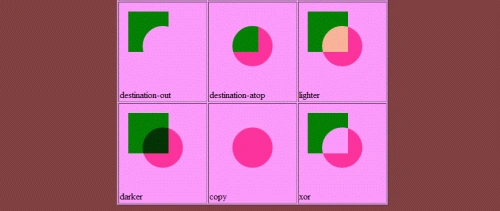
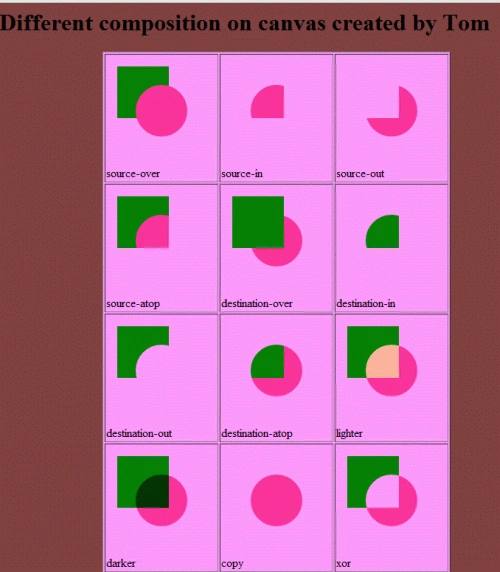
Step 9: Press Ctrl + F5 to run the application in a browser.
Output
Resources
Here are some useful resources
Join the conversation! Your thoughts help the community grow.