

Introduction
As you know, Visual Studio LightSwitch is a Microsoft Technology. It is used for build business applications. There are many screen available in LightSwitch like a Details screen, Editable grid screen, List and details screen, New data screen, Search data screen. If you want to create a custom screen in the LightSwitch Application, it is possible. In this article you learn how to create a custom search screen and use of a button in LightSwitch application.
Step by step solution
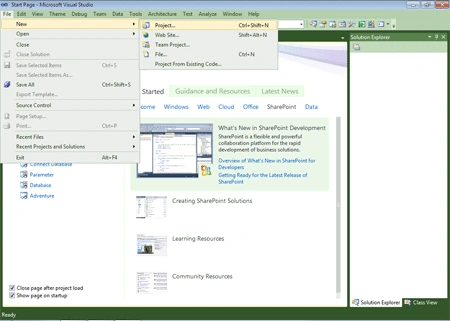
Step 1: Open Visual Studio LightSwitch 2011->File->Project.
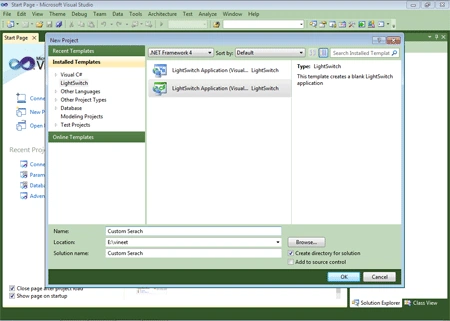
Step 2: Select LightSwitch Application in C#->Write name of the application->Ok.
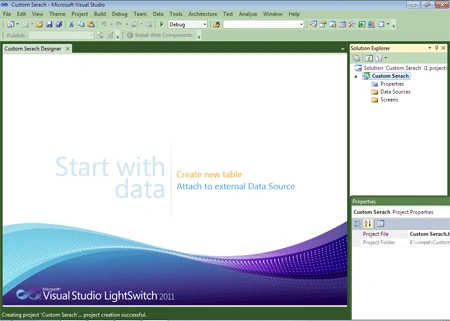
Step 3: Select Create new table.
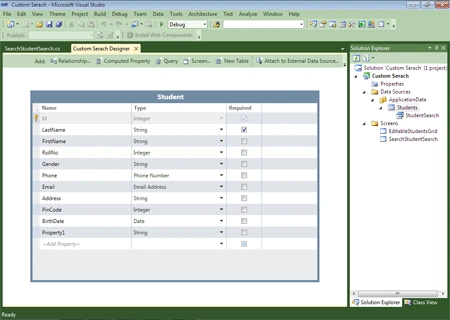
Step 4: Make the table like as student.
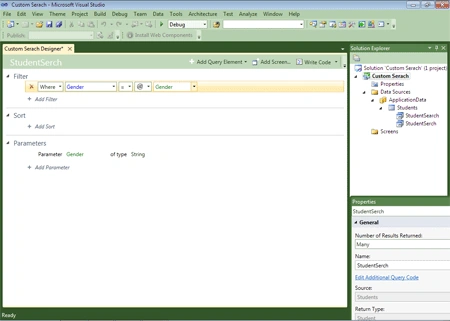
Step 5: Right click on student table->Change query name (student search)->Add filter (where gender is parameter)->Save.
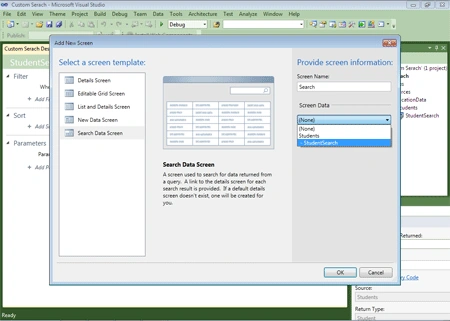
Step 6: Add screen->Search data screen->Select screen data (student search)->Ok.
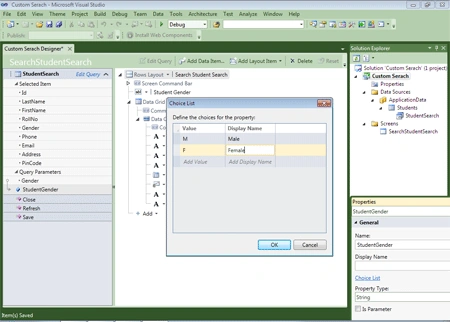
Step 7: Now go to student gender property->Click choice list->Fill value and display name->Ok.
Step 8: Run application->Design screen->Command Bar (select AddAndEditNew)->Save.
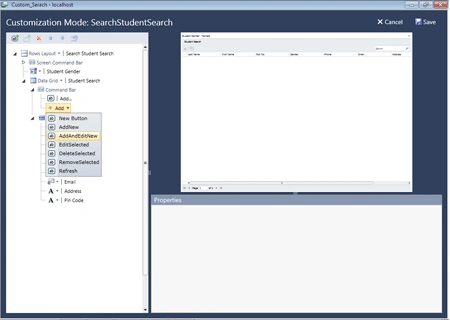
Step 9: Click + sign then fill data. Now you can search student using by gender property.
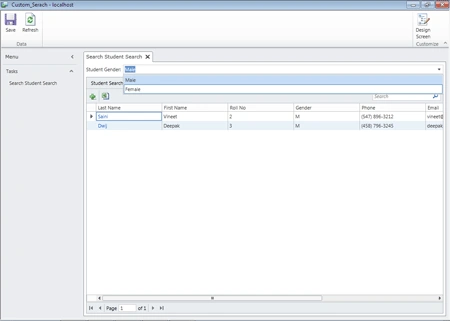
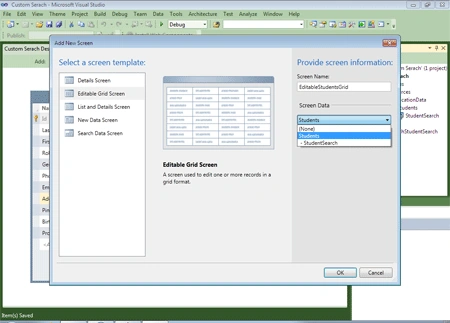
Step 10: Stop debugging->Add new property in student table is Birthdate->Save->Add screen->Editable grid screen->Select screen data (student)->Run application->Fill Birthdate in the table.
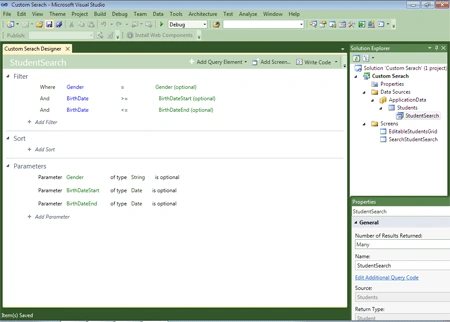
Step 11: Open StudentSearch->Add filter (where Birthdate >= and <= is parameter)->Change parameter name (BirthdateStart and Birthdate End)->Check optional property->Save.
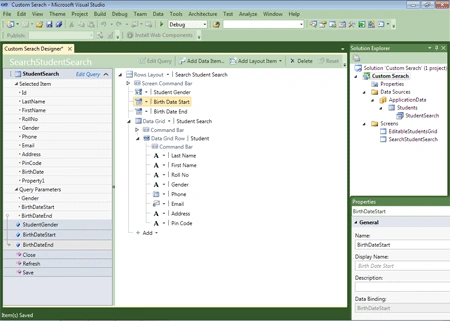
Step 12: Open StudentSearch screen->Move BirthdateStart and BirthdateEnd from the left side to below the Student Gender.
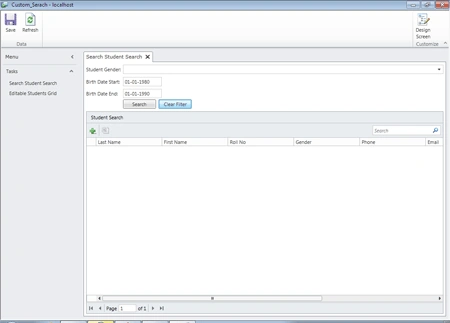
Step 13: Run application->Now you can search student using by Birthdate and Gender property.
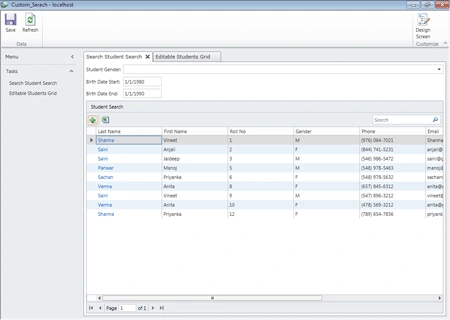
Step 14: If you add button for searching in our application then you can add.
Open StudentSearch screen->Right click on Birthdate->Add Button->Write name of the Button (Search)->Ok->Again add new Button->Write name of Button(ClearFilter)->Ok.
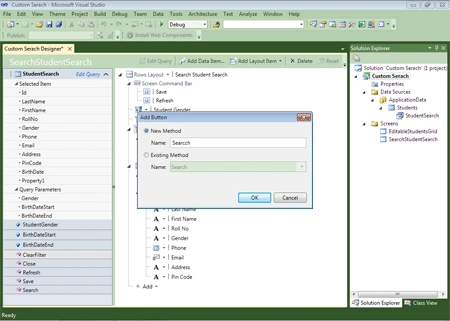
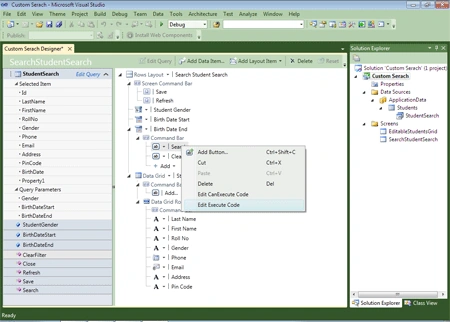
Step 15: Right click on Search Button and ClearFilter Button->Edit execute code->Now write the below code.
using
System;
using
System.Linq;
using System.IO;
using
System.IO.IsolatedStorage;
using
System.Collections.Generic;
using
Microsoft.LightSwitch;
using
Microsoft.LightSwitch.Framework.Client;
using
Microsoft.LightSwitch.Presentation;
using
Microsoft.LightSwitch.Presentation.Extensions;
namespace
LightSwitchApplication
{
public partial
class
SearchStudentSearch
{
partial void
Search_Execute()
{
this.StudentSearch.Load();
}
partial void
ClearFilter_Execute()
{
this.StudentGender =
" ";
this.StudentSearch.Load();
}
}
}
Step 16: Now you can use Search button for searching student.
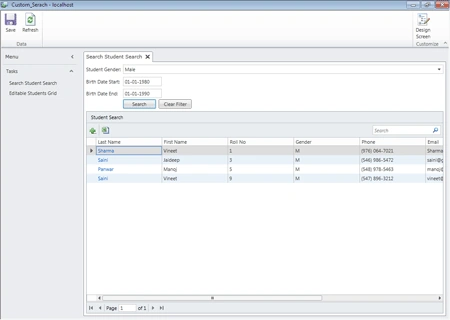
Step 17: You can use ClearFilter button for clear the searching.
Summary:
As you know there are many screen in the LightSwitch Application. If you can create custom screen in LightSwitch Application then this article is very useful for that purpose.
Join the conversation! Your thoughts help the community grow.